KodeKloud AWS Challenge — Day 50: Expanding an EC2 Root Volume Without Downtime
Safely increasing EBS storage from 8 GiB to 12 GiB and extending the root filesystem live.

image_genrated_using_chatgpt
KodeKloud AWS Challenge — Day 50: Expanding an EC2 Root Volume Without Downtime
Safely increasing EBS storage from 8 GiB to 12 GiB and extending the root filesystem live.
Introduction
Running out of disk space is not a theoretical problem — it’s a production outage waiting to happen.
Day 50 focused on expanding the root volume of an EC2 instance:
- Instance:
datacenter-ec2 - Current size: 8 GiB
- Required size: 12 GiB
- No downtime allowed
- Root (
/) must reflect the new size
This is real infrastructure management — not just provisioning.
Step 1: Identify the Attached Volume
From the AWS Console:
- Navigate to EC2 → Instances
- Select
datacenter-ec2 - Open the Storage tab
- Note the Volume ID
Then verify under:
EC2 → Elastic Block Store → Volumes
Confirm:
- Size = 8 GiB
- State = In-use
- Attached to
datacenter-ec2
You are modifying the root EBS volume.
Step 2: Modify the EBS Volume Size
In EBS → Volumes:
- Select the volume
- Click Actions → Modify Volume
- Change size:
8 GiB → 12 GiB
- Save
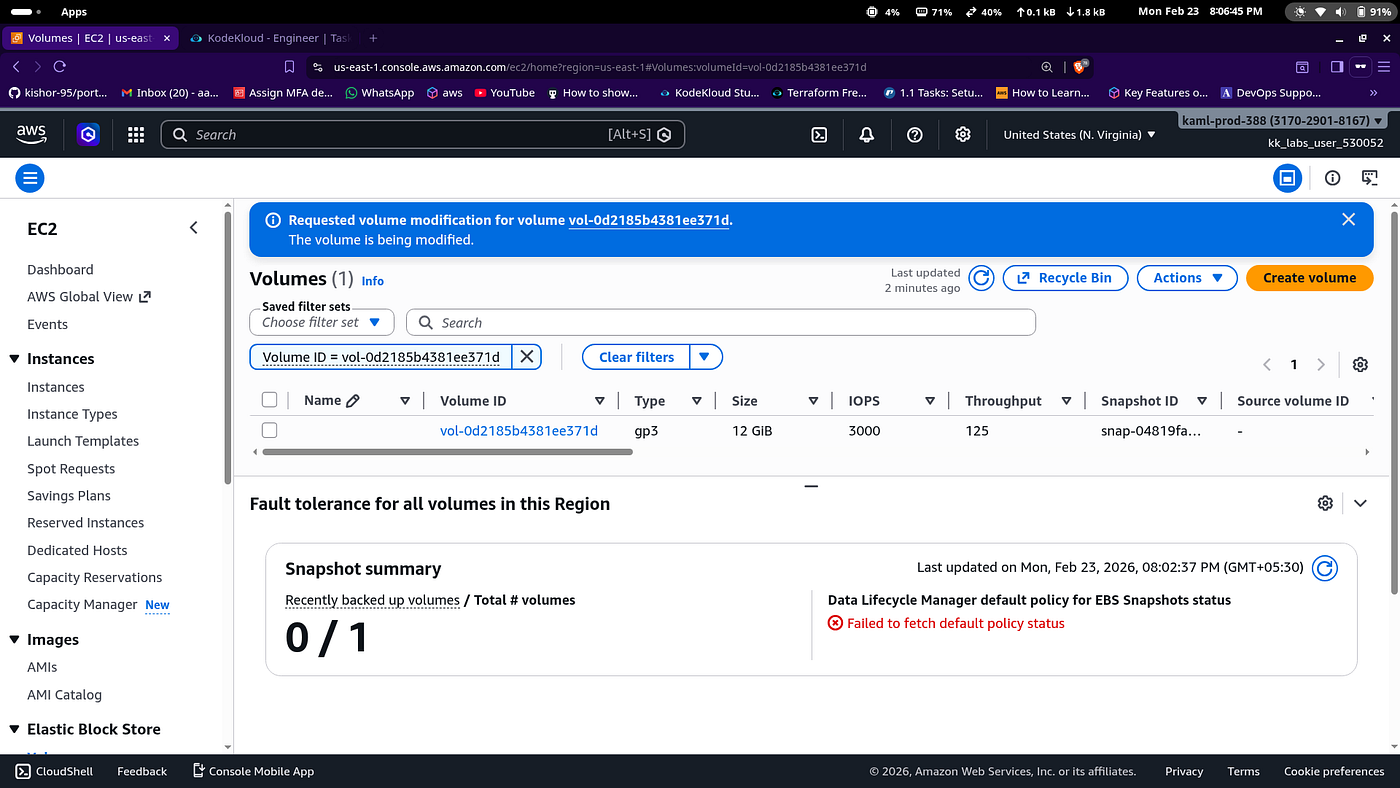
AWS allows online EBS resizing.
Wait until:
State = Optimizing or CompletedYou do NOT need to stop the instance.
Step 3: SSH Into the Instance
From the AWS client host:
ssh -i /root/datacenter-keypair.pem ubuntu@<public-ip>Or:
ssh -i /root/datacenter-keypair.pem ec2-user@<public-ip>(Depending on AMI)
Verify current disk size:
lsblk
df -h
You’ll see:
- Volume = 12 GiB
- Root partition still showing 8 GiB
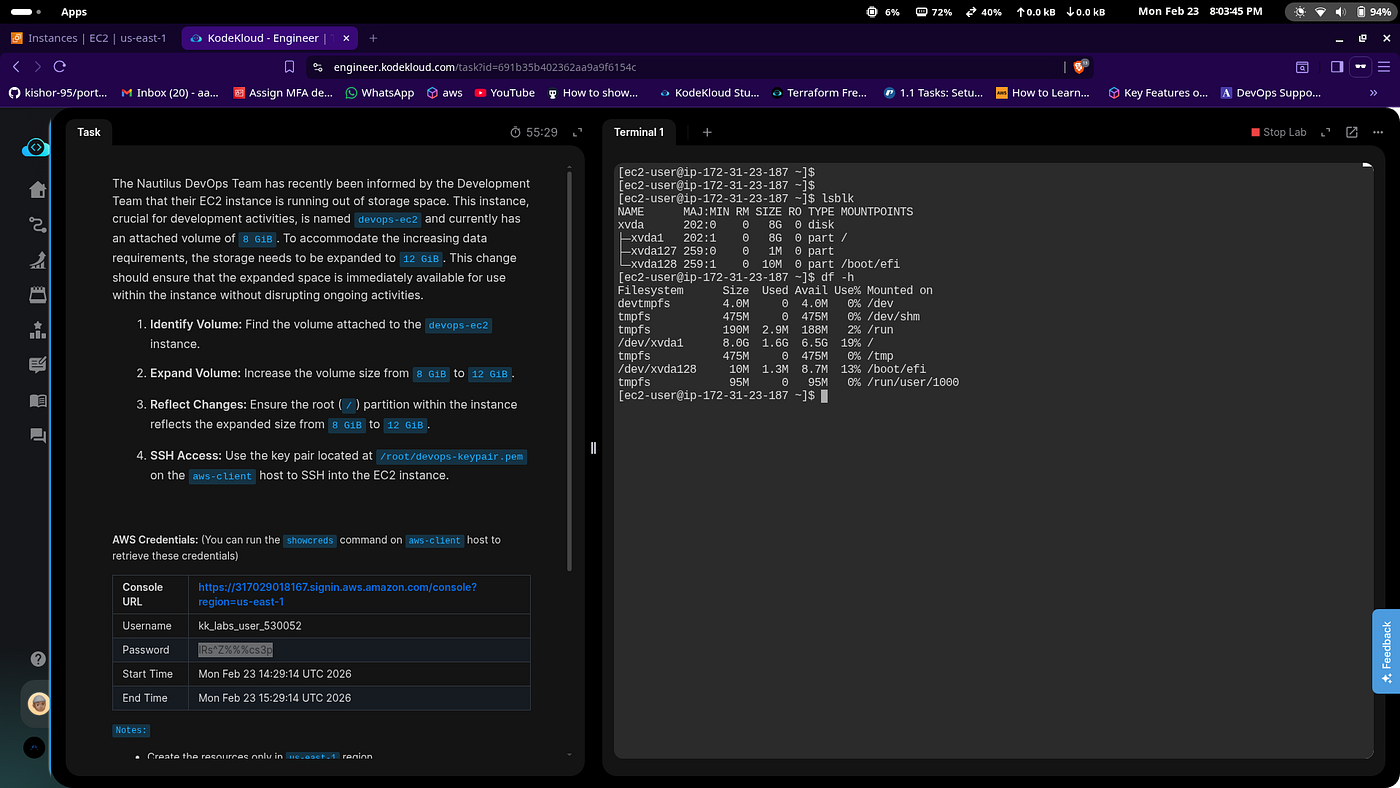
This is expected.
AWS resized the block device — not the filesystem.
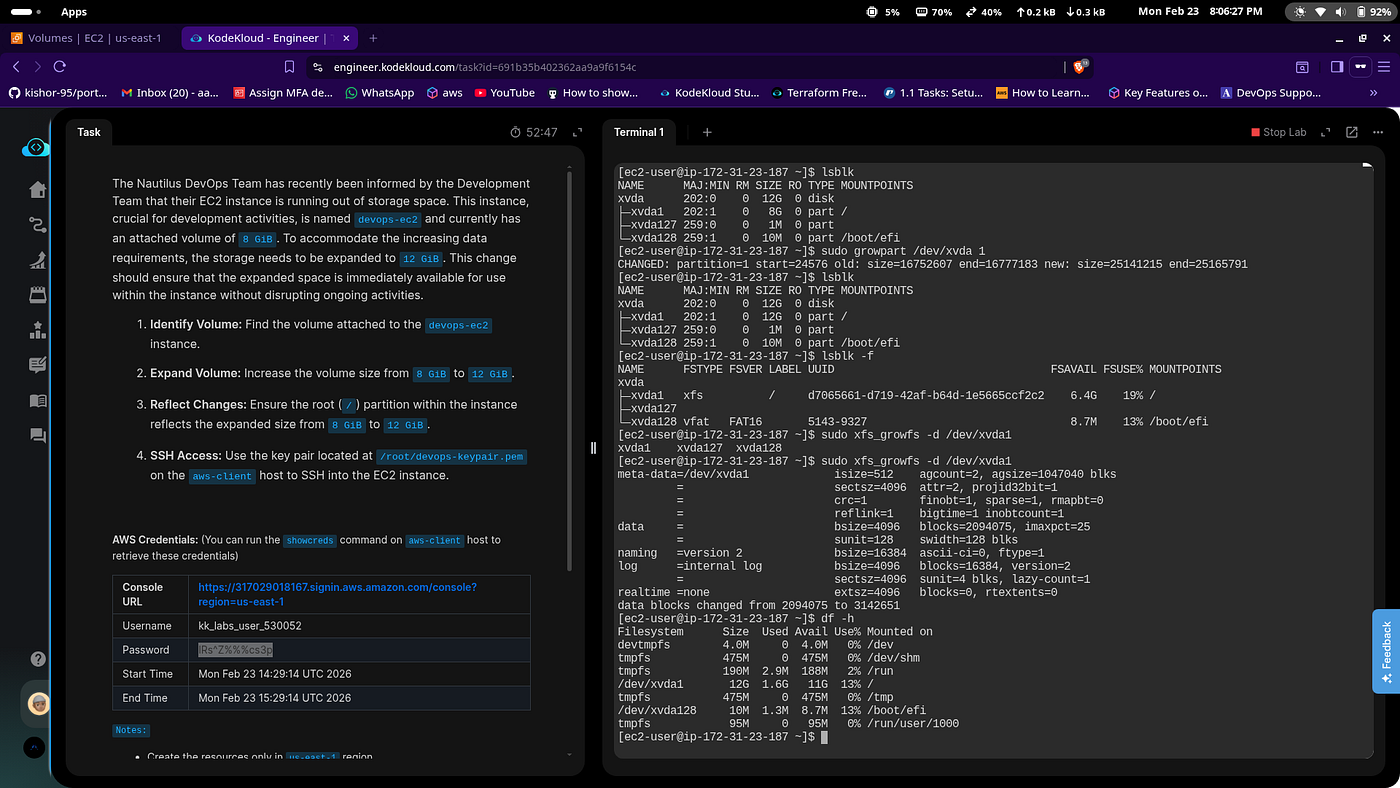
Step 4: Expand the Partition
First, check partition layout:
lsblkIf root device is:
/dev/xvda1Run:
sudo growpart /dev/xvda 1This expands partition 1 to use the full disk.
If growpart is missing:
sudo apt install cloud-guest-utils -yStep 5: Resize the Filesystem
Now expand the filesystem.
If using ext4:
sudo resize2fs /dev/xvda1If using xfs:
sudo xfs_growfs -d /dev/xvda1Most modern Ubuntu Amazon Linux AMIs use xfs.
Step 6: Verify Expansion
Run:
df -hNow root (/) should reflect:
12G totalStorage expansion complete.
Why This Works Without Downtime
Amazon EBS supports:
- Online volume modification
- Live filesystem resizing
- Zero instance restart (in most cases)
The process:
- Expand block storage
- Extend partition
- Grow filesystem
Three layers. All must be handled.
Common Failure Points
- Forgetting to grow partition
- Forgetting to resize filesystem
- Wrong device name
- Not waiting for volume modification to complete
- Using incorrect filesystem command (xfs vs ext4)
Disk resizing has 3 layers: Block → Partition → Filesystem
Miss one, and it won’t reflect.
Key Takeaways
- EBS resizing is safe and live
- Filesystem expansion is manual
- Always verify with
df -h - Know your filesystem type
- Infrastructure maintenance requires precision
Cloud doesn’t eliminate ops — it changes it.
메타데이터
- post_id
- a9ab88a19d0c
- slug
- kodekloud-aws-challenge-day-50-expanding-an-ec2-root-volume-without-downtime-a9ab88a19d0c
- url
- https://blog.devops.dev/kodekloud-aws-challenge-day-50-expanding-an-ec2-root-volume-without-downtime-a9ab88a19d0c
- canonical_url
- https://blog.devops.dev/kodekloud-aws-challenge-day-50-expanding-an-ec2-root-volume-without-downtime-a9ab88a19d0c
- author_url
- https://medium.com/@kishorbhairat
- status
- ok
- fetched_at
- 2026-07-09 04:10:03