Programming the T-WATCH-2020 — Part 2
Using the TTGO T-Watch Library
Programming the T-WATCH-2020 — Part 2
Using the TTGO T-Watch Library
Part 1 of this series described setting up the Arduino Development Environment for the T-Watch, and Part 2 will provide details of the TTGO T-Watch Library (which is great but has a poorly documented API).
Using the TTGO T-Watch Library
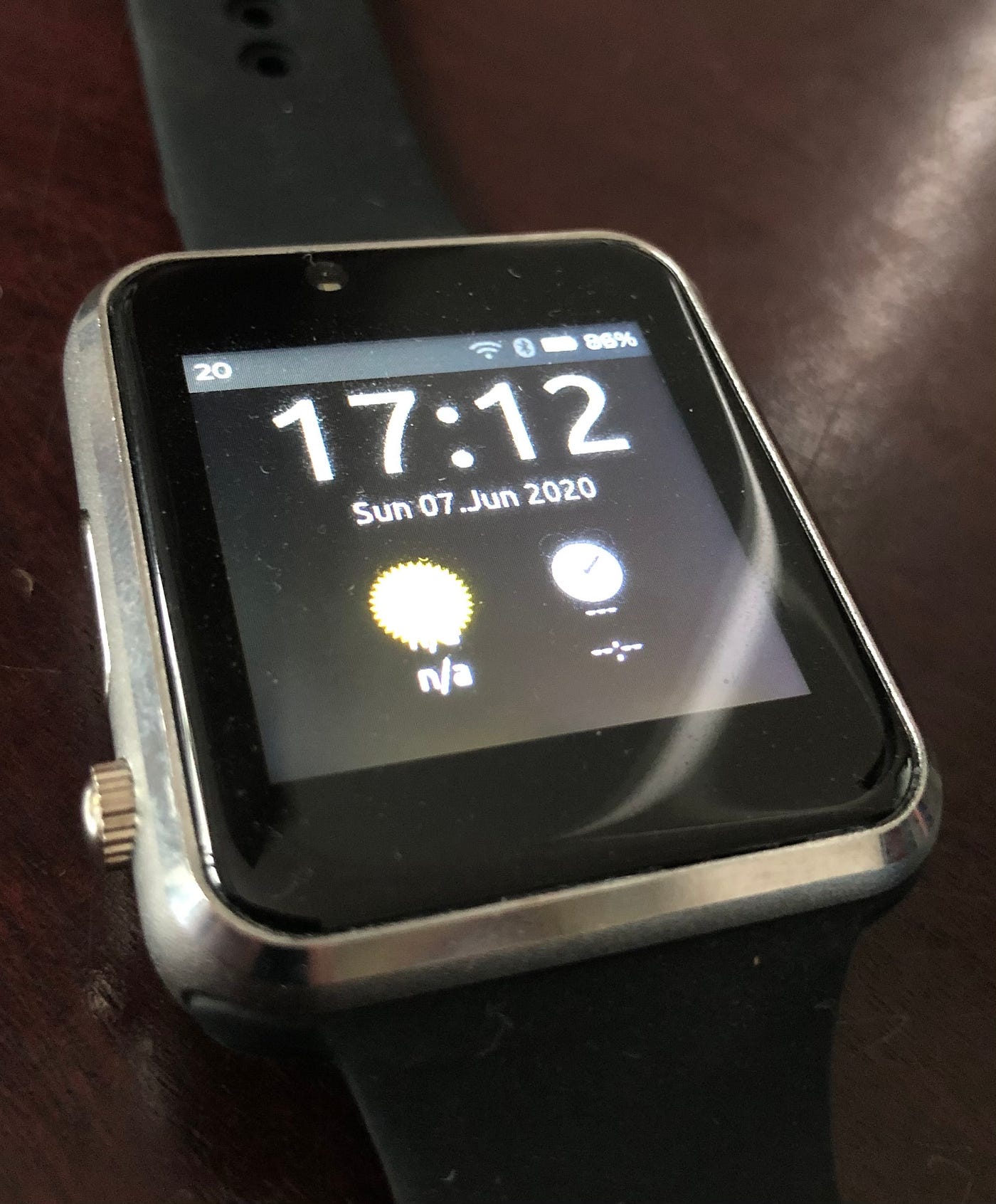
Documentation of the API is sparse so the examples supplied with the T-Watch Library are the best place to start (File > Examples > TTGO TWatch Library). The BasicUnit folder includes examples of how to access the various peripherals included with the watch. The ClientProject > SimpleFramework is a simple digital watch and calendar (Figure 20).
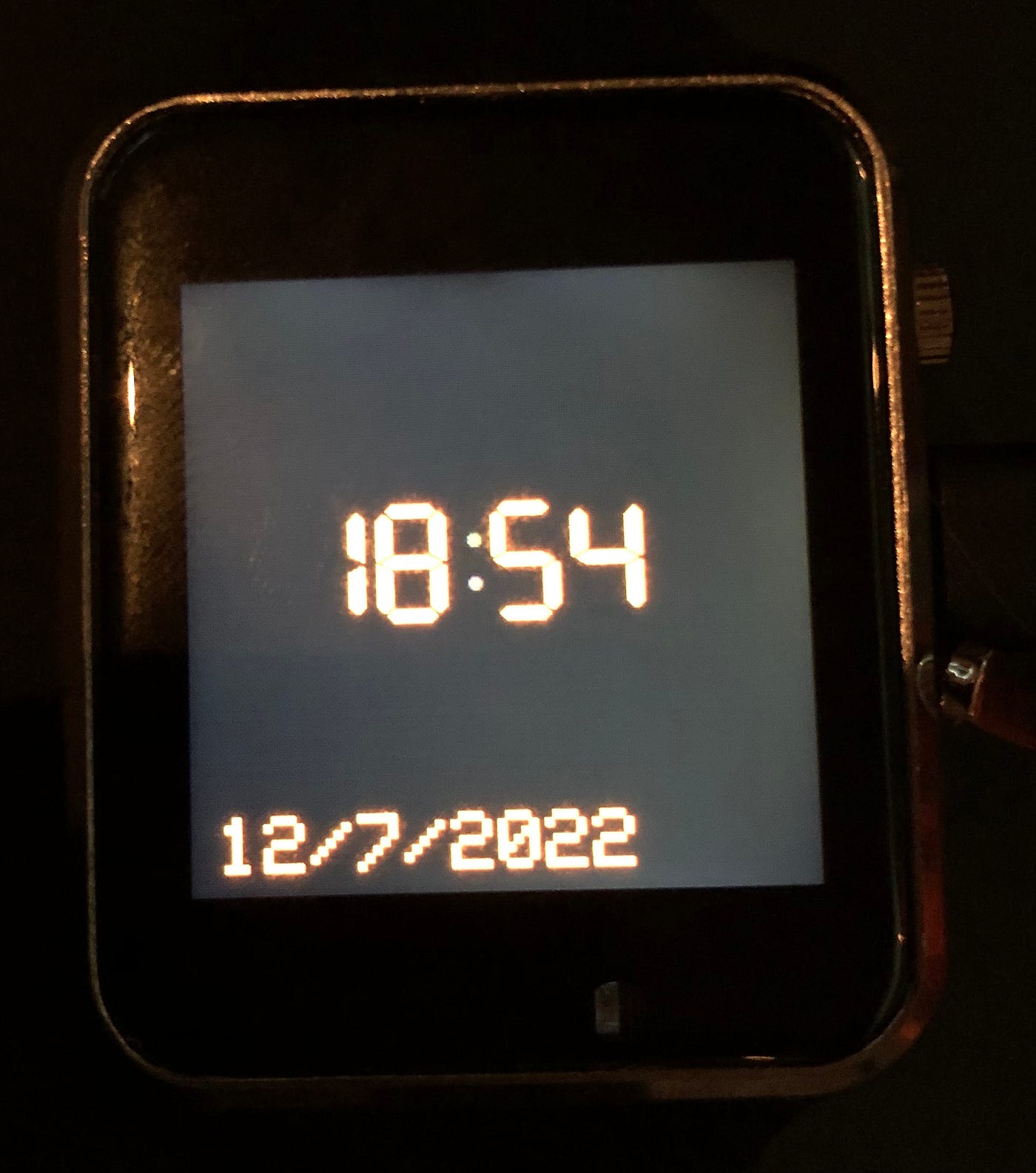
Figure 20. Examples > ClientProject > SimpleFramework
A full list of the examples available plus a short description are provided in the TTGO T-Watch Library GitHub repository (Figure 21).

Figure 21. Extract of TTGO_TWatch_Library/docs/examples_en.md (source)
Light and Versatile Graphics Library (LVGL)
Alternatively, you can use the included Light and Versatile Graphics Library (LVGL) to display a watch face (e.g., the LVGL > BatmanDial — Figure 22). The SimpleWatch example in the LVGL folder didn’t compile for our v1 T-Watch.

Figure 22. Examples > LVGL > BatmanDial
LVGL (Figure 23) is a popular open source embedded graphics library, used to create UIs for any MCU, MPU and display type. It’s supported by Arm, STM32, NXP, Espressif, Nuvoton, Arduino, RT-Thread, Zephyr, NuttX, Adafruit and many more. The LVGL library can use UIs built with SquareLine Studio.

Figure 23. Sample UI built using LVGL (source)
The Basics & Configuration
The top level object that you will need to instantiate is the watch class (Code Block 1), TTGOClass. The config.h file (Code Block 2) is used to select the hardware version and ensure that the correct pin mapping and peripheral definition is in place.
[embed]Code Block 1. Basic Watch Setup
At the bottom of the config.h (Code Block 2) file you will see that another file is included, LilyGoWatch.h. This file defines the board type and what peripherals are available for the watch version selected.
[embed]Code Block 2. Standard config.h for the TWatch Family of Devices
For the TWatch 2020 v1, the supported peripherals are shown in Code Block 3 and the pin mappings in Code Block 4.
[embed]Code Block 3. Extract from LilyGoWatch.h
[embed]Code Block 4. Pin Mapping for the TWatch 2020 v1 — twatch2020_v1.h
Displaying Text
As shown in Code Block 3, if a display is defined then a tft object is available. Assuming you have done the setup shown in Code Block 1, printing text to the display is straight forward.
[embed]Code Block 4. Text Example
The T-Watch uses the Adafruit GFX Library which provides a common syntax and set of graphics functions for many displays. Co-ordinates for functions like setCursor() are in pixels, with (0, 0) in the top left. Colours are represented as unsigned 16-bit values (u16), also known as Highcolor mode (Figure 24). The first 5 bits represent red, the second 5 bits represent blue, and the last 6 bits represent green (our eyes are most sensitive to green).

Figure 24. Common u16 Colours
**setTextSize**(uint8_t size) sets the size of the text, the smaller the size variable the smaller the text. It effectively scales the text size by the integer passed in. The print() and println() functions operate similar to the Arduino serial monitor equivalents. There are two setTextColor() functions available.
void setTextColor(uint16_t color);
void setTextColor(uint16_t color, uint16_t backgroundcolor);
By default text will be displayed with a transparent background (i.e., you will be able to see whatever is underneath). If you want the text to block out what’s beneath, a background colour can be specified as an optional second parameter. You don’t normally clear the screen every time the display loop iterates so using the background colour prevents text becoming illegible due to overwriting different characters.
Text background colour is not supported for custom fonts. For these,
you will need to determine the text boundaries and draw a filled
rectangle with the background colour before drawing the new text.
Battery State of Charge (SOC)
One thing you will probably want to include on the display is the charge state of your watch battery. This is available from the AXP202 Power Management UNIT (PMU). The PMU monitors and controls a number of channels (Figure 25).

Figure 25. AXP202 Power Domain (source)
Voltage and Current capacities for the Channels are:
- AXP202_DC2 — Not used 0.7V to 2.275V, 1.8A
- AXP202_LDO1 — Always on 30mA (Powers the RTC)
- AXP202_LDO2 — Display backlight 1.8V to 3.3V, 200mA
- AXP202_LDO3 — Audio power 0.7V to 3.5V, 200mA
- AXP202_LDO4 — Not used 1.8V to 3.3V, 200mA
- AXP202_LDO5 — Not used 1.8V to 3.3V, 50mA
You can determine quite a bit by reading the AXP registers.
ttgo->power->readIRQ() // Transfer AXP registers to library buffer
ttgo->power->isVbusPlugInIRQ() // USB cable connected
ttgo->power->isVbusRemoveIRQ() // USB cable removed
ttgo->power->isChargeing() // Watch charging?
Alternatively, you can use:
ttgo->power->isVBUSPlug()              // USB connected
ttgo->power->isBatteryConnect()        // Battery Connected
ttgo->power->getVbusVoltage()          // USB Voltage (mV)
ttgo->power->getVbusCurrent()          // USB Current (mA)
ttgo->power->getBattVoltage()          // Battery Voltage (mV)
ttgo->power->getBattChargeCurrent()    // Battery Charging Current (mA)
ttgo->power->getBattDischargeCurrent() // Battery Discharge Current (mA)
ttgo->power->getBattPercentage()       // Battery SOC (%)
ttgo->power->getTemp()                 // Chip Temperature
We only need the last two power methods for our purposes.
[embed]Code Block 5. Print Text Example
To create a battery icon to show the SOC, we will use one of the Adafruit GFX library rectangle functions.
void drawRect(uint16_t x0, uint16_t y0, uint16_t w, uint16_t h, uint16_t color);
void fillRect(uint16_t x0, uint16_t y0, uint16_t w, uint16_t h, uint16_t color);
To show the battery gradually emptying we map the state of charge to the width of the inner black rectangle.
[embed]Code Block 6. Battery SOC Icon
Real Time Clock (RTC) API
Given that this is a watch, we should mention the Real Time Clock (RTC — PCF8563 — Figure 26). The RTC provides year, month, day, weekday, hours, minutes, and seconds based on a 32.768 kHz quartz crystal. It also provides an alarm and timer function using interrupts.

Figure 26. PCF8563 RTC — Block Diagram (source)
There are two supporting data classes provided in the pcf8563.h header file, one for dates (RTC_Date) and one for alarms (RTC_Alarm) — Code Block 7.
[embed]Code Block 7. RTC_Date and RTC_Alarm Class Definitions (source)
We were hoping that the week day value (e.g., Monday, Tuesday, etc.) was in RTC_Date, but it isn’t. There is however a method provided, that we can use:
uint32_t getDayOfWeek(uint32_t day, uint32_t month, uint32_t year);The full list of method prototypes for the RTC API are shown in Code Block 8.
[embed]Code Block 8. RTC API Method Prototypes (source)
RTC Example Code
Basic code for how to set an alarm is shown in Code Block 9(based on the RTC.ino example sketch).
[embed]Code Block 9. RTC Alarm Example
We have modified the SimpleFramework (Figure 20) example to display the date in dd/mm/yy format, to show the year as two digits instead of four (i.e., 22 instead of 2022) and to display the week day. We also added the battery icon and SOC as described above. The PMU chip temperature is also displayed at the bottom of the screen (Figure 27).

Figure 27. Modified SimpleFramework Display
To obtain the week day we use:
wday = ttgo->rtc->getDayOfWeek(tnow.day, tnow.month, tnow.year);This method returns a 32-bit unsigned it with a value between 0 and 6 (Figure 28). Not sure why the API uses 32-bits for this.

Figure 28. RTC Week Day Encoding (source)
To convert this unsigned integer to a string, we use a constant character array. We can use wday as the index to this array.
char const* WEEKDAYS[] = {“SUN”, “MON”, “TUE”, “WED”, “THU”, “FRI”, “SAT”};The updated code for the SimpleFramework is shown in Code Block 10.
[embed]Code Block 10. Modifications to Example Code — SimpleFramework.ino
Factory Firmware
If you want to return to the code provided with the watch, it can be downloaded from the this GitHub Repository (Figure 29).
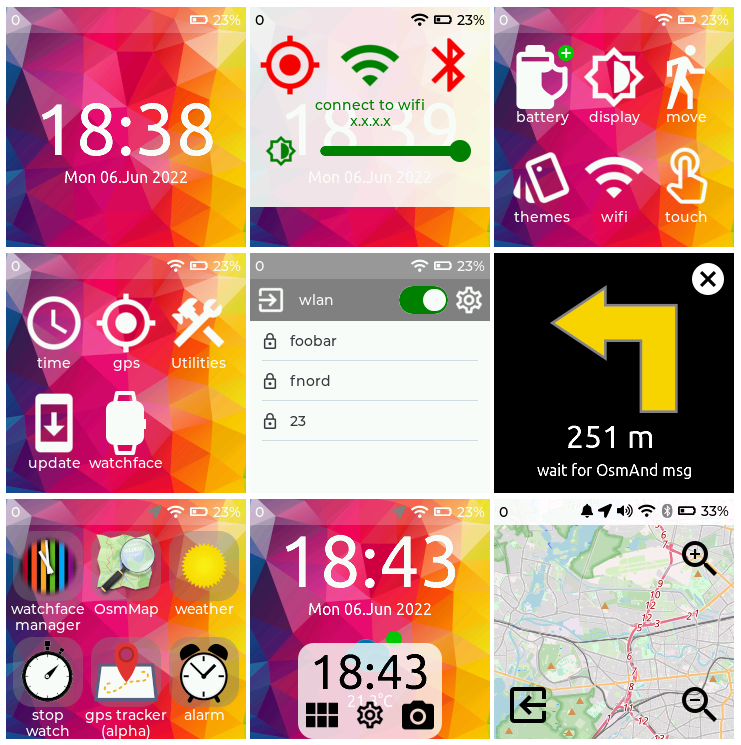
Figure 29. Hedge GUI for smartwatch like devices based on ESP32
If you enjoyed this article and would like to help support my writing, then please subscribe to become a Medium Member. I will get a portion of your subscription fee and you get access to every story on Medium. Alternatively, you can buy me a coffee!
메타데이터
- post_id
- aa6c23602de7
- slug
- programming-the-t-watch-2020-part-2-aa6c23602de7
- url
- https://medium.com/embedded-ai/programming-the-t-watch-2020-part-2-aa6c23602de7
- canonical_url
- https://medium.com/embedded-ai/programming-the-t-watch-2020-part-2-aa6c23602de7
- author_url
- https://medium.com/@reefwing
- status
- ok
- fetched_at
- 2026-07-26 09:12:05