Cyber Leelawat|Tryhackme|Active Reconnaissance
by Mahesh R. Amale
Cyber Leelawat|Tryhackme|Active Reconnaissance
by Mahesh R. Amale
Task 1: Introduction
Active reconnaissance is the process of directly interacting with a target system or network to gather information.
It is used in Cybersecurity and penetration testing to discover live hosts, open ports, and running services.
What it involves:
- Sending requests directly to the target system
- Scanning ports and services
- Identifying operating systems and vulnerabilities
Why it is used:
- To find open ports and services
- To map network structure
- To identify possible weak points
- To prepare for penetration testing
Common tools used:
- Ping (check if host is alive)
- Nmap (port scanning and service detection)
- Netcat (connect to ports manually)
- Traceroute (find network path)
- Telnet (Checking if a port is open)
Task 2: Web Browser
Questions:
- Browse to the following website (opens in new tab) and ensure that you have opened your Developer Tools on AttackBox Firefox, or the browser on your computer. Using the Developer Tools, figure out the total number of questions.
Ans: 8
Explanation: Using Inspect Element (Ctrl+Shift+I), I explored the webpage’s source code under the “Sources” tab. By examining the script.js file, I identified that the total number of questions is 8. Inspect Element is a powerful tool for developers and security analysts, allowing you to inspect, modify, and understand the front-end code of a website. This can also help identify hidden elements or scripts that may not be visible in the user interface.
Task 3: Ping
Ping is a basic network tool used to check whether a device (computer/server) is reachable over a network.
It works using the ICMP.
What Ping does:
- Sends a small message called an ICMP Echo Request
- Waits for a reply called an ICMP Echo Reply
- Measures how fast the response comes back
Why Ping is used:
- To check if a website or server is online
- To test network connectivity
- To measure delay (latency)
- To troubleshoot network problems
What output shows:
- Reply from IP → device is reachable
- Time=ms → speed of response
- TTL (Time To Live) → how many hops the packet traveled
Questions:
- Which option would you use to set the size of the data carried by the ICMP echo request?
Ans: -s
Explanation: Give command man ping you can see all options….
- What is the size of the ICMP header in bytes?
Ans: 8
- Does MS Windows Firewall block ping by default? (Y/N)
Ans: Y
Expalanation: Incoming ICMP Echo Requests (ping) are usually blocked by default
- This is done for security reasons, to prevent network scanning and attacks
- Outgoing ping requests are allowed
- Deploy the VM for this task and using the AttackBox terminal, issue the command
ping -c 10 MACHINE_IP. How many ping replies did you get back?
Ans: 10
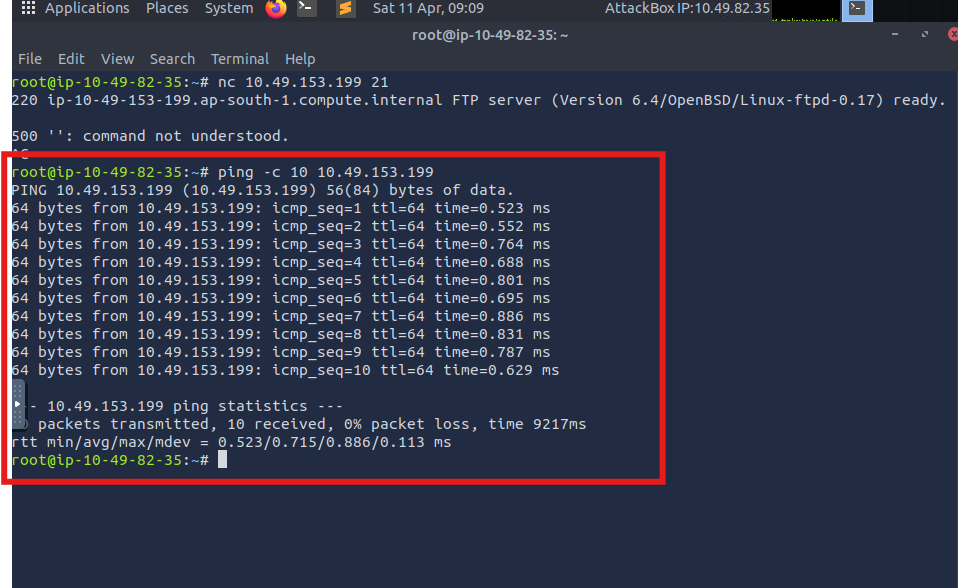
Note: Machine_IP depends on using IP…
Task 4: Traceroute
Traceroute is a network diagnostic tool used to track the path that data takes from your computer to a destination (like a website or server). It shows all the intermediate devices (called hops) between source and destination. It mainly works using the ICMP.
What Traceroute does:
- Finds each router between your device and the target
- Shows how many hops the data passes through
- Measures delay (latency) at each step
- Helps identify where network issues occur
Why it is used:
- To troubleshoot slow networks
- To find where a connection is failing
- To understand how data travels on the internet
Quetions:
- In Traceroute A, what is the IP address of the last router/hop before reaching tryhackme.com?
Ans: 172.67.69.208
- In Traceroute B, what is the IP address of the last router/hop before reaching tryhackme.com?
Ans: 104.26.11.229
- In Traceroute B, how many routers are between the two systems?
Ans: 26
- Start the attached VM from Task 3 if it is not already started. On the AttackBox, run
traceroute MACHINE_IP. Check how many routers/hops are there between the AttackBox and the target VM.
Ans: No Answer Needed
Explanation: for Question 1, 2 & 3 are found using below SS.


Task 5: Telnet
Telnet is a network protocol used to remotely connect to another computer over a network and interact with it using a command-line interface.
It works on TCP and usually uses port 23.
What Telnet does:
- Connects to remote devices (servers, routers, etc.)
- Allows you to run commands on another system
- Sends data in plain text (not secure)
Why Telnet is used:
- Network testing and troubleshooting
- Checking if a port is open
- Learning and lab practice (like TryHackMe)
Note:
- Not secure (no encryption)
- Passwords and data are sent in plain text
- Replaced by SSH (Secure Shell) in real systems
Questions:
- Start the attached VM from Task 3 if it is not already started. On the AttackBox, open the terminal and use the telnet client to connect to the VM on port 80. What is the name of the running server?
Ans: Apache
- What is the version of the running server (on port 80 of the VM)?
Ans: 2.4.61
Explanation: Q 1 & 2

Task 6: Netcat
Netcat is a powerful networking tool used to read and write data across network connections using TCP or UDP.
What Netcat does:
- Connects to ports on a target system
- Sends and receives data over networks
- Checks if a port is open
- Can act as a simple client or server
Why Netcat is used:
- Network troubleshooting
- Port scanning (basic level)
- Banner grabbing (getting service info)
- File transfer between systems
- Simple communication between devices
Quetions:
- Start the VM and open the AttackBox. Once the AttackBox loads, use Netcat to connect to the VM port 21. What is the version of the running server?
Ans: 0.17

Task 7: Putting It All Together
In this room, we have covered many various tools. It is easy to put a few of them together via a shell script to build a primitive network and system scanner. You can use traceroute to map the path to the target, ping to check if the target system responds to ICMP Echo, and telnet to check which ports are open and reachable by attempting to connect to them. Available scanners do this at much more advanced and sophisticated levels, as we will see in the next four rooms with nmap.
Although these are fundamental tools, they are readily available on most systems. In particular, a web browser is installed on practically every computer and smartphone and can be an essential tool in your arsenal for conducting reconnaissance without raising alarms. If you want to gain more profound knowledge of the Developer Tools, we recommend joining Walking An Application.
***Thank You**
메타데이터
- post_id
- aa7e555e455e
- slug
- cyber-leelawat-active-reconnaissance-aa7e555e455e
- url
- https://medium.com/@amalemahesh41/cyber-leelawat-active-reconnaissance-aa7e555e455e
- canonical_url
- https://medium.com/@amalemahesh41/cyber-leelawat-active-reconnaissance-aa7e555e455e
- author_url
- https://medium.com/@amalemahesh41
- status
- ok
- fetched_at
- 2026-08-15 06:47:53

