How to remove people from a photo in Photoshop
What You’ll Need
How to remove people from a photo in Photoshop
What You’ll Need
- Adobe Photoshop (2024 or later with Generative Fill, requires a Creative Cloud subscription)
- A photo with an unwanted person
- About 90 seconds of your time
How to remove people from a photo in Photoshop
The Step‑by‑Step Process
1. Open Your Image and Select the Person
Launch Photoshop and open your photo. Select the Lasso tool from the toolbar (shortcut: L).
Carefully draw around the person you want to remove. Don’t worry about being absolutely perfect — the AI is forgiving. But the more accurate your selection, the better the result.
Pro tip:
Use the Shift key to add to your selection and the Alt (Windows) / Option (Mac) key to subtract from it. This helps you refine tricky edges like hair or arms.
2. Activate Generative Fill
With the person still selected, look for the contextual taskbar (it usually appears near the bottom of your selection or along the bottom of the screen).
Click on Generative Fill.
Here’s the trick: leave the prompt box completely blank. Yes, you read that right. You don’t have to type “background” or “empty street” or anything else. Photoshop’s AI is smart enough to understand that you want to replace the selected person with whatever naturally belongs there.
3. Generate Variations
Click the Generate button.
Within seconds, Photoshop will produce three different variations of the filled area. Scroll through them using the thumbnails that appear.
- ✅ Pick the one that looks most natural.
- ✅ If none of the three work, click Generate again to get fresh options.
- ✅ For even more control, you can switch between different AI models if your version of Photoshop offers that.
4. Deselect and Enjoy
Once you’re happy with the result, press Ctrl + D (Windows) or Cmd + D (Mac) to deselect. In most cases, the edit will be seamless.
If you notice a small imperfection, you can repeat the process on a tiny area or use the Spot Healing Brush for a final polish.
Why This Method Works So Well
Old‑School MethodNew Generative Fill MethodRequires layers and masksOne‑click AI replacementProne to repeating patternsCreates unique, context‑aware contentTakes 10–20 minutesTakes under 2 minutesNeeds practice to masterBeginner‑friendly
The secret is that Generative Fill uses Adobe Firefly’s AI to intelligently predict what should be behind the removed person — matching lighting, texture, perspective, and shadows automatically.
Real‑World Example
Imagine a photo of a beautiful park bench under a tree. Unfortunately, a stranger is sitting on that bench.
Using the Lasso tool, you draw a loose selection around the stranger. Then you run Generative Fill with a blank prompt. The AI looks at the surrounding grass, the tree trunk, and the empty part of the bench — and generates a plausible, natural fill.
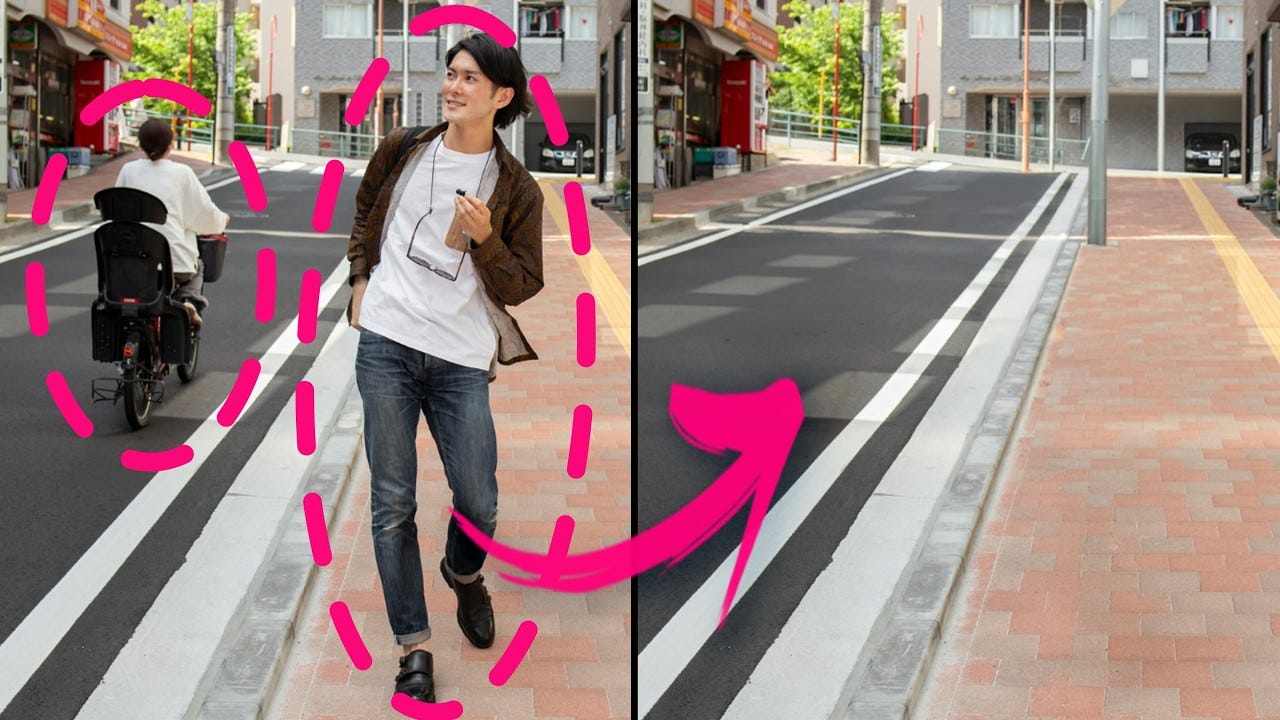
In the tutorial that inspired this post, the creator removed a woman on a bicycle from a street scene. The AI perfectly replaced her with more pavement and building details, as if she had never been there. And the whole process took less than a minute and a half.
Pro Tips for Best Results
- Zoom in when using the Lasso tool. A tighter selection equals a cleaner fill.
- Don’t be afraid to generate multiple rounds. Sometimes the third or fourth batch looks best.
- If a blank prompt fails, try a short description like “empty sidewalk” or “grass and trees” — but always start with blank.
- For complex backgrounds (e.g., repeating tiles or fences), make smaller, overlapping selections instead of one big one.
Frequently Asked Questions
Can I remove multiple people in the same photo? Absolutely. Just select and generate one person at a time, or select all of them together if they don’t overlap.
What if none of the variations look good? Click Generate again. You can do this as many times as you want. If the AI consistently struggles, refine your selection — it might be including too much of the background.
Does this work on older versions of Photoshop? No. Generative Fill is only available in Photoshop 2024 and later with an active Creative Cloud subscription. Older versions still require manual methods.
Do I need to type anything in the prompt? For removing people, starting with a blank prompt works surprisingly well. Only add a description if the AI clearly misunderstands the scene.
Your Next Step: Watch It in Action
Reading about a technique is helpful, but seeing it done makes it stick.
I’ve found a short, no‑fluff video tutorial that walks through this exact process — from opening the photo to generating the final clean image.
👉 Click here to watch the 100‑second tutorial on YouTube
The video starts right at the moment the selection begins, so you won’t waste any time on intros or long explanations. Pause it, open Photoshop, and follow along step by step.
Final Thoughts
Learning how to remove people from a photo in Photoshop used to feel like a skill reserved for professional retouchers. Not anymore.
With the Lasso tool + Generative Fill + a blank prompt, anyone can erase unwanted subjects in under two minutes. The AI does the heavy lifting, and you get to keep your perfect shot.
So go ahead — open that ruined vacation photo, that crowded real estate image, or that family picture with a stranger in the background. Clean it up. And enjoy the satisfaction of a flawless edit.
Loved this guide? Clap 👏, leave a comment, and follow for more practical Photoshop tutorials that save you time and frustration.
by cgian,
Original Post, https://cgian.com/how-to-remove-people-from-a-photo-in-photoshop/
메타데이터
- post_id
- aa876ac5b81a
- slug
- how-to-remove-people-from-a-photo-in-photoshop-aa876ac5b81a
- url
- https://medium.com/@artist.blender/how-to-remove-people-from-a-photo-in-photoshop-aa876ac5b81a
- canonical_url
- https://medium.com/@artist.blender/how-to-remove-people-from-a-photo-in-photoshop-aa876ac5b81a
- author_url
- https://medium.com/@artist.blender
- status
- ok
- fetched_at
- 2026-06-09 15:37:30