Fill, Sign & Save PDFs Automatically with Make.com + PDF4me
Have a fillable PDF, some JSON data, and a signature image? Instead of doing it all manually, let Make.com handle the whole thing — pull…
Fill, Sign & Save PDFs Automatically with Make.com + PDF4me
Have a fillable PDF, some JSON data, and a signature image? Instead of doing it all manually, let Make.com handle the whole thing — pull files from Dropbox, fill the form, drop the signature, and save the finished PDF. No code required.
What You Need
- **Make** — A Make account with a new scenario open
- **PDF4me API key** — Used when adding PDF4me modules
- Dropbox or Google Drive — To store your PDF template, JSON file, signature image, and output
The Scenario at a Glance
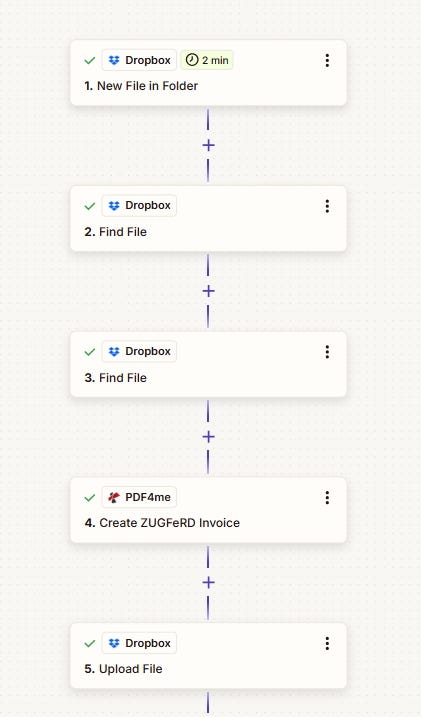
Three Downloads → Fill a PDF Form → Sign PDF → Upload. That’s it.
Step-by-Step Setup

Step 1: Download the PDF Form (Template)
Add Dropbox → Download a File.
- Way of selecting files — Select a file (or Map for dynamic paths)
- File — Path to your fillable PDF, e.g.
/Blog Data/Sign and fill pdf/sample_fill_form.pdf
The output from this module is your form template, passed into Fill a PDF Form.

Step 2: Download the JSON Data
Add a second Dropbox → Download a File.
- File — Path to your JSON file, e.g.
/Blog Data/Sign and fill pdf/sample_fill_form_data.json
Make sure JSON keys match your PDF form field names exactly — it’s case sensitive.
This output feeds the data into the Fill a PDF Form module.

Step 3: Download the Signature Image
Add a third Dropbox → Download a File.
- File — Path to your signature image (PNG or JPG), e.g.
/Blog Data/Sign and fill pdf/signature.png
This output goes into the Sign PDF module as the Image File.

Step 4: Fill the PDF Form
Add PDF4me → Fill a PDF Form.
- Template — Map the PDF output from Step 1
- Template Name — e.g.
sample_fill_form.pdf - Select Input Type — Json
- Input Data JSON — Map the content from Step 2 (if Make returns a buffer, extract the text first)
- Keep PDF Editable — No (unless needed)
The output here is your filled PDF — pass it forward to Sign PDF.

Step 5: Sign the PDF
Add PDF4me → Sign PDF.
- PDF File — Map the filled PDF output from Step 4
- PDF File Name — e.g.
filled_form.pdf - Image File — Map the signature from Step 3
- Image Name — e.g.
signature.png - Pages — e.g.
last(orfirst,all) - Horizontal / Vertical Alignment — e.g. Right / Bottom
- Image Width / Height in MM — e.g. 50 / 20
- Horizontal / Vertical Margin in MM — e.g. 15 / 15
- Transparency — e.g. 100
The output is your signed PDF, ready to upload.

Step 6: Upload the Signed PDF
Add Dropbox → Upload a File.
- Folder — e.g.
/Blog Data/Sign and fill pdf/Output - File — Map the signed PDF (Doc Data) from Step 5
- File Name — e.g.
Sign_Fill_Make.pdf
Run the scenario and the completed PDF lands in your folder.

Things to Watch Out For
- **Form fields not filling** — JSON keys must match PDF field names exactly, including case. Check field names in a PDF editor.
- **Wrong File Content in Sign PDF* — Map PDF File from the Fill a PDF Form* output (Doc Data), not from the first Download.
- 401 / 402 errors — 401 points to an API key issue; 402 means you’re out of PDF4me credits.
Good Use Cases
- Contracts & agreements — Pull data from a CRM or Google Sheets, fill the template, sign it, and send or store automatically
- Invoices & quotes — Trigger on a new order, fill in the line items, apply the company signature, and deliver
- Certificates & approvals — Take training data from a sheet, fill the certificate, place the issuer signature, and email the PDF
Next Steps
- Swap the manual trigger for a Google Sheets or Airtable trigger with an Iterator to process multiple rows at once
- Add an Email or Slack module after Upload to notify when a document is ready
- Store the signature image path in a variable to map it dynamically per run
메타데이터
- post_id
- aaf1a00c052e
- slug
- fill-sign-save-pdfs-automatically-with-make-com-pdf4me-aaf1a00c052e
- url
- https://medium.com/@pdf4me.ani/fill-sign-save-pdfs-automatically-with-make-com-pdf4me-aaf1a00c052e
- canonical_url
- https://medium.com/@pdf4me.ani/fill-sign-save-pdfs-automatically-with-make-com-pdf4me-aaf1a00c052e
- author_url
- https://medium.com/@pdf4me.ani
- status
- ok
- fetched_at
- 2026-06-21 09:28:28