How to configure a BusinessWorks 6.X application to connect to an EMS instance using SSL/TLS
This article is to explain how to configure a JMS connection shared resource of a BusinessWorks 6.X application to connect to an EMS…
How to configure a BusinessWorks 6.X application to connect to an EMS instance using SSL/TLS
This article is to explain how to configure a JMS connection shared resource of a BusinessWorks 6.X application to connect to an EMS instance using SSL/TLS, it also explains how to configure existing applications to use SSL/TLS by only using properties managed by the EMS client library.
Creation of a KeyStore file
Before setting up the configuration in Studio you need to create a keystore containing one of the public certificates of the target EMS instance.
You can get such certificates using tools like java keytool or KeyStore Explorer as covered in the article explaining how to connect to an HTTPS endpoint: https://emarchiset.medium.com/how-to-configure-an-http-client-connection-to-access-a-rest-api-or-web-services-exposed-over-https-6b97dcfe1fb4
KeyStore Explorer can connect to an EMS instance using the Examine -> Examine SSL/TLS menu:
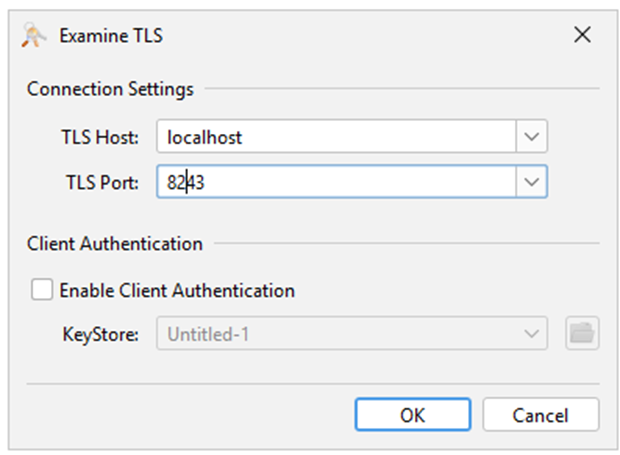
After connecting to the target EMS instance the certificate hierarchy is displayed like this:

In the example above we are connecting to an EMS instance configured with the EMS sample certificates and there is a single certificate in the hierarchy. This certificate needs to be imported in a KeyStore file.
The configuration of an EMS instance using the sample certificates provided in the EMS installation package is described in the article below:
JMS connection Shared Resource configuration
The JMS connection can be configured to use the created Key Store using the following approach.
1 Create and configure a Keystore Provider resource
. Create a Keystore Provider resource by right clicking on the Resources folder and selecting New -> KeyStore Explorer
. Configure the created resource:
In Linux and Windows environments, the Provider should be set to ‘SUN’.
The URL parameter should be set with the full path of the Key Store file and it is recommended to manage it with a property.
The Password parameter should be set with the Key Store file password defined at the Key Store creation time and it is recommended to manage it with a property.
The type of Key Store file should be set.
The Refresh Interval can be left to its default value.

2 Create and configure an SSL Client Configuration resource
. Create an SSL Client Configuration resource by right clicking on the Resources folder and selecting New -> SSL Client Configuration
. Configure the created resource:
Select the Key Store Provider you want to use.
The SSL Security provider can usually be left blank (in that case the default ORACLE JVM SunJSSE security provider is used).
Select the SSL Protocol and SSL Cipher Class as needed (the default configuration is a valid choice if accepted by the remote server).

3 Configuration of the JMS Connection resource
. Create a JMS Connection resource by right clicking on the Resources folder and selecting New -> JMS Connection
. Configure the created resource:
When using a Direct connection configure the Provider URL to use SSL/TLS using the syntax: ssl:<host>:<port>,ssl:<host>:<port>
In the case of a JNDI connection you can use the syntax tibjmsnaming:// :<host>:<port>, you may also need to check the configuration of the connection factories you are using are aligned with your project requirements to use SSL/TLS or not.
Then check the ‘Confidentiality’ option and select the SSL Client Configuration you want to use

Testing the configuration
From the JMS Connection click the Test Connection button:

Using TIBCO EMS client library properties
It is also possible to configure existing applications to use TLS when connecting to an EMS instance by only updating the JMS URL to use the ssl://<host>:<port> syntax and adding java properties managed by the EMS client library in the appnode config.ini file.
This allows using TLS without having to update and redeploy applications, in this approach all JMS connections of all BusinessWorks applications running in a given appnode are using the same configuration.
The list of available properties is available in this TIBCO Support knowledge base article: https://support.tibco.com/s/article/Tibco-KnowledgeArticle-Article-41162
Possible values for the property com.tibco.tibjms.ssl.vendor are ‘j2se-default’ and ‘bcfips’.
To connect from Business Studio to an EMS instance configured to use TLS with the sample certificates you have to update the EMS URL to use the ssl://<host>:<port> syntax and to use the following properties:
com.tibco.tibjms.ssl.trusted=C:/tib/messaging/ems/10.4.1/samples/certs/server_root.cert.pem
com.tibco.tibjms.ssl.expected_hostname=server
Elements for BusinessWorks 5.X
For BusinessWorks 5.X you can use the following KB article:
https://support.tibco.com/s/article/Tibco-KnowledgeArticle-Article-38804
The approach to use properties can also be used in BusinessWorks 5.X, properties have to be added in the application .tra files and property names have to be prefixed with ‘java.property.’ for example: java.property.com.tibco.tibjms.ssl.vendor=bcfips
메타데이터
- post_id
- aba27f6356bc
- slug
- how-to-configure-a-businessworks-6-x-application-to-connect-to-an-ems-instance-using-ssl-tls-aba27f6356bc
- url
- https://medium.com/@emarchiset/how-to-configure-a-businessworks-6-x-application-to-connect-to-an-ems-instance-using-ssl-tls-aba27f6356bc
- canonical_url
- https://medium.com/@emarchiset/how-to-configure-a-businessworks-6-x-application-to-connect-to-an-ems-instance-using-ssl-tls-aba27f6356bc
- author_url
- https://medium.com/@emarchiset
- status
- ok
- fetched_at
- 2026-07-13 06:23:13