How I Would Recover a RAW Partition Without Losing My Data
A RAW partition is one of those problems that can make a working drive suddenly feel unusable.
How I Would Recover a RAW Partition Without Losing My Data
A RAW partition is one of those problems that can make a working drive suddenly feel unusable.
The first warning sign is usually simple: Windows can see the drive, but I cannot open my files.
Before formatting, I need to understand what happened, protect the data, and choose the **RAW partition recovery** method that fits the situation.
Who this guide is for
This guide is for Windows users who see a hard drive, USB drive, or partition marked as RAW and need to recover access without immediately deleting their files.
The goal is not just to make the drive visible again. The goal is to avoid unnecessary data loss while deciding whether the partition can be repaired or whether the files need to be recovered first.
What a RAW partition actually means
A RAW partition means Windows cannot recognize the drive’s file system.
Normally, Windows uses file systems such as NTFS, FAT, or exFAT to understand how files are stored and retrieved. When that structure becomes damaged or unreadable, Windows may show the partition as RAW instead.
The important distinction is this:
A RAW partition does not always mean the files are gone.
It means the system cannot properly interpret the information needed to access them.
Why I would not format the drive first
Formatting may make the drive usable again, but it also removes the existing file structure.
That makes formatting a poor first step if the partition contains important photos, documents, projects, or other files.
I would treat formatting as a final option, especially for a drive that already contains valuable data.
Step 1: Check whether CHKDSK can repair the problem
If the file system damage is minor, Windows’ CHKDSK tool may repair logical errors.
The process is:
- Open the Start Menu.
- Search for Command Prompt.
- Run Command Prompt as administrator.
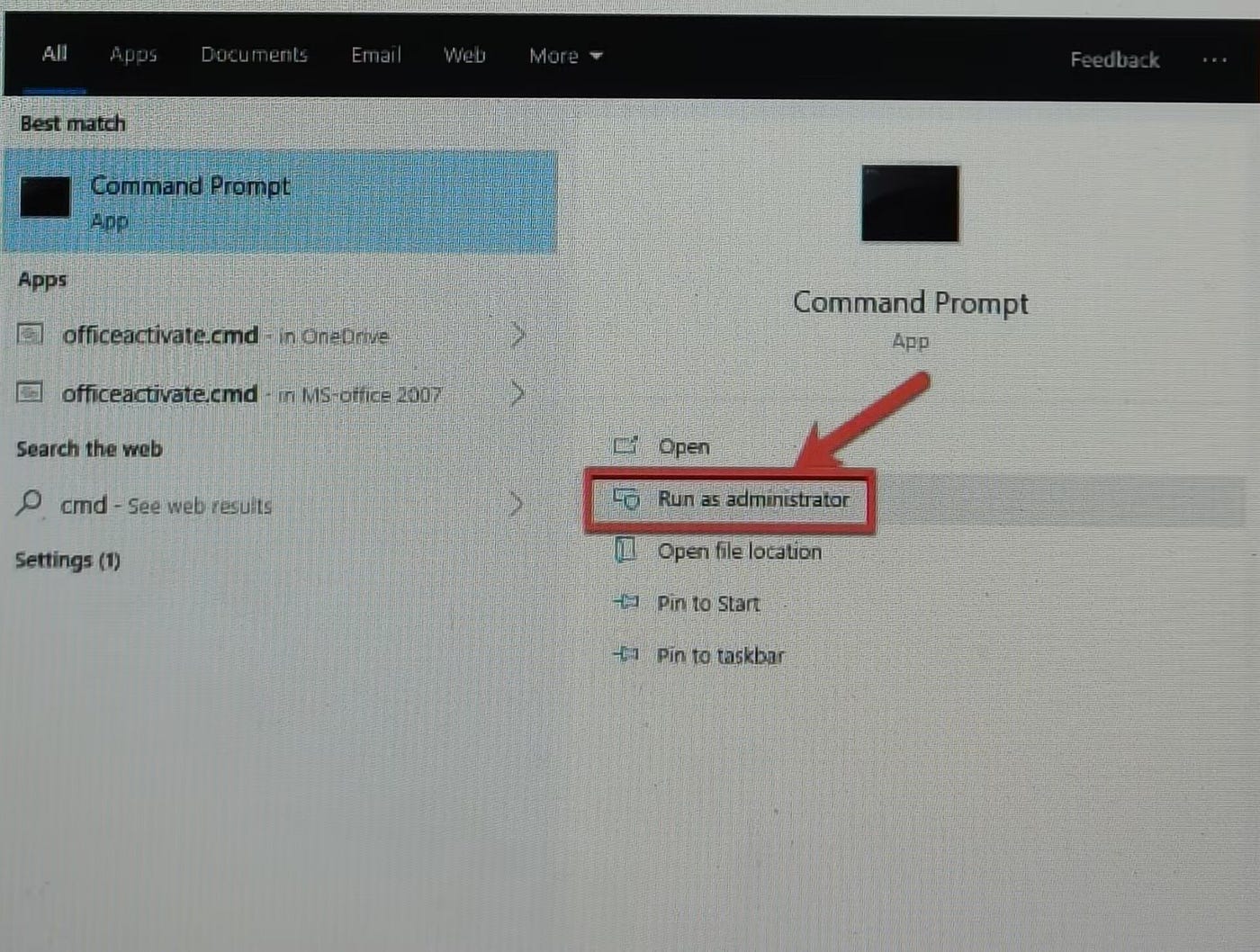
- Enter:
chkdsk e: /f

Replace e with the drive letter of the RAW partition.
After the scan finishes, I would restart the computer and check whether the drive is accessible again.
However, CHKDSK is not a universal solution.
If Windows returns the message:
“The type of the file system is RAW. CHKDSK is not available for RAW drives,”
the damage is likely beyond what this repair command can handle.
Step 2: Recover files before making major changes
When repair tools cannot restore access, the priority changes.
Instead of trying more repairs immediately, I would focus on recovering the files from the RAW partition.
A data recovery process usually follows this pattern:
- Scan the RAW partition.
- Preview recoverable files.
- Select the files that matter.
- Save recovered files to another location.
The recovery destination matters.
I would not save recovered files back onto the same damaged partition because that could overwrite data that still needs to be recovered.
Step 3: Make the partition usable again
After important files are safely recovered, the next step is rebuilding the drive.
Formatting creates a new file system, such as NTFS, allowing Windows to use the partition normally again.
At that point, the drive is no longer being repaired with the goal of preserving the old structure. It is being prepared for future use.
Common signs of a RAW partition
A RAW partition often appears through symptoms like:
- Windows asking me to format the disk before using it
- The drive appearing as RAW in Disk Management
- Messages saying the volume does not contain a recognized file system
- CHKDSK reporting that it is unavailable for RAW drives
These symptoms indicate that Windows can detect the storage device but cannot understand its file system.
What can cause a partition to become RAW
There is no single cause.
Common possibilities include:
- A damaged partition table
- File system corruption after sudden disconnection or power loss
- Malware affecting important drive information
- Bad sectors making file system data unreadable
The cause matters because prevention often starts with understanding what failed.
My practical recovery framework
When dealing with a RAW partition, I would follow this order:
1. Protect the data first Avoid actions that overwrite the drive.
2. Try the least destructive repair Use tools such as CHKDSK only when the situation suggests logical damage.
3. Recover files before formatting If repair fails, move from repair mode to recovery mode.
4. Rebuild the drive only after recovery Formatting is useful when the files are safe or no longer needed.
This approach balances two goals: restoring the drive and protecting the information stored on it.
Final thoughts
A RAW partition problem can feel like a complete failure, but the first response matters.
The biggest mistake is treating formatting as the only solution.
A better approach is to identify whether the drive can be repaired, recover important files when necessary, and only then return the partition to normal use.
If you have dealt with a RAW partition before, sharing what worked — and what failed — can help others make better recovery decisions.
메타데이터
- post_id
- abc1ec8b2dab
- slug
- how-i-would-recover-a-raw-partition-without-losing-my-data-abc1ec8b2dab
- url
- https://medium.com/@ae5385/how-i-would-recover-a-raw-partition-without-losing-my-data-abc1ec8b2dab
- canonical_url
- https://medium.com/@ae5385/how-i-would-recover-a-raw-partition-without-losing-my-data-abc1ec8b2dab
- author_url
- https://medium.com/@ae5385
- status
- ok
- fetched_at
- 2026-08-20 20:51:18