Turn Any RSS Feed into a News Ticker for Your Website (For Free!)
If you’ve ever wanted to add a dynamic news ticker to your website, you’re in luck! In this guide, I’ll show you how to turn any RSS feed…
Turn Any RSS Feed into a News Ticker for Your Website (For Free!)

If you’ve ever wanted to add a dynamic news ticker to your website, you’re in luck! In this guide, I’ll show you how to turn any RSS feed into a sleek news ticker for free. We’ll use Wix as an example platform, but this method works with any website builder.
If you are more a visual learner, then check out the video version of this article!
[embed]
Step 1: Choose Your RSS Feed
For this demonstration, I used the Lifehacker RSS feed, but you can use any RSS feed you like.
Step 2: Generate Your News Ticker
Click this link to visit the site. It offers a free version, though it does come with a few limitations: you can only use one widget, such as a news ticker, and it updates just once per day. This will do for what we want!
Follow these steps:
- Make an Account
- Click on “My Feeds”

- Click on “Create a new Feed or “New Feed”.
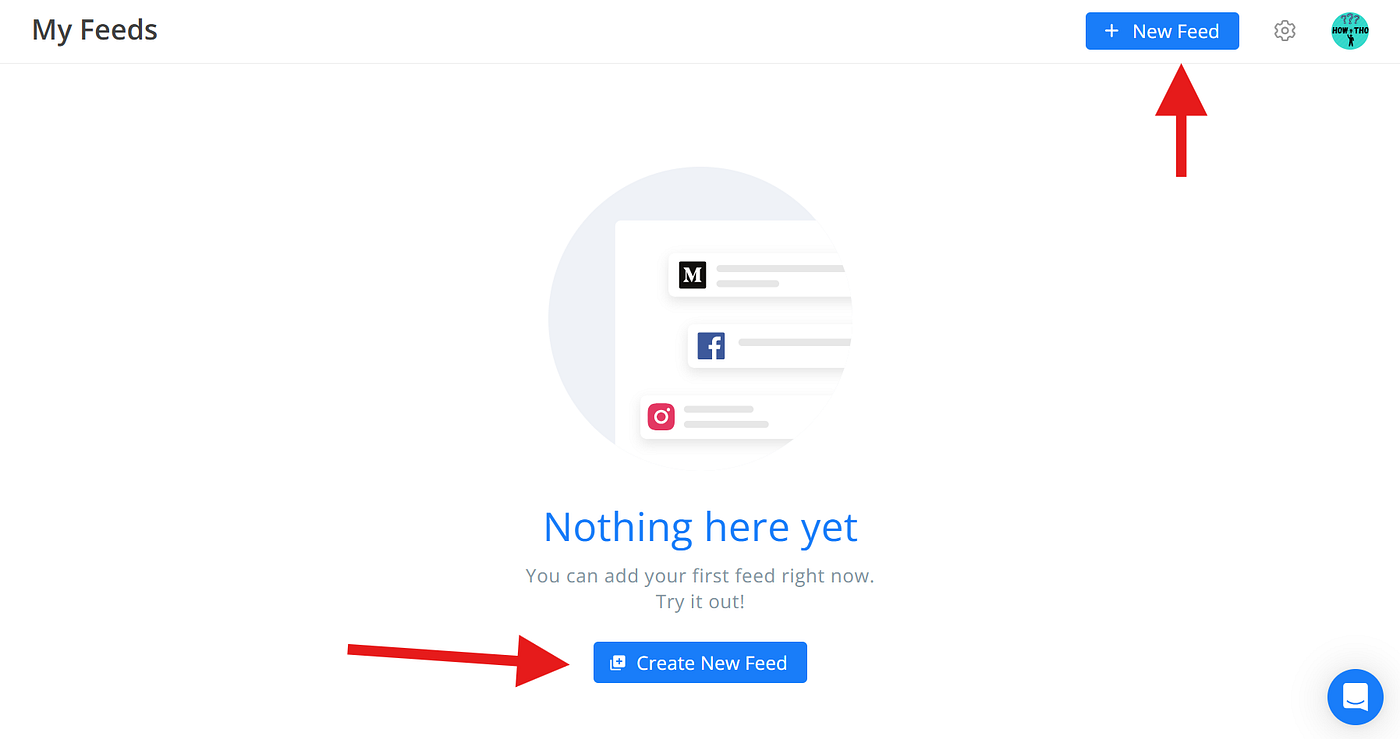
- Create a new feed using the RSS URL. Input the RSS URL and click on generate. I’m going to be using the Lifehacker RSS Feed.

- Click on Save to My Feeds.

- Open the Widgets section to explore various options.

The free plan doesn’t include customization or access to presets, but the presets give you a glimpse of what’s possible with the paid plan. For this tutorial, we’ll stick to the default news ticker widget.

Step 3: Customize the Ticker Title
By default, the ticker displays the source name (e.g., “Lifehacker”). To personalize it:
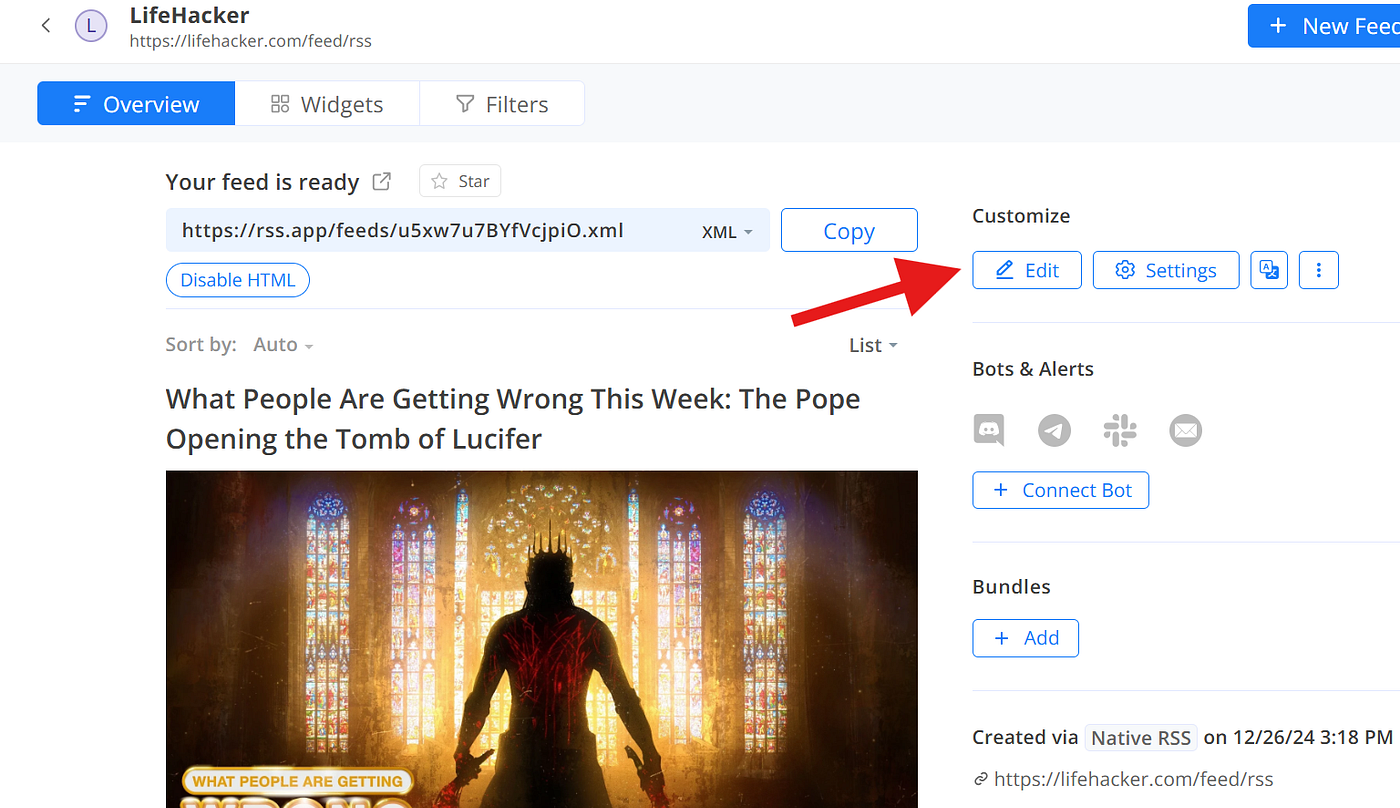
- To do this click on the “Overview” tab and click on “edit”. Update the feed name with your desired title and save it. Note: Keep it short, as longer titles might not display properly.



Step 4: Embed the Ticker on Your Website
There are multiple ways to add the news ticker to your site, and this method should work on any website. Here’s how to do it on Wix:
First step is to be on the Widgets page and click on the Ticker section. Click on the “Add to Website” button.

Note: The Iframe and Wix option that you see on RSS.app are identical, this is why it will also work on other websites/builders.
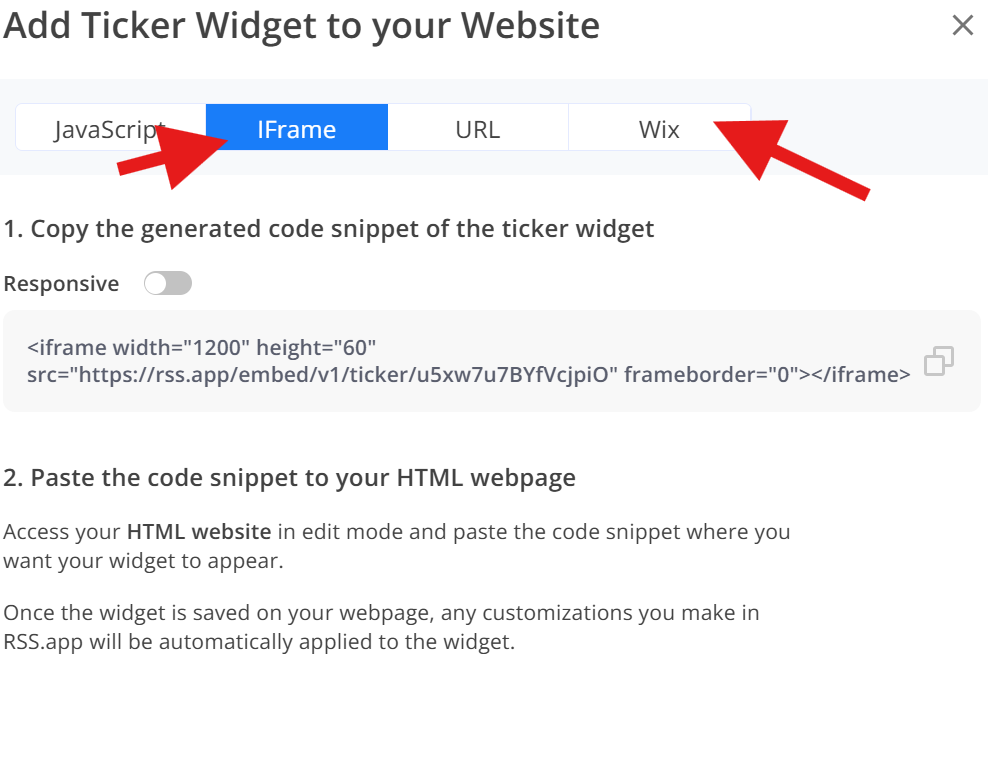
Option 1: Responsive Embed Code — Enable responsive on Rss.app and copy the code by clicking the copy button.

— On Wix got to edit your site, click Add Elements (left sidebar)

— Click on “Embed Code”.
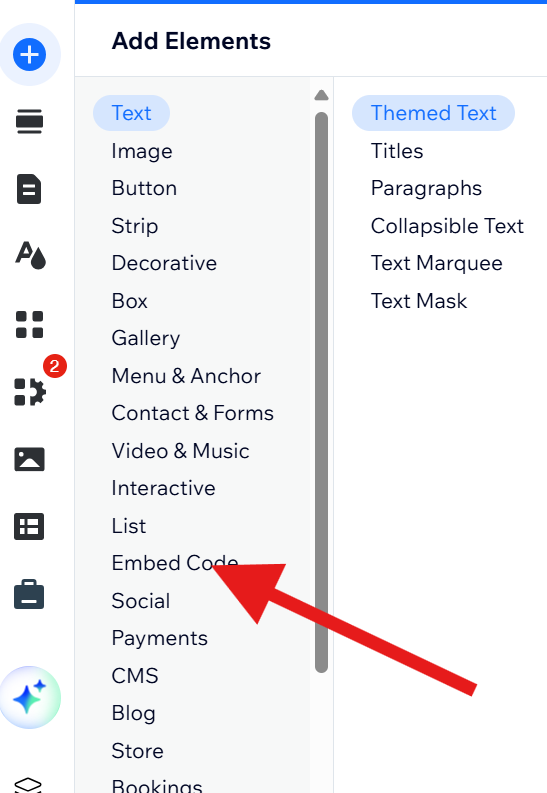
— Click on “Embed HTML”.

— Paste the code you copied earlier and click on “apply”/”update”.
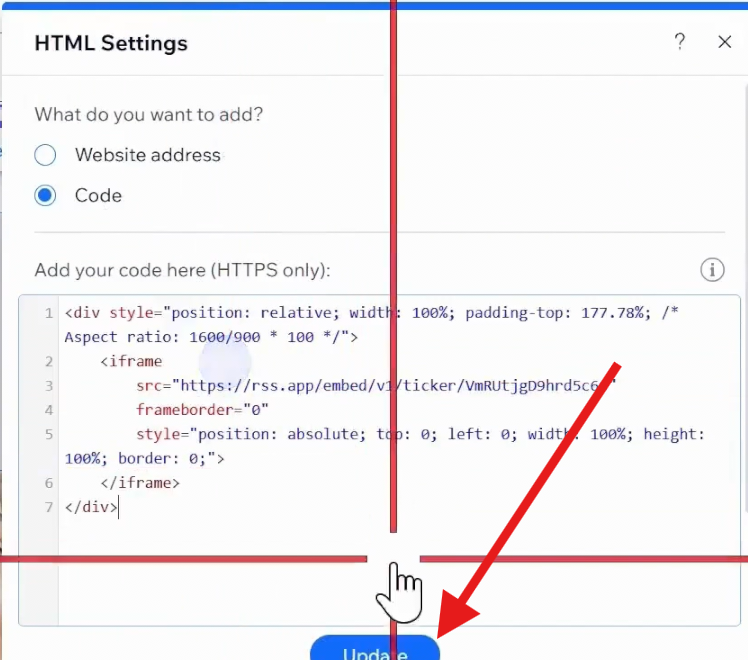
— Position the element. — Note: This option may add a vertical scroll bar, which I wasn’t able to remove. You might be able to do this if you have coding experience. If you don’t have a vertical scroll bar then just use this option.

Option 2: Standard Embed Code — Copy the non-responsive embed code.

— Add another “Embed HTML” element or update the previous one. — Paste the copied code into the element.

— Adjust the width manually to avoid a horizontal scroll bar. While effective, this method can be time consuming (mine worked with a width of 950).
So when you copy the ticker it will look like this, but with a different src
<iframe width=”1200" height=”60" src=”<>" frameborder=”0"></iframe>
Change the width to something like 950 to remove the vertical scrollbar(might need a different width depending on how wide you want the ticker).
<iframe width=”950" height=”60" src=”<>” frameborder=”0"></iframe>

The result is better than option one but as you can see there is some white space, which I probably can fine tune but it just takes allot of effort. Option three is easier and faster to setup.
Option 3: Direct URL Embed (Recommended) This is the one that worked best for me here is how you can get it — Copy the widget’s URL from the RSS site.

— Add an embed HTML element, select Website Address, and paste the URL.


— This option eliminates scroll bars and is easy to set up.

Step 5: Preview and Optimize
Preview your news ticker on both desktop and mobile versions of your site. Make adjustments to ensure it looks great on all devices. Like I’ve mentioned before, option one and two gave me scrollbars beneath/next to the news ticker which made me use option 3. I had to edit the mobile version a little bit to make it look as I wanted.

Click here to see your site in mobile mode and edit it accodingly.
And that’s it! You now have a functional, eye-catching news ticker powered by your chosen RSS feed. The best part? It refreshes daily on the free plan, keeping your site updated with minimal effort.
What’s Next?
Let us know in the comments what you’d like to see next. Thanks for reading, and happy website building!
Disclaimer
If you make a paid account on Rss.app(which you don’t have to for this tutorial) then I will be getting a small commission with no extra cost to you.
메타데이터
- post_id
- ac5277379ef3
- slug
- turn-any-rss-feed-into-a-news-ticker-for-your-website-for-free-ac5277379ef3
- url
- https://medium.com/@likehowtho/turn-any-rss-feed-into-a-news-ticker-for-your-website-for-free-ac5277379ef3
- canonical_url
- https://medium.com/@likehowtho/turn-any-rss-feed-into-a-news-ticker-for-your-website-for-free-ac5277379ef3
- author_url
- https://medium.com/@likehowtho
- status
- ok
- fetched_at
- 2026-06-09 15:37:30