Setting Up GLFW, GLEW, and GLM in Microsoft Visual Studio 2022
How to setup opengl in ms visual studio 2022?
Setting Up GLFW, GLEW, and GLM in Microsoft Visual Studio 2022
Setting up a powerful OpenGL development environment in Microsoft Visual Studio 2022 with the help of GLFW (for window and input handling), GLEW (for OpenGL extension management), and GLM (for math operations) allows you to dive into 3D graphics programming. Here is a step-by-step guide to getting everything up and running smoothly.
Prerequisites
Before diving into the setup, ensure you have the following installed:
- Visual Studio 2022 with Desktop Development with C++ installed.
- GLFW (Download from GLFW Website)
- GLEW (Download from GLEW Website)
- GLM (Download from GLM GitHub)
Not a paid member yet? Click here to read this tutorial for free.
Step 1: Creating a Visual Studio Project
- Open Visual Studio 2022 and create a new project.
- Go to File > New > Project.
- Select Empty Project under the C++ category.
- Set a project name and location, then click Create.
Step 2: Downloading and Adding Dependencies
2.1 Downloading GLFW, GLEW, and GLM
GLFW:
- Download the binary for your system from the GLFW website.
- Extract it to a directory (e.g.,
C:/Libraries/GLFW).
GLEW:
- Download the binary from the GLEW website.
- Extract it to a directory (e.g.,
C:/Libraries/GLEW).
GLM:
- Download the source from the GLM GitHub.
- Extract it to a directory (e.g.,
C:/Libraries/GLM).
Step 3: Configure Visual Studio Project
3.1 Add Include Directories
- Right-click your project in Solution Explorer and select Properties.
- Under Configuration Properties > VC++ Directories, modify the following:
- Include Directories: Add paths to the
includedirectories of GLFW, GLEW, and GLM. - E.g.,
C:/Libraries/GLFW/include,C:/Libraries/GLEW/include,C:/Libraries/GLM.
3.2 Add Library Directories
- Under the same VC++ Directories tab, modify the Library Directories:
- Add paths to the
libdirectories of GLFW and GLEW. - E.g.,
C:/Libraries/GLFW/lib-vc2022,C:/Libraries/GLEW/lib/Release/x64(for 64-bit).
Step 4: Link the Libraries
4.1 Add GLFW and GLEW Libraries
- Go to Configuration Properties > Linker > Input.
- In Additional Dependencies, add the following:
glfw3.libopengl32.libglew32.lib(orglew32s.libif you’re using the static version).
Step 5: Copy DLL Files
After linking the libraries, you need to ensure that the corresponding DLL files (Dynamic-Link Libraries) for GLFW and GLEW are accessible by your executable.
- Navigate to the
binfolder where you extracted GLEW and GLFW binaries.
- For GLEW, the
glew32.dllfile is usually inglew/bin/Release/x64/(for 64-bit). - For GLFW, find the
glfw3.dllinlib-vc2022
- Copy the DLL files (
glew32.dllandglfw3.dll) into your project’s output directory where the compiled executable (.exe) is located.
Note: Without these DLLs in the executable’s directory, the application will fail to run, even if it compiles successfully.
Step 6: Write Sample OpenGL Code
Now that your project is configured, you can write some basic OpenGL code to test your setup. Below is a simple example that opens a window using GLFW and GLEW.
main.cpp
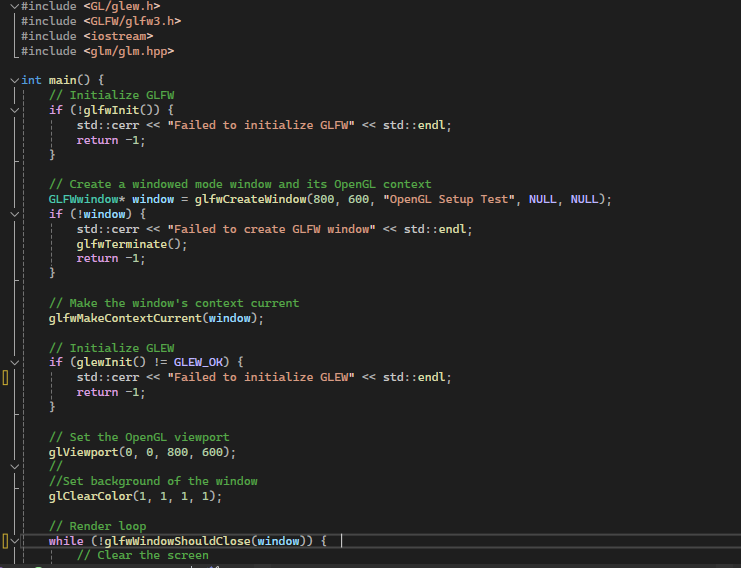
Sample Code
You can download the complete source code and watch a setup video for easy step-by-step guidance. Get started quickly by following the link below:
**Download Source Code & Watch Video**
Step 7: Build and Run
- Build the Project:
- Go to Build > Build Solution or press
Ctrl+Shift+B. - Ensure that there are no errors during the build.
2. Run the Program:
- Press
F5to run the program. If everything is set up correctly, you should see an OpenGL window pop up.
Conclusion
Congratulations! You have successfully set up GLFW, GLEW, and GLM in Visual Studio 2022. You are now ready to start exploring OpenGL and creating 3D graphics applications. You can expand this base project by adding shaders, more advanced math using GLM, and more complex rendering techniques.
메타데이터
- post_id
- ac6a8a0f08d3
- slug
- setting-up-glfw-glew-and-glm-in-microsoft-visual-studio-2022-ac6a8a0f08d3
- url
- https://medium.com/@zmarkm2021/setting-up-glfw-glew-and-glm-in-microsoft-visual-studio-2022-ac6a8a0f08d3
- canonical_url
- https://medium.com/@zmarkm2021/setting-up-glfw-glew-and-glm-in-microsoft-visual-studio-2022-ac6a8a0f08d3
- author_url
- https://medium.com/@zmarkm2021
- status
- ok
- fetched_at
- 2026-06-20 20:29:01