Stop Deleting Blank PDF Pages One by One — There’s a Much Faster Way
You scan a 40-page contract, a stack of receipts, or a meeting handout — and somewhere in the middle, the scanner quietly picked up five…
Stop Deleting Blank PDF Pages One by One — There’s a Much Faster Way
You scan a 40-page contract, a stack of receipts, or a meeting handout — and somewhere in the middle, the scanner quietly picked up five blank pages. Maybe the paper fed slightly crooked. Maybe there was a separator sheet. Either way, you’re now sending a 47-page PDF when you meant to send 42.
Nobody wants to scroll through that. And manually deleting blank pages one by one is exactly as tedious as it sounds.

Why Blank Pages End Up in Your PDFs More Often Than You’d Think
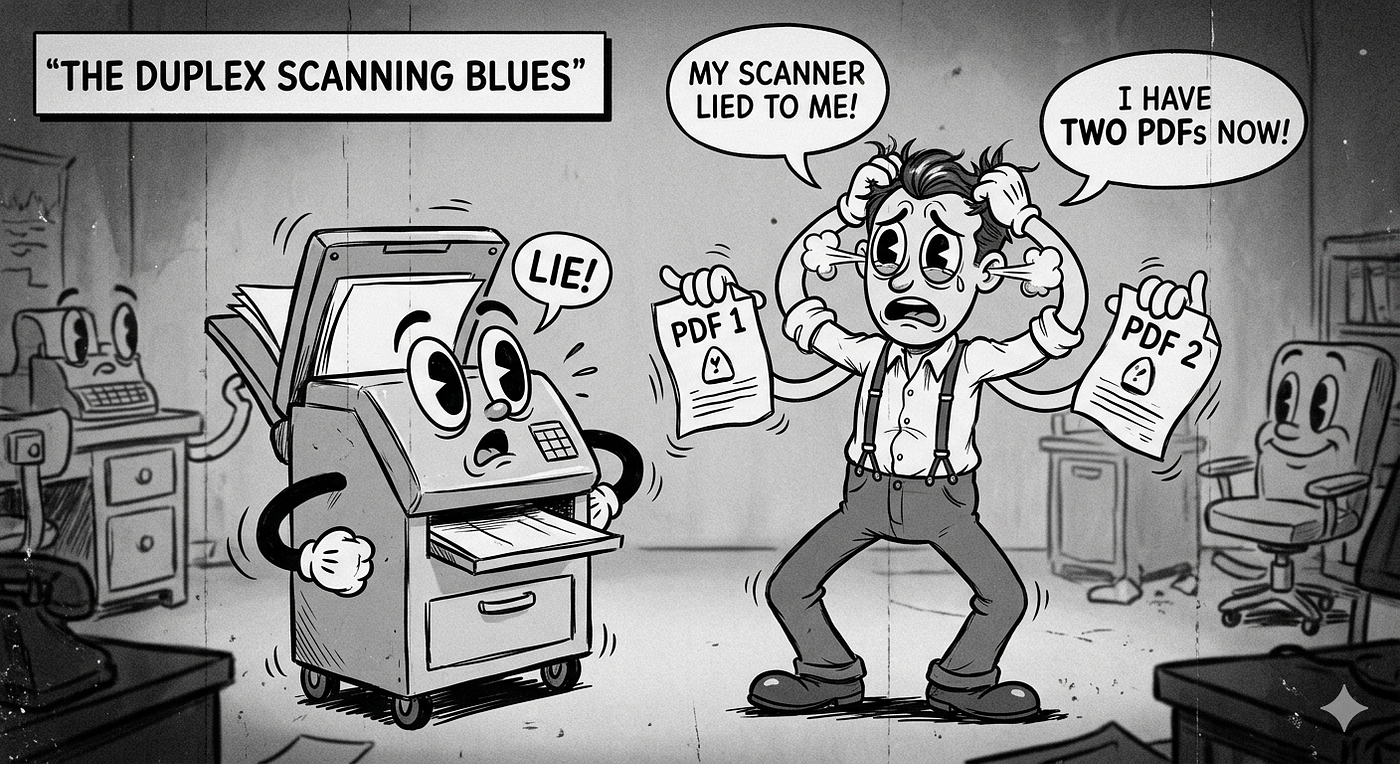
Duplex (double-sided) scanning is the main culprit. When you scan a document with odd-numbered pages, the scanner captures the back of the last page too — and it’s empty. That blank gets baked into the PDF, and most people don’t even notice until they’re on a call asking “wait, why is page 12 empty?”
Other common sources:
- Separator sheets inserted between physical document batches
- Section breaks in multipart forms where the last page of a section is intentionally blank
- Scanner misfeeds that capture a near-white page with a faint crease or smudge — not technically blank, but practically useless
The tricky part is “near-empty” pages. A page with only a faint timestamp in the corner, a barely-visible watermark, or a single stray pixel — these aren’t truly blank, but they add no value. A simple visual scan won’t always catch them, and most PDF tools don’t handle them at all.
The Manual Way (And Why It Doesn’t Scale)
Adobe Acrobat lets you delete individual pages. So does Preview on Mac. These tools work fine if you have three blank pages in a 10-page document.
But what if you’re processing a 120-page scanned report? Or you receive scanned PDFs regularly as part of a workflow — invoices, client forms, legal filings? Clicking through each one is not a system. It’s a time sink.
What you actually need is a tool that can analyze the document, flag pages that are blank or near-blank, and remove them in one step — ideally without touching the pages that actually matter.
How Automatic Blank Page Detection Works
Good blank page detection doesn’t just check if a page is pure white. It renders each page as an image and analyzes the pixel content statistically.
The key metric is brightness standard deviation. A truly blank page has almost no variation in pixel brightness — it’s uniformly white (or near-white). A page with real content — text, a table, a signature — has high variance. Light areas, dark areas, edges.
By setting a threshold on that variance, you can reliably separate meaningful pages from empty ones, even when a page has a faint scan artifact or a barely-there header. Pages below the threshold get flagged; you review and confirm before anything is deleted.
This approach is both precise and safe — it doesn’t silently discard pages you might need.
Which tools can help?
This is exactly what the Remove Empty Pages feature in PDF Interleaver does on Android. You pick your PDF, the app scans each page, flags the blank or near-blank ones with previews, and you confirm before saving. The output is a clean PDF with no filler pages — processed entirely on-device, no file upload required.
It’s useful if this is a recurring problem and you want a fast, private solution on your phone or tablet.
Tips You Can Use Right Now (App or No App)
Even without any dedicated tool, there are practical ways to reduce blank page problems at the source:
1. Adjust your scanner settings. Most duplex scanners have a “blank page removal” option buried in the driver settings. On Windows, check the scanner’s software properties before scanning. Enabling this catches many blank pages before the PDF is even created.
2. Use Adobe Acrobat’s “Reduce File Size” pass. It won’t delete blank pages, but it can compress them to near-zero size — which at least shrinks the document.
3. Split first, then delete. If you know blank pages appear in a predictable pattern (e.g., always after every odd-numbered section), splitting the PDF at those boundaries and reassembling is faster than hunting them down manually.
4. Set an internal standard. If your team scans documents regularly, a one-line style guide — “always use simplex for documents under 10 pages” — prevents the problem before it starts.
The Bottom Line
Blank pages in a PDF are a small annoyance that compounds at scale. The fix doesn’t have to be complex — it just has to be reliable and repeatable.
If you’re dealing with this regularly, spend five minutes setting up a process that handles it automatically. Whether that’s a scanner setting, a desktop tool, or a phone app, the goal is the same: the PDF you send should contain exactly what you meant to send, nothing more.
Start with your scanner’s settings today. That single change might eliminate the problem entirely before it reaches your PDF.
메타데이터
- post_id
- ad5f5a273ddb
- slug
- stop-deleting-blank-pdf-pages-one-by-one-theres-a-much-faster-way-ad5f5a273ddb
- url
- https://medium.com/@tomin333/stop-deleting-blank-pdf-pages-one-by-one-theres-a-much-faster-way-ad5f5a273ddb
- canonical_url
- https://medium.com/@tomin333/stop-deleting-blank-pdf-pages-one-by-one-theres-a-much-faster-way-ad5f5a273ddb
- author_url
- https://medium.com/@tomin333
- status
- ok
- fetched_at
- 2026-07-11 19:40:18