UKESM AMIP setting run duration and cycle length in Rose
You have a suite you wish to run, but need to constrain it such that it can run on your allocated queues — this guide explains how to…
UKESM AMIP setting run duration and cycle length in Rose
You have a suite you wish to run, but need to constrain it such that it can run on your allocated queues — this guide explains how to break it into segments which allow you to do so.
Photo by Djim Loic on Unsplash
Accessing the run initialisation panel through rose
The run I am using is u-ca218 . First, you need to open the rose editor and navigate to suite conf → run initialisation and cycling using the menu on the left.
Here you will have a set of options including an initialisation file, calendar and other information.
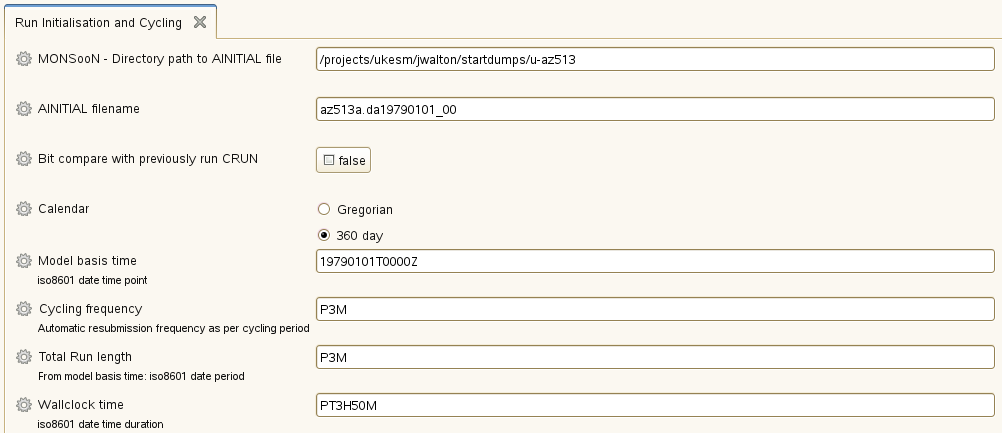
The default settings when I downloaded the suite
Getting info about each item
If you are interested in an item you can click the cog and select the info option to determine additional information about the variable changed by a field. For instance, the Wallclock time corresponds to the jinja2:suite.rc=MAIN_CLOCK variable within the jinja populated rc file.
Cycle Frequency and Total Run Length
Total run length is the total duration we wish our simulation to cover.
This, however, can be split up into smaller (shorter) simulations which are run back to back. This is our cycle frequency. It must be noted that the total run length MUST be a multiple of the cycle frequency.
Wallclock time is an estimate of how long you think the whole run will take from start to finish.
Duration Formatting
One thing that is often skipped in the documentation is what exactly the iso8601 date format means. In general, the formatting follows the form of P[n]Y[n]M[n]DT[n]H[n]M[n]S or P[n]W where the preceding n is your chosen value for each section. The meaning of each capital letter is given below (source)
- P is the duration designator (for the period) placed at the start of the duration representation.
- Y is the year designator that follows the value for the number of years.
- M is the month designator that follows the value for the number of months.
- W is the week designator that follows the value for the number of weeks.
- D is the day designator that follows the value for the number of days
Similarly, we can also have finer time formatting using the T designator
- T is the time designator that precedes the time components of the representation.
- H is the hour designator that follows the value for the number of hours.
- M is the minute designator that follows the value for the number of minutes.
- S is the second designator that follows the value for the number of seconds.
For example, P3Y6M4DT12H30M5S represents a duration of “three years, six months, four days, twelve hours, thirty minutes, and five seconds”.
Extending a run in situ
Once we have successfully completed a run, we can extend it by increasing the Total Run Length. Once we have done this we can resume from the last calculated timestep and increase our data.
To restart the run we use
rose suite-run --restart메타데이터
- post_id
- afbdeb05a422
- slug
- ukesm-amip-setting-run-duration-and-cycle-length-in-rose-afbdeb05a422
- url
- https://medium.com/cemac/ukesm-amip-setting-run-duration-and-cycle-length-in-rose-afbdeb05a422
- canonical_url
- https://medium.com/cemac/ukesm-amip-setting-run-duration-and-cycle-length-in-rose-afbdeb05a422
- author_url
- https://medium.com/@daniel-ellis
- status
- ok
- fetched_at
- 2026-06-09 21:21:26