Claude Claude + Big Projects
How to Use Claude Code on Big Projects (Without Slowing It Down)
Claude Claude + Big Projects
How to Use Claude Code on Big Projects (Without Slowing It Down)
If you have ever used Claude Code on a small project, you know it feels fast and smart. It reads your files, understands your code, and helps you fix things quickly.
But what happens when your project is huge? Think gigabytes of code. Thousands of files. Many folders inside folders.
In that case, Claude can slow down or get confused. Not because it’s not smart — but because it’s trying to look at too much at once.
Here is the problem, in simple words, and simple ways to fix it.
Why Big Projects Are Harder
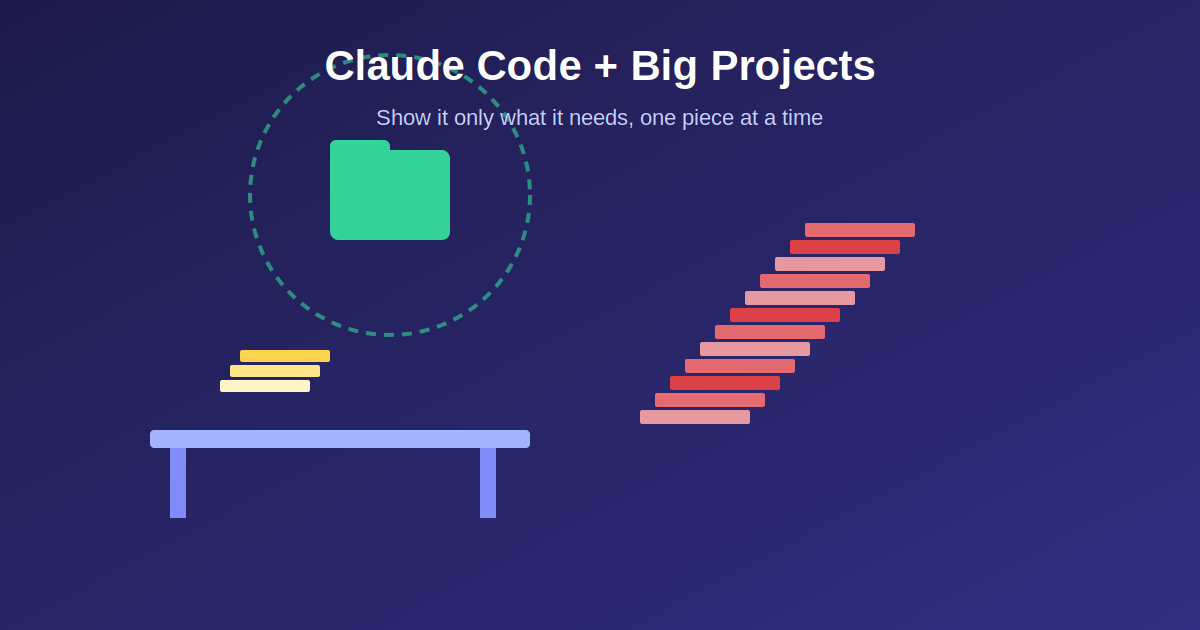
Think of Claude’s “memory” for a task like a small desk. You can only fit so much on it at one time.
In a small project, Claude can put your whole project on that desk and still have room to think.
In a huge project, if Claude tries to load everything — every file, every folder — the desk fills up fast. There’s no room left to actually think or solve your problem. This wastes time and can lead to mistakes.
So the goal is simple: don’t make Claude look at everything. Only show it what it needs for the task.
1. Start Claude Inside the Right Folder
Don’t open Claude at the very top of your whole project. Open it inside the smaller folder you are actually working on.
For example, if you are working on the “website” part of your project, go into that folder first, then start Claude there:
cd apps/website
claude
This way, Claude only looks at the website folder, not your entire company’s code.
If Claude also needs to see one other folder (like shared code used by many parts of the project), you can add it like this:
claude --add-dir ../shared-codeNow Claude can see the website folder and that one extra folder — nothing more.
2. Give Claude Small Notes in Each Folder
Claude Code can read a special file called CLAUDE.md. Think of it as a short note you leave for Claude, telling it how this part of the project works.
Instead of writing one giant note for the whole project, write small notes and place them in different folders:
- One short note at the very top, with big-picture info.
- Smaller notes inside each folder, with details that only matter there.
Claude automatically reads the note in your current folder, plus the notes above it. So it always gets the right mix of “big picture” and “local details” — without extra clutter.
Keep these notes short. Only include the important stuff, like:
- What this part of the project does
- Which commands to run for tests
- Any rules to follow
3. Hide the Files Claude Doesn’t Need
Big projects are full of files Claude doesn’t need to see — things like:
- Auto-generated files
- Downloaded packages (like
node_modules) - Build output folders
You can tell Claude to ignore these files completely. This makes Claude faster, and it stops Claude from getting confused by files that aren’t real source code.
Doing this can cut down the number of files Claude even looks at from tens of thousands to just a few hundred.
4. Let Claude Send Out “Helpers” for Big Searches
If you ask a big question like “how does login work across this whole project?”, Claude might need to check many files to answer.
Instead of doing all that searching in your main conversation (which fills up its memory), you can ask Claude to use a “helper” (called a subagent) to go search and come back with just the answer.
This keeps your main conversation clean, while the helper does the messy searching somewhere else.
5. Plan Before Making Changes
For big or risky changes, ask Claude to first make a plan, and show it to you, before it touches any files.
This is called “Plan Mode.” You get a chance to check the plan before anything actually changes.
6. Work on Multiple Things at Once, Safely
If you want to work on two different features at the same time, you can create two separate copies of your project (called “worktrees”), each on its own branch.
This lets you run two Claude sessions side by side — one per feature — without them stepping on each other’s changes.
7. Clear the Slate Between Tasks
Once you finish one task and move to a totally different one, clear the conversation before starting the new task.
This is like wiping the small desk clean before starting new work. Old information that doesn’t matter anymore just gets in the way.
8. For Really Huge, Old Codebases
If your project is extremely large (millions of lines) or very old, plain text search (like grep) might not be good enough to find things accurately.
In that case, tools that understand code structure (not just text) can help Claude find the exact piece of code it needs, instead of guessing from a pile of search results.
The Simple Idea Behind All of This
Claude Code doesn’t get weaker on big projects. It gets distracted, if you let it see too much at once.
The fix isn’t a complicated trick. It’s this:
Show Claude only what it needs, one task at a time — and it will work just as well on a giant project as it does on a tiny one.
For the full official writeup, see Anthropic’s guide: https://docs.claude.com/en/docs/claude-code/large-codebases and the companion post on large-codebase deployments: https://claude.com/blog/how-claude-code-works-in-large-codebases-best-practices-and-where-to-start
메타데이터
- post_id
- b04d7f7ab063
- slug
- claude-claude-big-projects-b04d7f7ab063
- url
- https://medium.com/@_anilbhatt/claude-claude-big-projects-b04d7f7ab063
- canonical_url
- https://medium.com/@_anilbhatt/claude-claude-big-projects-b04d7f7ab063
- author_url
- https://medium.com/@_anilbhatt
- status
- ok
- fetched_at
- 2026-07-07 11:08:18




