AEM Integration with Dynamic Media and Smart crop enablement for videos
Getting value out of your dynamic media license
AEM Integration with Dynamic Media and Smart crop enablement for videos
Introduction to dynamic media:
As we know dynamic media is an add-on capability in AEM which helps in managing the assets efficiently. Dynamic media helps marketers to customize and deliver interactive content across the applications. Extending all its out-of-the-box functionalities, helps in integrating and enabling multiple features in a single component.By the end of this blog, we will get a clear idea on how to create a video dynamic media component including all its functionalities to bring an end-to-end solution.The main functionalities include smart crop enablement for the videos and achieving high-quality video streaming on multiple screens.We also have other capabilities like adding poster image and closed captions to the videos in this component.
How to enable dynamic media in AEM :
- The first and foremost thing to enable the dynamic media is to run the AEM (Adobe Experience Manager) instance in the dynamic media run mode.
- Then configure the dynamic media cloud service with appropriate credentials to connect with the dynamic media classic.(refer the link for more details https://experienceleague.adobe.com/docs/experience-manager-cloud-service/content/assets/dynamicmedia/config-dm.html?lang=en#configuring-dynamic-media-cloud-services)
- AEM provides a predefined encoding structure (Video Profile) and the video viewer screens (Viewer Presets) which are used for rendering the dynamic media videos on pages.
- Video Profiles: The set of standard encodings for the video asset can be defined in video profiles in AEM.
- Viewer presets: The set of screen resolutions or the screen viewers for the videos in AEM.
How to create and apply Video Profile:
Video Profile: AEM provides a default video profile which is Adaptive Encoding Video Profile, we can either make use of it or create our own custom video profile.
Below are the steps to create a custom Video profile:
- Go to tools -> assets click on video profiles.
- To create a custom video profile, click on the Add Video Encoding Preset.
- Specify the bitrates and the custom height and width that are required (Best practice is to add the standard encoding presets).
- Similarly add the Smart Crop Ratios as shown in the figure below.
Fig: Video Encoding profile edit screen.
Note: All the encodings and the smart crop ratios added are the best practices recommended by adobe.
To apply it for our video assets, select the video profile and click on apply to folder and select the folder under which we upload a video.
Managing Viewer presets:
Viewer presets: Default AEM viewer presets are available under tools -> assets -> viewer presets. Identify the viewer presets that are required for the video type. Make sure to publish all these default viewer presets before using them.
Below are the default presets for video type:
- Video
- Video_social
- SmartCropVideo
- SmartCropVideo_social.
We can also create a custom preset clicking on the create and specifying the type.(Please refer link for adobe document https://experienceleague.adobe.com/docs/experience-manager-64/assets/dynamic/managing-viewer-presets.html?lang=en))
Uploading a video:
- Once the profiles and presets are in place, upload a video file under the folder where we have applied the video profile.
- After the completion of the video file processing, click on the file and under the left rail select the Renditions option. The encodings that are created under the video profile will be shown. See the below figure.
- We can also view the viewer presets, select the viewers under the same left rail, all the default viewers for the video type is been applied to the video asset.
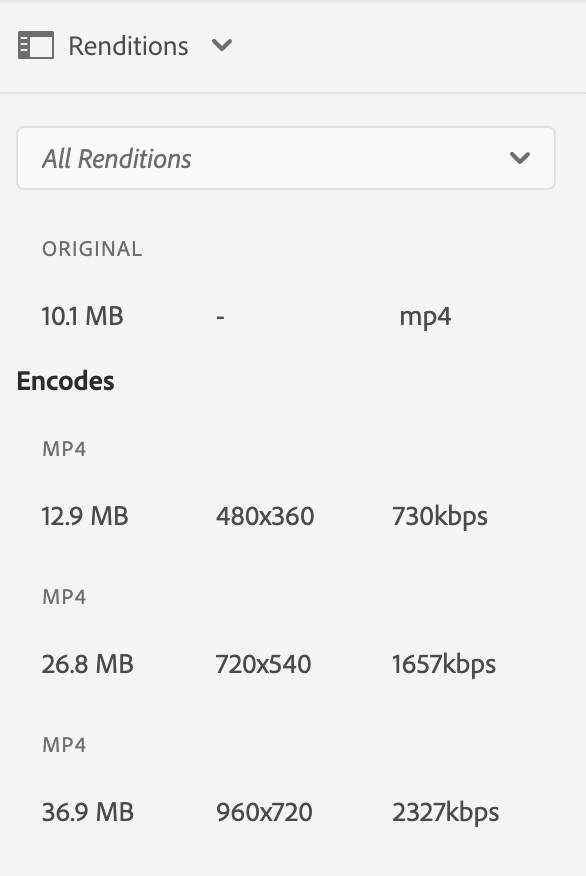
Fig: dynamic media video asset renditions
Fig: viewers for the dynamic media video asset
Dynamic media video component with smart crop option:
We have developed a new component leveraging the video functionality from the out of the box dynamic media component. This component also supports the smart crop option.
Component functionalities: Though the main functionality of the component is to leverage the dynamic media videos, there are few extra features that have been added for this component. They are:
Auto play: To autoplay the video on page load.
Play video in loop: To play the video on loop.
Hide controls: To hide the player controls like seek video bar, Fullscreen option, volume button etc.
Smart crop: Enable/Disable the smart crop option for the video. The builtin functionality that has been applied here is to render either the smart crop presets if the smart crop is enabled or the default presets for the video. See the figures below.
Viewer presets: default viewers will dynamically load on enable/disable the smart crop accordingly.
Overlay Image: Author a DM image which acts as a thumbnail or poster image for the video.
Caption: Author DM caption file to provide captions to the video.
Fig: Video component dialog when selected smart crop as enabled.
Fig: Video component dialog when selected smart crop as disabled.
On selecting these viewer presets, the script related to that viewer will be rendered on the page. In order to achieve this, we need to go to the dynamic media video asset that has been uploaded under a folder.
- Click on the asset.
- From the left rail select the viewers and click on the viewer preset.
- Click on the Embed button.
- The Embed code for that viewer preset will be shown. Make sure to render this code whenever the viewer preset from the dialog has been selected.
The sample embed code can be viewed in the dynamic media video asset by selecting the viewers and clicking on the embed button as shown below:
Fig: Code for the Video_social viewer.
Conclusion
Dynamic media is a rich setup and offers great advantage to the users under AEM. Leveraging smart crop will eliminate a need to manually create different video renditions for different screen resolutions.Taking advantage of this Dynamic media capability will make your author’s lives simpler. The above component is one of its kind which combines both the dynamic media video with high quality streaming by enabling the smart crop options.
메타데이터
- post_id
- b06dc7cd49cc
- slug
- aem-integration-with-dynamic-media-and-smart-crop-enablement-for-videos-b06dc7cd49cc
- url
- https://medium.com/activate-aem/aem-integration-with-dynamic-media-and-smart-crop-enablement-for-videos-b06dc7cd49cc
- canonical_url
- https://medium.com/activate-aem/aem-integration-with-dynamic-media-and-smart-crop-enablement-for-videos-b06dc7cd49cc
- author_url
- https://medium.com/@theeguru.mrudulareddy
- status
- ok
- fetched_at
- 2026-08-05 02:20:04