Where the Delete Key Is on a Mac and How to Use It
When I first switched from Windows to Mac, I couldn’t find the delete key anywhere. The familiar Backspace button was gone — or so I…
Where the Delete Key Is on a Mac and How to Use It
When I first switched from Windows to Mac, I couldn’t find the delete key anywhere. The familiar Backspace button was gone — or so I thought. After some trial and error, I finally understood how deletion works on a Mac keyboard.
If you’re new to MacBook Air or MacBook Pro, this guide will show you exactly where the Mac delete key is and how to use it for both text and files.
Is There a Delete Key on a Mac?
Yes, every Mac keyboard has a delete key. It just looks different from the Backspace key on Windows.
On a MacBook, the backward delete key is labeled either with a left-facing arrow symbol (⌫ or ←) or the word “delete.”
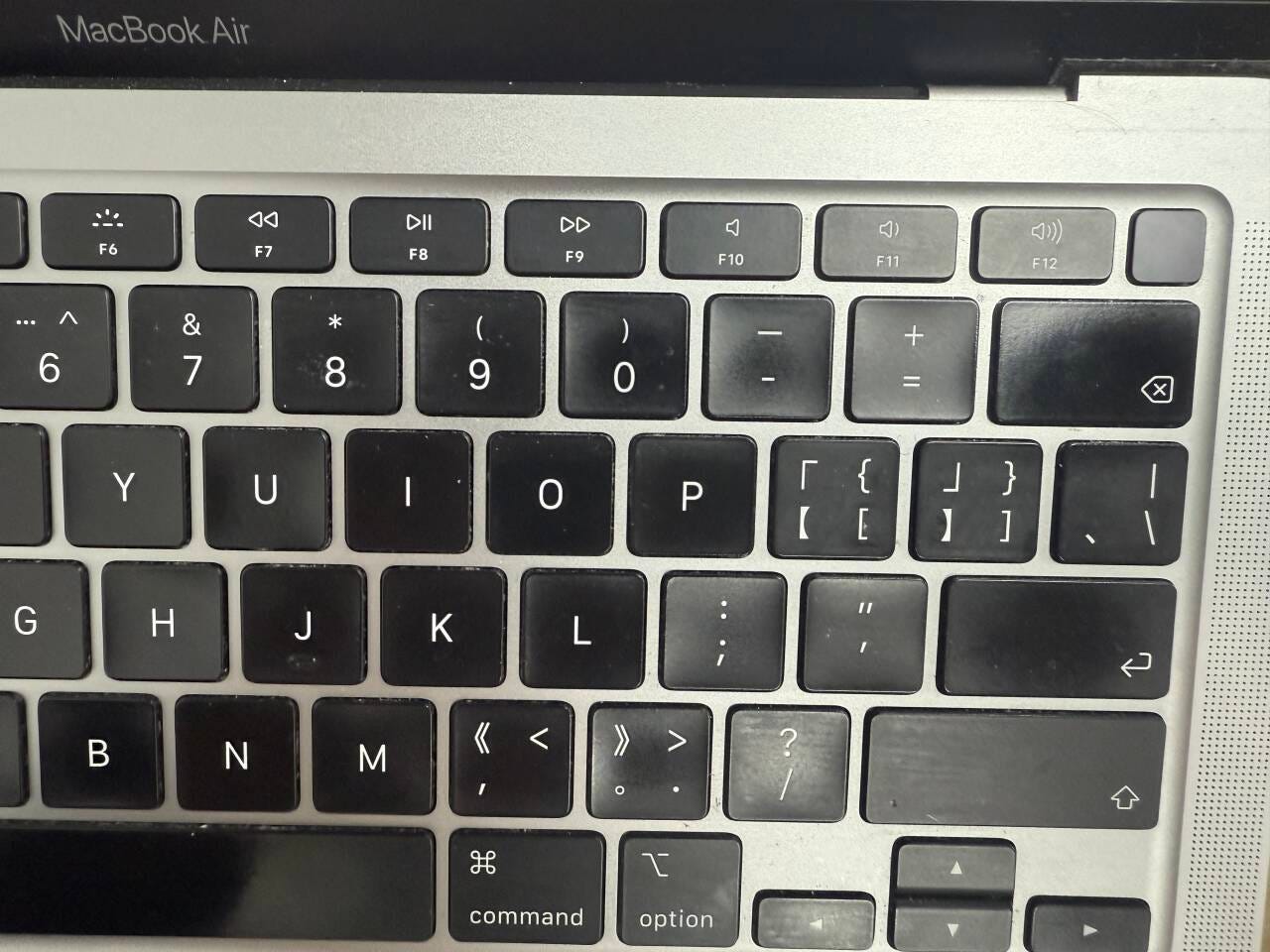
So, don’t panic: your Mac has the same functionality, just under a new name.
Where Is the Delete Key on a Mac Keyboard?
On most Mac keyboards, the delete key sits under the power button or Touch ID. The icon may differ depending on your model:
- Left-facing arrow (⌫ or ←): Deletes the character to the left of the cursor or moves up a line in a document.
- “Delete” text: Same function as above — remove characters to the left of the cursor.
- Left-facing and right-facing arrows (⌫ + ⌦): Deletes to the left by default; press Fn + Delete to remove characters to the right.
Knowing these variations helps you navigate text efficiently, no matter which Mac model you’re using.
What Is the Forward Delete Key on a Mac?
If you’re used to the Windows forward-delete key, the equivalent on a Mac is Fn+Delete or Control-D.
This deletes the character to the right of your cursor, a subtle difference that trips up many new Mac users.
Mapping Windows Keys to Mac
To make the switch smoother:
- Windows Backspace → Mac Delete (⌫ or ←)
- Windows Delete (forward delete) → Mac Fn + Delete or Control-D
This comparison clears up the confusion for anyone moving from Windows to Mac.
How to Delete Files on a Mac
The delete key in documents doesn’t remove files. To manage files, use these shortcuts:
- Command + Delete → Move selected file to Trash
- Shift + Command + Delete → Empty Trash (with confirmation)
- Or right-click a file → Move to Trash
These combinations ensure you’re deleting files safely without affecting other documents.
Experience-Based Tips
- Keyboard icons differ by model — Always check the symbols on your Mac before assuming a key is missing.
- Forward deletion requires Fn — This small adjustment avoids frustration when editing text.
- File deletion is separate — Mac distinguishes between deleting text and deleting files, so shortcuts matter.
- Practice speeds learning — Try deleting characters and files in a test document to internalize the shortcuts.
Final words
Switching to Mac doesn’t have to be confusing. Once you know the location of the delete key and its shortcuts, editing text and managing files becomes second nature.
If this guide helped you, share it with a friend who’s making the switch from Windows to Mac — they’ll thank you for saving them time and frustration.
메타데이터
- post_id
- b0b249db17dc
- slug
- where-the-delete-key-is-on-a-mac-and-how-to-use-it-b0b249db17dc
- url
- https://medium.com/@connie111111/where-the-delete-key-is-on-a-mac-and-how-to-use-it-b0b249db17dc
- canonical_url
- https://medium.com/@connie111111/where-the-delete-key-is-on-a-mac-and-how-to-use-it-b0b249db17dc
- author_url
- https://medium.com/@connie111111
- status
- ok
- fetched_at
- 2026-07-11 11:45:08