Level Up Your Database: Installing SQL Server 2019 and Upgrading to a Specific Version Like a Pro!
SQL Server 2019, Install with Specific Version
Level Up Your Database: Installing SQL Server 2019 and Upgrading to a Specific Version Like a Pro! 🚀 ✨

Introduction
Hey guys, this time I’m gonna share my experience on how to install SQL Server 2019 Express with a specific version. Why? Because I got a task from my boss to migrate from RDS SQL Server on AWS to self-hosted, and I need to make sure the version is exactly the same. 🤔
Any dilemmas?
Of course! So the problem is, by default, the installer from Microsoft gives you version 15.0.2000.5, while the version on RDS AWS is 15.04073, which is totally different. 😅
In this article, I’m using the following stack:
- Windows Server 2019 Standard 💻
- SQL Server 2019 Express 🛠️
- Specific version 15.04073 🔥
Goals
I’ll be installing SQL Server 2019 with the specific version 15.04073. 🎯
Prerequisites
- Windows Server 2016 (or newer) 🖥️
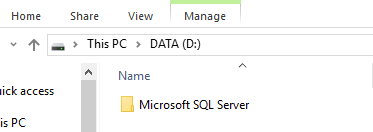
- Disk partition like below; note: for size, you can configure as you need:
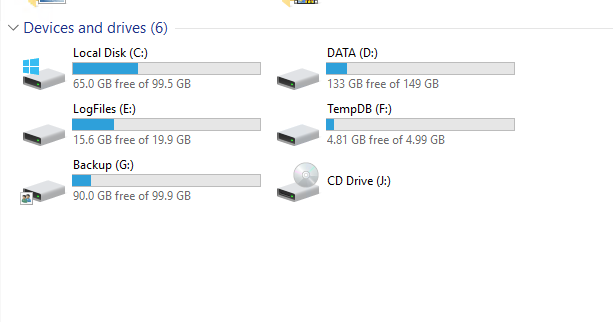
Diskpartition SQL-Server
- Microsoft SQL Server 2019 Express: [Official Microsoft Website] 🌐
- Download the file for the specific version:
- For version 15.04073: KB4577194 — Cumulative Update 8 for SQL Server 2019 📥
- For other versions, you can download them at https://learn.microsoft.com/en-US/troubleshoot/sql/releases/sqlserver-2019/build-versions
Once everything is ready, let’s move on to the next step installation 🚀 💻
To-Do
Install SQL Server 2019 Express
- On your Server, create directory on drive D, E, F, and G with name Microsoft SQL Server
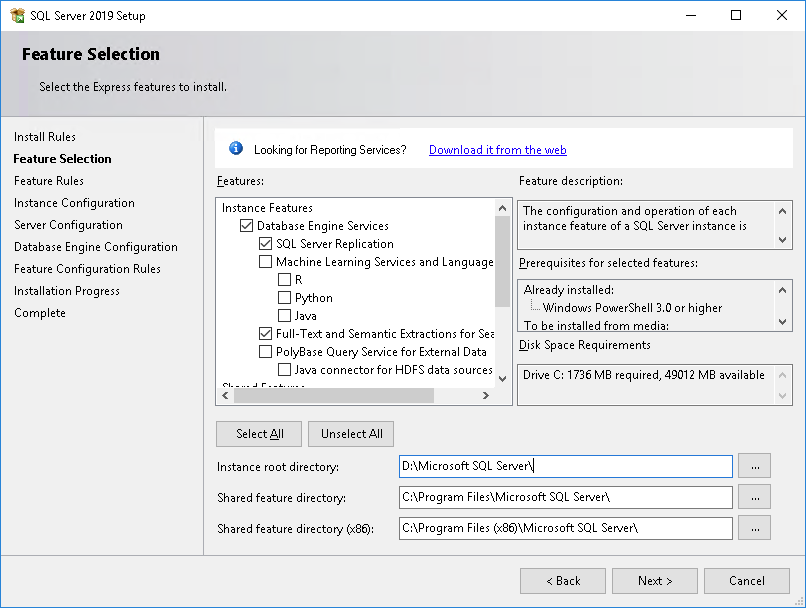
- Install SQL Server with configuration below or can be customized as needed
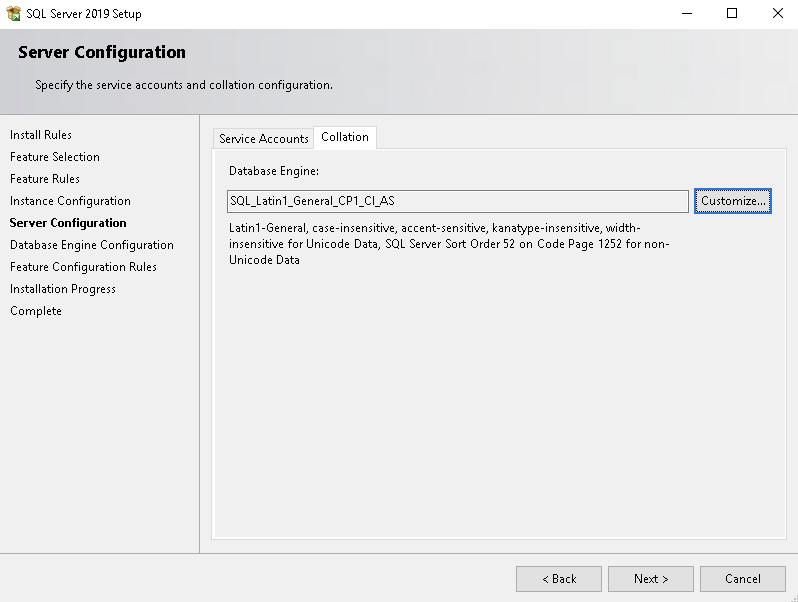
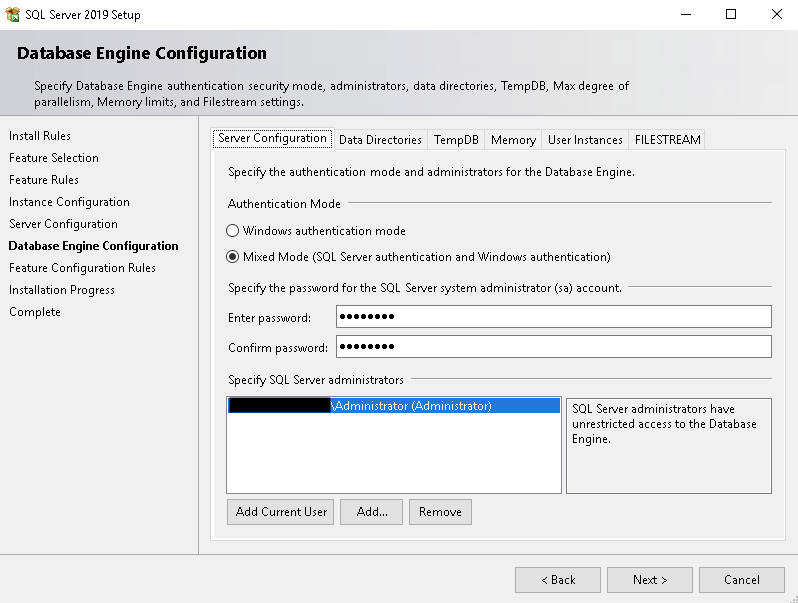
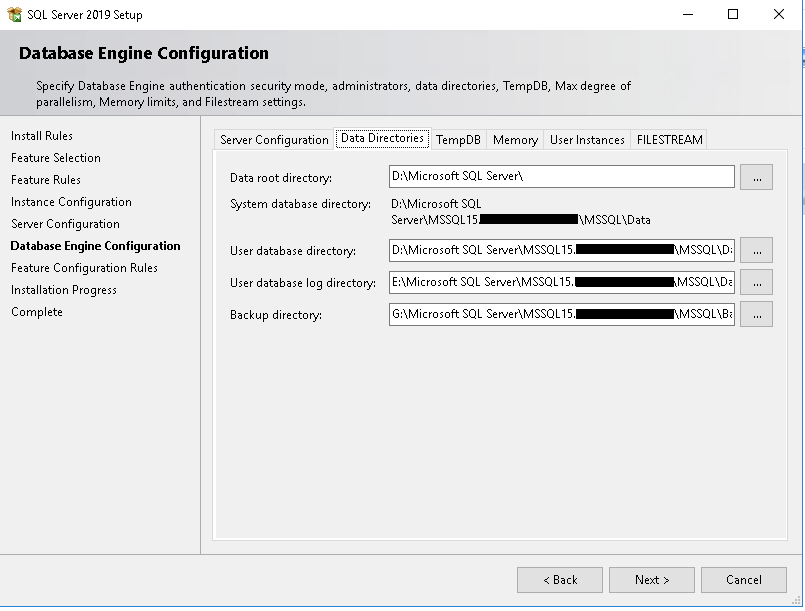
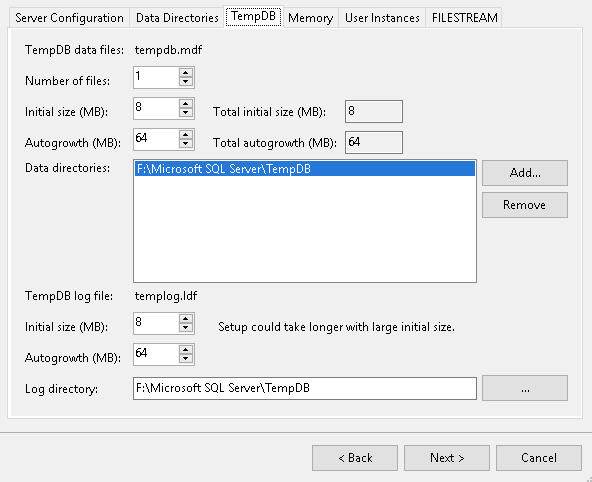
- Create Directory Structure Folder on Drive F: Microsoft SQL Server → TempDB. Then set SQL Server Configuration below:
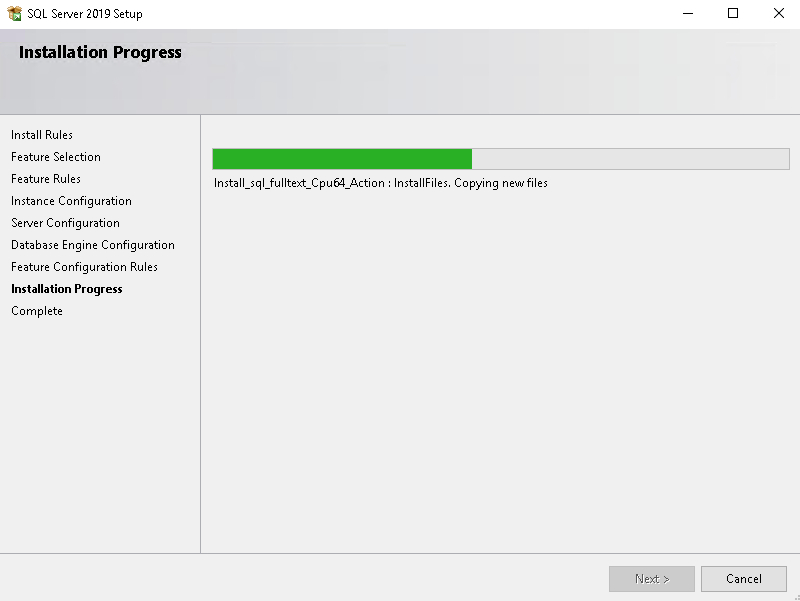
- Waiting installation until finished
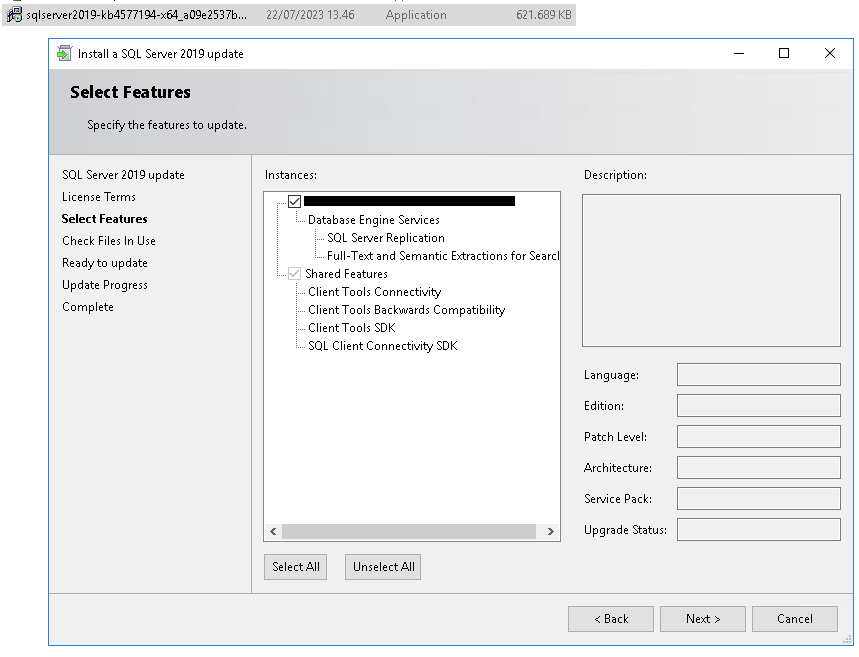
Install the Update Version
- After downloading the file specific update on prerequisite above, click and install from that file
- Then, next and update, and wait until progress completed
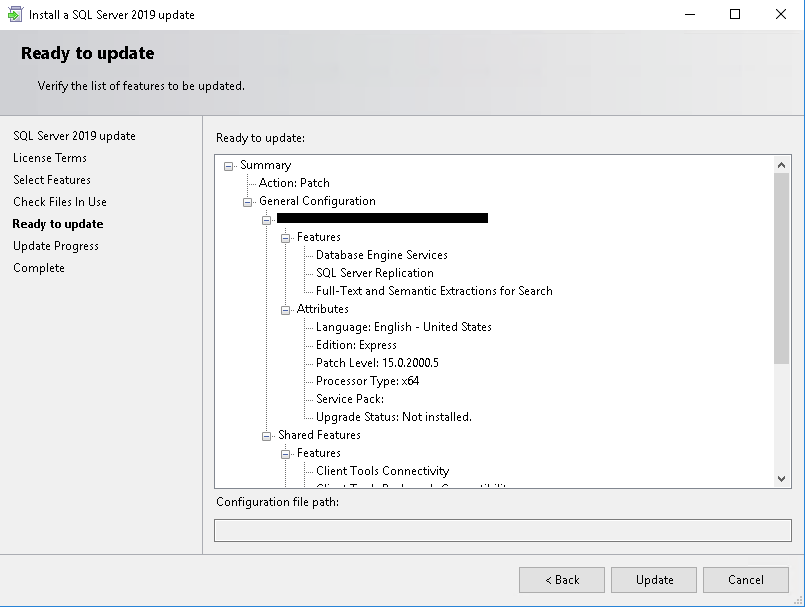
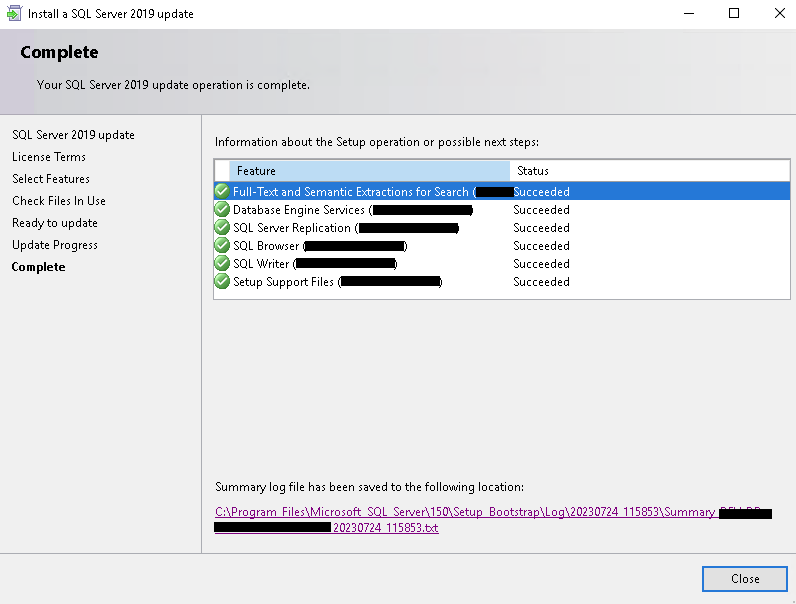
- Check version detail on database client like SQL Management Studio, Navicat, etc. ✅ You did it. 🙌🏻 🙌🏻
Conclusion
To migrate from AWS RDS to self-hosted SQL Server 2019 Express with the exact version (15.04073), the default installer isn’t enough since it only gives 15.0.2000.5. So, the fix is simple: set up a Windows Server (2016+), create the necessary directories, install SQL Server 2019 Express, then manually apply Cumulative Update 8 (KB4577194) or same as you need version from source RDS SQL Server version to match the required version. Finally, verify it using SQL Management Studio or any database client. Boom, you’re done! ✅🔥
References
- Best Practice SQL Server Drive Layout
- SQL Server 2019 build version
- Update Version SQL Server by CU (Cumulate Update)
f you have any questions, feel free to ask in the comment box! I’ll be happy to help. 🚀😊
메타데이터
- post_id
- b18d29fcdc8a
- slug
- install-sql-server-2019-express-and-update-version-by-cu-cumulate-update-b18d29fcdc8a
- url
- https://medium.com/@nurawiguna/install-sql-server-2019-express-and-update-version-by-cu-cumulate-update-b18d29fcdc8a
- canonical_url
- https://medium.com/@nurawiguna/install-sql-server-2019-express-and-update-version-by-cu-cumulate-update-b18d29fcdc8a
- author_url
- https://medium.com/@nurawiguna
- status
- ok
- fetched_at
- 2026-07-31 22:32:28