How I Recover a RAW Drive Before Converting It to FAT32
A RAW drive is one of the most frustrating problems I have encountered on Windows.
How I Recover a RAW Drive Before Converting It to FAT32
A RAW drive is one of the most frustrating problems I have encountered on Windows.
The files may still exist, but Windows suddenly cannot recognize the partition or open any folders.
The biggest mistake is formatting the drive immediately. Before converting RAW to FAT32, I first need to understand whether the data can be saved. Then **fix a RAW partition or drive before converting it to FAT32**.
What Happens When a Drive Becomes RAW?
A RAW partition does not mean the storage device is empty.
It usually means Windows can no longer understand the file system structure. The partition may have been damaged because of:
- Corrupted file system information
- Damaged partition tables
- Malware or virus infections
- Bad sectors
- Improper removal of external storage
When this happens, Windows may ask me to format the drive before I can use it.
The problem is that formatting can erase the existing file structure and make recovery more difficult.
That is why the first step should not always be conversion. The first question should be:
Do I need the data on this RAW drive?
Should I Convert RAW to FAT32 Immediately?
It depends on whether the files matter.
If the drive contains important photos, documents, work files, or personal data, converting the RAW partition by formatting it should not be the first option.
Many built-in Windows tools convert RAW to FAT32 by formatting the drive. This creates a usable FAT32 partition, but it also removes existing files.
If the goal is simply to reuse the storage device, formatting is acceptable.
If the goal is to recover existing files, I should attempt data recovery or RAW repair first.
Four Ways to Convert RAW to FAT32 on Windows
Different methods solve different situations. Some repair the file system, while others simply recreate it.
Method 1: Repair RAW Drive Without Losing Data
When I need to keep the existing files, I should try a RAW recovery or repair tool before formatting.
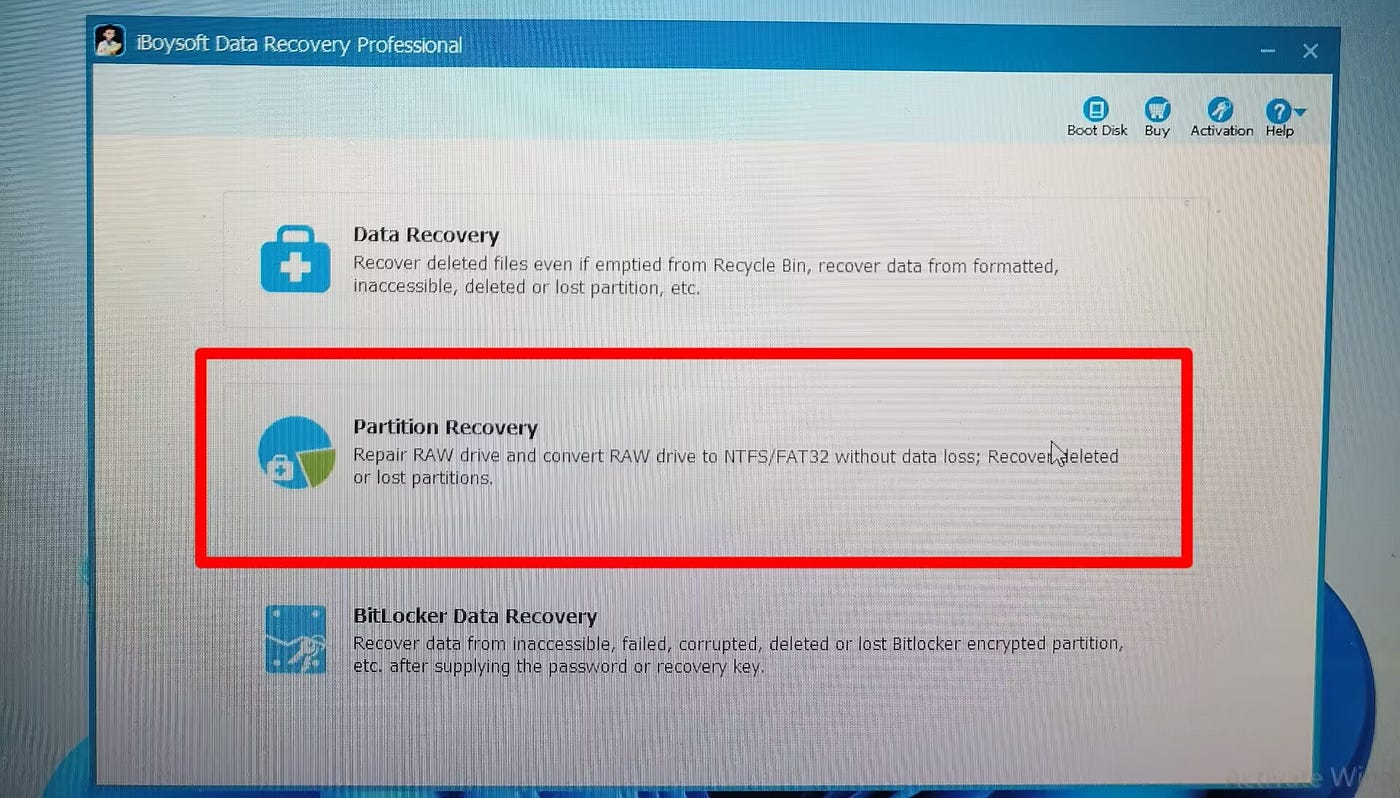
A recovery tool such as iBoysoft Data Recovery provides a RAW Drive Recovery feature designed for situations where Windows cannot access a partition.
The safer workflow is:
- Install and open the recovery software.
- Select the RAW Drive Recovery option.
-
Choose the RAW partition.
-
Scan the drive.
-
Attempt repair if the tool supports it.
-
Recover files to another storage location if repair fails.
The important point is that recovered files should not be saved back to the damaged RAW drive because new data can overwrite recoverable information.
When RAW Repair Fails
Sometimes the file system damage is too severe.
If the repair process reports that the RAW drive cannot be fixed, the safer approach is:
- Recover as much data as possible.
- Store recovered files on another drive.
- Format the RAW drive.
- Choose FAT32 or another suitable file system.
This approach sacrifices the original file structure but gives the storage device a fresh start.
Method 2: Convert RAW to FAT32 Using DiskPart
Windows includes DiskPart, a command-line partition management tool.
However, the built-in convert command does not work with RAW drives. Windows usually requires formatting the RAW partition first.
This means the process will erase existing data.
Steps:
- Connect the RAW drive to the computer.
- Search for Command Prompt.
- Run Command Prompt as administrator.
- Enter:
diskpart- View available drives:
list volume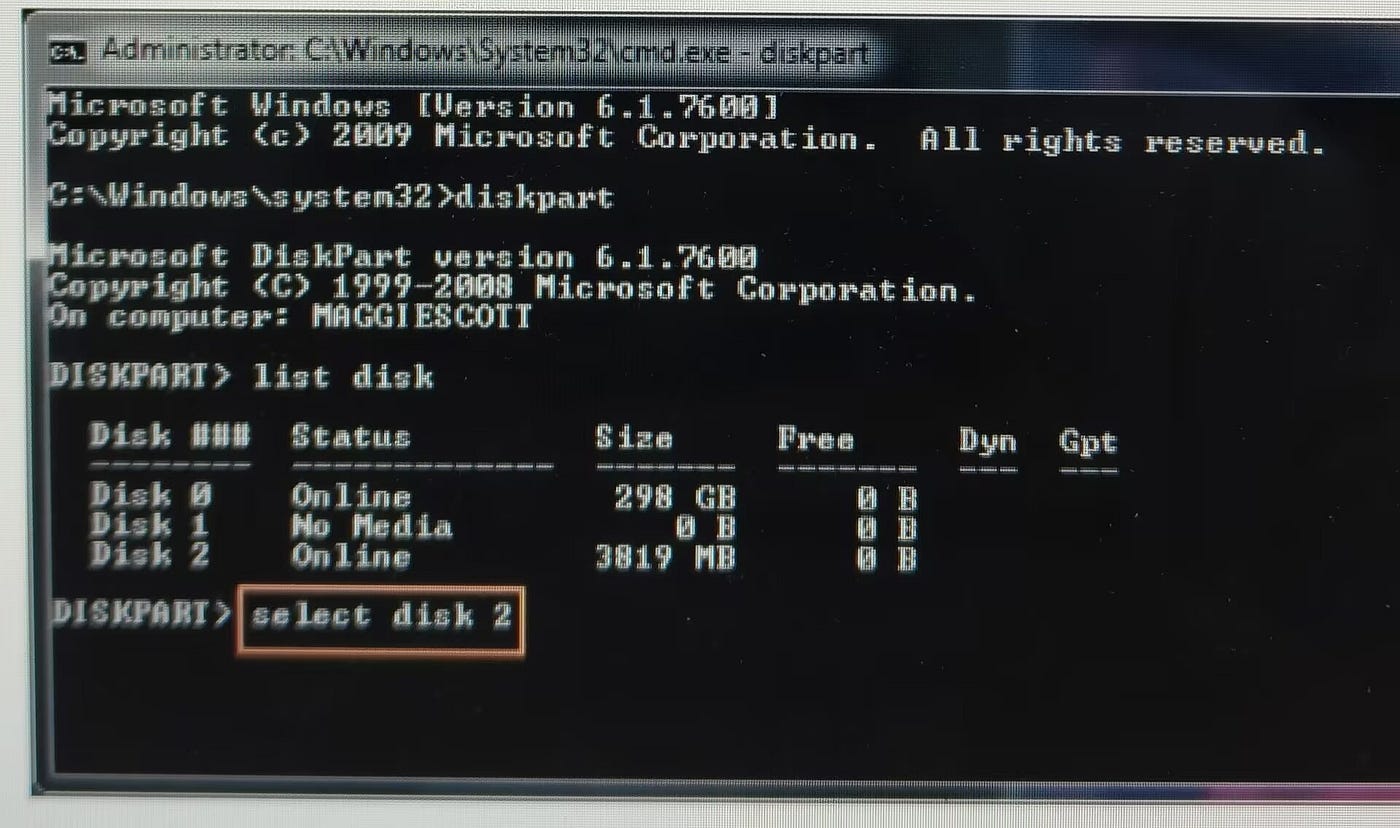
- Select the RAW volume:
select volume X(Replace X with the correct volume number.)
- Format it as FAT32:
format fs=fat32 quick- Type:
exitAfter formatting finishes, Windows should recognize the drive again.
Method 3: Convert RAW to FAT32 Using File Explorer
For users who want the simplest method, Windows File Explorer can format the drive directly.
Steps:
- Open File Explorer.
- Right-click the RAW drive.
- Select Format.
- Choose FAT32 as the file system.
- Select Quick Format.
- Click Start.
This method is easy, but it should only be used when I no longer need the existing files.
Method 4: Convert RAW to FAT32 Using Disk Management
Disk Management provides another graphical way to format RAW partitions.
Steps:
- Right-click This PC.
- Select Manage.
- Open Disk Management.
- Find the RAW partition.
- Right-click and select Format.
- Choose FAT32.
- Confirm the operation.
Disk Management is useful when File Explorer cannot properly display or manage the damaged drive.
My Decision Framework for RAW Drives
When I encounter a RAW partition, I use this order:
Step 1: Protect the data
Ask:
- Are there important files on the drive?
- Is the drive showing unusual behavior?
- Did the problem appear suddenly?
If yes, avoid formatting first.
Step 2: Try recovery or repair
Attempt to recover files or repair the file system before making changes.
Step 3: Format only when necessary
If the data is recovered or no longer needed, formatting to FAT32 can restore the drive for normal use.
Experience-based takeaways
The biggest lesson I learned from RAW drive problems is that conversion and recovery are two different goals.
A formatting tool can make a RAW drive usable again, but it does not preserve the original files.
A safer approach is:
- Need the files → recover or repair first.
- Need the drive working again → format it.
- Need maximum compatibility → choose FAT32.
- Need larger files or modern storage support → consider exFAT or NTFS instead.
The right solution depends less on the RAW error itself and more on what I need from the drive afterward.
A RAW partition problem can look like complete data loss, but the drive may still contain recoverable files.
Before choosing a RAW to FAT32 converter, identify whether your priority is data recovery or simply restoring the storage device.
If you have dealt with a RAW drive before, sharing what caused the problem and which method worked can help other Windows users avoid unnecessary data loss.
메타데이터
- post_id
- b3718b4c2c4e
- slug
- how-i-recover-a-raw-drive-before-converting-it-to-fat32-b3718b4c2c4e
- url
- https://medium.com/@ae5385/how-i-recover-a-raw-drive-before-converting-it-to-fat32-b3718b4c2c4e
- canonical_url
- https://medium.com/@ae5385/how-i-recover-a-raw-drive-before-converting-it-to-fat32-b3718b4c2c4e
- author_url
- https://medium.com/@ae5385
- status
- ok
- fetched_at
- 2026-08-07 19:56:40