Hosting a Static Website on Amazon S3
Amazon Simple Storage Service, commonly called Amazon S3, is an AWS object-storage service.
Hosting a Static Website on Amazon S3
Amazon Simple Storage Service, commonly called Amazon S3, is an AWS object-storage service.
S3 allows us to store files as objects inside containers called buckets. These objects can be HTML pages, CSS files, images, videos, backups, log files, or almost any other type of file.
S3 can also host a static website. A static website means:
· No server-side processing is required.
· No database interaction is needed.
A static website contains files that are delivered directly to the browser, such as:
· HTML, CSS, JavaScript, Images
Follow the steps below to host your static website using Amazon S3.
Step 1: Open Amazon S3
Sign in to the AWS Management Console. In the search bar at the top, type S3 and select S3
Step 2: Create an S3 Bucket
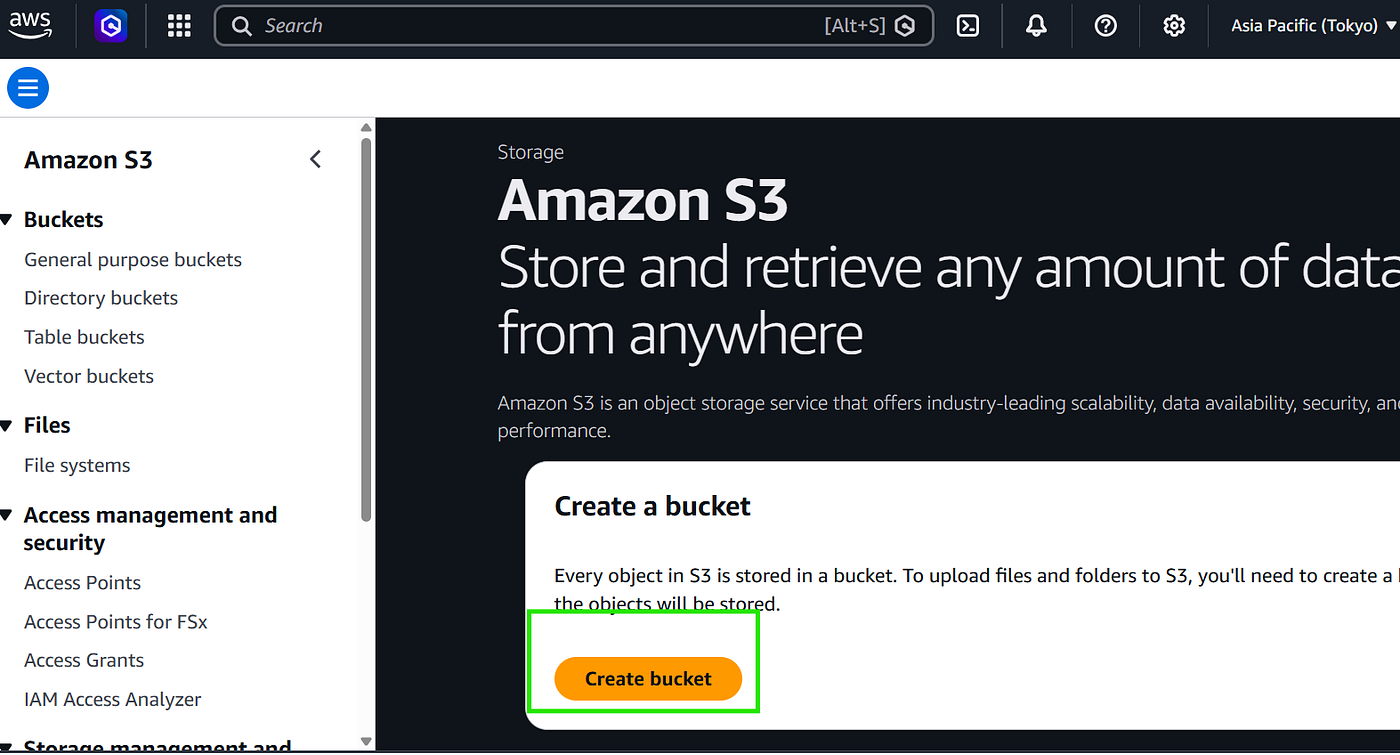
Provide the bucket name for creating the S3 bucket. Keep the remaining settings unchanged for now. We can modify the required configurations later when we need to make the website accessible.

Step 3: Create the Website Files
Create the HTML file that you would like to host in the newly created bucket, along with a corresponding error page file for handling invalid or unavailable page requests.
Step 4: Upload the Files to S3
Return to the S3 console and open the bucket you created. Choose Upload, followed by Add files.

Step 5: Enable Static Website Hosting
Open the Properties tab of your bucket. Scroll down to Static website hosting. Choose Edit and select Enable.
For the hosting type, select Host a static website and enter. Mention index.html and error.html documents

At this point, the files are stored in S3, but they are still private. Trying to open them publicly will result in an access-denied message

Step 6: Allow Public Website Access
Open the Permissions tab. Under Block Public Access, choose Edit. Clear Block all public access.
Select the acknowledgement checkbox, choose Save changes, and enter confirm when requested.

Under the Permissions tab, scroll to Bucket policy and choose Edit. Add the following policy: By Replacing Resource with “{BucketARN}/*”

Step 7: Open Your Website
Return to the Properties tab. Scroll down to Static website hosting and open the Bucket website endpoint.

Your HTML page will appear in the browser. You have successfully hosted a static website on Amazon S3.

Please note that Amazon S3 Static Website Hosting supports only HTTP access by default and does not provide HTTPS directly through the S3 website endpoint.
If HTTPS access is required, configure Amazon CloudFront in front of the S3 bucket.
메타데이터
- post_id
- b3c28607f7da
- slug
- hosting-a-static-website-on-amazon-s3-b3c28607f7da
- url
- https://medium.com/@ramyamatcha3/hosting-a-static-website-on-amazon-s3-b3c28607f7da
- canonical_url
- https://medium.com/@ramyamatcha3/hosting-a-static-website-on-amazon-s3-b3c28607f7da
- author_url
- https://medium.com/@ramyamatcha3
- status
- ok
- fetched_at
- 2026-08-20 12:55:18


