What Happens When You Type google.com in Your Browser? A Complete Beginner-Friendly Journey
Every day, millions of people open their browser and type google.com without thinking about what happens behind the scenes.
What Happens When You Type google.com in Your Browser? A Complete Beginner-Friendly Journey
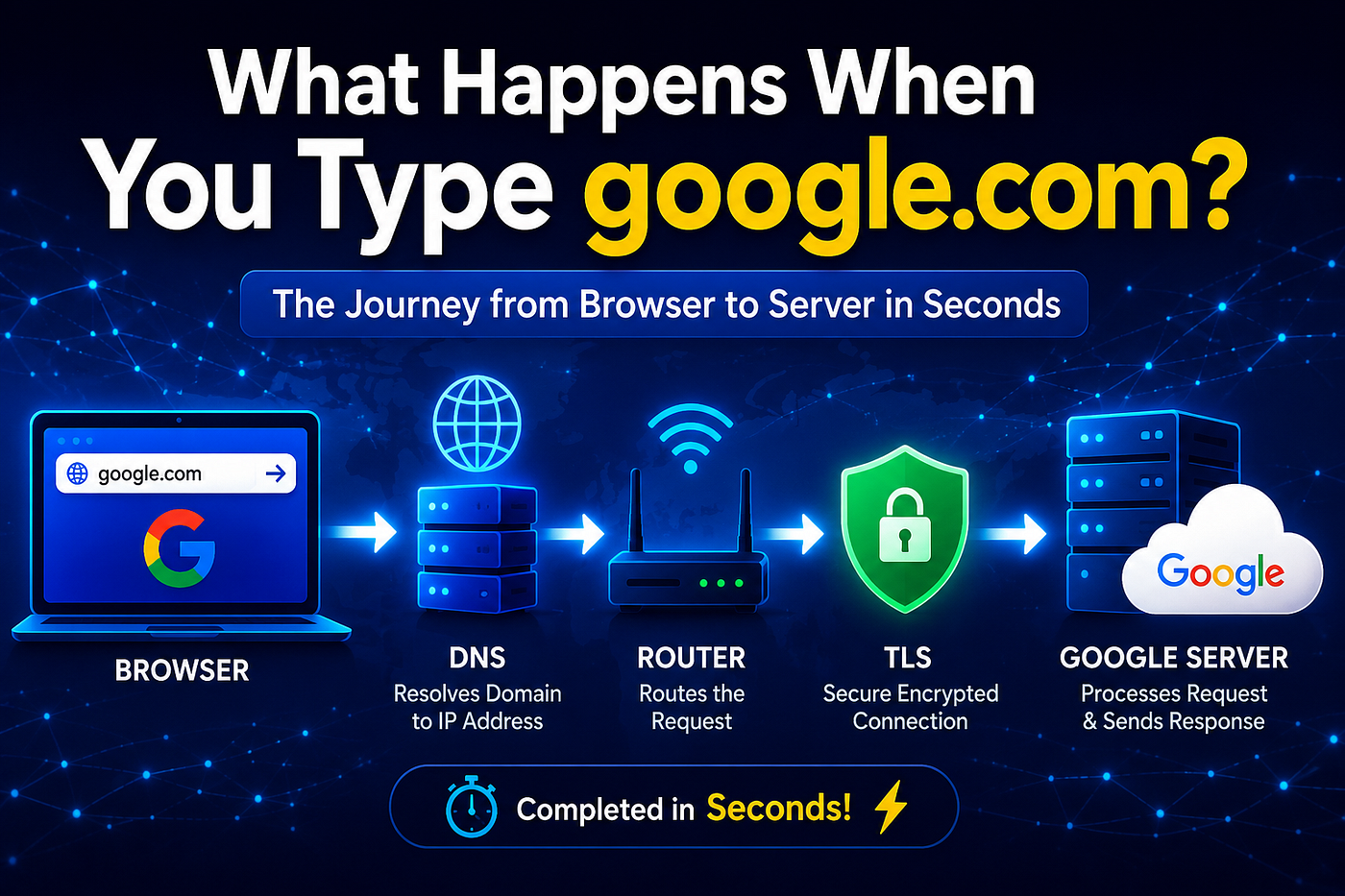
Image Credit: ChatGPT
Every day, millions of people open their browser and type google.com without thinking about what happens behind the scenes.
The page appears in just a few seconds, but your computer performs dozens of operations before Google’s homepage is displayed.
As someone learning cybersecurity, I realized that understanding this process is one of the best ways to learn how the Internet actually works. In this article, I’ll walk you through the journey in simple language.
Let’s begin.
Step 1: You Type google.com
Imagine you open Chrome or Firefox and type:
google.com
Your browser now has one simple question:
“Where is Google’s server located?”
The problem is that computers don’t understand domain names like google.com. They communicate using IP addresses, such as:
142.250.xx.xx
So the browser must first find Google’s IP address.
Step 2: DNS Finds Google’s IP Address
This is where DNS (Domain Name System) comes in.
DNS works like the contact list on your phone.
You remember your friend’s name instead of their phone number. Similarly, we remember google.com, while DNS remembers its IP address.
The browser first checks whether it already knows Google’s IP address.
If not, it asks a DNS server, which looks up the correct IP address and sends it back.
Now your browser knows exactly where Google’s server is located.
Without DNS, we would have to remember the IP address of every website we visit.
Step 3: ARP Finds the Router’s MAC Address
Now your computer knows Google’s IP address.
But before sending any data, it needs to communicate with your router.
Inside a local network, devices communicate using MAC addresses, not IP addresses.
Your computer uses the Address Resolution Protocol (ARP) to ask:
“Who has the router’s IP address? Tell me your MAC address.”
The router replies with its MAC address.
Now your computer knows where to send the first packet.
Step 4: TCP Builds a Reliable Connection
The browser now needs a reliable communication channel with Google’s server.
This is handled by TCP (Transmission Control Protocol).
TCP performs a process called the Three-Way Handshake.
- Your computer sends SYN.
- Google’s server replies with SYN-ACK.
- Your computer responds with ACK.
After these three messages, both devices are ready to communicate.
Think of it like making a phone call.
- “Hello?”
- “Hello, I can hear you.”
- “Great, let’s talk.”
Only after this handshake does data start flowing.
Step 5: TLS Protects Your Data
Most websites today use HTTPS instead of HTTP.
The extra S stands for Secure.
Before any sensitive information is exchanged, your browser performs a TLS Handshake.
During this process:
- Google’s identity is verified using a digital certificate.
- Encryption keys are created.
- A secure connection is established.
From this point onward, your data is encrypted.
Even if someone intercepts the traffic, they cannot easily read its contents.
This is why HTTPS is so important for online security.
Step 6: Your Browser Sends an HTTP Request
Now that the connection is secure, your browser sends a request to Google’s web server.
It looks something like this:
GET/
Host:google.com
This simply means:
“Please send me the homepage.”
The request travels across multiple routers and networks until it reaches Google’s servers.
Step 7: Google’s Server Sends the Response
Google’s server processes the request and replies with an HTTP Response.
The response includes:
- HTML
- CSS
- JavaScript
- Images
- Fonts
- Other files required to build the webpage
These files travel back across the Internet to your computer.
Step 8: Your Browser Renders the Page
Once the files arrive, your browser starts building the webpage.
It:
- Reads the HTML structure.
- Applies CSS for styling.
- Executes JavaScript for interactive features.
- Downloads images and icons.
- Displays everything on your screen.
Within a few seconds, the familiar Google homepage appears.
What seems like a simple search actually involves many networking protocols working together seamlessly.
In my next article, we’ll capture this entire process using Wireshark and see exactly what happens on the network when you type google.com into your browser. You’ll learn how to observe DNS queries, the TCP three-way handshake, the TLS handshake, and HTTP/HTTPS traffic in real time.
If you don’t want to miss it, follow me for more beginner-friendly cybersecurity, networking, and Linux articles. Happy learning!
메타데이터
- post_id
- b538f2256c19
- slug
- what-happens-when-you-type-google-com-in-your-browser-a-complete-beginner-friendly-journey-b538f2256c19
- url
- https://meetcyber.net/what-happens-when-you-type-google-com-in-your-browser-a-complete-beginner-friendly-journey-b538f2256c19
- canonical_url
- https://meetcyber.net/what-happens-when-you-type-google-com-in-your-browser-a-complete-beginner-friendly-journey-b538f2256c19
- author_url
- https://medium.com/@sanjaykumarp8577
- status
- ok
- fetched_at
- 2026-07-10 20:41:43