Part 5: Extending HCM Redwood with VB Studio — Understanding Visual Builder Studio Infrastructure
Personalizing Oracle HCM Redwood pages is powerful — but without the right governance, things can quickly become messy. That’s where Visual…
Part 5: Extending HCM Redwood with VB Studio — Understanding Visual Builder Studio Infrastructure
Personalizing Oracle HCM Redwood pages is powerful — but without the right governance, things can quickly become messy. That’s where Visual Builder Studio (VBS) infrastructure and a branching methodology come in.
Imagine two developers — Priya and Amit— both customising the Change Salary page at the same time. Priya finishes her Business Rule first and clicks Publish. Amit finishes his change ten minutes later and clicks Publish too. Amit’s publish succeeds. Priya’s work has vanished. No error. No warning. Just a broken page and confused HR staff on payday.
Oracle’s Visual Builder Studio (VBS) brings software-engineering discipline to HCM Redwood page customization. Once you understand its four core building blocks — Projects, Git Repositories, Workspaces and Build Jobs &Pipeline — the branching workflow starts to feel natural rather than complicated.
The Four Pillars of Visual Builder Studio
Think of VB Studio like a factory:
- The Project is the building.
- The Workspace is each worker’s private bench.
- The Git Repository is the controlled assembly line.
- The Build Jobs & Pipelines are the machines that package and ship the finished product.
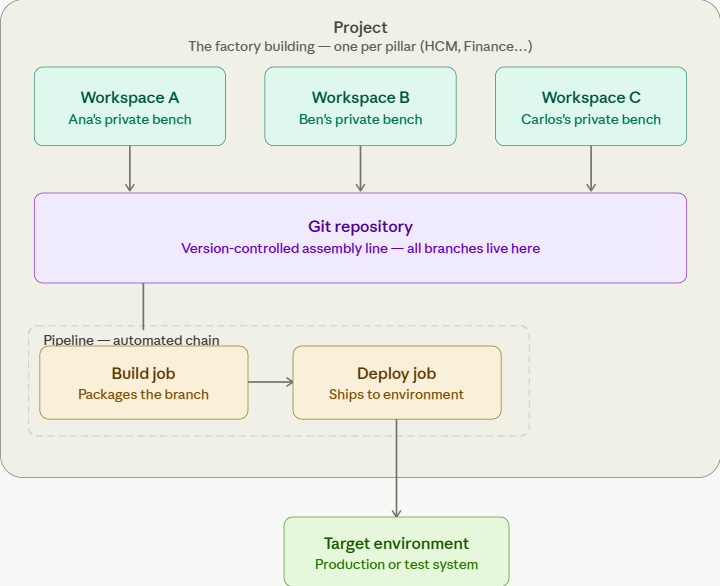
Project : A Project is the top-level container in VBS. It houses all developer workspaces (each developer gets their own) and the shared Git repository. Think of it as your HCM customization “folder” — everything lives here.
⚠️ IMPORTANT BEST PRACTICE Always use ONE VB Studio Project per Fusion pillar (for example, HCM).Using multiple projects for the same pillar can cause deployments to overwrite each other, leading to lost customizations and unstable environments.

Workspace : A Workspace is a private working area tied to a specific user (and typically to a specific environment). This is where you:
- Personalize Redwood pages
- Adjust Business Rules
- Test UI changes safely before sharing
A workspace is not a branch by itself; it is a local view of one or more Git branches. All changes start here before they are committed and pushed.

Git Repository: The Git Repository is the version‑control backbone of your project. It stores every change to your HCM extensions in branches:
- The main branch represents your stable, production‑ready line of code.
- Feature branches (for example, talent-branch or learning branch) isolate work by module, feature, or defect.
Branches enable parallel development, safer deployments, and clean rollbacks when something goes wrong.

Build Jobs and Pipelines: Build Jobs automate the technical steps of turning your customizations into deployable packages:
- A Package Job builds an extension package from a branch, and a
- Deploy Job pushes that package to a target environment.
- A Pipeline chains these jobs together for seamless delivery.
Oracle Product offers seeded package and deployed job for each of the pillar (HCM, PRC etc).


Understanding Package Job Configuration
- Builds an extension from a specific branch for specific repository.
- Wraps Business Rules, field overrides, and layout changes.
- Produces a versioned artifact.

Here Repository and Branches details are critical to be considered while deployment.
Understanding Deploy Job Configuration
- Takes a packaged artifact.
- Pushes it to a target HCM environment (test/prod).
- Can be chained after Package using a Pipeline.

Here Target Instance and Authorization details are critical to be considered while deployment.
Understanding Pipeline Configuration
A pipeline in Visual Builder Studio (VB Studio) is a mechanism used to chain together build jobs so that they execute in a specific sequence.

- This pipeline has 2 jobs.
- The following jobs will start when the pipeline is run: hcm_extension-Package.
- If job hcm_extension-Package is successful, jobs hcm_extension-Deploy will build.
- After job hcm_extension-Deploy is built, it will not start any additional jobs.
Local Branch and Remote Repository
Behind each workspace sits Git, with its distinction between local and remote.
Local Branch :
- When you work in your workspace, you are working on a local copy of the Git repository.
- Your changes sit in your local branch until you record them.
The Commit command moves your changes from the temporary state in your workspace into the local repository for that branch.
Remote repository :
When you are ready to share your work with the team:
- You push your commits to the remote repository.
- Other developers can now see your branch, review your changes, and merge them into higher‑level branches.
The Push command moves the changes you have already committed in your local branch to the central project repository on the server, making them visible to others.
Pro Tip: As a simple rule of thumb, use Commit + Push to move your changes from your local branch to the remote branch. This will be covered in more detail with screenshots in the next post.
Share vs. Publish — Know the Difference

Always use Share to give testers a preview URL before you hit Publish. Once merged to main and deployed, rolling back requires a new publish cycle.

What “Publish” Actually Does Behind the Scenes
When you click Publish in VBS, it feels like a single button. In reality, it orchestrates a 6-step process — knowing these steps helps you debug when something goes wrong.
- Commit workspace changes to local branch: All unsaved Business Rules, field overrides, and layout changes in your workspace are committed to your local VBS branch. Think of this as “Save All”.
- Merge from main → local: VBS pulls the latest changes from
maininto your local branch. If your colleague published first, their changes come in here. - Push local → review branch: Your merged local branch is pushed to a remote review branch (e.g.
review/workspace_john). This is the first time your code is visible to others in the Git repository. - Merge review branch → main: The review branch is merged into
main - Package the extension: The Package Build Job fires automatically (if CI/CD is on). It bundles all customizations from
maininto a versioned extension artifact. - Deploy to environment: The Deploy Job pushes the artifact to your HCM environment. Controlled by the Publish CI/CD flag in Advanced Settings — you can point this at staging or production independently.

Why You Should Stop Using the “Publish” Button and Move to Branching
Publish feels fast — until your team grows.
As soon as you add multiple developers, multiple modules, or multiple environments, a Publish‑only approach becomes a liability. Branching is not just a process tweak; it is the foundation of an enterprise‑grade lifecycle.
Here are five reasons why relying on Publish is risky and why branching is essential:
- Unfinished work in main Publish pushes directly to the main branch, which should be stable and deployment-ready. Using it for every experiment mixes half-tested changes with production-quality code.
- Hard rollbacks When several developers publish to main, all changes land together. If one change breaks something, it is difficult to undo just that piece without affecting others. Feature branches keep work isolated and easy to revert.
- No selective deployment Publish usually deploys everything on main at once. You cannot send only Talent changes to UAT while keeping in-progress Learning work in DEV. Branches let you move specific features or modules on their own schedule.
- Weak review and governance A Publish-only flow often skips peer review. With branching, changes reach shared branches through merge/pull requests, enforcing review and approval before they get near production.
- Doesn’t scale for upgrades or parallel work Quarterly upgrades and multiple projects require different teams and environments to move at different speeds. Publish assumes one linear stream. Branching supports separate release branches and parallel feature branches so teams can work safely without overwriting each other.
Summary
In this article, we covered:
- How VB Studio brings structure and governance to HCM Redwood extensions through Projects, Workspaces, Git Repositories, and Build Jobs & Pipelines.
- Why using one project per Fusion pillar is critical.
- How Git branches, Commit, and Push control how work is saved and shared.
- How Package, Deploy, and Pipeline jobs work together to deliver stable extensions.
- What really happens when you click Publish — and why branching is safer.
Stay Tuned for Part 6: Extending HCM Redwood with VB Studio — Implementing Branching Methodology
메타데이터
- post_id
- b56c38612bf2
- slug
- part-5-extending-hcm-redwood-with-vb-studio-understanding-visual-builder-studio-infrastructure-b56c38612bf2
- url
- https://medium.com/@saurabhpratap.singh/part-5-extending-hcm-redwood-with-vb-studio-understanding-visual-builder-studio-infrastructure-b56c38612bf2
- canonical_url
- https://medium.com/@saurabhpratap.singh/part-5-extending-hcm-redwood-with-vb-studio-understanding-visual-builder-studio-infrastructure-b56c38612bf2
- author_url
- https://medium.com/@saurabhpratap.singh
- status
- ok
- fetched_at
- 2026-06-24 04:09:36