Building an On-Premise Active Directory Infrastructure from Scratch(Part 4: GPO in Action…
In my lab, I used Group Policy Objects and AppLocker to control which applications run on my endpoints — here’s how I blocked Chrome and…
Building an On-Premise Active Directory Infrastructure from Scratch(Part 4: GPO in Action: Blocking Google Chrome with AppLocker)
In my lab, I used Group Policy Objects and AppLocker to control which applications run on my endpoints — here’s how I blocked Chrome and enforced consistent security across my domain.
In the last post, we explored how to organize resources using Organizational Units (OUs) and enforce rules with Group Policy Objects (GPOs). Now, let’s take it a step further by creating a policy that blocks specific applications from running in our environment.
For this example, I blocked Google Chrome using AppLocker.
What is AppLocker?
AppLocker is a Windows feature that lets administrators control which applications and files users can run. These files include:
- Executables (.exe, .com) → applications like Chrome, Notepad, etc.
- Scripts (.ps1, .vbs, .bat, .cmd) → PowerShell scripts or batch files.
- Windows Installer files (.msi, .msp) → used for software installation.
- Packaged apps → Windows Store applications.
Instead of letting users install or run whatever they want (which could be risky in a corporate environment), AppLocker gives you granular control.
Why Block Chrome?
In my setup, I chose Chrome as an example because:
- It’s a common application users might try to install without approval.
- Many enterprises prefer to standardize browsers (e.g., forcing Microsoft Edge).
- It demonstrates how AppLocker can block even popular software.
Prerequisites
Before creating the policy, make sure that:
- The Application Identity service is running on all targeted machines. (This service enforces AppLocker rules.)
- The endpoints (computers you want to control) are already joined to your domain and placed inside the appropriate OU.
To start the service manually:
- On the endpoint, press Win + R, type
services.msc, and press Enter. - Locate Application Identity, right-click, and select Start.
- Set it to Automatic so it always runs on startup.
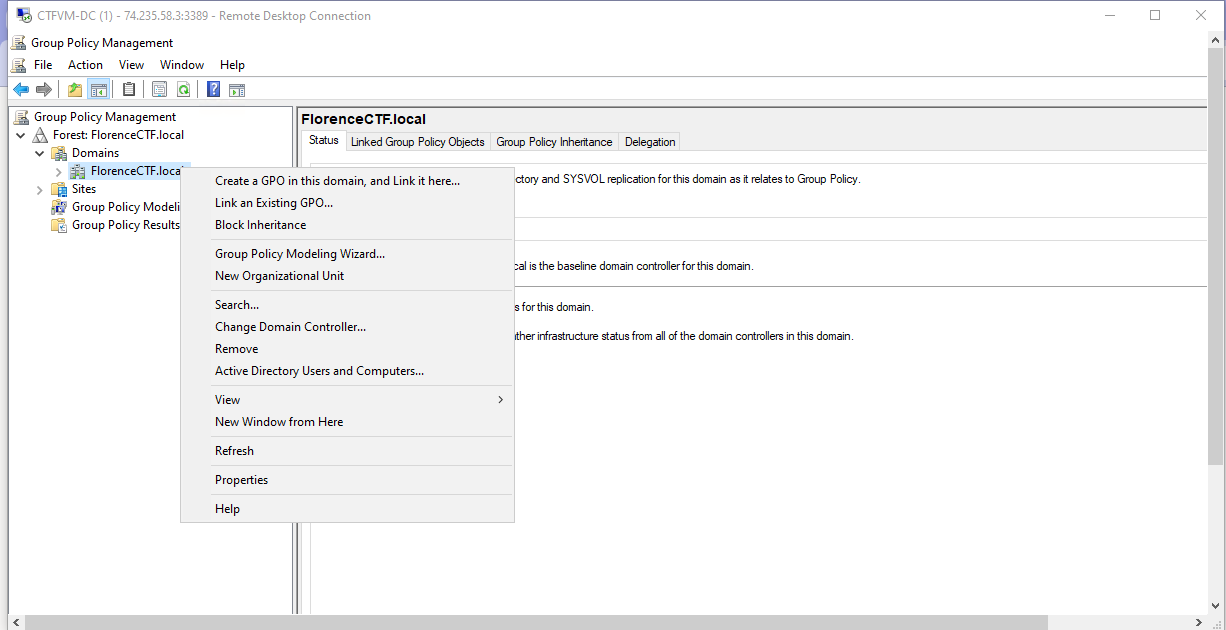
Step 1: Open Group Policy Management
- Log in to your Domain Controller.
- Open Group Policy Management Console (GPMC).
- Right-click the OU where the policy should apply → Create a GPO in this domain, and Link it here.
- Name it something clear, like: Block Chrome Using AppLocker.
Step 2: Edit the GPO
- Right-click the newly created GPO → Edit.
- Navigate to:
Computer Configuration → Policies → Windows Settings → Security Settings → Application Control Policies → AppLocker → Executable Rules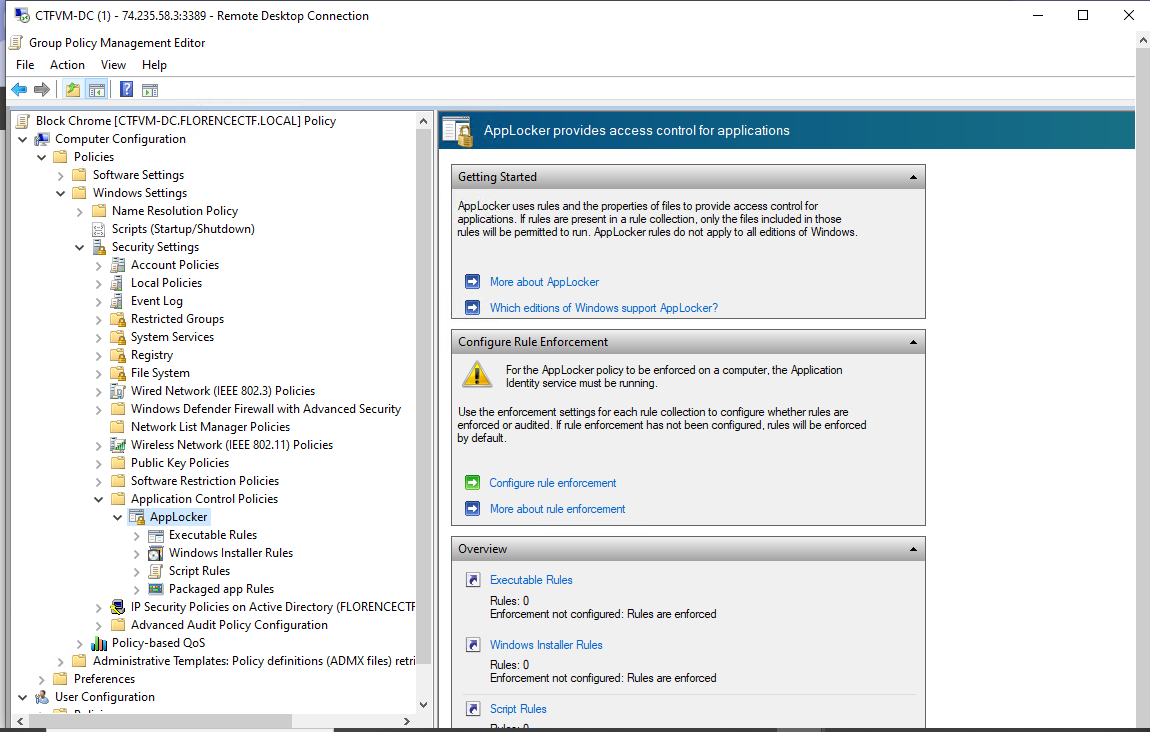
Step 3: Create a New Rule
- Right-click Executable Rules → Create New Rule.
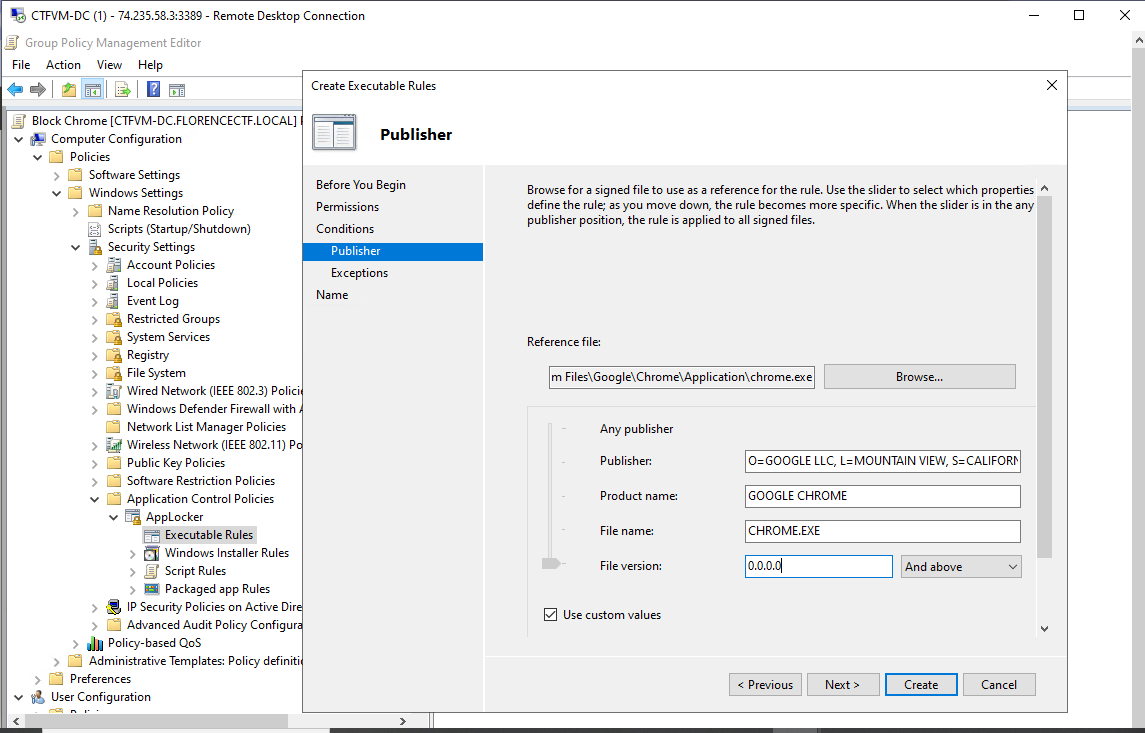
- The wizard opens. Here’s what I did:
- Before You Begin: Click Next.
- Permissions: Select Deny. This means the application will be blocked.
- User or Group: Choose which users or groups you want this rule to apply to. (In my case, I applied it to everyone)
- Conditions: Choose Publisher if you want to block all versions of Chrome, or Path if you want to block a specific file location.
For Chrome, I used the Publisher condition:
- Browse to
C:\\Program Files\\Google\\Chrome\\Application\\chrome.exe - Select it and confirm.
- File Version; i checked custom value: 0.0.0.0 to block all version of chrome
Click Next → Create.
Step 4: Enforce the Rules
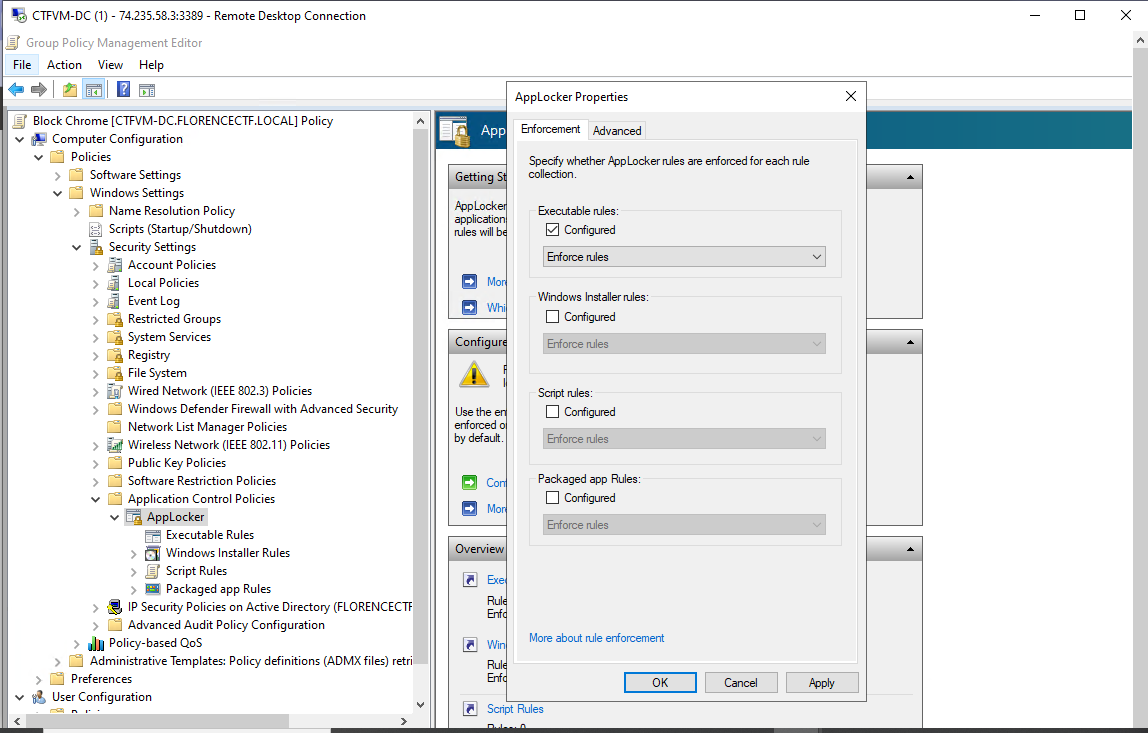
By default, AppLocker rules may be in Audit Only mode, which just logs events without blocking.
To enforce:
- In the AppLocker node, click Configure Rule Enforcement (on the right).
- Under Executable Rules, check Configured and select Enforce rules.
- Apply and close.
Step 5: Update Group Policy on Endpoints
On the endpoint computer:
- Open Command Prompt.
- Run:
gpupdate /force- Try launching Google Chrome.
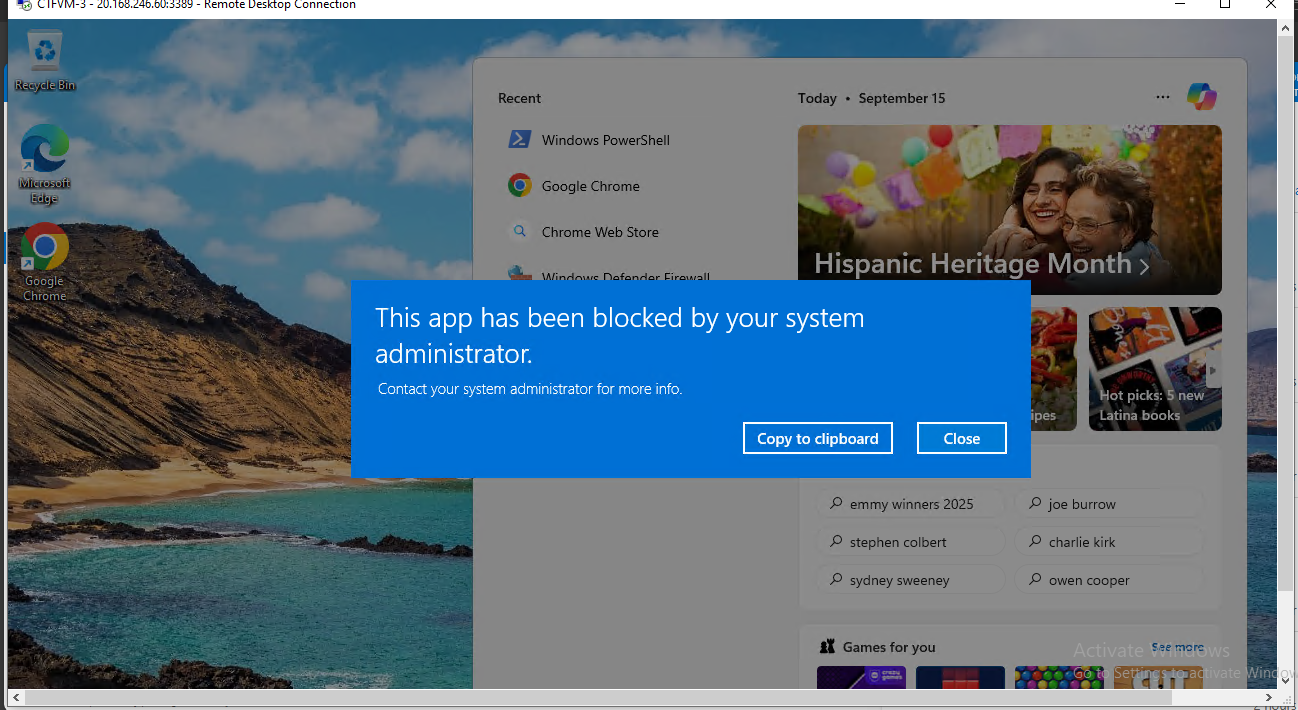
If the rule was applied correctly, Chrome will not open. Instead, you’ll see a message saying the system administrator has blocked the app.
Step 6: Verify in Event Viewer (Optional)
To confirm the block:
- On the endpoint, open Event Viewer.
- Navigate to:
Applications and Services Logs → Microsoft → Windows → AppLocker → EXE and DL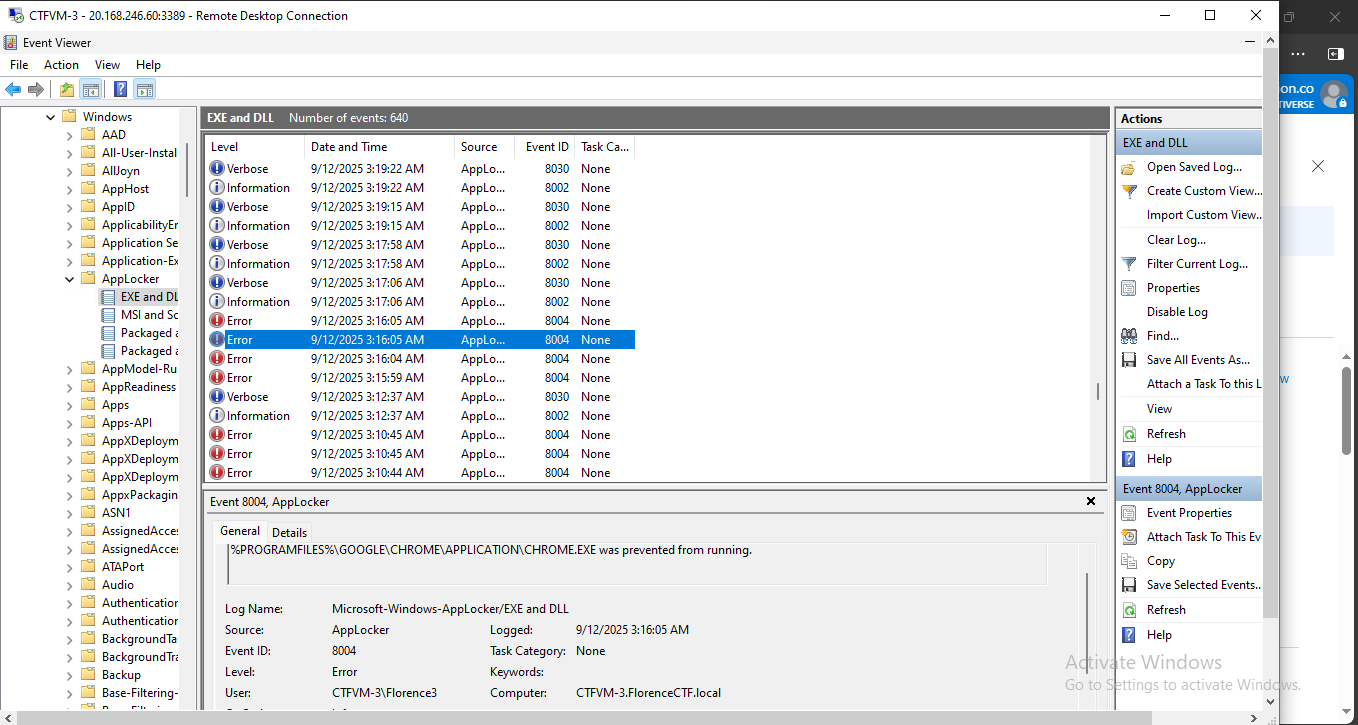
NOTE: Look for events showing Chrome was blocked.
This is useful for auditing and confirming that your policy is working.
By using AppLocker through a GPO, I was able to block Chrome from running on my endpoints. This demonstrates how administrators can:
- Enforce application control.
- Improve security by preventing unauthorized software.
- Standardize the user environment across an organization.
Wrapping Up the Series
Building this on-premises infrastructure from scratch was both a challenge and a rewarding experience. From spinning up virtual machines in Azure, configuring networking, setting up a domain controller, creating OUs, and managing policies with GPOs — every step brought me closer to understanding how real enterprise environments are structured and secured.
Working through this project gave me a clearer view of how identity, access, and policy enforcement work together to maintain a healthy and secure Active Directory environment. It also showed me that hands-on practice is one of the best ways to deepen your technical understanding.
If you’ve been following along, I hope this series has inspired you to build your own lab, experiment, and gain confidence managing Windows environments.
I’ll be sharing more cloud and security-focused projects soon — especially around Active Directory, Microsoft Entra ID, Microsoft Sentinel, and Defender XDR.
If you found this series helpful or you’re currently learning Active Directory and GPOs, feel free to connect with me — I’d love to hear about your own journey and exchange ideas.
Let’s connect on LinkedIn
메타데이터
- post_id
- b585ec0039ca
- slug
- building-an-on-premise-active-directory-infrastructure-from-scratch-part-4-gpo-in-action-b585ec0039ca
- url
- https://medium.com/@nwizugbeflorence/building-an-on-premise-active-directory-infrastructure-from-scratch-part-4-gpo-in-action-b585ec0039ca
- canonical_url
- https://medium.com/@nwizugbeflorence/building-an-on-premise-active-directory-infrastructure-from-scratch-part-4-gpo-in-action-b585ec0039ca
- author_url
- https://medium.com/@nwizugbeflorence
- status
- ok
- fetched_at
- 2026-06-24 11:06:28


