2 ways to run Ollama DeepSeek Locally — Using Docker and Directly on Local Machine
Artificial Intelligence is the most happening technology in the world today. Ever dreamed of having your own personal LLM all running on…
2 ways to run Ollama DeepSeek Locally — Using Docker and Directly on Local Machine
Photo by BoliviaInteligente on Unsplash
Artificial Intelligence is the most happening technology in the world today. Ever dreamed of having your own personal LLM all running on your own machine? This quick tutorial will show you how to use Ollama to run DeepSeek R1 LLM locally in two different ways.
Why should you run LLM locally?
Data security and privacy are a big concern today for any organization. Even individuals are more concerned about their privacy information being transmitted over the internet. This has lead to the rise of using personal computers to run LLMs.
Alright, Now, lets see how to install and run Ollama, then run DeepSeek R1 locally. For this example, we will try to install on MAC M3 system with 16GB RAM.
Option 1: Run Ollama directly on your local machine
Step 1: Navigate and download Ollama
You can either move the downloaded file to the Applications folder or run it from a custom folder. Click on the application. This will start the software and a small icon will appear in the menu bar on the top.
Step 2: Verify the installation of Ollama
ollama --version
Output:
ollama version is 0.5.7
Step 3: Run the DeepSeek-R1 or Tulu-3 model
For this example, we will run the small versions of the DeepSeek-R1 model, DeepSeek R1:1.5b, and Tulu-3.
ollama run deepseek-r1:1.5b
ollama run tulu3
You should see something like this. The command will pull the LLM model and run with a prompt to start typing.

Source: Image by the author.
There are multiple versions of the DeepSeek R1 model available. You can choose the one that fits your requirements. Currently, the DeepSeek models are based on Qwen (from Alibaba Cloud) and Llama (from Meta) models.
Step 4: List all available models
ollama list
Output:
deepseek-r1:1.5b a42b25d8c10a 1.1GB 9 minutes ago
Llama3.1:Latest 46e0c10c039e 4.9GB 2 weeks ago
I have two models. Let’s try to delete one of them.
ollama rm Llama3.1:Latest
Output:
deleted ‘Llama3.1:Latest’
Step 5: Test the model
Go ahead and type something in the command prompt. You should see the response from the model.
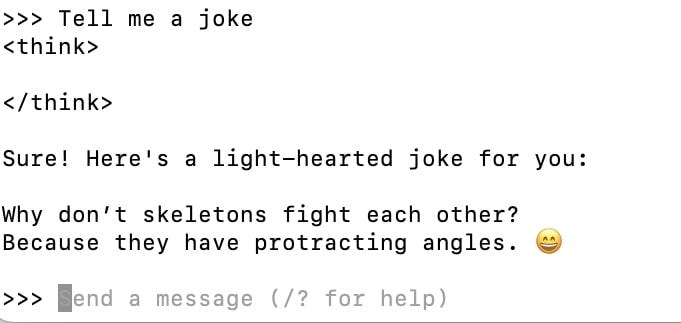
Source: Image by the author.
Step 6: Show model info
ollama show deepseek-r1:1.5b
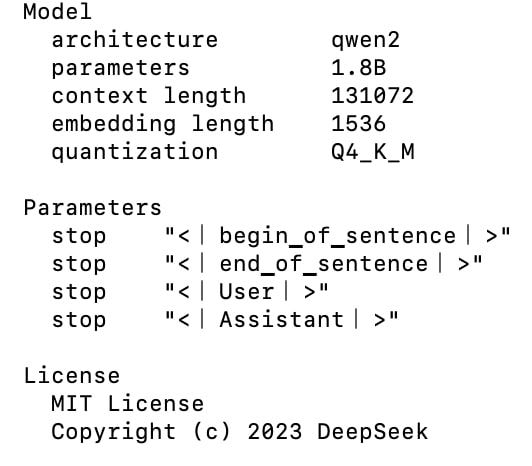
Source: Image by the author.
Step 7: Stop Ollama
sudo pkill -9 ollama Ollama
This should stop the Ollama process and the application icon will be removed from the menu bar.
Option 2: Run Ollama on a local Docker container
We can also run Ollama on a Docker container instead of directly running it on your local machine.
Why should you run LLM in docker locally?
Some people complained about Ollama seems to have uninstalled some display drivers. To keep your system configuration separate from your development environment, it is recommended to run Ollama in a Docker container. It is also easy to run and manage Ollama on a docker container. So, Lets get started. We are using Docker Desktop for this example.
Step 1: Pull the Ollama docker image — This will create an ollama docker image with name ollama/ollama
docker pull ollama/ollama
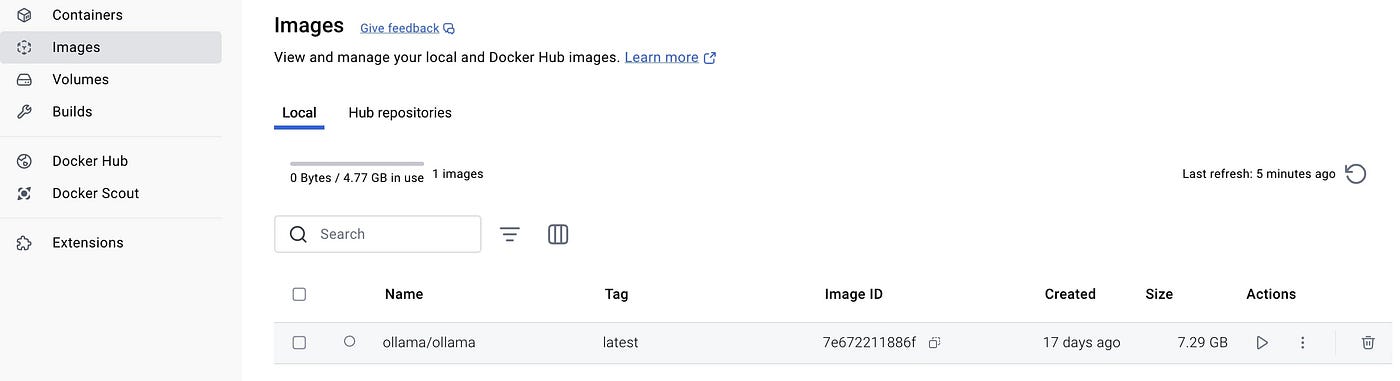
Source: Image by the author.
Step 2: Create a container with the above image and make it accessible from the outside
docker run -d -v /Users/lij/.ollama:/root/.ollama -p 8080:11434 --name ollama-cont ollama/ollama
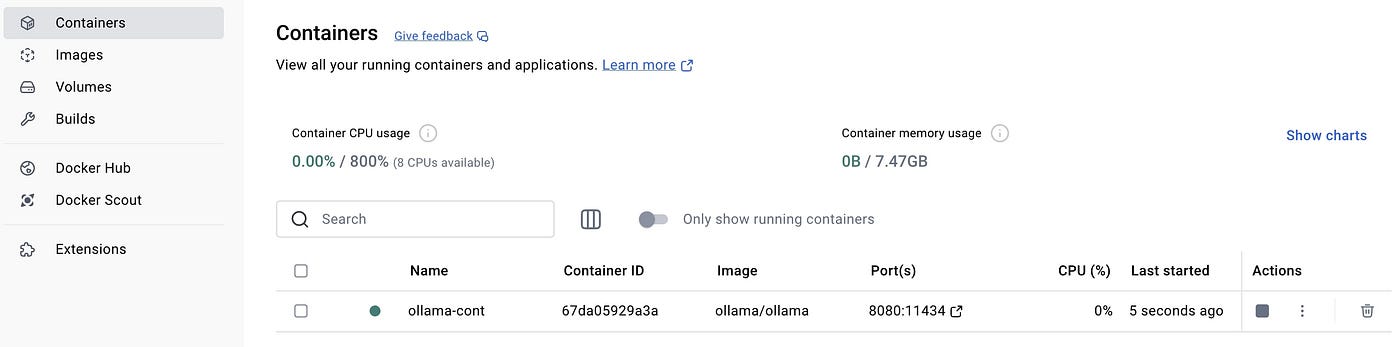
Source: Image by the author.
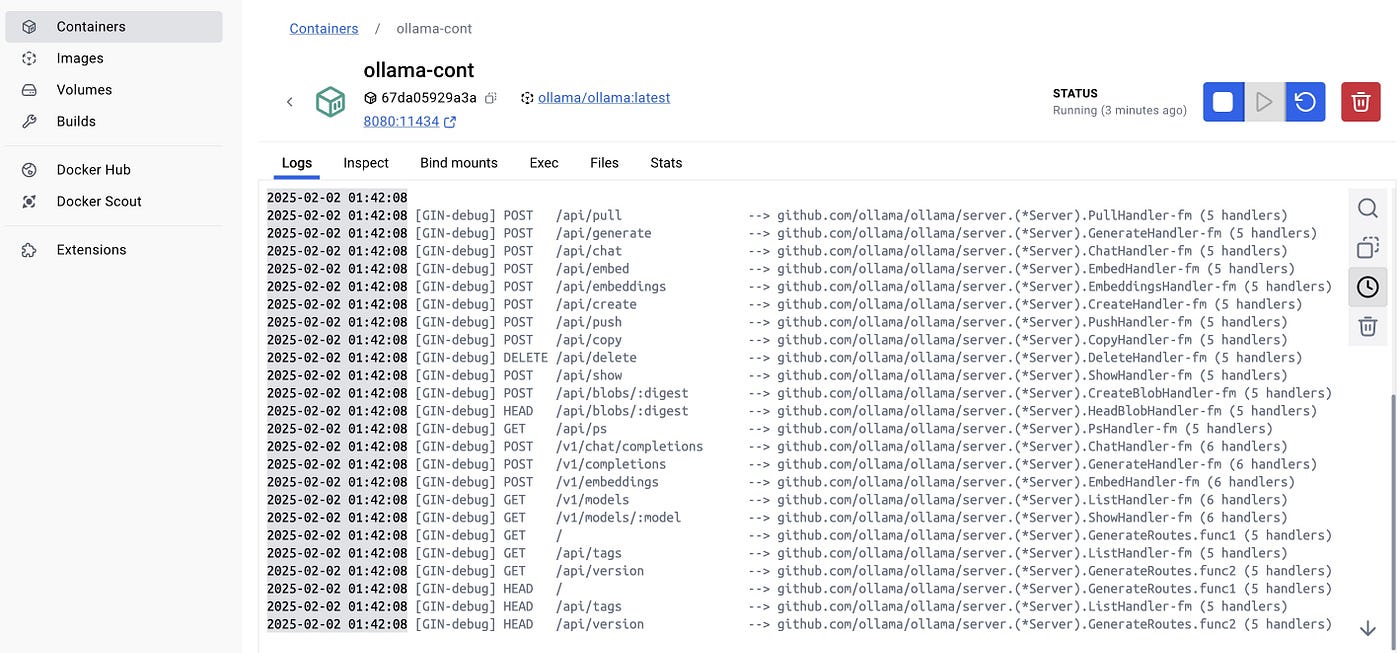
Source: Image by the author.
Step 3: Pull and Run the Ollama LLM image — By default, the model is tinyllama
docker exec -it ollama-cont ollama run tinyllama

Source: Image by the author.

Source: Image by the author.
You can run any LLM using the above command. TinyLlama is the default and small in size. So are its brains as you can see from the above answers. So get a better one instead :)
docker exec -it ollama-cont ollama run tulu3

Source: Image by the author.
Step 4: Test via exposed APIs
curl http://localhost:8080/api/tags
Output:
{“models”:[{“name”:”tinyllama:latest”,”model”:”tinyllama:latest”,”modified_at”:”2025–02–02T08:47:23.395532857Z”,”size”:637700138,”digest”:”2644915ede352ea7bdfaff0bfac0be74c719d5d5202acb63a6fb095b52f394a4",”details”:{“parent_model”:””,”format”:”gguf”,”family”:”llama”,”families”:[“llama”],”parameter_size”:”1B”,”quantization_level”:”Q4_0"}},{“name”:”deepseek-r1:1.5b”,”model”:”deepseek-r1:1.5b”,”modified_at”:”2025–01–31T06:41:35.106883152Z”,”size”:1117322599,”digest”:”a42b25d8c10a841bd24724309898ae851466696a7d7f3a0a408b895538ccbc96",”details”:{“parent_model”:””,”format”:”gguf”,”family”:”qwen2",”families”:[“qwen2”],”parameter_size”:”1.8B”,”quantization_level”:”Q4_K_M”}}]}
That’s all, folks !! Happy coding.
Want to make some quick money? Join Beneable. Benable is an app that allows you to share your favorite things and earn from 40,000 brands. Skip the waitlist with my link: https://benable.com/i/FB237
메타데이터
- post_id
- b9276dbbb37d
- slug
- 2-ways-to-run-ollama-deepseek-locally-using-docker-and-directly-on-local-machine-b9276dbbb37d
- url
- https://medium.com/@prvnkusuma/2-ways-to-run-ollama-deepseek-locally-using-docker-and-directly-on-local-machine-b9276dbbb37d
- canonical_url
- https://medium.com/@prvnkusuma/2-ways-to-run-ollama-deepseek-locally-using-docker-and-directly-on-local-machine-b9276dbbb37d
- author_url
- https://medium.com/@prvnkusuma
- status
- ok
- fetched_at
- 2026-08-04 20:13:07