Azure Databricks Genie -> Microsoft Foundry Agent
Overview
Azure Databricks Genie -> Microsoft Foundry Agent
Overview
- Idea here is to get a lake house created with data
- Then Create Genie on top of that data
- Then use the Genie MCP and connect to Microsoft Foundry to ability to chat with data and get insights from it
Pre-requisites
- Azure subscription
- Azure Databricks workspace
- Microsoft Foundry
- Storage account with necessary permissions
- Using the TPCH sample dataset to create the lake house
- Users need Storage Blob Data contributor role, Storage File Privileged Data Contributor role to underlying data storage for Azure databricks.
- Our goal is use pass through authentication from foundry into databricks genie workspace and for that we need to make sure the users have necessary permissions on the storage account where the data lake house is created.
Create a TPCH Lakehouse from sample dataset
- First lets create a notebook in Azure Databricks and use the following code to create a lake house from the TPCH sample dataset
- Let’s load customer data (table) and write back as delta in lake house format so that we can use it with Genie and Foundry
customerdf = spark.table("samples.tpch.customer")
customerdf.write.format("delta").mode("overwrite").saveAsTable("customer")- Next will be line item table
lineitemdf = spark.table("samples.tpch.lineitem")
lineitemdf.write.format("delta").mode("overwrite").saveAsTable("lineitem")- Now load and save nation table
nationdf = spark.table("samples.tpch.nation")
nationdf.write.format("delta").mode("overwrite").saveAsTable("nation")- Now orders table
ordersdf = spark.table("samples.tpch.orders")
ordersdf.write.format("delta").mode("overwrite").saveAsTable("orders")- Now let’s load parts table
partdf = spark.table("samples.tpch.part")
partdf.write.format("delta").mode("overwrite").saveAsTable("part")- now parts supplier table
partsuppdf = spark.table("samples.tpch.partsupp")
partsuppdf.write.format("delta").mode("overwrite").saveAsTable("partsupp")- now the region table
regiondf = spark.table("samples.tpch.region")
regiondf.write.format("delta").mode("overwrite").saveAsTable("region")- now supplier table
supplierdf = spark.table("samples.tpch.supplier")
supplierdf.write.format("delta").mode("overwrite").saveAsTable("supplier")- now lets validate few tables and see if data is loaded properly
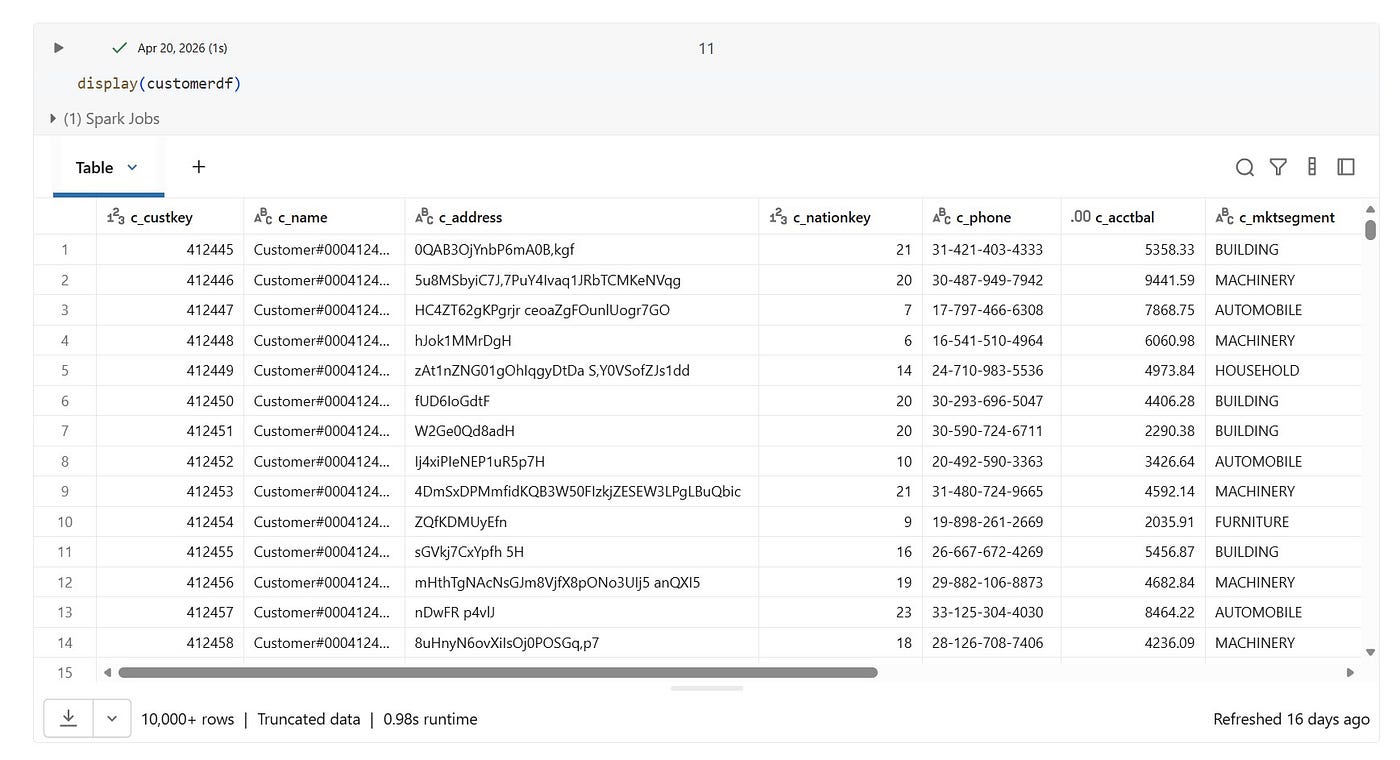
- Count of sales orders

- Now we have created a lake house with the TPCH sample dataset and we are ready to connect this data with Genie and Foundry to get insights from it.
Steps to create a genie workspace
- Go to Azure databricks workspace and click on the left side menu and select “Genie workspaces” option
- Then click the new button on the right side top corner to create a new genie workspace
- Select the table that we created and then click create button to create the genie workspace

- now we have created a genie workspace and we can use this workspace to connect to Microsoft Foundry and get insights from the data.
- Its time to ask few questions to the genie workspace and see how it responds with the insights from the data.
- We are going to use databricks serverless compute for this genie workspace and we can see the response time is pretty good for the questions we are asking to the genie workspace.


- Now on the left menu go to AI Gateway and select MCP tab
- Then select the genie workspace that we created and click on connect button to connect this genie workspace to Microsoft Foundry — “Order and Supplier Management”
- Copy the MCP URL

- Make sure get the workspace URL which is adb7-xxxxxxxxxxx.x.azuredatabricks.net and share it with Foundry team so that they can allow list this URL in their environment to establish the connection between Foundry and Databricks Genie workspace
- Then at the end of the URL there is GUID for Genie workspace ID. Note down this ID as well because we will need this while creating the agent in Foundry.
Microsoft Foundry Agent with Azure databricks Genie MCP
- Now go to Microsoft Foundry and create a new agent
- Select the model for the agent
- create the appropriate prompts for the agent
- Then in the tool section select “Azure Databricks Genie” option and then provide the MCP URL that we copied from the Azure databricks genie workspace and also provide the workspace URL and the Genie workspace ID that we noted down earlier.
- Select Azure databricks Genie

- Provide the necessary details to connect to the Azure databricks genie workspace

- Click Connect
- Now Save the agent and start your insights journey
- here is the question asked — “What is the distribution of customers by market segment?”


- i am using the same questions that i was asking in the genie workspace and now asking the same questions to the agent in Foundry and we can see that we are getting the same insights from the agent as well which means the connection between Azure databricks genie workspace and Microsoft Foundry is established successfully and we are able to get insights from the data in Azure databricks using Microsoft Foundry agent.
- Keep trying with various questions and see the insights you get from the agent in Foundry which is connected to Azure databricks genie workspace. You can ask any question related to the data that we have in the lake house and see how the agent responds with the insights from the data.
- This concludes the demo of connecting Azure databricks Genie workspace with Microsoft Foundry and getting insights from the data using the agent in Foundry. You can explore more questions and insights from the data using this setup.
Conclusion
- In this demo we have seen how to create a lake house in Azure databricks using the TPCH sample dataset and then create a genie workspace on top of that data and connect it to Microsoft Foundry using the MCP URL. We have also seen how to create an agent in Foundry and connect it to the Azure databricks genie workspace to get insights from the data. This setup allows us to leverage the power of Azure databricks and Microsoft Foundry together to get insights from our data in a seamless way.
- We also used the user credentials to connect to the Azure databricks genie workspace from Microsoft Foundry which means we are using pass through authentication for this connection and this is a secure way to connect to the data in Azure databricks from Microsoft Foundry. This provides a secure and seamless way to get insights from the data in Azure databricks using Microsoft Foundry.
- Azure databricks manages it’s security using unity catalog and we can use the same security model to manage the access to the data in Azure databricks when we are connecting to it from Microsoft Foundry. This means we can control who has access to the data in Azure databricks and ensure that only authorized users can access the data when they are connecting from Microsoft Foundry. This provides an additional layer of security for our data when we are using Microsoft Foundry to get insights from Azure databricks.
original article — Samples2026/Foundry/adbgeniefoundry.md at main · balakreshnan/Samples2026
메타데이터
- post_id
- b98d4308ee97
- slug
- azure-databricks-genie-microsoft-foundry-agent-b98d4308ee97
- url
- https://blog.gopenai.com/azure-databricks-genie-microsoft-foundry-agent-b98d4308ee97
- canonical_url
- https://blog.gopenai.com/azure-databricks-genie-microsoft-foundry-agent-b98d4308ee97
- author_url
- https://medium.com/@balabala76
- status
- ok
- fetched_at
- 2026-06-10 08:17:25