Part 7: Extending HCM Redwood with VB Studio — Working with Branching Methodology
In Part 6, we laid the entire foundation — one shared project, an auto-provisioned infrastructure, and three clean branches (Core HR…
Part 7: Extending HCM Redwood with VB Studio — Working with Branching Methodology
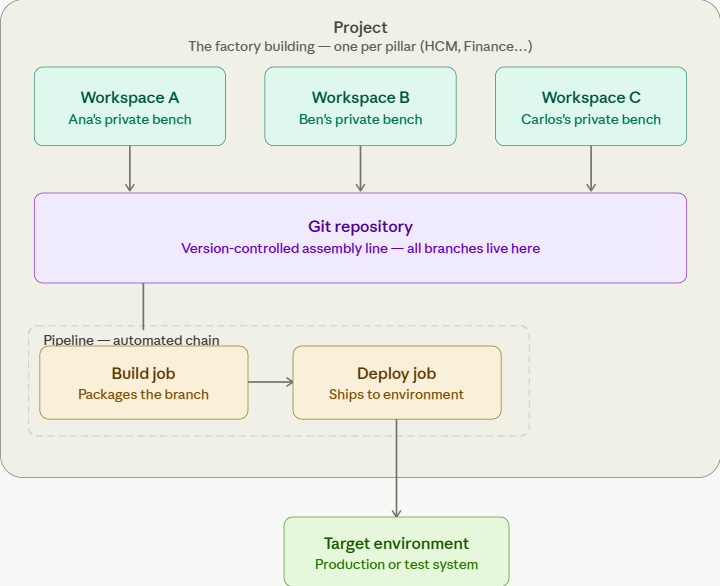
In Part 6, we laid the entire foundation — one shared project, an auto-provisioned infrastructure, and three clean branches (Core HR, Performance, and Learning) each stemming from main and owned by their respective SME.
The stage is set. Now the real work begins. 🏗️
👉 The branches exist — but they’re empty. The workspaces are ready — but untouched. The pipelines are wired — but nothing has moved through them yet.
Part 7 is where we change that — stepping into each SME’s workspace and making real personalization on real Redwood pages, all simultaneously, all independently, without touching anyone else’s work.
If you haven’t read Part 6 yet, start there first — everything that follows builds directly on what we set up there.
📖 Read Part 6: Extending HCM Redwood with VB Studio — Implementing Branching Methodology https://medium.com/@saurabhpratap.singh/part-6-extending-hcm-redwood-with-vb-studio-implementing-branching-methodology-c922c1dd0835
Step 1: Switch to Your Module Branch & Make Changes
Use Advanced Mode to switch branches, then Express Mode to personalize
This is the most important step to get right. You must be on the correct module branch before making any personalization. The switch is done in Advanced Mode, but your actual Business Rules work happens in Express Mode.

A Core HR Subject Matter Expert (SME) has proposed an enhancement to the Hire an Employee process. Specifically, the SME intends to enforce the “Position” field as mandatory on the Hire an Employee page to ensure that every new hire is associated with a defined position at the time of hiring.
- Open the HCM page you want to personalize. Click “Edit Page in Visual Builder Studio”.

- Inside VBS, click Advanced Mode in the top-right toggle.

- Locate the highlighted sandbox/branch indicator (displays your current branch name). Click it.

- Select “Switch Branch / Sandbox” from the dropdown.

- Choose your target module branch (e.g. core-hr) and click Switch.

- Verify the switch — check the path/branch indicator confirms you are now on the correct branch.

- Switch back to Express Mode and make your desired Business Rules changes.

Common mistake: Developers often forget to switch branches and end up committing Employment changes onto the incorrect branch. Always verify the branch indicator before touching any Business Rule.
Step 2: Commit & Push Changes to the Remote Branch
Save your work from local workspace to the shared repository
Saving in Express Mode only stores changes locally in your workspace. To make them part of the module branch’s history and shareable with teammates, you need to Commit (save to local repo) then Push (sync to remote).

- Return to Advanced Mode after completing your Express Mode changes.

- Find your branch in the Git panel. Look for the orange dot — this indicates uncommitted changes are present.

- Click the orange dot. A panel of Git commands appears. Click Commit.

- Enter a meaningful commit message (e.g.
feat: block transfer for Blue Collar workers). Good messages make rollbacks easy to identify later.

- Click Commit — changes are now saved to your local branch repository.

- Click Push → then Push Changes — this syncs your local commit to the remote branch, making it visible to the team and available for deployment.


Step 3: Repeat Steps 1 & 2 for Every Module in Scope
Each module’s changes live in its own branch — fully isolated
Once you’ve completed one module, move to the next. Each time, switch to the appropriate branch before starting any personalization work. This discipline is what makes the entire methodology work.
The loop: Switch branch (Step 1) → Personalize in Express Mode → Commit & Push (Step 2). Repeat for each HCM module until all personalization's are done across their respective branches.
We have below requirements from Learn and Talent Module
A Performance Subject Matter Expert (SME) has proposed an enhancement to the Performance Goal Library page. Specifically, the SME intends to hide the “Target Outcomes” section to streamline the page and prevent users from viewing or configuring target outcomes within the goal library.
A Learning Subject Matter Expert (SME) has proposed an enhancement to the Learning module. Specifically, the SME intends to hide the “Record External Learning” option to restrict users from adding external learning records directly within the system


Once all module branches have their personalization committed and pushed, you can selectively deploy individual branches to higher environments using Build Jobs — without touching any other module’s branch. That’s the power of this methodology.
The deployment process of these changes will be covered in Part 8.
Summary
In this article, we covered:
- Why switching to the correct module branch before making any personalization is the most critical discipline in this entire methodology — and how to do it seamlessly using Advanced Mode and Express Mode together.
- How to Commit and Push changes from your local workspace to the remote branch, making your work versioned, shareable, and ready for deployment.
- How each SME — Andy on Core HR, Christina on Performance, and Michael on Learning — worked simultaneously and independently across their respective branches, with zero risk of overwriting each other’s changes.
- How the loop of Switch Branch → Personalize → Commit & Push repeats cleanly for every module in scope, keeping the entire project organized and traceable.
Stay Tuned for Part 8: Extending HCM Redwood with VB Studio — Deploying Module Changes — where we take everything that’s been built, committed, and pushed across our module branches and move it through the pipeline, deploying each module’s personalization to higher environments selectively and independently, without touching anything else. 🚀
메타데이터
- post_id
- ba958f3ceb1d
- slug
- part-7-extending-hcm-redwood-with-vb-studio-working-with-branching-methodology-ba958f3ceb1d
- url
- https://medium.com/@saurabhpratap.singh/part-7-extending-hcm-redwood-with-vb-studio-working-with-branching-methodology-ba958f3ceb1d
- canonical_url
- https://medium.com/@saurabhpratap.singh/part-7-extending-hcm-redwood-with-vb-studio-working-with-branching-methodology-ba958f3ceb1d
- author_url
- https://medium.com/@saurabhpratap.singh
- status
- ok
- fetched_at
- 2026-06-24 04:09:36