My First Impressions of GitHub Copilot’s Coding Agent
GitHub Copilot’s Coding Agent, launched at Microsoft Build 2025! This AI tool automates coding tasks, creates PRs, commits & logs actions
My First Impressions of GitHub Copilot’s Coding Agent
GitHub Copilot’s Coding Agent, unveiled at Microsoft Build 2025 last week, can be a game-changer for dev teams. This AI-powered assistant, integrated into GitHub, autonomously handles coding tasks by interpreting GitHub Issues, creating pull requests (PRs), and pushing changes — all while logging its decisions. I recently tested the Coding Agent on two tasks for a website, built with Angular. One task was straightforward, while the other was more subjective, giving me insight into the agent’s versatility. In this article, I’ll share my experience, include screenshots of the process, and discuss how this tool can transform your workflow. Spoiler: It’s like having a junior developer who works in minutes!
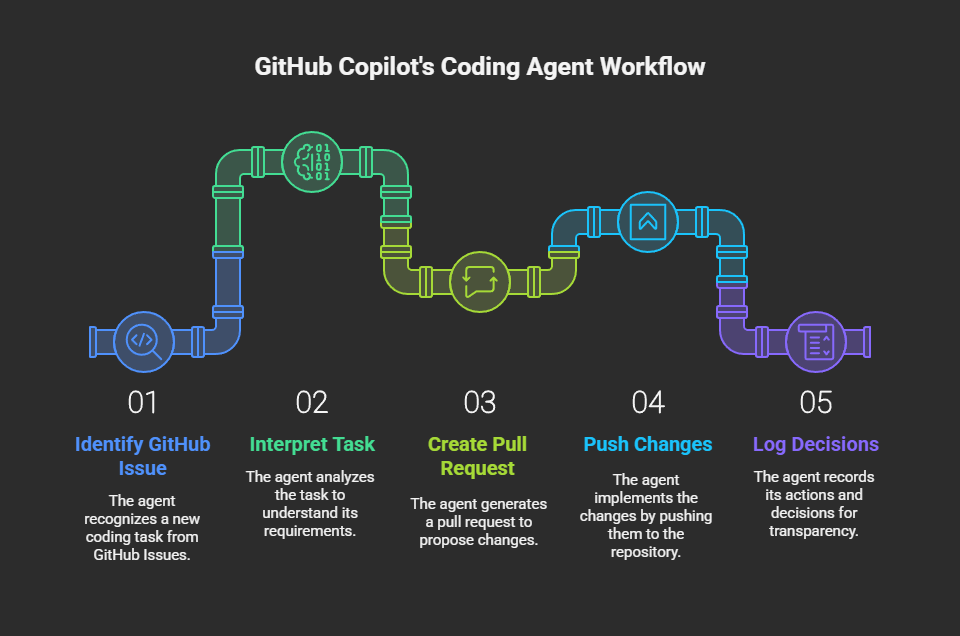
Github Coding Agent Workflow
What is GitHub Copilot’s Coding Agent?
The Coding Agent is an asynchronous AI assistant that uses advanced models and GitHub Actions to clone repositories, analyze code, and push changes to draft PRs. You assign tasks via GitHub Issues, and the agent executes them, logging its steps for transparency. So far I have not tried for complex tasks but even if it handles easy to medium complexity tasks and gives me following type of experience, it would be worth it:
“The GitHub Copilot coding agent fits into our existing workflow and converts specifications to production code in minutes. This increases our velocity and enables our team to channel their energy toward higher-level creative work” — Alex Devkar, Carvana
My Experiment: Two Tasks, Two Perspectives
I tested the Coding Agent on my website. I chose two tasks to evaluate the agent’s capabilities:
- Task 1: Add “Home,” “All Articles,” and “About Me” links to the footer’s Navigation section (clear, well-defined goals).
- Task 2: Reduce vertical spacing in the category filter bar on the Articles page (subjective, requiring aesthetic judgment).
Here’s how the agent performed, step by step.
Step 1: Setting Up the Environment
To use the Coding Agent, you need a Copilot Pro+ or Copilot Enterprise subscription, as it’s currently in preview. I enabled the agent in my repository’s settings.
Step 2: Creating Detailed GitHub Issues
The agent relies on clear context, so I crafted detailed Issues for both tasks.
Task 1: Adding Footer Navigation Links

Task to Add navigation
For the first task, I created an Issue titled “Add ‘Home’, ‘All Articles’ and ‘About Me’ links under Navigation section in footer.” The Issue outlined:
- Adding three links under the footer’s Navigation heading: “Home” , “All Articles”, and “About Me” . On purpose, I did not provide actual routes, I wanted it to figure those.
- Rendering them as a vertical list, matching the footer’s typography and spacing.
- Ensuring responsiveness for mobile viewports.
- Acceptance criteria: Links appear correctly, match existing styles, and stack neatly on mobile.
Issue Details
Task 2: Reducing Vertical Spacing
Second Issue
For the second task, I created an Issue titled “Tighten vertical spacing of category list/filter bar on Articles page.” This task was more subjective, aiming to improve the UI’s compactness without specific measurements. The Issue included:
- A description of the problem: Excessive vertical whitespace above and below the category pills (e.g., “Cloud Infrastructure,” “AI & Machine Learning”) on the Articles page.
- Desired behavior: Reduce padding/margin to make the filter bar more compact, while avoiding a cramped look.
- Acceptance criteria: Reduced gaps, no visual regressions, and preserved responsive behavior.
Fun Fact
In the world of AI, I did not write above Issue details manually. I described issue in 3–4 lines to ChatGPT and it created above issue details for me and then I gave those to Copilot and just came back to test and accept.
Step 3: Assigning Issues to Copilot
Assigning both Issues was straightforward — I selected “Copilot” from the assignee dropdown. The agent responded with an 👀 emoji, indicating it had started processing.
Step 4: The Agent’s Workflow
For both tasks, the Coding Agent followed a similar process:
- Created a Secure Environment: It used GitHub Actions to clone the repository.
- Analyzed the Codebase: Using Retrieval Augmented Generation (RAG), it parsed relevant files.
- Made Code Changes: It created new branches (
copilot/fix-5for Task 1,copilot/fix-7for Task 2) and implemented changes. - Pushed Commits to Draft PRs: It committed changes regularly, updating PR descriptions with its reasoning.
- Logged Decisions: Session logs detailed its steps, from file selection to validation.
Task 1: Footer Navigation Links
The agent modified the footer component to add an unordered list with three links and figured routes to use:
<a href="/">Home</a><a href="/articles">All Articles</a><a href="/about">About Me</a>
It used the existing footer-nav class to ensure consistent styling and verified responsiveness using existing CSS rules. The PR description outlined the changes and confirmed mobile compatibility.
Copilot Created Pull Request
Copilot Created Plan to Execute
Sent Regular Updates
Task 2: Vertical Spacing Adjustment
For the subjective task, the agent analyzed the CSS for the category filter bar and reduced padding in two classes:
.filter-section: Vertical padding reduced from1.5remto0.75rem(saving 0.75 rem)..category-filters: Padding-bottom reduced from0.5remto0.25rem(saving 0.25rem).
It calculated a total savings of approximately 28px (1.75rem) and tested the changes to ensure no visual regressions or responsive issues. The PR included detailed session logs explaining its decisions.
For Task #2, we do not need to go over all screenshots as they were just like #1. Here is the plan that agent created and executed (noting the improvements it made)
Copilot Created Plan
Copilot Executed Plan
Pulled & Tested New Branch
Step 5: Reviewing and Iterating
The agent requested my review for both PRs, tagging me in the draft PRs with clear descriptions and logs.
Task 1 Review
The footer links PR was spot-on. The links appeared under the Navigation heading, matched the footer’s typography, and stacked neatly on mobile. I left a comment: “good to merge.”
I Pulled New Branch & Tested

Approved Review
Task 2 Review
The vertical spacing PR reduced the whitespace effectively, making the filter bar more compact without feeling cramped. The agent’s choices (e.g., halving the padding) aligned with my subjective goal. I commented: “Spacing has been reduced. Branch can be merged. Thanks.”
Pulled & Tested New Branch
Step 6: Merging the PRs
Task #2
Key Takeaways from My Experience
- Clear vs. Subjective Tasks: The agent excelled at the well-defined footer links task, delivering exact results. For the subjective spacing task, it made reasonable aesthetic choices, guided by my qualitative instructions.
- Time-Saving Automation: It handled repetitive tasks (e.g., adding links, tweaking CSS) quickly, freeing me to focus on higher-level work.
- Transparency and Control: Session logs and draft PRs kept me informed, and I retained full control over merging changes.
- Context is Critical: Detailed Issues with acceptance criteria (Task 1) or qualitative guidance (Task 2) improved outcomes. Vague Issues might lead to missteps.
Challenges and Limitations
- Subjective Tasks: While it handled the spacing task well, subjective tasks require careful Issue wording to avoid misinterpretation.
- Complex Tasks: For tasks requiring changes to multiple files, careful review of diffs would be needed.
- Preview Restrictions: As of May 2025, it’s limited to Pro+ and Enterprise users and consumes GitHub Actions minutes.
Despite these, its GitHub integration and transparency make it a powerful tool.
Getting Started with the Coding Agent
Want to try it? Here’s how:
- Subscribe: Get a Copilot Pro+ or Enterprise plan.
- Create an Issue: Write detailed Issues with context and acceptance criteria.
- Assign to Copilot: Use the assignee dropdown or Copilot Chat in VS Code.
- Review and Merge: Check the draft PR, provide feedback, and merge.
Learn more in GitHub’s Copilot Coding Agent documentation.
Conclusion
GitHub Copilot’s Coding Agent streamlined two tasks for a website — adding footer links and tightening UI spacing. It handled a clear task with precision and a subjective one with thoughtful judgment. I already had experience with Github Copilot for quite sometime, so I was checking more of the process part than actual coding skills. I was impressed with that part. I would try some complex tasks and provide an update soon.
Happy Coding!
메타데이터
- post_id
- bae730a1d69d
- slug
- my-first-impressions-of-github-copilots-coding-agent-bae730a1d69d
- url
- https://medium.com/@manjit28/my-first-impressions-of-github-copilots-coding-agent-bae730a1d69d
- canonical_url
- https://medium.com/@manjit28/my-first-impressions-of-github-copilots-coding-agent-bae730a1d69d
- author_url
- https://medium.com/@manjit28
- status
- ok
- fetched_at
- 2026-06-25 16:53:31