Deployment of a Private Communication in a MultiCloud Environment (AWS and GCP) 100% Automated…
In another project based on a real-world scenario, I acted as a Cloud Specialist in a company that used Google Cloud and AWS services in…
Deployment of a Private Communication in a MultiCloud Environment (AWS and GCP) 100% Automated Using Terraform
Project Overview
In another project based on a real-world scenario, I acted as a Cloud Specialist in a company that used Google Cloud and AWS services in separate architectures.
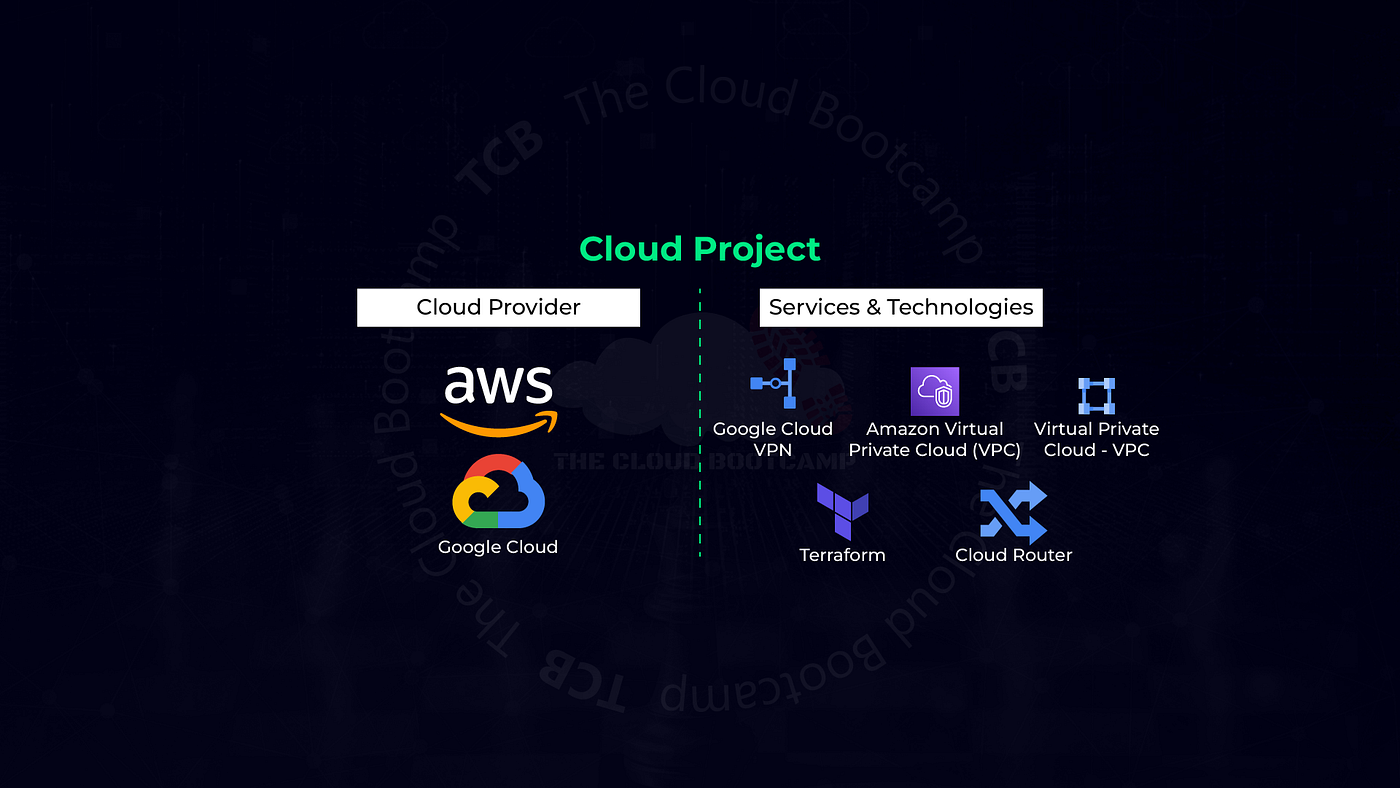
The company decided to interconnect the two architectures, in a completely private way, using the Virtual Private Gateway, Customer Gateway, Cloud Routers, Cloud VPN, among other services.
However, they needed it in production in a week. So, once GCP and AWS accounts were created, to save time, I decided to deploy it in a 100% automated way using Terraform. I worked from the Cloud Shell in GCP to deploy the configuration.
First I created a Google Cloud project in GCP and made note of the Project ID. I verfied that Billing was enabled, and that the Compute Engine API was also enabled. I started the Cloud Shell in GCP and downloaded my project files directly into the shell with a curl command connecting to an existing file storage location. The .zip file was extracted which created my file structure. I modified the file permissions to allow for execution of the shell scripts having a “.sh” extension. Next I created a Service Account through the GCP GUI. I downloaded the credential, which was in a .json format, and then uploaded it to my shell. That credential was then associated to the project and inserted into the terraform configuration using a gcp_set_credentials.sh script.
./gcp_set_credentials.sh ~/file.jsonFolllowing that I created a user for programmatic access on AWS to allow Terraform to connect remotely and execute the configuration on AWS automatically. I downloaded that credential, in a .csv format, from AWS and uploaded it to my GCP Cloud Shell. As before I associated that key with my project and inserted it into the terraform configuration with the aws_set_credentials.sh script.
./aws_set_credentials.sh ~/accessKeys.csvThe next step was to download and install Terraform to the Cloud Shell. I used the get_terraform.sh script to do so.
./get_terraform.shThen I had to associate my project with the shell using the gcloud config command. I used the project id assigned to my project when I created it earlier in the process.
gcloud config set project [MY-PROJECT-ID]The gcp_set_project.sh was executed to insert the project information into the Terraform .tfvars file.
./gcp_set_project.shAll that remained to be set up was the SSH keys for GCP and AWS. I created the key in the Cloud Shell using the ssh-keygen command.
ssh-keygen -t rsa -f ~/.ssh/vm-ssh-key -C myusernameTo follow best practice I changed the permissions on the key file to read only for the user.
chmod 400 ~/.ssh/vm-ssh-keyI then imported the public key into the Cloud Shell using the gcloud compute config command.
gcloud compute config-ssh --ssh-key-file=~/.ssh/vm-ssh-keyTo upload it to AWS, I first downloaded the key to my laptop and then imported it into in the AWS console under EC2, Network & Security, Key Pairs.

Architecture Overview
Upon completion of the initial configuration, I was ready to execute the build using Terraform. Through Terraform, a virtual machine was created in AWS and GCP both with static IP addresses. To connect the two together, customer and internet gateways were created along with routing and firewall rules to allow for internet traffic as well as private traffic using SSH such as Terraform. Two private VPN tunnels were created to allow for the private connection between AWS and GCP. The network interfaces and routers were established programmatically as well to provide for the physical layer of connection. Seperate subnets were assigned as well to support redundancy with the IP routing.
After successful deployment of the Terraform configuration, I tested my connections with GCP Connectivity testing.

GCP Connectivity Testing
After concluding with the testing and this proof of concept, I removed all the resources using the terraform destroy command.
terraform destroy메타데이터
- post_id
- baf4c2b6fd39
- slug
- deployment-of-a-private-communication-in-a-multicloud-environment-aws-and-gcp-100-automated-baf4c2b6fd39
- url
- https://awstip.com/deployment-of-a-private-communication-in-a-multicloud-environment-aws-and-gcp-100-automated-baf4c2b6fd39
- canonical_url
- https://awstip.com/deployment-of-a-private-communication-in-a-multicloud-environment-aws-and-gcp-100-automated-baf4c2b6fd39
- author_url
- https://medium.com/@brianleding
- status
- ok
- fetched_at
- 2026-07-26 07:18:22