Multi-Language Search with Sitecore JSS and Coveo Atomic
Why multi-language support matters:
Multi-Language Search with Sitecore JSS and Coveo Atomic
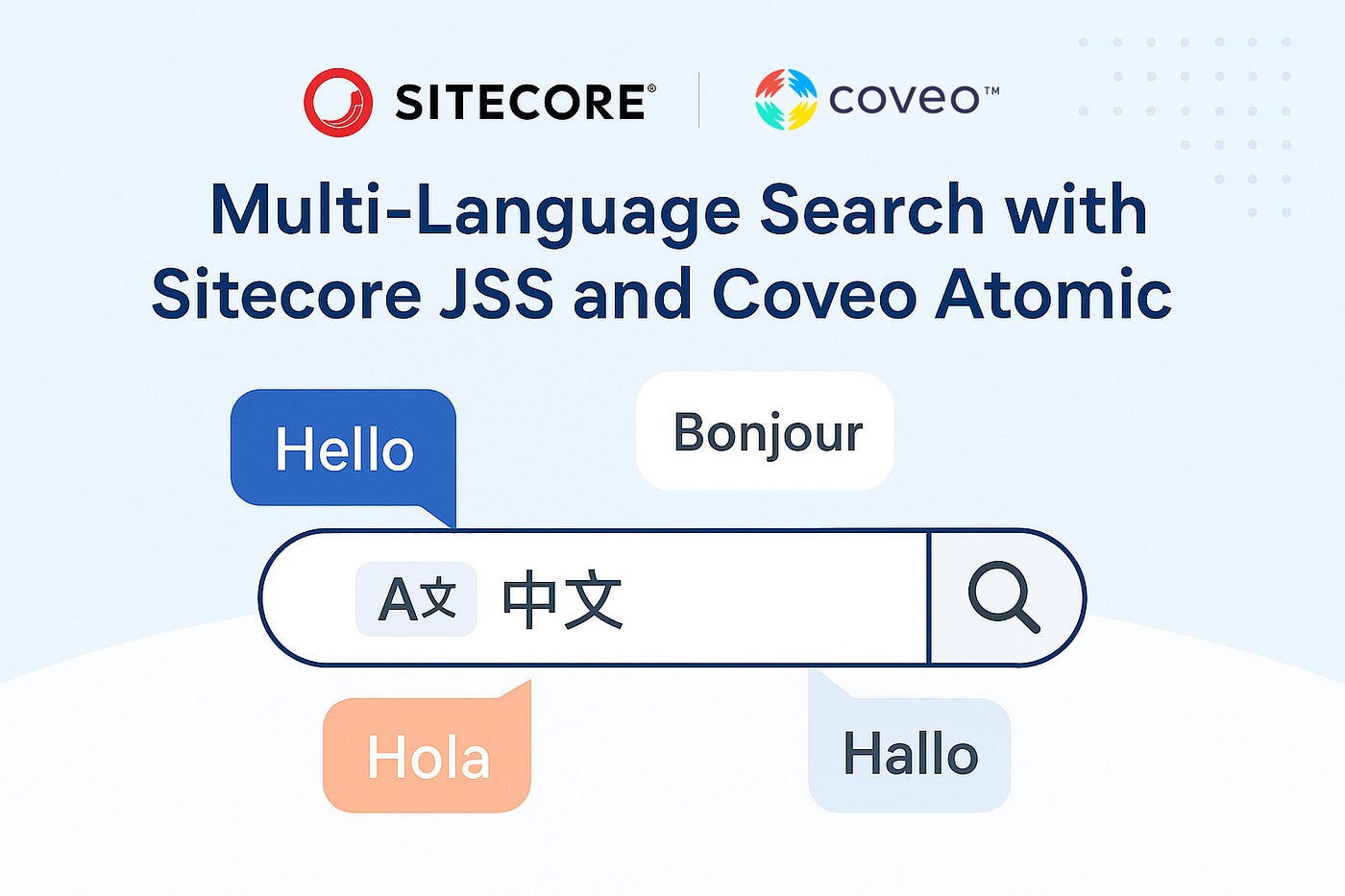
Why multi-language support matters:
In a fast-moving digital world, businesses need to connect with people all over the globe. Speaking to customers in their own language builds trust, improves user experience, and opens up new markets. Sitecore makes this easy with strong multi-language support. It allows teams to manage content in many languages from one place. You can create language versions, use translation workflows, and even set up fallback languages.
With Sitecore, businesses can easily grow into new regions, improve SEO, and make customers feel more comfortable on their websites. By adding Coveo, businesses can take the experience even further by delivering fast, accurate, and personalized search results, helping customers quickly find what they need in their own language.
How it helps businesses:
Sitecore’s multi-language features help businesses:
- Reach more people around the world
- Build stronger connections with local customers
- Boost search rankings in different countries
- Get better conversion rates by speaking the customer’s language
- Increase customer trust
How sitecore helps coveo show multi-language search results:
When Coveo is connected to Sitecore, it can index content in many languages. Based on the visitor’s language (from their browser, profile, or website choice), Coveo shows search results in the right language.
This makes searching easier, faster, and more personal for users.
How sitecore and coveo together help businesses:
By combining Sitecore and Coveo, businesses can give users a smooth, smart, and language-friendly experience.
Sitecore manages multilingual content, and Coveo makes sure users can easily find what they need in their own language.
Together, they help businesses grow faster, reach more customers, and create better digital experiences across the world.
When we are building global websites with Sitecore JSS and Coveo Atomic, supporting multiple languages in search becomes very important.
We will learn how to create a multi-language Coveo search experience step-by-step, in this blog.
We will cover
- Setting up multilingual content in Sitecore
- Configuring Coveo to index language versions
- Passing language context to Coveo from Sitecore JSS
- Updating Coveo pipelines for language-specific queries
- Handling multiple languages in Atomic components
Step 1: Setting Up Multilingual Content in Sitecore
First, make sure your Sitecore content has different language versions.
Steps:
- Open Sitecore Content Editor and select any page or Item.
- In the Versions tab > Add a new language version.
- Example: English (en), French (fr-FR), German (de-DE).
- Save and publish all language versions.

Step 2: Configuring Coveo to Index Multiple Languages
Make sure Coveo knows how to index multiple languages.
Steps:
- Go to Coveo Admin Console > Content Browser.
- Make sure your indexed items have a language field (example: en, de).
- If not, update your Sitecore Coveo Connector to include the language field during indexing.

We can create language specific Query pipeline in coveo platform. It will help to fetch indexeed data based on language field. We can set for any language like en, fr, de.

This language we can get from Sitecore context in Sitecore JSS next.js.
Step 3: Passing Language Context from Sitecore JSS (Next.js)
This will send the current language as context on every search!
import React from "react";
import {
      AtomicSearchBox,
      AtomicSearchBoxQuerySuggestions,
      AtomicSearchBoxRecentQueries
 } from "@coveo/atomic-react";
// get sitecore context using this hook
import { useSitecoreContext } from '@sitecore-jss/sitecore-jss-nextjs';
import Constant from 'components/helper/Constant/Constant';
import SearchBox from "./SearchBox";
import FacetedSearch from "./FacetedSearch";
import SearchResults from "./SearchResults";

const CoveoSearchComponent = (): JSX.Element => {
  const accessToken = process.env.NEXT_PUBLIC_COVEO_API_KEY;
  const organizationId = process.env.NEXT_PUBLIC_COVEO_ORG_ID;

// Hook for the SitecoreContext data - fetching language from context
  const sitecoreContext: any = useSitecoreContext();
//setting coveo compatible language token string
  const pageLanguage: string = sitecoreContext?.sitecoreContext?.language;
  const searchLanguage = pageLanguage
    .toUpperCase()
    .replace(/\s/g, '') as keyof typeof Constant.LOCALE;
  const searchLanguageType = sitecoreContext?.sitecoreContext?.language
    ? Constant.LOCALE[searchLanguage]
    : 'en';

//Coveo Engine Setup
const engine = useMemo(
    () =>
      buildSearchEngine({
        configuration: {
          accessToken,
          organizationId,
          organizationEndpoints: getOrganizationEndpoints(organizationId),
          search: {
            pipeline: queryPipeline,
            searchHub: searchHub,
          },
        },
      }),
    // eslint-disable-next-line react-hooks/exhaustive-deps
    [accessToken, organizationId]
  );
return(
 <AtomicSearchInterface
        engine={engine}
        fieldsToInclude={[]} // here we can pass sepcific coveo fields
        language={searchLanguageType} // Language like en|de|fr etc.
        languageAssetsPath={'/lang'} // this is coveo labels dictionary file path
      >
     <AtomicSearchLayout>
     <div className="grid gap-4 p-4">
        <div className="col-span-12">
          <SearchBox /> // Search box component.
        </div>
        <div className="col-span-2">
          <FacetedSearch />
        </div>
        <div className="col-span-10">
          <SearchResults />
        </div>
      </div>
     </AtomicSearchLayout>
  </AtomicSearchInterface>

)
}
export default CoveoSearchComponent;
Step 4: Testing Multi-Language Search
- Switch your website language to French.
- Perform a search.
- You should see only French content.
- Switch to German.
- You should see only German content.
If you still see mixed results:
- Check the context language in the network request. you can check
- Check if Coveo index has the correct language value.
- Check if the query pipeline is triggered properly.

If no context is passed (edge case), you can fallback to en (English) like this:
<AtomicSearchInterface
        engine={engine}
        fieldsToInclude={[]} // here we can pass sepcific coveo fields
        language={searchLanguageType || 'en' } // Language like en|de|fr etc.
        languageAssetsPath={'/lang'} // this is coveo labels dictionary file path
      >
Conclusion
Supporting multiple languages in Coveo Search with Sitecore JSS and Atomic is simple, but important. By correctly passing and filtering by language, you ensure that users around the world get results in their preferred language!
Stay tuned for our next guide!
메타데이터
- post_id
- bb2d8353c7b7
- slug
- multi-language-search-with-sitecore-jss-and-coveo-atomic-bb2d8353c7b7
- url
- https://medium.com/@ravijadhav_4628/multi-language-search-with-sitecore-jss-and-coveo-atomic-bb2d8353c7b7
- canonical_url
- https://medium.com/@ravijadhav_4628/multi-language-search-with-sitecore-jss-and-coveo-atomic-bb2d8353c7b7
- author_url
- https://medium.com/@ravijadhav_4628
- status
- ok
- fetched_at
- 2026-06-26 03:39:16