Android Google Places AutoComplete Feature.
How to add it to your android app
Android Google Places AutoComplete Feature-How to add it to your android app
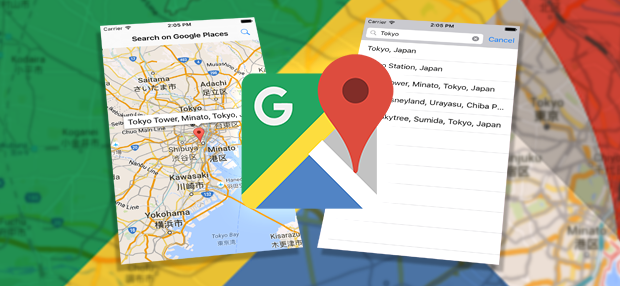
source: Sweet Tutos
In android development, searching for places around the globe has become easier and fun to implement with the Google Places SDK for Android that provides places autocomplete service.
“ The autocomplete service in the Places SDK for Android returns place predictions in response to user search queries. As the user types, the autocomplete service returns suggestions for places such as businesses, addresses and points of interest.”
In this post, we will explore the different ways we can add the autocomplete search feature to an android app. They are:
- Add as an autocomplete widget to save development time and ensure consistent user experience.
- Get place predictions programmatically to create a customized user experience.
NOTE: You’d need to create an API Key from the google cloud platform. You also need to register the app in the Google API Console so as to get an API KEY. Once, you have your API key, you can proceed… be sure to keep it safe.
By this time you should have created an android studio project for this.
Add the following dependency to your app’s build.gradle and sync project:
implementation 'com.google.android.libraries.places:places:1.1.0'Copy the API key from the google console and add it to your strings.xml folder like this:
<string name="api_key">changeme</string>In the activity within which you want to implement the autocomplete search feature, you’d need to initialize Places like this:
[embed]Google Places Initialization
Now we’re set to add the autocomplete search feature! We would explore both options.
- Add as an autocomplete widget
Using this option, you can do either of the following:
a. Embed an AutocompleteSupportFragment or
b. Use an intent to launch the autocomplete activity.
Let’s consider option a :)
a. Embed an AutocompleteSupportFragment
This involves just adding a fragment to your activity’s XML layout and a listener to your activity or fragment.
Add the following code to your XML layout:
[embed]**AutocompleteSupportFragment.xml**
Next, initialize the AutocompleteSupportFragment and set the fields to specify which types of place data to return in the activity or fragment.
[embed]
That’s it! you can run your code : )
[embed]
b. Use an intent to launch the autocomplete activity.
Using this approach, I prefer to have a custom search icon on the toolbar which when clicked triggers the autocomplete search feature. I presume you already know how to add a search icon to the toolbar! You can add the following codes in your menu.xml file:
[embed]
In your activity, after initializing Places, you can override the onOptionsItemSelected method which has the onSearchCalled() method when the search icon is clicked.
[embed]
in the onSearchCalled() method, we set the fields to specify which types of place data to return. Thereafter, we use Autocomplete.IntentBuilder to create an intent, passing the desired PlaceAutocomplete mode (full-screen, or overlay). The intent must call startActivityForResult, passing in a request code that identifies your intent.
[embed]
In my case, I specified 4 types of place data to return, you can specify more or less, be sure to check the documentation for other fields.
Also of note is the AUTOCOMPLETE_REQUEST_CODE which is a constant and can be any unique number.
Override the onActivityResult callback to receive the selected place.
[embed]
That’s it! you can run your code : )
[embed]
- Get place predictions programmatically to create a customized user experience.
Your app can get a list of predicted place names and/or addresses from the autocomplete API by calling [PlacesClient.findAutocompletePredictions()](https://developers.google.com/places/android-sdk/reference/com/google/android/libraries/places/api/net/PlacesClient), passing a FindAutocompletePredictionsRequest object with the following parameters:
. aquery string containing the text typed by the user ( Required)
. an[AutocompleteSessionToken](https://developers.google.com/places/android-sdk/reference/com/google/android/libraries/places/api/model/AutocompleteSessionToken), which groups the query and selection phases of a user search into a discrete session for billing purposes. The session begins when the user starts typing a query and concludes when they select a place. ( Recommended)
. a[RectangularBounds](https://developers.google.com/places/android-sdk/reference/com/google/android/libraries/places/api/model/RectangularBounds) object, which specifies latitude and longitude bounds to constrain results to the specified region ( Recommended)
. an optional two-letter country code and a [TypeFilter](https://developers.google.com/places/android-sdk/reference/com/google/android/libraries/places/api/model/TypeFilter), which you can use to restrict the results to the specified place type.
Let’s add an EditText that would hold the text or query string from the user, a Button that would trigger the autocomplete search feature and a text area that would display the result. The resulting XML layout is as follows:
[embed]
My approach here is that, once a user enters a search text in the EditText field, and clicks the button, the Places autocomplete search feature is triggered and the result is returned to the UI text area.
Note that the search result may be more than one.
[embed]
That’s it! you can run your code : )
[embed]
Be sure to check out the billing plans for the Google Places API as it is not free!
You can find the whole project here.
Thanks for reading and please drop your comments : )
References
메타데이터
- post_id
- bb3064308f05
- slug
- android-google-places-autocomplete-feature-bb3064308f05
- url
- https://medium.com/skillhive/android-google-places-autocomplete-feature-bb3064308f05
- canonical_url
- https://medium.com/skillhive/android-google-places-autocomplete-feature-bb3064308f05
- author_url
- https://medium.com/@ikhiloyaimokhai
- status
- ok
- fetched_at
- 2026-08-18 18:18:24
