Terraform State Isolation Strategies: Workspaces vs File Layouts Explained
Introduction
Terraform State Isolation Strategies: Workspaces vs File Layouts Explained
Introduction
Every Terraform setup starts simple. One environment, one state file, one person applying changes. Then staging gets added, then production, then a second region, then a new team member. Somewhere in that growth, the question shifts from “how do I manage infrastructure” to “how do I make sure a change in staging can never touch production.” And that question has a name: state isolation. This is where understanding state isolation becomes essential.
What State Isolation Actually Means
State isolation means maintaining separate Terraform state for each environment; dev, staging, and production ensuring changes are fully contained within their respective boundaries. This prevents unintended cross-environment impact and reduces the risk of accidental deployments. Terraform provides two approaches to achieve this, and they are:
Isolation via Workspaces
Isolation via File Layouts
Isolation via Workspaces
Terraform workspaces allows managing multiple environments from a single codebase. The idea is straightforward, instead of duplicating your configuration for every environment, you create a workspace per environment and switch between them. Behind the scenes, Terraform stores a separate state file for each workspace, even though the code remains the same. Here’s a short demo to how it works.
- Create a project folder, add a main.tf file with the configuration below, and run
terraform init.
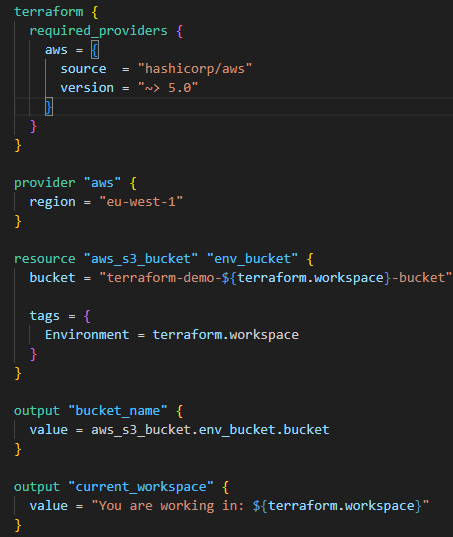
Fig 1
- Create a new workspace for the environment you want to use. For instance, run
terraform workspace new prod, then apply your configuration withterraform applyto create the S3 bucket for prod. If you also create a dev workspace, Terraform will create a different S3 bucket for the dev environment.

Fig 2

Fig 3

Fig 4: S3 Buckets for each workspace as seen in the console
- Also, observe that Terraform creates a distinct state file for each environment.

Fig 5
Workspaces work best when your environments are nearly identical, you’re a solo developer or part of a small team, and the infrastructure isn’t production-critical. But despite their convenience, they do come with a few challenges;
- No code isolation: The same codebase is used across all environments, meaning changes apply everywhere. This makes it difficult to safely customize dev, staging, and production without introducing additional complexity.
- With workspaces, it’s easy to apply changes to the wrong environment. There are no structural guardrails, so avoiding mistakes depends entirely on remembering to check your current workspace.
Isolation via File Layouts
File-based layouts are a different way to isolate environments in Terraform. Instead of sharing one configuration and switching workspaces, you create separate directories or folders for each environment for example, dev/, staging/ and prod/ each containing its own own configuration, its own state file, and potentially its own backend configuration if we are using remote state. Here’s a quick demo to show how it works.
- Start by creating a project folder, then add a folder for each environment. For this lab, we’ll create dev and prod, and inside each folder, add a main.tf file.

Fig 6
- Add the configuration below in your main.tf file. You can modify the bucket name to suit your environment.

Fig 7
-
To provision the S3 resource in the dev environment, move into the dev directory using
cd dev, then runterraform init,terraform plan, andterraform apply. Follow the same process for the prod environment. -
As shown in the console, the buckets are successfully created, and in the project directory, each environment maintains its own separate codebase and state file.

Fig 8

Fig 9
While this approach provides strong isolation, it also introduces some trade-offs. Managing separate directories introduces more setup and organization, especially as the number of environments grows. There’s also some duplication of configuration, which means updates may need to be applied in multiple places. Over time, this can add to maintenance effort, and the workflow can feel slightly slower since you need to navigate into each environment before running Terraform commands.
Now that both approaches have been explored in practice, their differences become clearer. Workspaces prioritize simplicity and speed, while file-based layouts focus more on structure, safety, and clarity. In smaller setups, workspaces can be enough. But as your infrastructure grows, their limitations start to show especially when it comes to safely managing multiple environments and handling environment-specific differences.
Conclusion
State isolation is about safety, not shortcuts. Workspaces are great for speed, but one error can affect all environments. File layouts might feel like extra work at first, but they give you control and confidence. After seeing both in action, it’s clear: structure your projects deliberately, and let isolation do the heavy lifting.
30DayTerraformChallenge #TerraformChallenge #Terraform #IaC #DevOps #AWSUserGroupKenya #EveOps
메타데이터
- post_id
- bb4402749fde
- slug
- terraform-state-isolation-strategies-workspaces-vs-file-layouts-explained-bb4402749fde
- url
- https://medium.com/@onifadeayomide11/terraform-state-isolation-strategies-workspaces-vs-file-layouts-explained-bb4402749fde
- canonical_url
- https://medium.com/@onifadeayomide11/terraform-state-isolation-strategies-workspaces-vs-file-layouts-explained-bb4402749fde
- author_url
- https://medium.com/@onifadeayomide11
- status
- ok
- fetched_at
- 2026-07-08 00:36:00