How to Migrate Your Customized TouchChat Vocabulary with AI
Updated March 31, 2026 with new learnings from a WP42 to WP60 migration.
How to Migrate Your Customized TouchChat Vocabulary with AI
Updated March 31, 2026 with new learnings from a WP42 to WP60 migration.
Part 1: What You Need (For Humans)
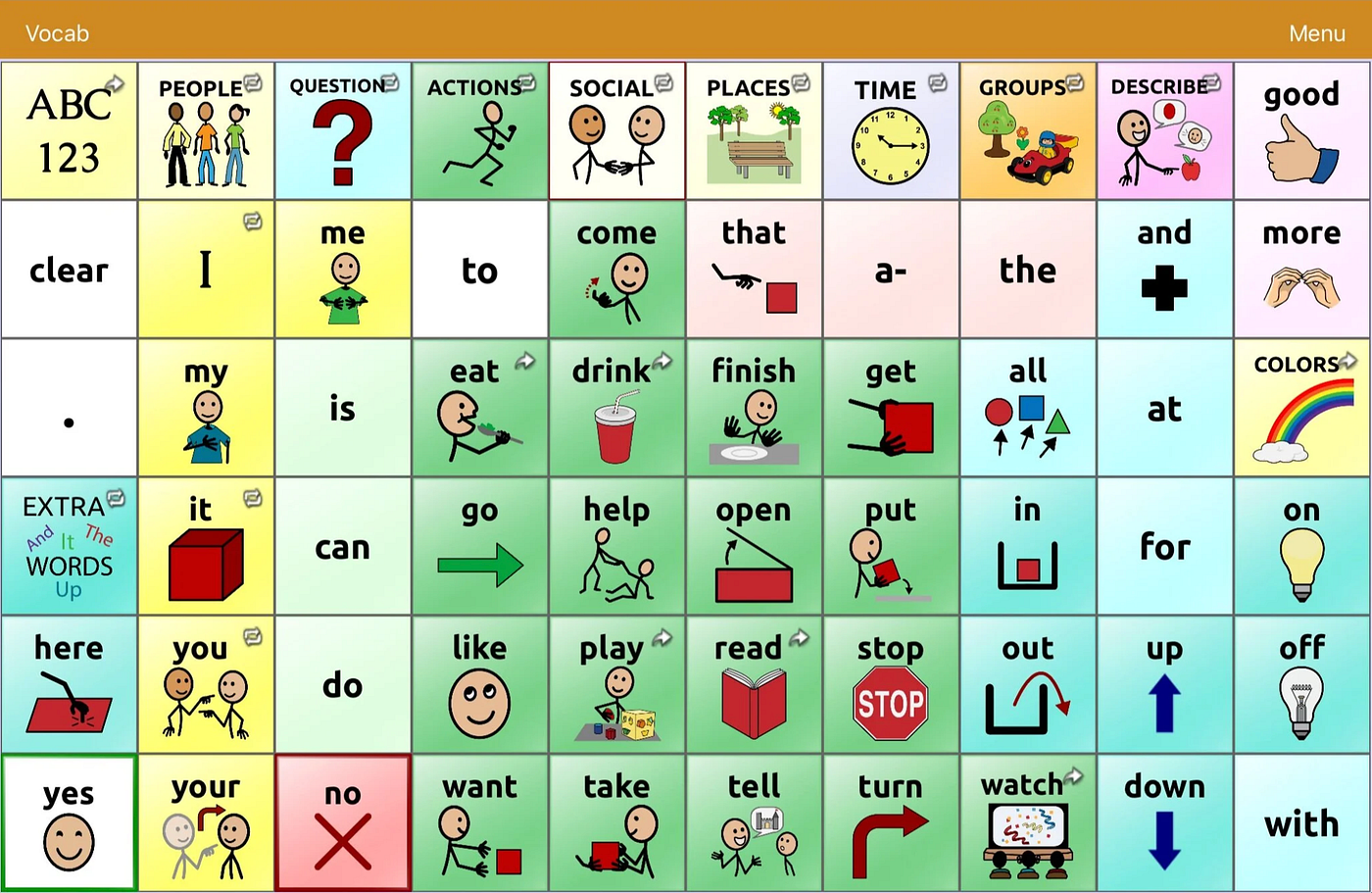
If you’re reading this, you probably know the pain. Your child uses TouchChat with a WordPower vocabulary — maybe WordPower 60 — and over months or years, you’ve painstakingly customized it. You’ve added family photos, renamed buttons, built custom pages for school, for home, for the things that matter in your child’s life.
And now it’s time to graduate to a denser vocabulary. WordPower 60. WordPower 80. WordPower 108. Whatever comes next.
The problem is brutal: there’s no migration tool. You can start fresh with the new vocabulary and lose all your customizations, or you can stay on the old one and hold your child back. TouchChat’s own editing tools — either the iPad app or the Windows-only ChatEditor — aren’t built for this kind of merge. They’re fine for changing one button at a time, but merging hundreds of customizations into a new vocabulary layout? That’s a different problem entirely.
This has been tested in the real world. As of March 2026, this approach has been used to successfully migrate two children’s vocabularies — one merging supplementary content into a WordPower 60 layout, and another graduating from WordPower 42 to WordPower 60 while preserving 644 custom pages, 4,265 custom images, and hundreds of button-level customizations. The child’s mother reported being able to make the remaining tweaks manually in a single session.
That’s where AI comes in. Modern AI assistants can read files, understand database structures, write code, and walk you through the process step by step. You don’t need to be technical. You just need to follow a few setup steps, and then the AI handles the rest.
What You’ll Need
- An AI assistant that can work with files on your computer
You need a paid subscription to an AI service that offers a desktop application capable of reading and editing files in a folder on your computer. As of this writing, good options include Claude (with Claude Code or the desktop app with computer use), but this space moves fast — use whatever current AI tool you’re comfortable with that can access local files. The key requirement is that it can read files, run scripts, and create new files on your machine.
- Three TouchChat files, all in one folder
You need to gather three .ce files and put them in the same folder:
- The original, unedited base vocabulary. This is the stock version of what you started customizing — for example, the default WordPower 60 that ships with TouchChat. You can export a fresh copy from the TouchChat app if you don’t have one saved. The AI needs this to figure out what you changed versus what was already there.
- Your customized vocabulary. This is the one you’ve been using — with all your family photos, custom pages, renamed buttons, and everything else you’ve built. Export it from TouchChat.
- The target vocabulary you’re migrating to. This is the new, denser vocabulary you want to move to — for example, WordPower 80 or WordPower 108. Export a fresh copy from TouchChat.
- To export a vocabulary from TouchChat: go to Settings (gear icon) > Vocabulary > select the vocabulary > Share/Export. AirDrop it to your computer or save it to Files and transfer it over.
- Open your AI assistant and give it this prompt
Once your three files are in a folder and your AI tool is pointed at that folder, give it one of these prompts:
Option A — Link (easiest):
Read this article and help me migrate my TouchChat vocabulary file: https://gist.githubusercontent.com/TonyDowney/6f13ceb8b3a1f409820eec906ec5d76e/raw/medium-article.md
Option B — Paste: If the AI can’t open the link, copy this entire article and paste it into the chat, then add: “Help me migrate my TouchChat vocabulary file.”
That’s it. That’s the whole prompt. The AI will read the rest of this article — which contains detailed technical instructions — and walk you through the process from there.
A Quick Note Before You Go
Everything below this line is written for the AI, not for you. You don’t need to read it or understand it. The AI will use these instructions to analyze your files, figure out what you customized, merge your changes into the new vocabulary, and produce a new .ce file you can install on your iPad.
The AI will talk to you throughout the process. It will ask you questions when it needs your input, explain what it’s doing, and flag anything it’s unsure about. When it’s done, it will give you a file and tell you exactly how to install it and what to test.
You’re in good hands. Let the AI take it from here.
Part 2: Technical Instructions for AI Migration (For AI Assistants)
You are helping a non-technical user migrate their customized TouchChat AAC vocabulary to a denser grid layout. The user has likely never worked with databases, code, or file formats. Communicate with them in plain, friendly language. Explain what you’re doing at each step and ask for confirmation before making irreversible changes.
This section was written in February 2026 based on extensive reverse-engineering of the .ce file format. It is already partially out of date. Other researchers and developers have been investigating this format, and newer findings may be available. Before proceeding, search the web for recent research on the TouchChat .ce file format, ChatEditor internals, and any community tools that have emerged for vocabulary migration. Incorporate anything you find that supplements or corrects the information below.
Understanding the .ce File Format
A .ce file is a standard ZIP archive (just renamed). Inside it are:
FileFormatPurpose*.c4vSQLite 3.xVocabulary database — pages, buttons, actions, layout, styles, everythingImages.c4sSQLite 3.xCustom images (PNG blobs uploaded by the user — family photos, custom symbols)Manifest.c4iSQLite 3.xMetadata (origin=TouchChat)version.txtPlain textFormat version (contains "4")
To work with these files:
- Copy the
.cefile and rename the copy to.zip - Unzip it into a folder
- Use SQLite tools to read and modify the databases
- When done, re-ZIP the contents and rename back to
.ce
The Vocabulary Database Schema
Everything in the vocabulary database is linked through a central resources table:
resources: id, rid (GUID), name, typeEvery button, page, button set, and other entity has a resource_id pointing to this table. The rid column contains a GUID in the format {XXXXXXXX-XXXXXXXX-XXXXXXXX-XXXXXXXX} — these are used for cross-references like navigation targets.
Resource types:
TypeMeaningLinked Table4Buttonbuttons5Button Set (conjugation group)button_sets6Button Box (grid container)button_boxes7Pagepages10Gesture (swipe navigation)gestures3Soundsounds1Null/Placeholder(orphaned)
Page and Layout Hierarchy
pages
  -> button_box_instances (position/size on page)
       -> button_boxes (grid dimensions: layout_x * layout_y)
            -> button_box_cells (resource at grid location)
-> buttons or button_sets (actual content)- Grid locations are 0-indexed, row-major:
location = row * layout_x + col - A 10x6 grid (WordPower 60) has locations 0–59
- A 12x8 grid would have locations 0–95
- Buttons, actions, modifiers, and symbols are INDEPENDENT of grid layout. Changing grid dimensions only touches
button_boxes,button_box_cells, andbutton_box_instances. All button data stays the same.
Buttons
buttons: id, resource_id, label, message, symbol_link_id, visible, button_style_id, pronunciation, skin_tone_overridelabel= displayed text (may be abbreviated: "frustr'd")message= spoken text (full word: "frustrated")symbol_link_id= reference to symbol/image (0 = no image)
Button Styles
button_styles: id, label_on_top, force_label_on_top, transparent, force_transparent,
  font_color, force_font_color, body_color, force_body_color,
  border_color, force_border_color, border_width, force_border_width,
font_name, font_bold, font_underline, font_italic, font_height, force_font- Nearly 1:1 ratio with buttons — create a fresh style for each new button
force_*flags: when set to 1, the button uses its own explicit value; when 0, behavior may involve inheritance from page defaults (but this is not fully verified — test on device)
Action System
Each button has a chain of actions executed in order (by rank):
actions: id, resource_id, rank, code
action_data: id, action_id, key, value
Common action codes:
CodeActionData10Add word to message bar(none)9Navigate to pagekey 0 = target page RID16Append without space (punctuation, suffixes)(none)42Speak entire message(none)43Delete last word(none)6Clear message bar(none)60Reset modifiers to base form(none)71Set modifier (trigger conjugation)key 0 = modifier number53Clear all modifiers(none)8Activate button setkey 0 = target RID4Play soundkey 0 = sound RID65Smart suffix (-s pluralization)key 0 = 3, key 1 = “en_US”
Common action chains:
- Simple word button:
[10] - Word with modifier:
[10, 71]or[10, 46, 71] - Navigation:
[53, 6, 9](clear mods, clear message, go to page) - Punctuation:
[16, 42](append, speak) - Period:
[16, 42, 60](append, speak, reset mods)
Navigation uses RIDs, not integer IDs. Navigation actions store the target page’s RID (GUID) in action_data. This means pages that link to each other will continue to work after import without any ID fixup — as long as the target page exists in the database.
CRITICAL: Navigation uses THREE different action codes, not one. All three must be handled when remapping navigation targets during migration:
CodeUsagePurpose9~1,500+ usesStandard page navigation73~185 usesAlphabetic subpage navigation (A-Z letter buttons)8~1,200+ usesDocumented as “activate button set” but frequently contains page RIDs — treat as navigation when the target value is a page resource
If your migration only remaps code 9, you will leave hundreds of broken navigation links. This was the root cause of a real-world bug where the “Groups” button stopped working after migration — it used code 9, but the remapping code only checked code 8.
The Modifier / Conjugation System (CRITICAL — Handle With Care)
This is the most complex and fragile part of the format. WordPower uses a “motor planning” system where buttons change their displayed word based on grammatical context while staying in the same physical grid position. For example, the button in the “eat” position might display “eating”, “eaten”, or “to eat” depending on which grammar button was previously tapped.
How it works:
- A grammar button (e.g., “-ing”, “-ed”, “I”, “he”) is tapped
- That button’s action includes code 71 with a modifier number
- All button_sets on the page check their
button_set_modifiersfor that modifier - If a match exists, the button_set swaps to show the variant button
- Punctuation, clear, and navigation reset modifiers back to 0 (base form)
button_sets: id, resource_id
button_set_modifiers: id, button_set_id, button_id, modifier
CRITICAL: button_set_modifiers.button_id references buttons.id, NOT resources.id. These are different columns with different values. When importing button_sets between databases, you MUST re-query SELECT id FROM buttons WHERE resource_id = ? to get the correct buttons.id value. Using resources.id instead will cause the button_set to appear blank — the app recognizes it structurally but cannot render it.
Each button_set (type 5 resource) requires a paired type-4 button resource. The paired button’s buttons.id is referenced by the modifier-0 (base form) entry in button_set_modifiers. The app uses this button's label, style, and symbol for display. Without this paired button, the button_set appears blank.
Variant resources persist independently. When a button_set is removed from a grid, the variant button resources (type 4) and their styles/actions remain in the database. However, the paired companion button may be absent. When re-importing, you need: the button_set resource + button_sets row + paired type-4 button + all button_set_modifiers rows with correct buttons.id values.
Symbol Links and Images
symbol_links: id, rid (GUID), featureFeatureMeaningLocation14SymbolStix (standard library)Built into the app, NOT in .ce file145Custom/user imagesImages.c4s database in the .ce file147Secondary built-in setBuilt into the app
- Symbol_links deduplicate by RID. Multiple buttons can share the same symbol_link. Check if the RID already exists before creating a new one.
- Custom images are stored as PNG blobs in
Images.c4s>symbolstable. - When merging, you must also merge the
Images.c4sdatabase if the user has custom images.
Gestures (Swipe Navigation)
gestures: id, resource_id, label, message, code, type
page_gestures: id, gesture_id, page_id- Type 1 = page navigation swipe, Type 2 = system gesture
- Code 2 = swipe down, 3 = swipe left, 4 = swipe right
- Gesture names follow:
"PageName [One Finger Swipe Direction]"
Critical Data Type Conventions (THE APP WILL CRASH IF WRONG)
SQLite uses dynamic typing. Column declarations don’t enforce types. You must match the exact conventions used by existing rows:
buttons.skin_tone_override: MUST beNULL, not0. Every existing button uses NULL.buttons.pronunciation: MUST beNULL, not""(empty string).gestures.labelandgestures.message: MUST be""(empty string), notNULL.
General rule: Before inserting new rows into any table, query existing rows with typeof(column) to verify the expected types. Match them exactly.
Performance: Run ANALYZE After Bulk Inserts
The sqlite_stat1 table holds query optimizer statistics. After adding hundreds of pages and buttons, stale statistics cause the "find word" search feature in TouchChat to take 90+ seconds instead of a few seconds. Always run ANALYZE; on the vocabulary database before repackaging.
Migration Workflow
Here is the step-by-step process for migrating a user’s customized vocabulary. Communicate with the user throughout — explain what you’re doing, show them summaries, and ask for their input on decisions.
Step 1: Examine the Files
Unzip all three .ce files into separate folders. Verify each contains a .c4v file, Images.c4s, Manifest.c4i, and version.txt.
Tell the user what you found — how many pages, buttons, and custom images are in each file.
Step 2: Identify Customizations (Three-Way Diff)
Compare the user’s customized vocabulary against the original base vocabulary using a three-way diff. The three files are: (A) stock base vocabulary, (B) user’s customized version, © target vocabulary. The stock base serves as the common ancestor — any difference between A and B is a user customization.
Important: Different editions of the same vocabulary may have ZERO RID overlap. For example, “WordPower 42 Basic SS” and “WordPower 42 Basic iB” are different product lines with completely different RIDs, even though they contain the same vocabulary words. However, files within the SAME product line (e.g., “WP42 Basic iB” and “WP60 MASTER iB”) often share thousands of RIDs. Check RID overlap early — it determines your matching strategy:
- High RID overlap (same product line): Match resources by RID. Fast and reliable.
- Zero RID overlap (different editions): Match pages by name and buttons by grid position + label. The stock base is still useful as a three-way diff ancestor even without RID overlap.
You’re looking for everything the user changed:
- Modified buttons: Changed labels, messages, images, colors, or actions
- New pages: Pages that exist in the customized version but not in the original
- Deleted or hidden pages: Pages removed or with visibility changes
- Custom images: New images in
Images.c4s(compare thesymbolstables) - Modified page layouts: Buttons moved to different grid positions
- Changed navigation: Buttons that now point to different pages
- Modified gestures: Changed swipe navigation
- Modified button_sets: Changes to conjugation/modifier variants
For each category, build a clear list. Present a summary to the user: “I found X custom pages you created, Y buttons you renamed, Z custom images you added, etc.”
The comparison approach:
- Pages: Compare by resource name (and RID if the product lines match) across the base and customized databases
- Buttons: For pages that exist in both, compare at each (row, col) position:
location = row * layout_x + col. If the label differs between stock and customized, it's a user change. - Images: Compare
symbolstables inImages.c4sby RID - Actions: For modified buttons, compare their full action chains
- Classification: For each button position — “stock” (user kept the original), “customized” (user changed it), or “added” (position didn’t exist in stock, e.g., user expanded the grid)
Step 3: Understand the Target Vocabulary
Analyze the target vocabulary to understand its structure:
- Grid dimensions (layout_x, layout_y per page)
- Total pages and their names
- Which pages from the original base vocabulary also exist in the target (these are the “shared” pages where the same concept appears at a different grid density)
- New pages in the target that don’t exist in the base
Map the relationship: for each page in the user’s customized vocabulary, is there a corresponding page in the target? Match by page name and content similarity.
Step 4: Plan the Merge
Present the merge plan to the user before executing it.
Start from the user’s customized file as the base, not the target vocabulary. This is the proven approach — all customizations, custom pages, images, and navigation links are preserved by default. You then layer the target vocabulary’s content on top. The alternative (starting from the target and importing customizations) risks silently losing anything you fail to detect. With “start from user,” any missed customization is harmless — it just stays as-is.
The plan should cover:
- Pages to upgrade: Shared pages where the user’s grid should be replaced with the target’s wider grid. For each, the three-way diff tells you which buttons are stock (use target version) and which are customized (preserve the user’s). Place customized buttons at the same (row, col) in the new grid.
- Pages to fully replace: Pages where the user says “just use the target’s version.” But even here, diff the old and new grids to find user additions that need re-placement — a “full replace” can still drop custom buttons.
- Pages to keep as-is: User’s custom pages (visual scenes, character pages, photo pages) that have no equivalent in the target. Import unchanged.
- Pages to import from target: New pages that only exist in the target vocabulary. Import them wholesale with all dependencies.
- Custom images: All custom images from
Images.c4sneed to be merged into the target's image database. - Navigation fixup: Verify that all navigation actions (codes 8, 9, AND 73) point to resources that exist in the final merged database. When you import buttons from the target, their nav actions point to the target’s RIDs — but in your merged DB, the page may have the user’s RID. Remap by matching page names.
- Button_sets (conjugation system): If graduating to a denser vocabulary, the target likely has more conjugation forms. Import these for richer grammar support.
- Gesture migration: Re-create swipe gestures for any pages that need them.
- Ambiguous cases: Flag anything you’re unsure about and ask the user.
Critical: Never assume the target vocabulary’s grid is bigger or better. The user’s customized gallery and index pages may have MORE content than stock. For example, a user’s “My Scenes” page might be 7×5 (35 custom scenes) while the target’s stock version is only 5×3 (15 generic placeholders). Always compare grid sizes before replacing — if the user’s version is larger, keep it.
Always ask the user about conflicts rather than making assumptions.
Step 5: Execute the Merge
Work on a copy of the target vocabulary — never modify the original files.
For each operation, here’s what needs to happen in the database:
Importing a custom page (that doesn’t exist in the target):
- Create a new resource (type 7) with a new RID — generate in format
{XXXXXXXX-XXXXXXXX-XXXXXXXX-XXXXXXXX}using random hex - Get
MAX(id)+1from each table before inserting rows - Create:
resourcesrow,pagesrow,page_stylesrow,button_boxesrow (resource type 6),button_box_instancesrow - For each button on the page: create
resources(type 4),buttons,button_styles,actions,action_data,button_box_cells - For button_sets: create both the type-5 resource +
button_setsrow AND the companion type-4 button, then createbutton_set_modifiersusing thebuttons.id(not resource_id) - For symbols: check if the symbol_link RID already exists; if not, create a new
symbol_linksentry - Create gestures if the source page had swipe navigation
Applying a customization to an existing page in the target:
- Find the page in the target database by name/RID
- Find the button_box and its cells
- For modified buttons: update the button’s
label,message,symbol_link_id,button_style_id, and recreate its action chain - For added buttons: find an empty cell or ask the user where to place it
- For custom images on buttons: ensure the image exists in
Images.c4s
Merging custom images:
- For each custom symbol in the source
Images.c4s(feature=145), check if its RID already exists in the target'sImages.c4s - If not, insert the row into the target’s
symbolstable - Ensure corresponding
symbol_linksentries exist in the vocabulary database
Step 6: Validate the Merged Database
Before packaging, run these checks:
-- Check for broken navigation (ALL three nav codes — 8, 9, AND 73)
SELECT a.code, r.name, ad.value as target_rid
FROM actions a
JOIN action_data ad ON ad.action_id = a.id AND ad.key = 0
JOIN resources r ON r.id = a.resource_id
WHERE a.code IN (8, 9, 73)
AND ad.value LIKE '{%'
AND ad.value NOT IN (SELECT rid FROM resources);
-- Check for broken button_set references
SELECT bsm.id, bsm.button_id
FROM button_set_modifiers bsm
WHERE bsm.button_id NOT IN (SELECT id FROM buttons);-- Check for broken symbol links
SELECT b.id, b.label, b.symbol_link_id
FROM buttons b
WHERE b.symbol_link_id != 0
AND b.symbol_link_id NOT IN (SELECT id FROM symbol_links);-- Verify button_box_cells don't reference missing resources
SELECT bbc.id, bbc.resource_id
FROM button_box_cells bbc
WHERE bbc.resource_id NOT IN (SELECT id FROM resources);Report any issues found to the user. Some broken references may be pre-existing (the original files often have a few orphaned links — this is normal and not something you caused).
Run ANALYZE; on the vocabulary database to rebuild query optimizer statistics.
Step 7: Package the Output
# Checkpoint WAL (if SQLite wrote in WAL mode)
sqlite3 output_folder/VocabName.c4v "PRAGMA wal_checkpoint(TRUNCATE);"
sqlite3 output_folder/Images.c4s "PRAGMA wal_checkpoint(TRUNCATE);"
# Create the .ce file (must use -j to store files without directory paths)
cd output_folder
zip -j ../MigratedVocabulary.ce *.c4v Images.c4s Manifest.c4i version.txtTell the user where the output file is.
Step 8: Guide Installation and Testing
Tell the user:
- Transfer the file to your iPad via AirDrop (easiest), or through the Files app, email, or cloud storage.
- Open it in TouchChat. Tap the file and it should offer to import into TouchChat. Or go to Settings > Vocabulary > Import and find the file.
- Set it as your active vocabulary in TouchChat settings.
- Test these things first — they are the most likely to have issues:
- Navigate to your custom pages and verify they load without crashing
- Check that buttons with custom images display correctly
- Test swipe gestures on a few pages
- Try tapping word buttons and verify the conjugation system works (e.g., tap “I” then check that verb buttons change form)
- Use the “find word” search to verify it works quickly (should be fast, not 90+ seconds)
Be specific about what you’re confident in and what needs extra testing. For example:
“I successfully migrated all 15 of your custom pages and 47 custom images. The HOME page customizations, your School pages, and the Grandma’s House page all transferred cleanly. However, I want you to specifically check these three things:
- The ‘Teachers’ page — it had a complex button_set that I had to reconstruct, and I want to make sure the conjugation variants work correctly.
- Navigation from your ‘Favorites’ page — it links to 5 custom pages and I want to confirm all 5 load properly.
- Any page that uses button_sets with more than 3 modifier variants — these are the most fragile part of the migration.”
If the app crashes when navigating to a specific page, that almost certainly means a malformed button or button_set on that page. The crash happens when the app tries to render the page. Ask the user which page caused the crash, then examine the buttons on that page — particularly button_sets, symbol_links, and any rows where NULL vs. empty-string conventions might be wrong.
Additional Notes for AI
- Button_boxes can be shared between pages. Multiple pages may reference the same button_box via
button_box_instances. When cloning or importing a page, always create a NEW button_box to avoid accidentally modifying a shared page. - Navigation uses codes 8, 9, AND 73. All three can contain page RIDs in
action_datakey 0. When remapping navigation targets, check all three. Code 8 is dual-purpose — it can target either a button_set RID or a page RID. - Pre-existing broken references are normal. Real-world vocabulary files commonly have orphaned symbol_links and navigation targets pointing to deleted pages. Don’t panic if your validation queries return some results — compare them against the originals to determine if they’re pre-existing.
- When generating RIDs, use the TouchChat format:
{XXXXXXXX-XXXXXXXX-XXXXXXXX-XXXXXXXX}where each X is a random uppercase hex digit. - Always get
MAX(id)+1from the target table before inserting new rows. IDs are auto-increment integers but you should manage them explicitly to avoid conflicts. - “Blank” cells on home pages are actually button_sets. The home page of WordPower vocabularies typically has ALL grid positions populated. Cells that appear empty in label queries are button_sets (type 5) containing core vocabulary words (I, me, the, and, etc.). When you need to add custom buttons to the home page, you must replace existing cells — there are no truly empty positions.
- After replacing page grids, clean up orphaned actions. When you delete
button_box_cellsand replace them with new content, the old button resources may have been deleted or reused. Their actions remain as orphans. Run:DELETE FROM actions WHERE resource_id NOT IN (SELECT id FROM resources)after all phases are complete. - Different product lines have zero RID overlap. “WordPower 42 Basic SS” and “WordPower 42 Basic iB” are different product lines with completely different RIDs. Files within the same product line (e.g., WP42 iB and WP60 iB) DO share RIDs. Check RID overlap early to determine your matching strategy.
- Red-team your output before delivery. Run a comprehensive validation pass: check every
button_set_modifiers.button_idresolves to a realbuttons.id, verify NULL conventions, check for orphaned cells/actions, validate all nav targets, and spot-check upgraded pages. Catching issues before on-device testing saves enormous back-and-forth. - The user is not a developer. Don’t show them raw SQL output or stack traces. Summarize everything in plain language. If something goes wrong, explain what it means and what you’re doing to fix it.
- This article was originally written in February 2026 and updated in March 2026 after two successful real-world migrations. The .ce format may have changed in newer versions of TouchChat. Check the
version.txt— if it says something other than "4", search for information about the new version before proceeding. The community continues to research this format; search for and incorporate any newer findings you can find.
메타데이터
- post_id
- bb54e0eb853e
- slug
- how-to-migrate-your-customized-touchchat-vocabulary-with-ai-bb54e0eb853e
- url
- https://medium.com/@TonyDowney/how-to-migrate-your-customized-touchchat-vocabulary-with-ai-bb54e0eb853e
- canonical_url
- https://medium.com/@TonyDowney/how-to-migrate-your-customized-touchchat-vocabulary-with-ai-bb54e0eb853e
- author_url
- https://medium.com/@TonyDowney
- status
- ok
- fetched_at
- 2026-06-13 12:55:53




