Let’s create a location-awareness React Native app using Reverse Geocoding.
Today we are going to create a location awareness app with react native. so in this app, we are implementing a draggable location marker to…
Let’s create a location-awareness React Native app using Reverse Geocoding.
Today we are going to create a location awareness app with react native. so in this app, we are implementing a draggable location marker to select specific locations in the map and display the coordinates and the address of those coordinates using the Reverse Geocoding service. here we have used the expo framework to implement our React Native app. Here is the final output of our app.
Note: for this app, we do not need any API key.
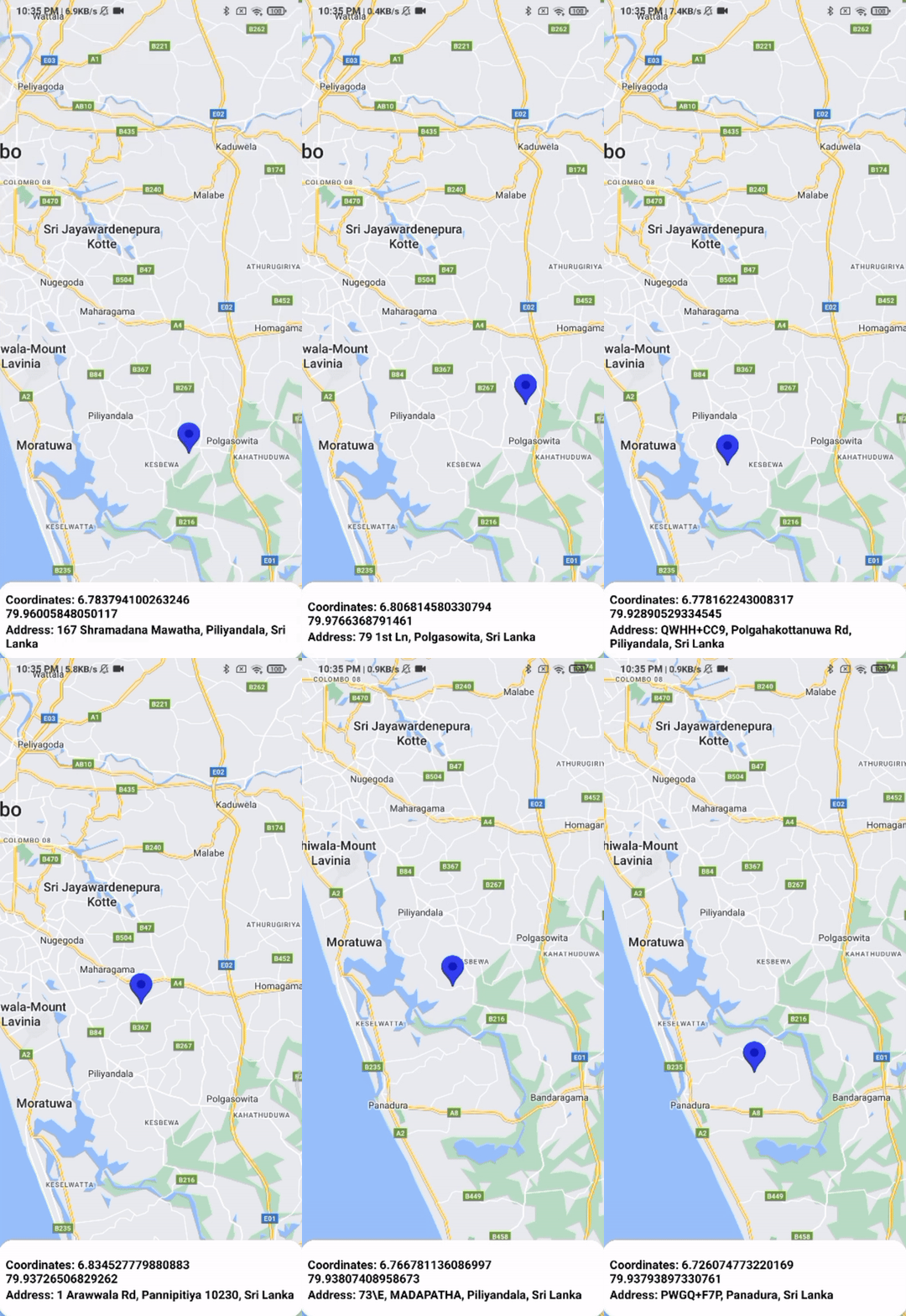
Final Output
Step 1: create a new React Native Expo project
To create a new project, run the following command in your terminal
npx create-expo-app@latestStep 2: Creating the UI
to create this app we need MapView component from react-native-maps library. so first install that library using below code.
npx expo install react-native-mapsnext, implement the UI as following code.
import {StyleSheet, Text, View} from "react-native";
import React from "react";
import MapView from "react-native-maps";

const _layout = () => {
    return (
        <View style={styles.main_container}>
            <View style={styles.container1}>
                <MapView
                    style={styles.map}
                    initialRegion={{
                        latitude: 8.296350,
                        longitude: 80.395406,
                        latitudeDelta: 0.0922,
                        longitudeDelta: 0.0421,
                    }}
                />
            </View>

            <View style={styles.container2}>
                <View style={styles.container3}>
                    <Text style={styles.text}>Coordinates: </Text>
                    <Text style={styles.text}>Address: </Text>
                </View>
            </View>

        </View>
    );
};

const styles = StyleSheet.create({
    main_container: {
        flex: 1,
    },
    map: {
        position: "absolute",
        width: "100%",
        height: "100%"
    },
    container1: {
        flex: 3,
    },
    container2: {
        justifyContent: "center",
        borderRadius: 20,
        position: "absolute",
        bottom: 0,
        width: "100%",
        height: 100,
        backgroundColor: "white",
        shadowOffset: {width: 0, height: 2},
        shadowOpacity: 10,
        shadowRadius: 3,
        elevation: 3,
    },
    container3: {
        padding: 10,
        width: "100%",
    },
    text: {
        fontSize: 15,
        fontWeight:"bold"
    }
});
export default _layout;
Here is the output:
UI of the app
Step 3: Set draggable location marker
A draggable location marker is an interactive map pin that users can click and drag to a different location on the map. see below code.
<MapView
    style={styles.map}
    initialRegion={{

        // Add any valid coordinates
        latitude: 8.296350,
        longitude: 80.395406,
        latitudeDelta: 0.0922,
        longitudeDelta: 0.0421,
    }}

    // Select the location by pressing on the map with the marker
    onPress={(e) => {
        const { latitude, longitude } = e.nativeEvent.coordinate;
        setCoordinates(e.nativeEvent.coordinate);
    }}
>
    // Select the location by dragging the marker
    <Marker
        draggable
        pinColor="blue"
        coordinate={coordinates}
        onDragEnd={(e) => {
            const { latitude, longitude } = e.nativeEvent.coordinate;
            const coordinatesString = `Latitude: ${latitude}, Longitude: ${longitude}`;
            setCoordinates(e.nativeEvent.coordinate);
        }}
    />
</MapView>
So here we have added a Marker component with a draggable attribute. then users can select a specific location by dragging the marker. also by pressing a specific place on the map users can select the specific location.
Step 3: Displaying the selected location coordinates and Address of those Coordinates using Reverse Geocoding service.
first, we have to enable permission for accessing location data for the app. to use the Reverse Geocoding service. so we can implement it inside the use effect hook because we have to check for location permission immediately after the app is loaded.
useEffect(() => {
    (async () => {
        let { status } = await Location.requestForegroundPermissionsAsync();
        if (status !== 'granted') {
            setErrorMsg('Permission to access location was denied');
        }
    })();
}, []);
so next we can write the function to convert selected location coordinates into a human-readable address or place name with a Geocoding service.to use this service we need to install the Expo Location library as below.
npx expo install expo-locationnext, we can write the async function. so in the below function we have retrieved only the address of the coordinates using reverse geolocation service but we can select the city, postal code, country etc. of the selected coordinates.
const reverseGeocode = async () => {
    try {
        const reverseCodedAddress = await Location.reverseGeocodeAsync(coordinates);

        // Retrieve the address for the selected coordinates
        setAddress(reverseCodedAddress[0].formattedAddress);
    } catch (e) {
        console.log(e);
    }
};
so Lastly we can display the coordinates and address of those coordinates. here is the full code.
import React, {useEffect, useState} from "react";
import {StyleSheet, Text, View} from "react-native";
import MapView, {Marker} from "react-native-maps";
import * as Location from 'expo-location';

const _layout = () => {

    const [coordinates, setCoordinates] = useState({latitude: 8.366268, longitude: 80.434000});
    const [address, setAddress] = useState("");

    // Enable permission for accessing location

    useEffect(() => {
        (async () => {
            let {status} = await Location.requestForegroundPermissionsAsync();
            if (status !== 'granted') {
                setErrorMsg('Permission to access location was denied');
            }
        })();
    }, []);

    // Function to use reverse geocoding service

    const reverseGeocode = async () => {
        try {
            const reverseCodedAddress = await Location.reverseGeocodeAsync(coordinates);
            // Retrieve the address for the selected coordinates
            setAddress(reverseCodedAddress[0].formattedAddress);
            console.log(address);
        } catch (e) {
            console.log(e);
        }

    }

    reverseGeocode();

    return (
        <View style={styles.main_container}>
            <View style={styles.container1}>
                <MapView
                    style={styles.map}
                    initialRegion={{
                        latitude: 8.296350,
                        longitude: 80.395406,
                        latitudeDelta: 0.0922,
                        longitudeDelta: 0.0421,
                    }}

                    // Select location by press on the map with marker

                    onPress={(e) => {
                        const {latitude, longitude} = e.nativeEvent.coordinate;
                        setCoordinates(e.nativeEvent.coordinate);
                    }}
                >

                    {/* Select location by dragging the marker */}

                    <Marker draggable
                            pinColor="blue"
                            coordinate={coordinates}
                            onDragEnd={(e) => {
                                const {latitude, longitude} = e.nativeEvent.coordinate;
                                const coordinatesString = `Latitude: ${latitude}, Longitude: ${longitude}`;
                                setCoordinates(e.nativeEvent.coordinate);
                            }}
                    />

                </MapView>
            </View>

            <View style={styles.container2}>
                <View style={styles.container3}>
                    <Text style={styles.text}>Coordinates: {coordinates.latitude} {coordinates.longitude} </Text>
                    <Text style={styles.text}>Address: {address}</Text>
                </View>
            </View>

        </View>
    );
};

const styles = StyleSheet.create({
    main_container: {
        flex: 1,
    },
    map: {
        position: "absolute",
        width: "100%",
        height: "100%"
    },
    container1: {
        flex: 3,
    },
    container2: {
        justifyContent: "center",
        borderRadius: 20,
        position: "absolute",
        bottom: 0,
        width: "100%",
        height: 100,
        backgroundColor: "white",
        shadowOffset: {width: 0, height: 2},
        shadowOpacity: 10,
        shadowRadius: 3,
        elevation: 3,
    },
    container3: {
        padding: 10,
        width: "100%",
    },
    text: {
        fontSize: 15,
        fontWeight: "bold"
    }
});

export default _layout;
Final thoughts : Uses of Geolocation and reverse Geo Location services
So we can use this Geolocation and reverse Geo Location services to implement very useful real-world apps. for examples
We can create tourism and travel apps that often use reverse geolocation to provide information about nearby attractions, restaurants, hotels, and other points of interest after the user selects a specific location on the map.
Also, we can create Geofencing apps like setting up virtual boundaries or geofences around specific geographic areas and trigger actions or notifications when a user enters or exits these areas. Geofencing is used in applications ranging from retail marketing to safety and security.
So I hope you learned some new things from this article. so hope to meet with you again with a wonderful enthusiastic blog.
Happy coding 👨🏻💻🥰
HK
메타데이터
- post_id
- bb80b73e803b
- slug
- lets-create-a-location-awareness-react-native-app-using-reverse-geocoding-bb80b73e803b
- url
- https://medium.com/@BrighterClub/lets-create-a-location-awareness-react-native-app-using-reverse-geocoding-bb80b73e803b
- canonical_url
- https://medium.com/@BrighterClub/lets-create-a-location-awareness-react-native-app-using-reverse-geocoding-bb80b73e803b
- author_url
- https://medium.com/@BrighterClub
- status
- ok
- fetched_at
- 2026-07-18 09:42:59




