Part 4: Setting Up Artifact Registry with OAuth2 Credential Helper, Token-Based Authentication, and…
This post is part of the series ‘Building Scalable REST APIs with Express, MongoDB Atlas, Docker and Google Cloud: A CI/CD Journey
Part 4: Setting Up Artifact Registry with OAuth2 Credential Helper, Token-Based Authentication, and Pushing Docker Images with Tagging.
This post is part of the series ‘Building Scalable REST APIs with Express, MongoDB Atlas, Docker and Google Cloud: A CI/CD Journey
📌 **Part 1: Configuring MongoDB Atlas, Creating REST API ,Troubleshooting and Diagnosing**
📌 **Part 2: Containerizing Applications Using Best Practices**
📌 **Part 3: Setting Up Google Cloud Project, Enabling Services/ API’s and Installing Google Cloud CLI**
📌 **Part 5: Automating Builds with Cloud Build and Deploying on Cloud Run**
👉 Next Blog: **Automating Builds with Cloud Build and Deploying on Cloud Run**
👈 Previous Blog: **Setting Up Google Cloud Project, Enabling Services/ API’s and Installing Google Cloud CLI**
Section 1 Google Artifact registry
Create artifact repository
First of all we need to create artifact repository and specify name, project , type of repository (docker), region and description by executing the below command.

Section 2 Authenticating Docker to Google artifact registry
When working with private container registries like Google artifact registry we need a way so that Docker can authenticate to private registry so that it has permission to push and pull docker images from the private registry (which is our artifact registry).
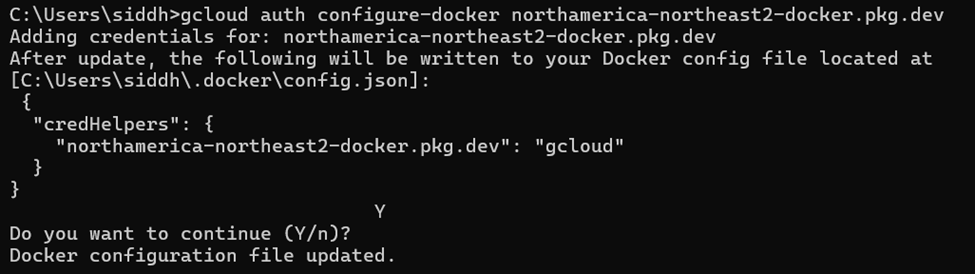
gcloud auth configure-docker REGION-docker.pkg.dev: This command configures Docker to use the Google Cloud SDK for authentication when interacting with a Docker registry (in this case, Artifact Registry).
REGION should be replaced with the specific region where your Artifact Registry repository is located
The endpoint docker.pkg.dev is the domain used for Docker repositories hosted on Google Artifact Registry
Section 3 What is happening under hood ?
Docker’s configuration for authentication is specified in config.json file.
config.json files determines how Docker handles authentication when pulling or pushing images to registries.
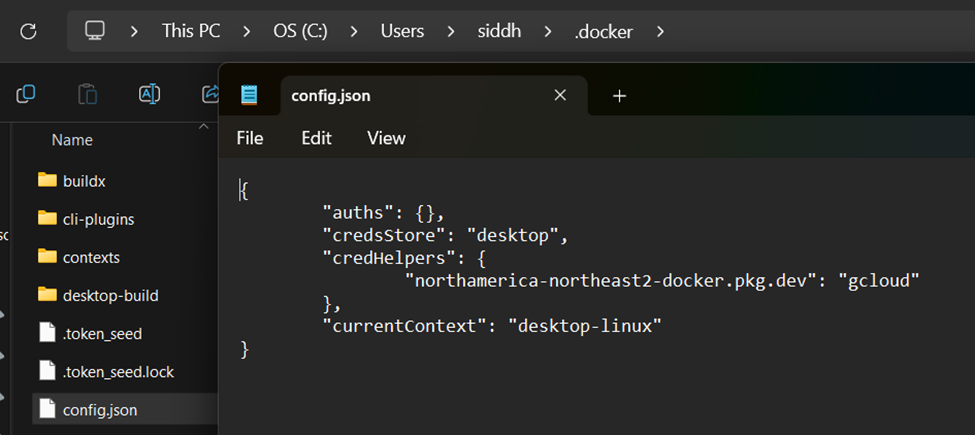
auths : it contains base64-encoded authentication credentials for different registries
In our scenario auths is empty which means no username/password based authentication is stored
Disadvantage : Credentials are stored in a plain text , hence not recommended.
credsStore: desktop : it tells Docker to use Docker Desktop’s built-in secure credential storage (which leverages the OS’s native keychain or credential manager) to save and manage your Docker login credentials.
Credential Store: A credential store securely saves authentication credentials, ensuring they aren’t stored in plain text or exposed inadvertently. It encrypts and stores your login details and provides a controlled way for applications (like Docker) to retrieve these credentials when needed.
“credHelpers”: { “northamerica-northeast2-docker.pkg.dev”: “gcloud” } : it instructs Docker to use the gcloud tool as the credential helper specifically for the registry at northamerica-northeast2-docker.pkg.dev. This means that whenever Docker needs to authenticate with that registry, it will automatically retrieve authentication tokens via the gcloud command rather than using stored passwords.
Credential Helper: A credential helper is an external program (gcloud in our case) that is invoked by an application (docker in our case) to retrieve, store, or manage credentials securely .
Section 4 Why Credential Helper?
Automated Authentication: It eliminates the need to manually enter login credentials every time an application interacts with a private service.
Enhanced Security: Instead of embedding sensitive information in configuration files, the helper fetches credentials securely from a dedicated credential store.
Simplified Credential Management: it offload the complexity of managing tokens, refreshing them, or handling expired credentials.
Credential helper (Token based authentication)
Dynamic generation : Instead of storing a static username and password in your Docker configuration, the credential helper (set up by gcloud auth configure-docker) uses your existing Google Cloud credentials to create a fresh access token on-demand.
Ephemeral and Refreshable: These tokens are temporary and have a limited lifespan, meaning they automatically expire and are refreshed as needed. This enhances security by reducing the risk of long-term credential exposure.
Automatic : This process of accessing valid token by credential helper happens in background hence no need to manually manage the login details.
Summary: In short, Docker uses the gcloud helper to fetch short-lived OAuth2 access tokens (these tokens are generated dynamically using the credentials from your gcloud auth login). This is valid for a specific Artifact Registry endpoint (in our case, northamerica-northeast2-docker.pkg.dev).
Section 5 Docker Push
Following are the steps for docker push.
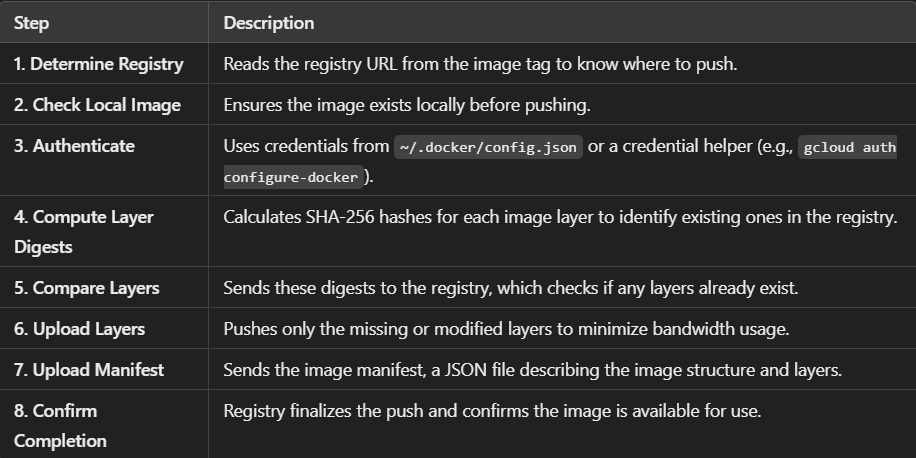
Why tag image
Step 1 clearly indicates that docker needs to read registry URL from the image tag to know where it needs to push the image. This is the reason we need to use docker tag to properly name and reference Docker images before pushing them to a registry.
Docker tag
To push an image to a self-hosted repository, we need to include:
- Hostname & Port (Registry address)
- Project ID
- Repository Name
- Image Name (with an optional tag)
For Artifact Registry, our hostname is northamerica-northeast2-docker.pkg.dev, the Google Cloud project is delivery-api-451403, and the repository is delivery-api-repo, followed by the image name

We can now see the tagged image is there. Observe they both have the same image ID.

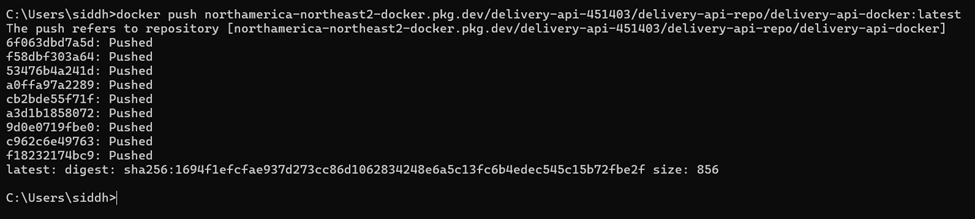
Push the tagged image to artifact repository
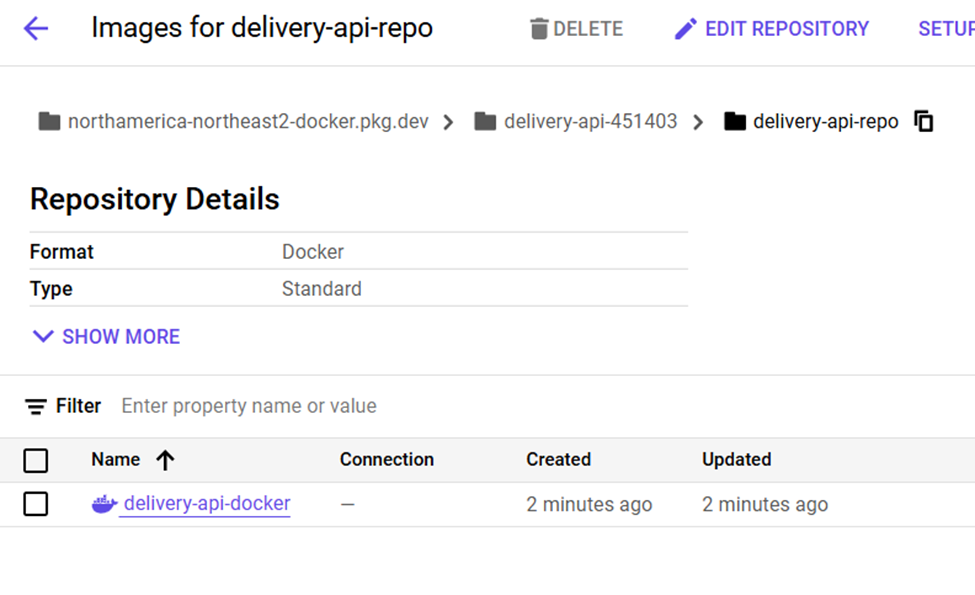
We can also go to our repository in google cloud and see that our image is pushed there.
메타데이터
- post_id
- bbdec6e08f2c
- slug
- ci-cd-deployment-of-rest-api-express-with-mongodb-atlas-docker-using-google-artifact-registry-bbdec6e08f2c
- url
- https://medium.com/@siddharthsamber94/ci-cd-deployment-of-rest-api-express-with-mongodb-atlas-docker-using-google-artifact-registry-bbdec6e08f2c
- canonical_url
- https://medium.com/@siddharthsamber94/ci-cd-deployment-of-rest-api-express-with-mongodb-atlas-docker-using-google-artifact-registry-bbdec6e08f2c
- author_url
- https://medium.com/@siddharthsamber94
- status
- ok
- fetched_at
- 2026-07-30 18:47:05