You have the best image upscaler for free
A step-by-step workflow to upscale and restore image using open souce models
You have the best image upscaler for free
A step-by-step workflow to upscale and restore image using open souce models

After trying so many upscale and image restoring solutions, I found the Qwen Image Edit basically beat all other image super resolution, or upscaler or image restore solutions. Let’s start building the workflow step by step.
DiT Model loading
Load main diffusion model like this:
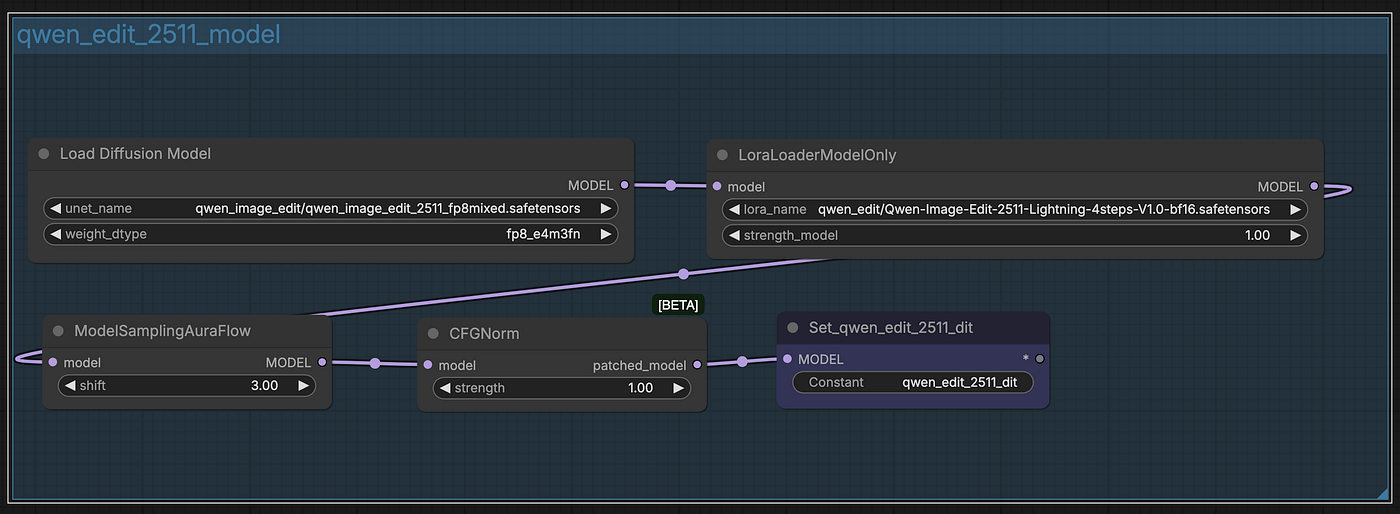
Nodes to load Qwen Image Edit 2511 models and LoRA
DiT Model is using qwen_image_edit_2511_fp8mixed.safetensors. if you don’t have this model downloaded, google the name and you will find the Huggingface download URL.
The term fp8mixed refers to an 8-bit floating point quantization strategy. This “mixed” approach is intended to produce higher fidelity results, designed to balance performance and image quality.
The Node ModelSamplingAuraFlow switches the model into AuraFlow-style noise scheduling. Qwen Image Edit 2511 with the Lightning / 4-step LoRA was trained assuming AuraFlow sampling, not classic SD/EDM-style diffusion.
Then why shift = 3.0 specifically? This number is recommended sweet sport because it:
- Preserves structure from the input image
- Still allows strong semantic changes
- Avoids over-smoothing that happens at lower shifts
In theory, set the number to 1.0 to 2.0 will have weak edits. while 4.0 could distort image. But in reality, the number seems don’t have too much impacts on the final results.
You also see there is a CFGNorm node set to 1.0. In traditional diffusion model, we assume 1) the model denoise latent magitudes are well behaved, 2) the noise schedule is EDM-like, 3) have many steps to self-correct. In this case, Qwen Image with lighting 4 steps LoRA is using AuraFlow, shifts sampling into higher-noise regimes, and we use Ligthing LoRA enable uses only 4 steps. So, we don’t need a high CFG here.
Load VAE and Text Encoder model
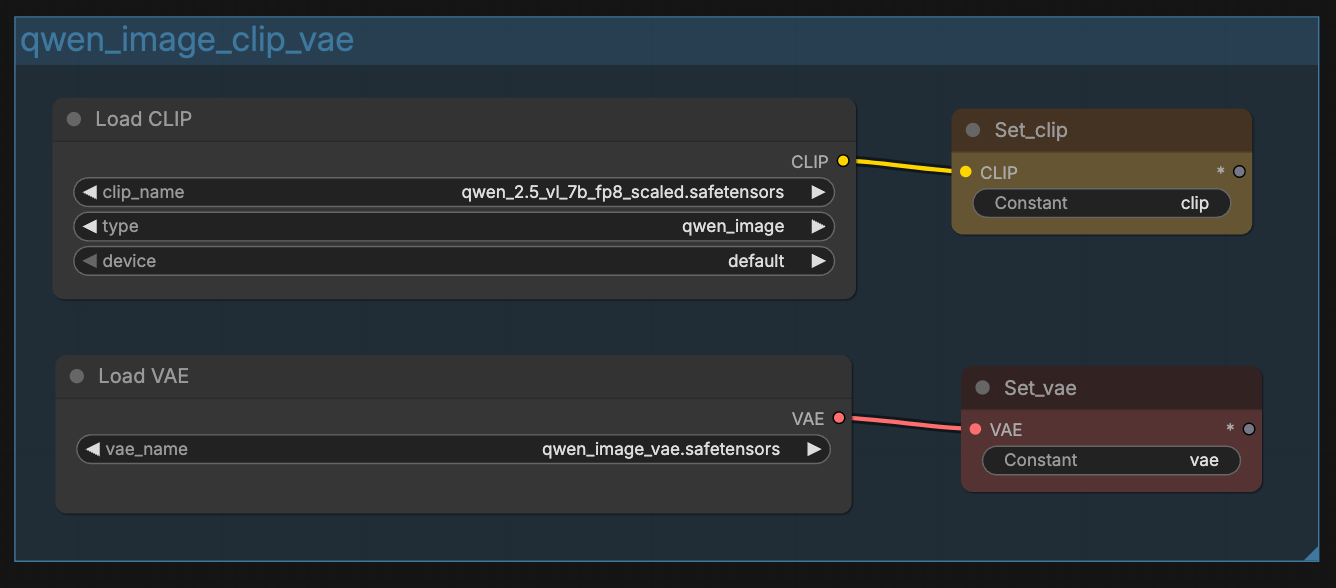
Loading VAE and Text Encoder is simple and straigh forward, here I use two SetNode nodes to hold VAE and CLIP objects, so that reduce the spaghetti lines.
Prepare the input image
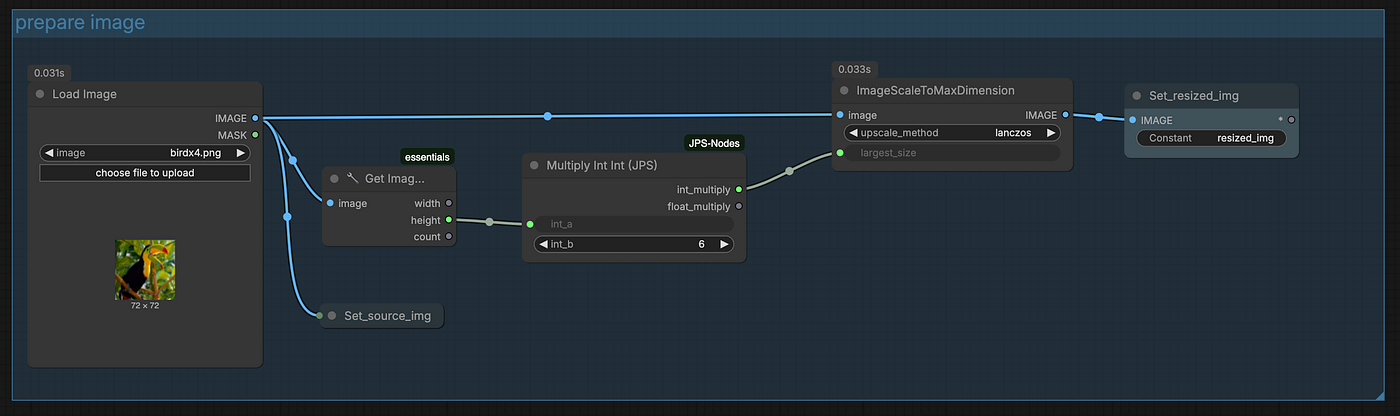
In this group, I resize the source blur image 6 times using Lanczos method. and use rezied_img to hold the resized image.
Next, we are going to restore and upscale the image.
Upscaling Image
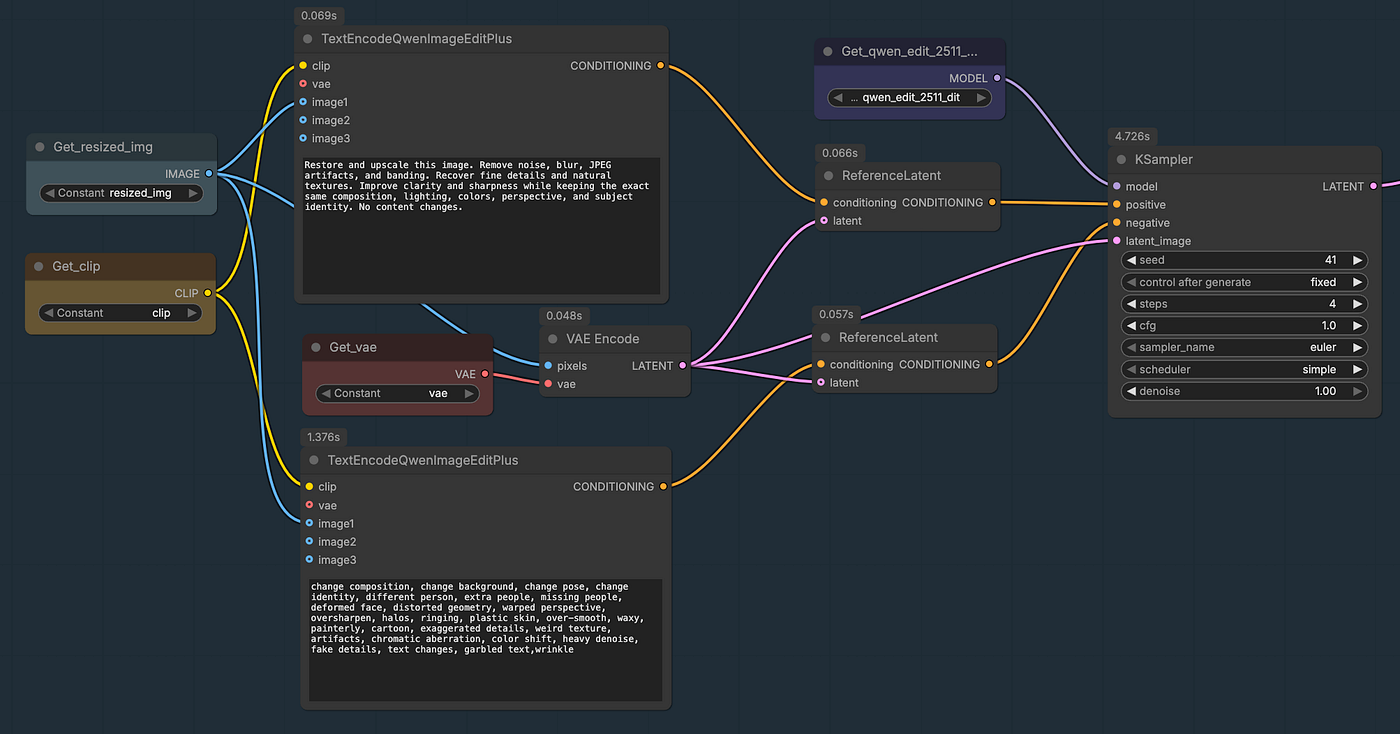
The positive prompt:
Restore and upscale this image. Remove noise, blur, JPEG artifacts, and banding. Recover fine details and natural textures. Improve clarity and sharpness while keeping the exact same composition, lighting, colors, perspective, and subject identity. No content changes.
The negative prompt:
change composition, change background, change pose, change identity, different person, extra people, missing people, deformed face, distorted geometry, warped perspective, oversharpen, halos, ringing, plastic skin, over-smooth, waxy, painterly, cartoon, exaggerated details, weird texture, artifacts, chromatic aberration, color shift, heavy denoise, fake details, text changes, garbled text,wrinkle
You may wonder, why use the ReferenceLatent node here? wihtout using this Node, Qwen Image Edit model will output result with slight pixel shifting, the shifting is due to TextEncodeQwenImageEditPlug encode image into latent with slight width and height shifts.
By using ReferenceLatent, the diffusion model will use the image latent from one source, VAE Encoder, so that the output latent will be exactly the same as the input latent.
Decode and see the result
Now let’s decode the latent to pixel space and compare the result:
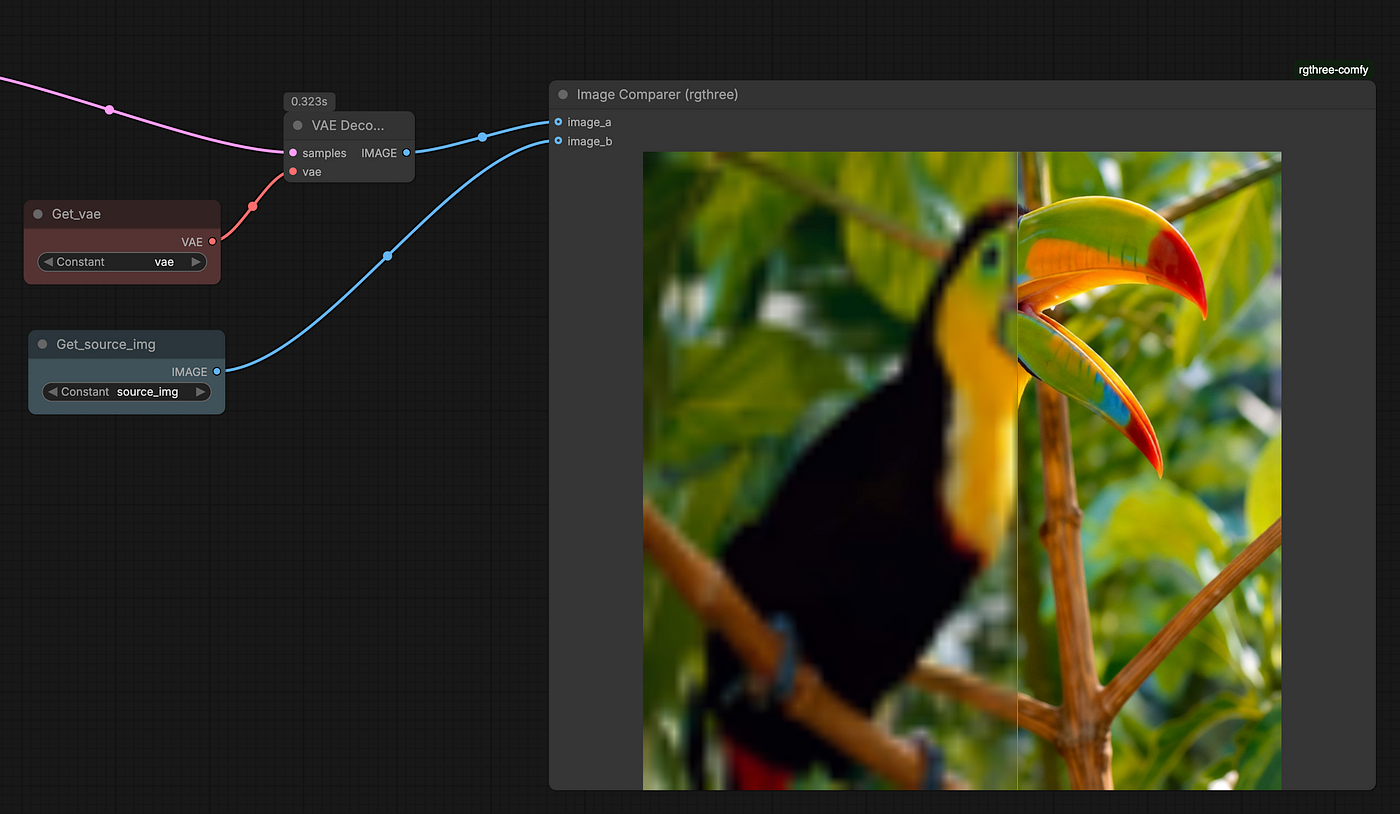
Use a image comparer node to compare the source and upscaled image.
Run it in your ComfyUI
You can download the complete workflow JSON file here:
Main model file download from here: https://huggingface.co/Comfy-Org/Qwen-Image-Edit_ComfyUI/blob/main/split_files/diffusion_models/qwen_image_edit_2511_fp8mixed.safetensors
Download LoRA here: https://huggingface.co/lightx2v/Qwen-Image-Edit-2511-Lightning/blob/main/Qwen-Image-Edit-2511-Lightning-4steps-V1.0-bf16.safetensors
Wrap up
Start from 2022, I have tried many image upscale and super resolution solutions, these includes but not limited to:
- Latent upscale: https://huggingface.co/docs/diffusers/v0.22.0/en/api/pipelines/stable_diffusion/latent_upscale
- Diffusion Image 2 Image (Any Diffusion model image 2 image upscale)
- Stable Diffusion 1.5 Tile Control Net: https://huggingface.co/lllyasviel/control_v11f1e_sd15_tile
- SUPIR: https://github.com/Fanghua-Yu/SUPIR
- FaithDiff: https://github.com/JyChen9811/FaithDiff
- SDXL Tile ControlNet: https://huggingface.co/xinsir/controlnet-union-sdxl-1.0
- SeedVR2: https://github.com/IceClear/SeedVR2
Some of the above solutions are amazing, the Tile controlnet can add stunning details, SUPIR can handle group photos very well without adding additional stuffs to the image, SeedVR2 is also excellent, but somewhat too slow.
Until I find out this Qwen Image Edit 2511, which can do both image restore and upscaling without destory the original objects or distort the content. and very Fast too. You don’t have to use a VLM to extract the prompt from the source image, just use the same prompt I used here for all image.
In just 2 years, the Diffusion model is advancing in light speed. Let me know your thoughts or have questions.
More results
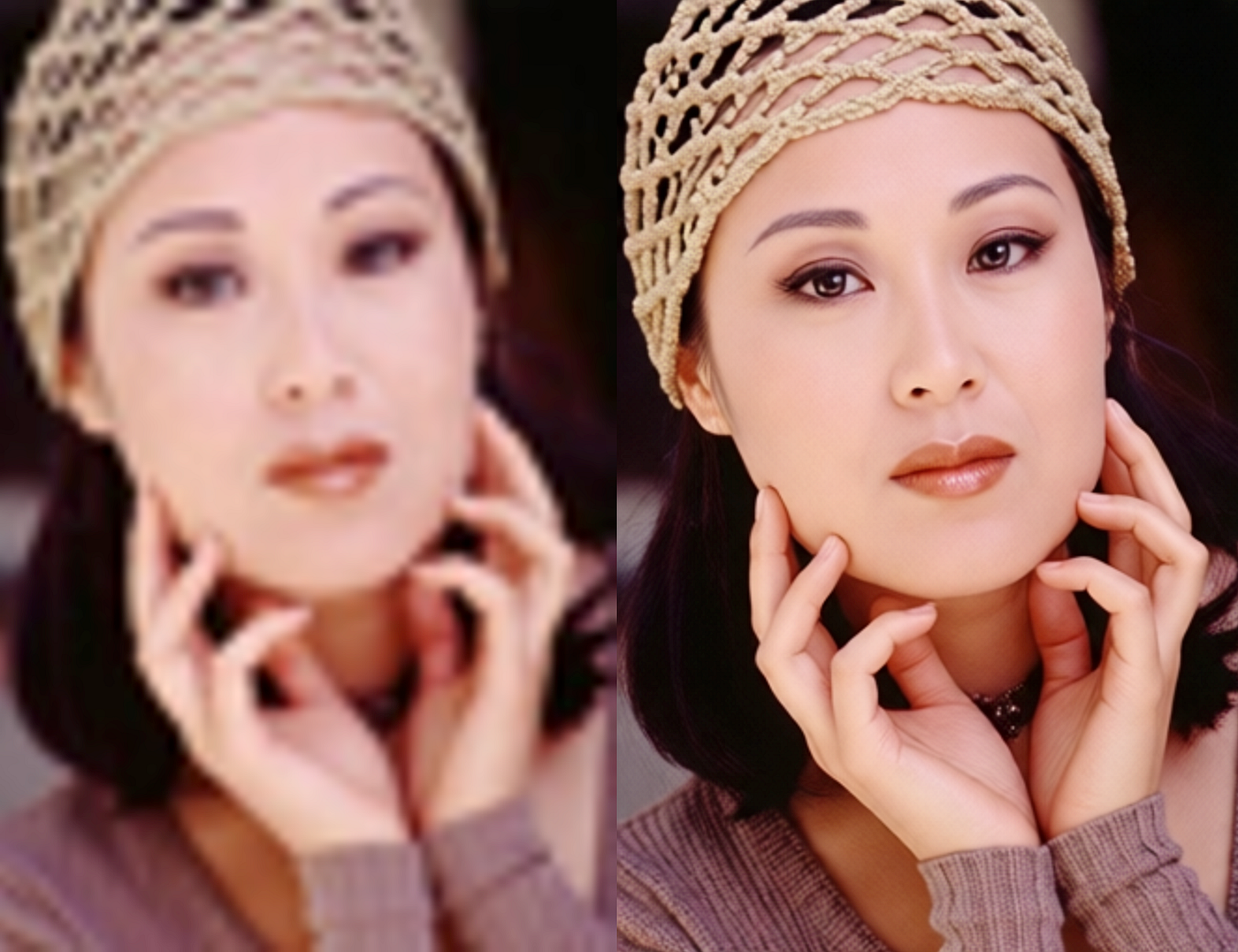
- Human face:
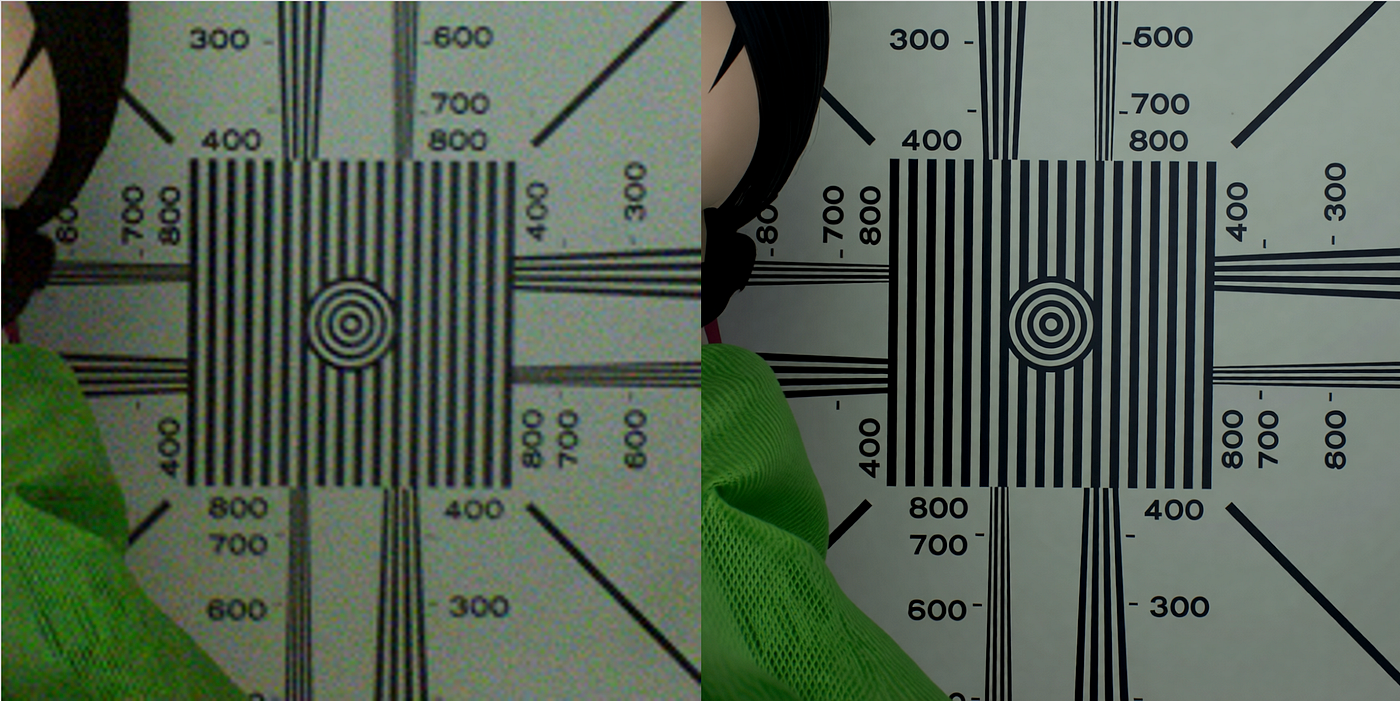
- Pattern and text
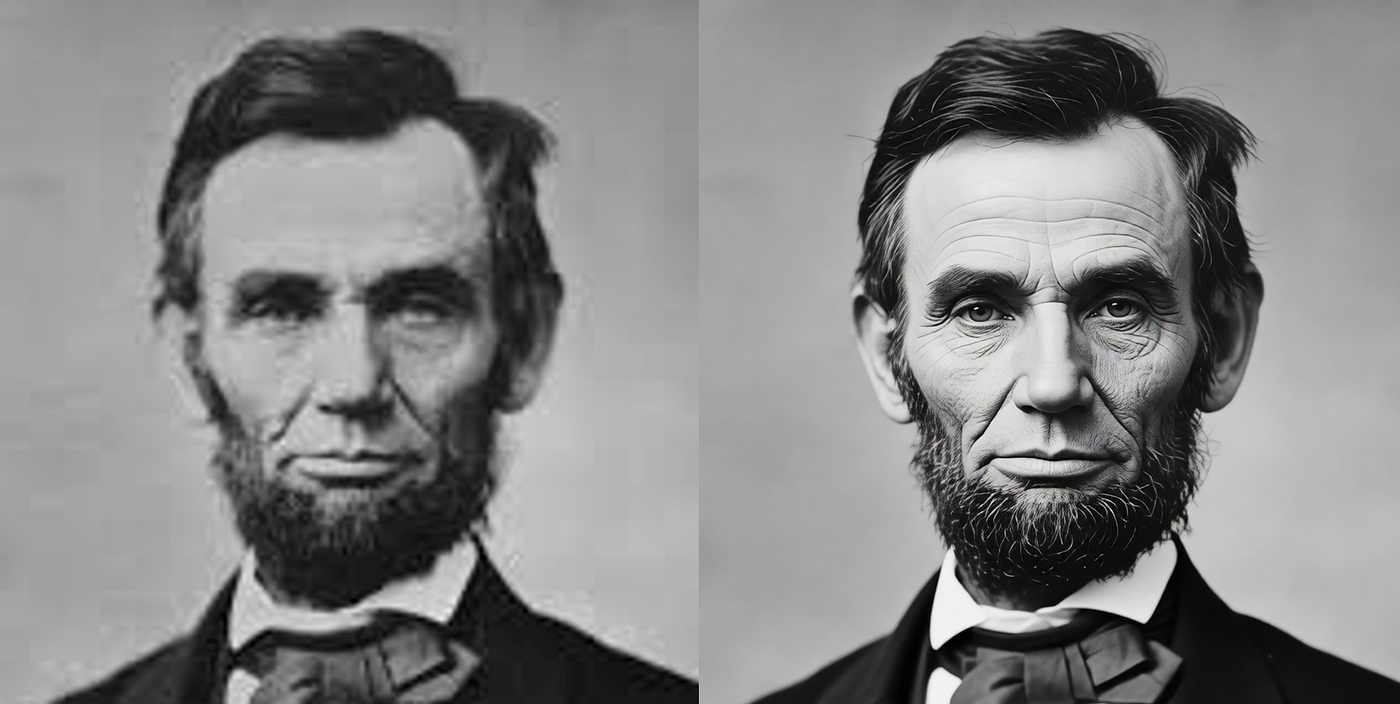
- Lincoln
- Realistic photo

Look at the text
메타데이터
- post_id
- bbeb8f24f490
- slug
- qwen-image-edit-2511-is-the-best-image-upscaler-in-jan-2026-bbeb8f24f490
- url
- https://medium.com/@xhinker/qwen-image-edit-2511-is-the-best-image-upscaler-in-jan-2026-bbeb8f24f490
- canonical_url
- https://medium.com/@xhinker/qwen-image-edit-2511-is-the-best-image-upscaler-in-jan-2026-bbeb8f24f490
- author_url
- https://medium.com/@xhinker
- status
- ok
- fetched_at
- 2026-07-15 18:00:35