SharePoint Hosted Add-In with Angular 8
In my previous post, I generally talked about challenges with SharePoint Framework and Angular. And how this was solved with Angular…
SharePoint Hosted Add-In with Angular 8

In my previous post, I generally talked about challenges with SharePoint Framework and Angular. And how this was solved with Angular Element in the SPFX framework. But there are still customers and developers working on older versions of SharePoint, and in many settings, many customers are still living with old environments.
And in these cases, a developer must make a decision based on which version of SharePoint is running, whether Apps are configured and set up in the environment if not in case they are on SharePoint online. There are many things that come into the picture for a decision where to consider which way to build solution will be best.
Sharepoint hosted Add-In
SharePoint hosted Add-Ins consist entirely of SharePoint Compononents in an add-In web. This means that SharePoint Add-ins components and content, such as lists, content types, workflows, and pages, are deployed to a different website in a special isolated domain. This fact is not so easy for a user to understand and are hidden for the user. But developers knows how these things are configured and works.
Apps Isolation:
Apps are isolated. And by that, I mean that one app cannot talk with another app. By default, apps are deployed to their own web site in an isolated domain, rather than to a farm or sandbox. All processes run in that special domain. The foundation for understanding this new development model is to grasp the concept of how server-side code is handled. This new model says that no server-side code can be deployed to the SharePoint servers. SharePoint handles what it does well: Lists, Libraries, Workflows, Content, etc. But, if you need to extend the OOTB functionality of SharePoint, with custom logic, then all of that code will need to be hosted elsewhere.
Each app has its own unique URL, within the app domain.
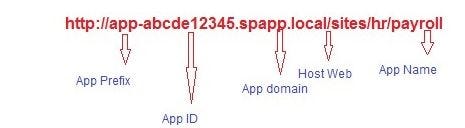
SharePoint App Model:
- SharePoint Hosted: A SharePoint-hosted app is one that contains no server-side components. Everything that it needs to function, such as lists, libraries, etc., it is able to deploy within the SharePoint environment.
- Provider Hosted: A Provider-hosted app is one that has server-side components. These components are usually contained within an ASP.NET application and you have to provide a separate environment to host them. A provider hosted app can be deployed in Azure as a “App Service” or on a windows server running IIS ect.
You can find all the information about this topic in Microsoft’s SharePoint Add-Ins documentation. I included a bit of explanation from documentation to get to my point when it comes to using Angular with SharePoint Add-Ins.
When it comes to using Angular in a SharePoint Add-In this means that we have no need of implement Angular Element as a custom component of a SharePoint Add-In. Since Add-In’s lives on its own dedicated web domain and is isolated from other solutions, not least that it appears in an iframe when you add an Add-In as a web part to a Sharepoint page.
There is nothing wrong with using Angular Element. But I don’t see any sense as Angular Element is a custom component that is isolated. And the main reason for using Angular Element in a SharePoint framework was also that Angular need a single (DOM) root component that knows everything about the page. However, we now avoid this because Add-Ins lives on its dedicated web domain, so it dosent matter if Angular need a single (DOM) root component or not.
We only need to implement Angular as single page application in a SharePoint hosted add-in.
What You Should Know
- Understanding of SharePoint Add-ins
- It’s essential that you are familiar with Angular
- Office 365 subscription (Tenant level) or SharePoint On-Prem with Apps configured.
- You will need Visual Studio 2017 / 2019.
Lets see how we can add an Angular application in a SharePoint hosted Add-In:
- First we need to create the project in VS2019. Select

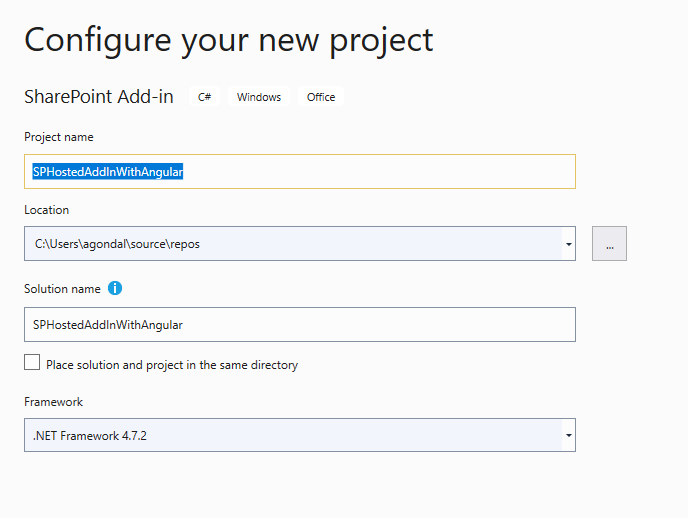
- When the project is created it will look like:

- Now we need to delete “Content” and “Images” folder inside the project, se picture below with red higlighted line:

- After deleteing these two folders, the solution will lokk like:
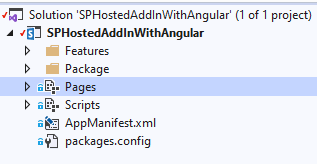
- Now we need to add “Client Web Part (Host Web)”
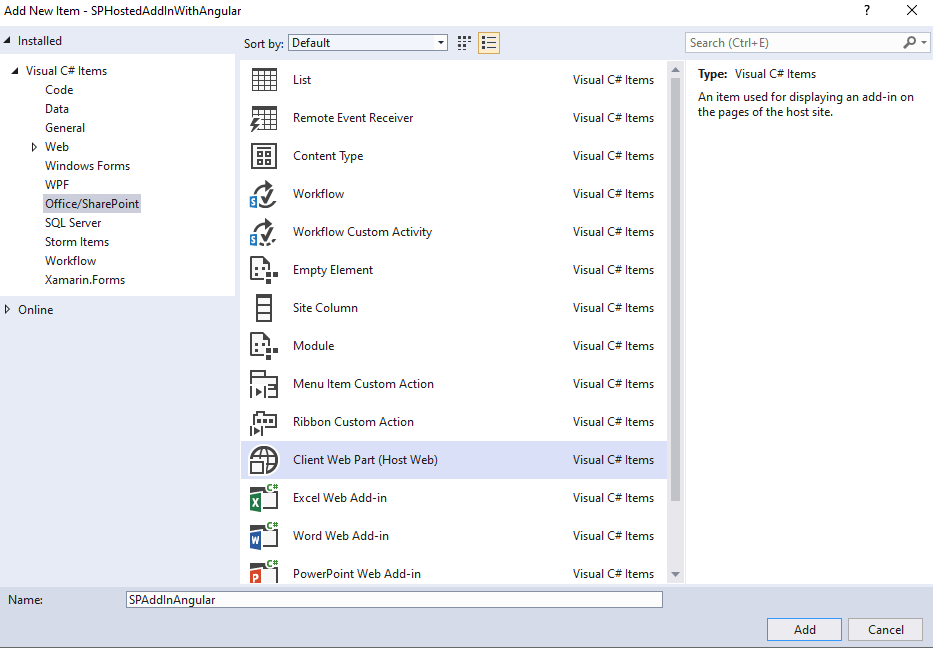
- Select “Client Web Part” Name: SPAddInAngular .

- click FINISH
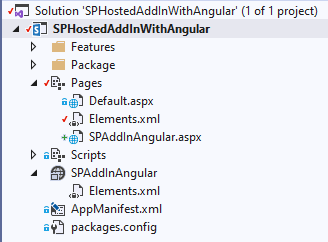
- You will end up with a solution looking like:
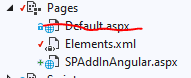
- Now delete “Default.aspx” file:
- Open up “AppManiFest.xml” file in your project:
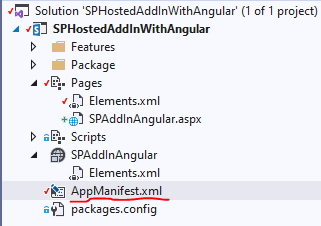
- And change the start page from “Default.aspx” witch we just deleted to “SPAddInAngular.aspx”:

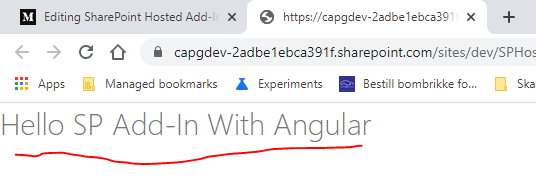
- In side “SPAddInAngular.aspx” file, in body tag put this line of code in side just to see that every thing works as expected.

Add Angular to the project
- Open up command prompt and navigate to your project:
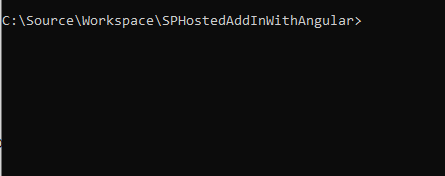
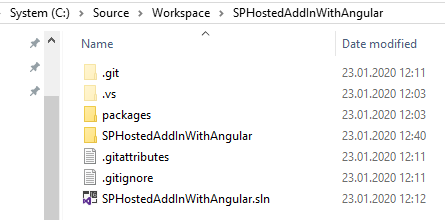
- Run command for generating Angular project:
ng new SPAddInAngular
- “NO” to routing
- Select “CSS”

- Now we have generated an “Angular” project:
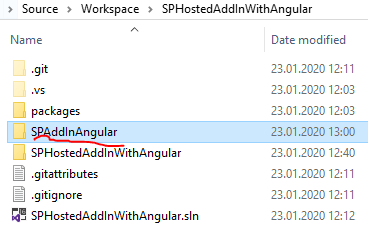
- In your SharePoint Add-In project:
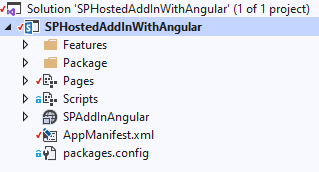
- Create a new empety folder name: App
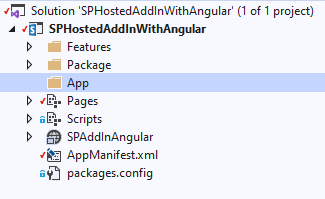
- Now go back to Angular project you just generated and copy all files and folders:
From
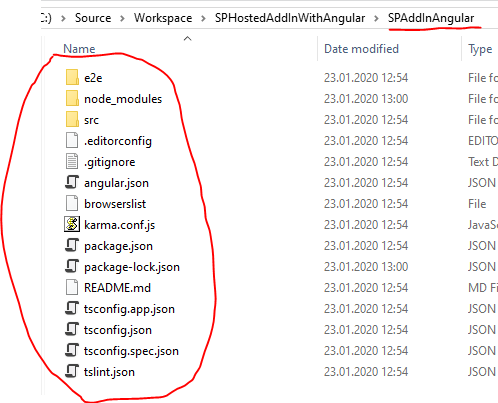
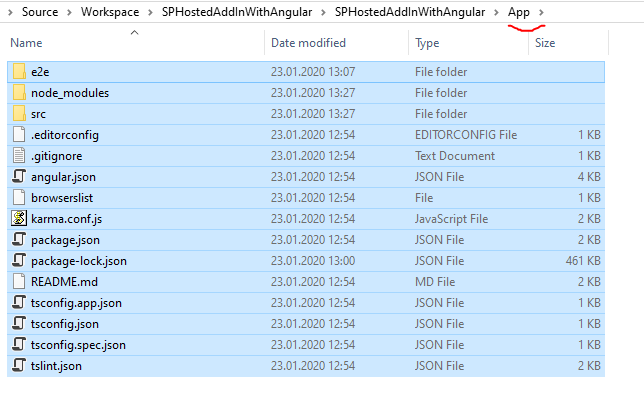
- Copy it to the folder you created “App”
TO
- Now in VS2019, Click on show all files:
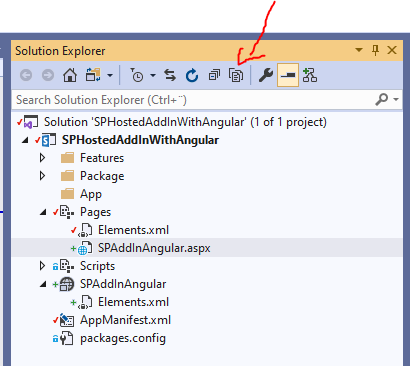
- In clude all files and folders in side “App” folder:
- NOTE: Do not include “node_modules”.
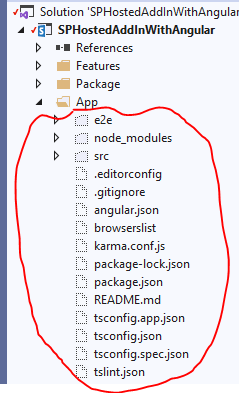

- After including all files, your project will look like:
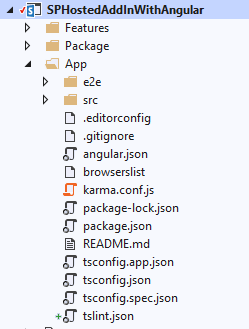
- Navigate to the “App” folder in command prompt:
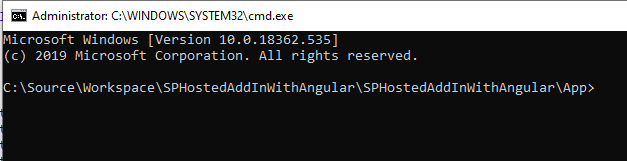
- And run command for installing all node modules dependencies:
npm install- After all dependencies are installed, run the command “ng build” to get the transpiled js files.
ng build
Refresh the files in your solution (Make sure ‘Show All Files’ is selected). You’ll see that there is now a ‘dist’ folder and you should be able to see your transpiled js files.
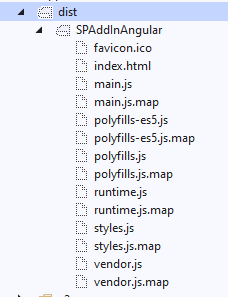
- Include all files in the project by right clicking the project and select “Include from project”:

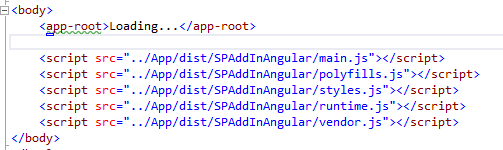
- Add the app root tag for angular in body tag:

- Now the final part, reference all the files in “SPAddInAngular.aspx”:
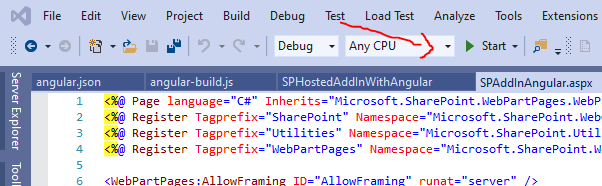
- Start application by running the solution in VS2019:
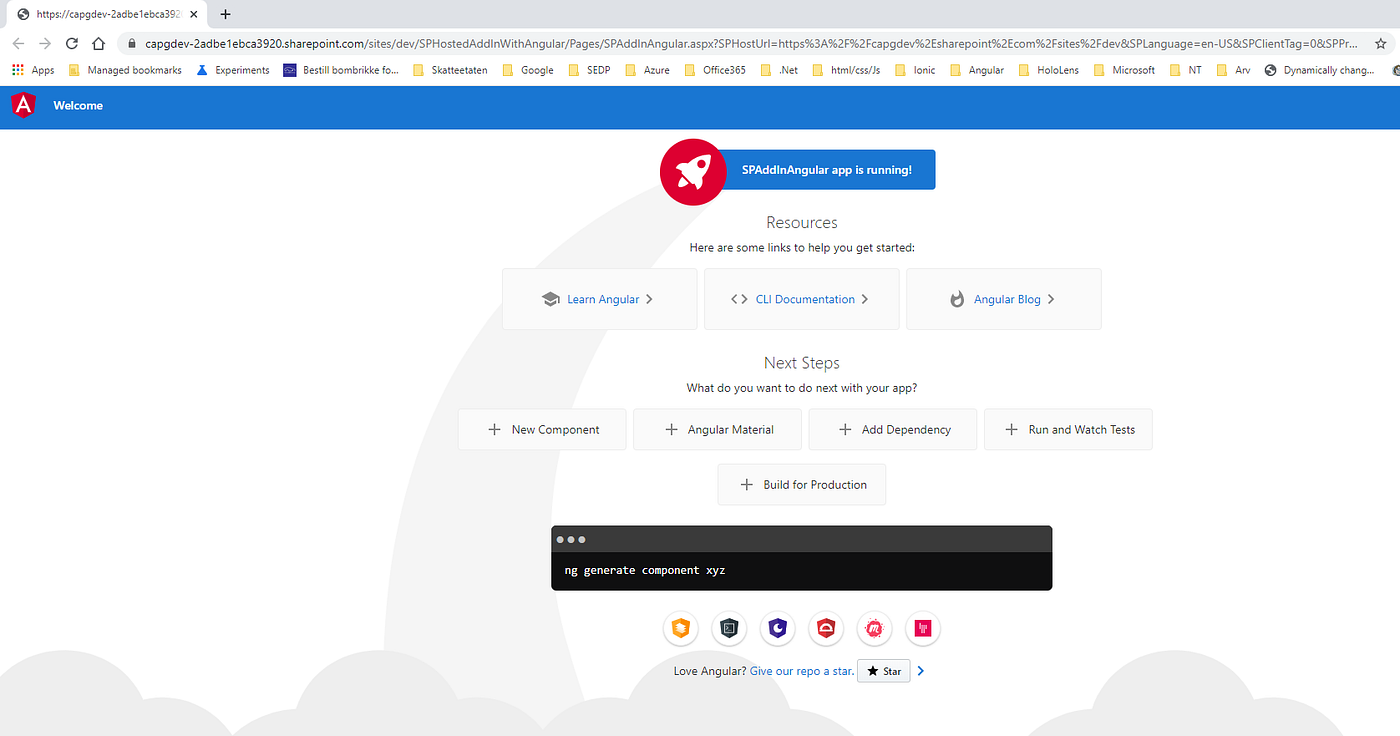
Now you are running Angular 8 application in a SharePoint hosted Add-In.
Sharing is Caring :)
Links
메타데이터
- post_id
- bbfe0a58fce5
- slug
- sharepoint-hosted-add-in-with-angular-8-bbfe0a58fce5
- url
- https://medium.com/@gonadn/sharepoint-hosted-add-in-with-angular-8-bbfe0a58fce5
- canonical_url
- https://medium.com/@gonadn/sharepoint-hosted-add-in-with-angular-8-bbfe0a58fce5
- author_url
- https://medium.com/@gonadn
- status
- ok
- fetched_at
- 2026-07-21 22:45:11




