The Complete Guide to Deploying a Website on an Azure Linux Virtual Machine (IaaS) Using Ubuntu…
If you’ve ever wanted to host your own website on Microsoft Azure without relying on managed web hosting services, deploying a static…
The Complete Guide to Deploying a Website on an Azure Linux Virtual Machine (IaaS) Using Ubuntu, Nginx, and GitHub.
If you’ve ever wanted to host your own website on Microsoft Azure without relying on managed web hosting services, deploying a static website on an Azure Linux Virtual Machine is an excellent way to learn cloud infrastructure and Linux server administration. Not only do you gain full control over your server, but you also get hands-on experience with tools that are widely used in production environments, including Ubuntu, Nginx, Git, and GitHub.
In this post, I’ll walk you through how I deployed a static website from GitHub to an Azure Ubuntu Virtual Machine using Nginx. Along the way, I’ll share screenshots from the deployment process so you can see what each stage looks like.
Setting Up the Azure Virtual Machine
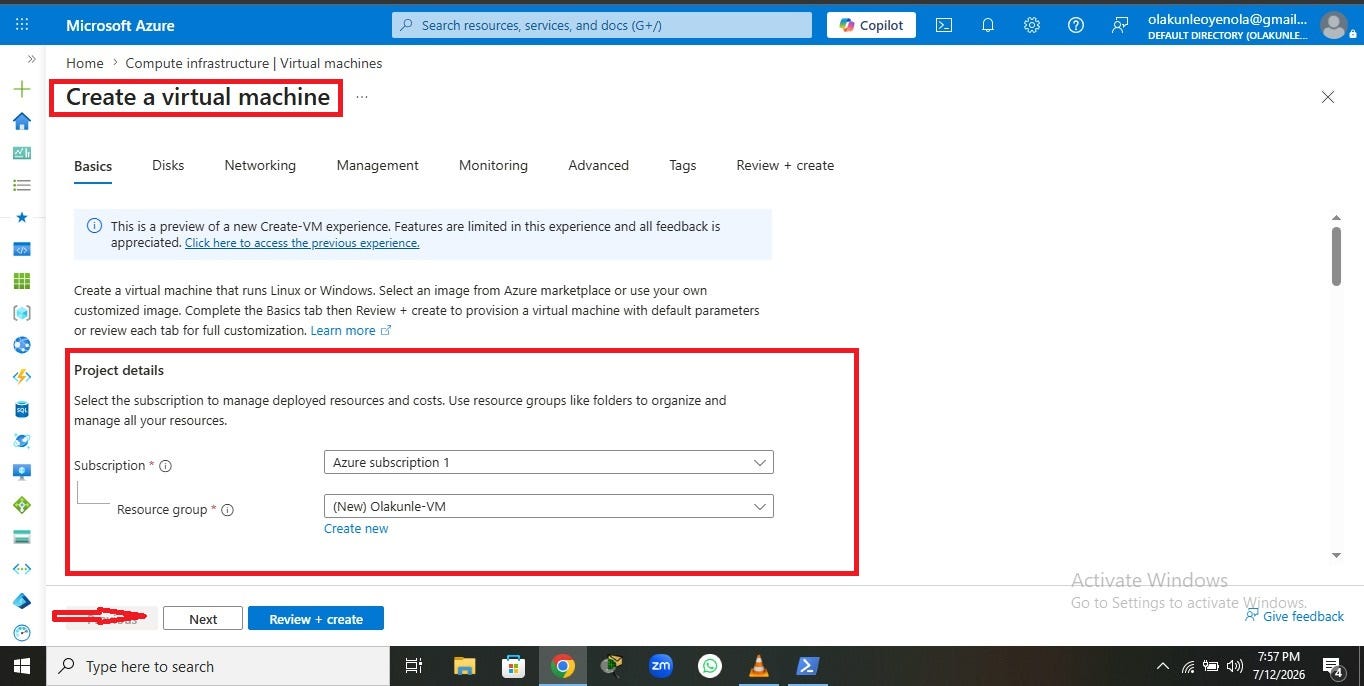
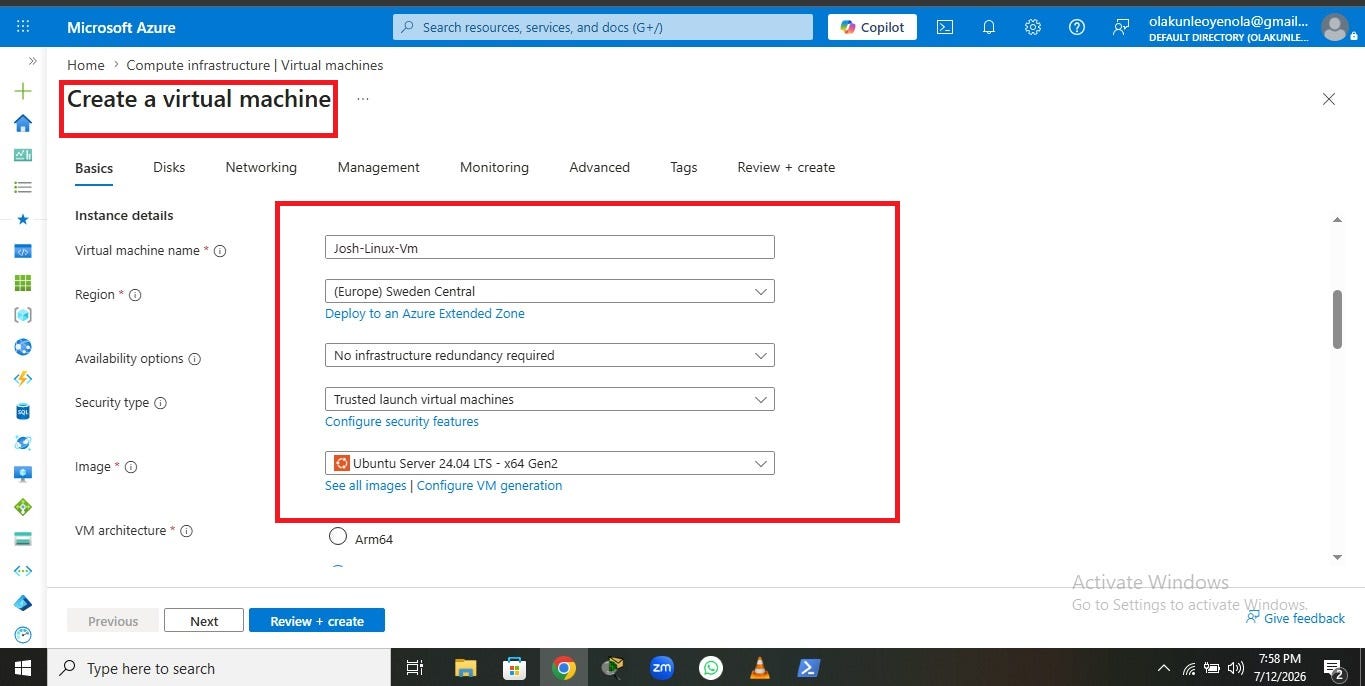
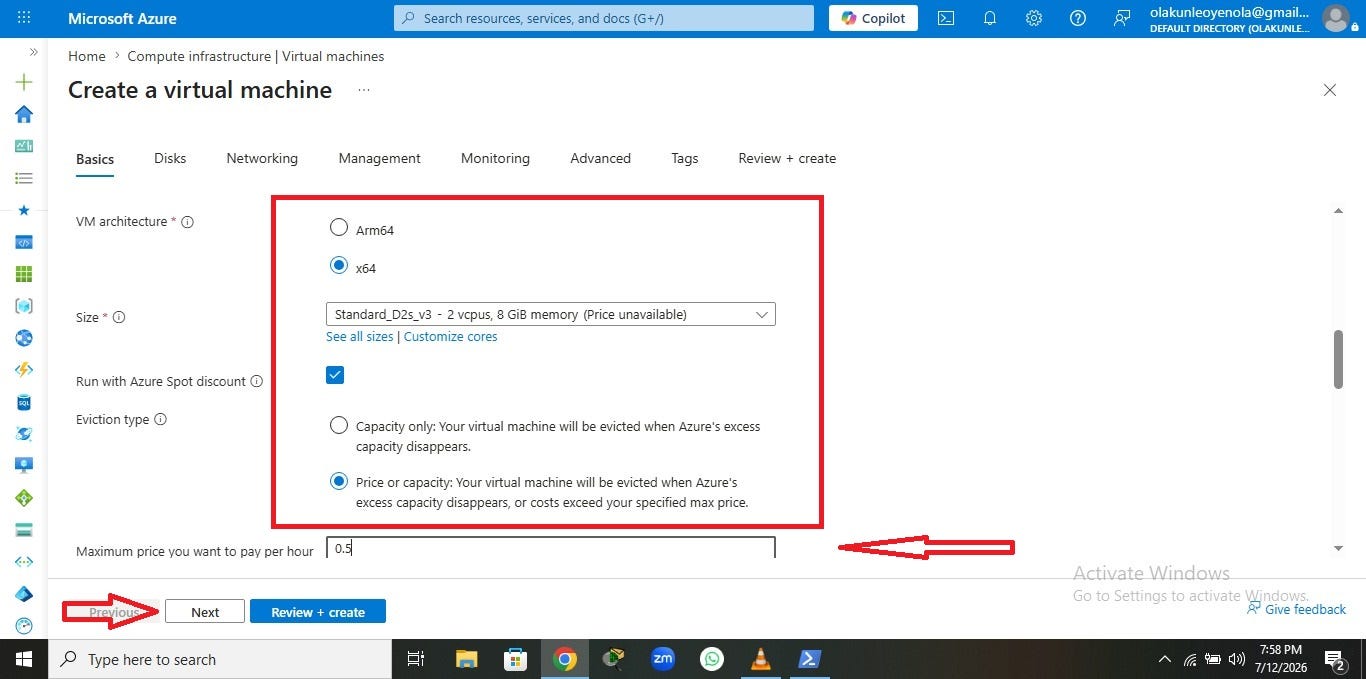
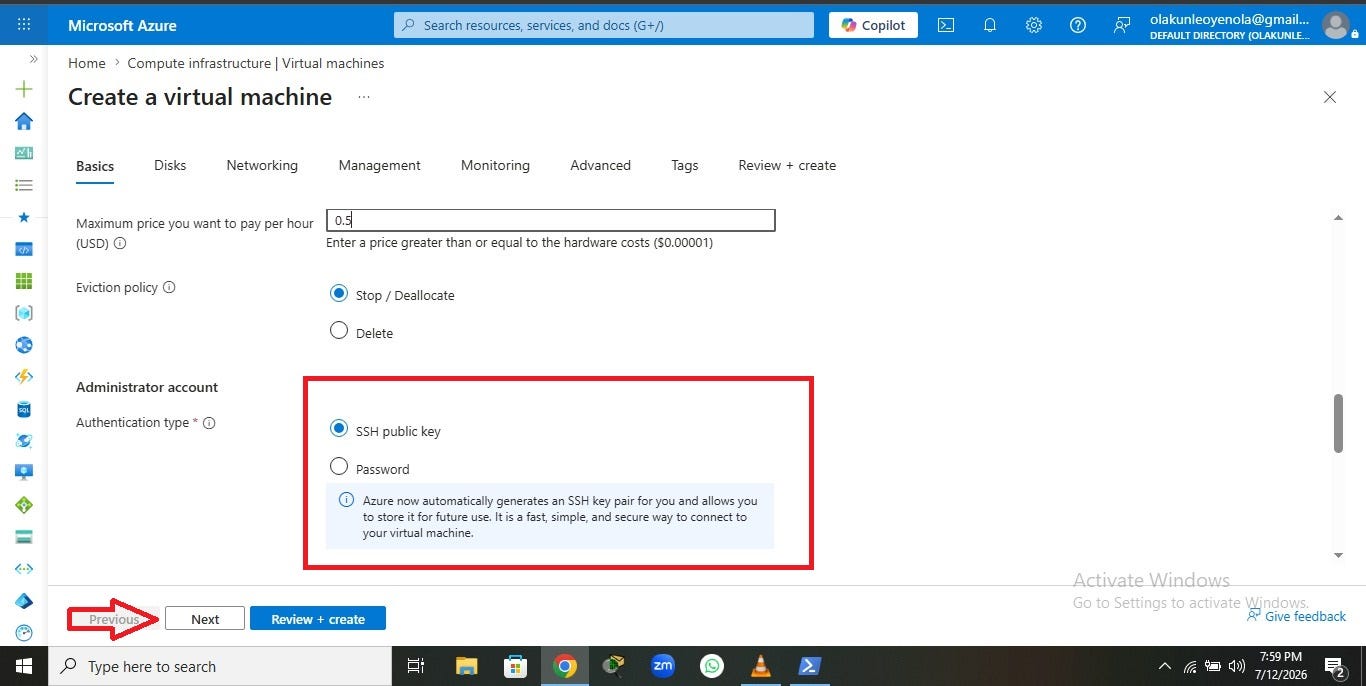
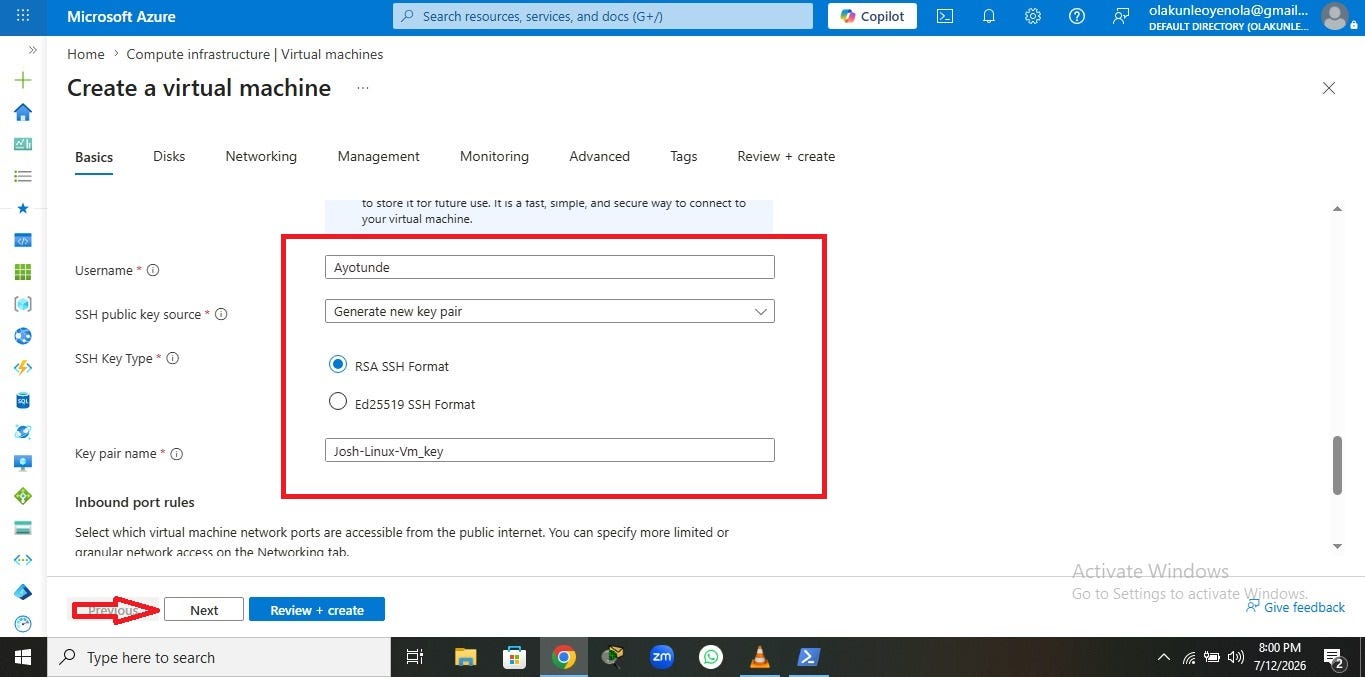
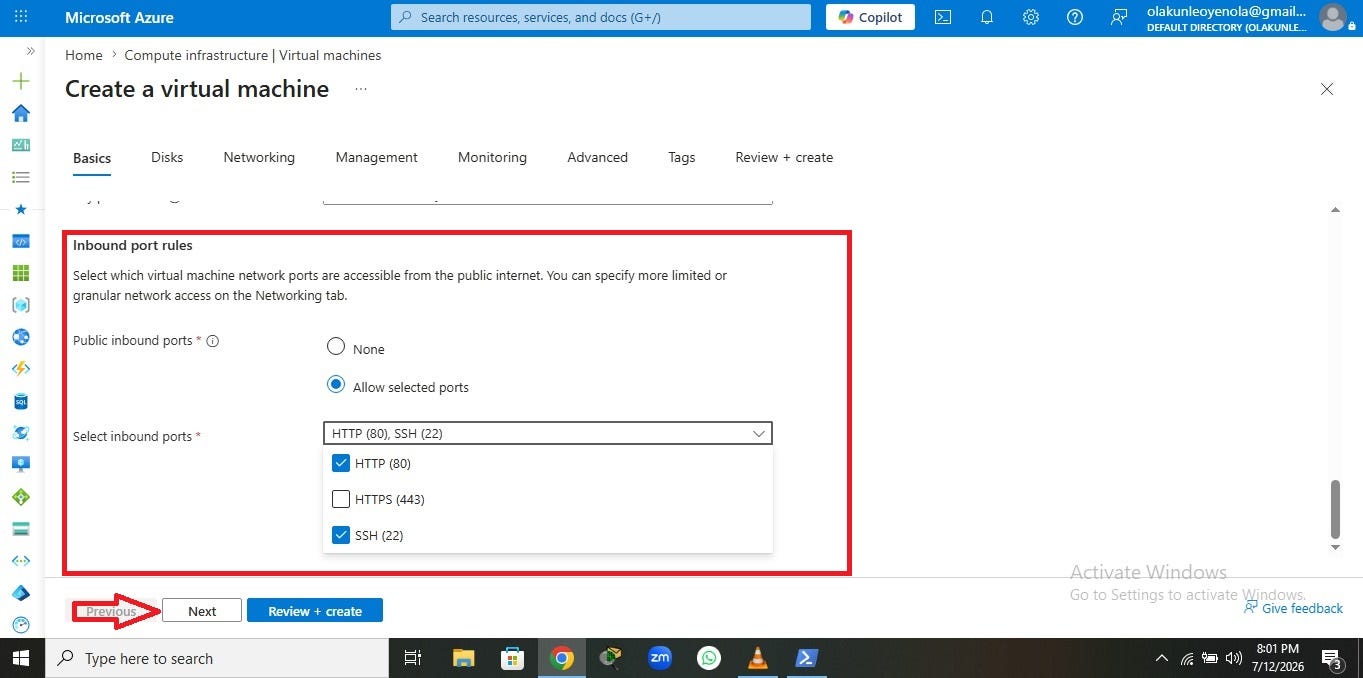
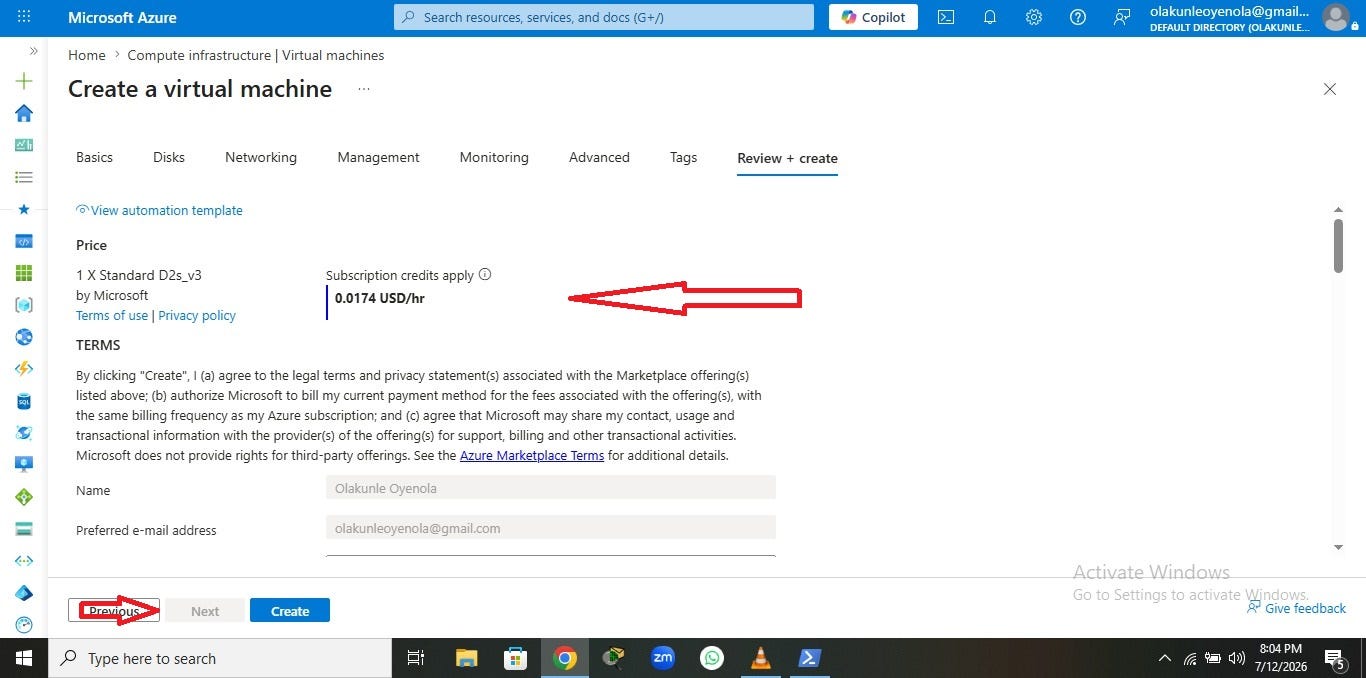
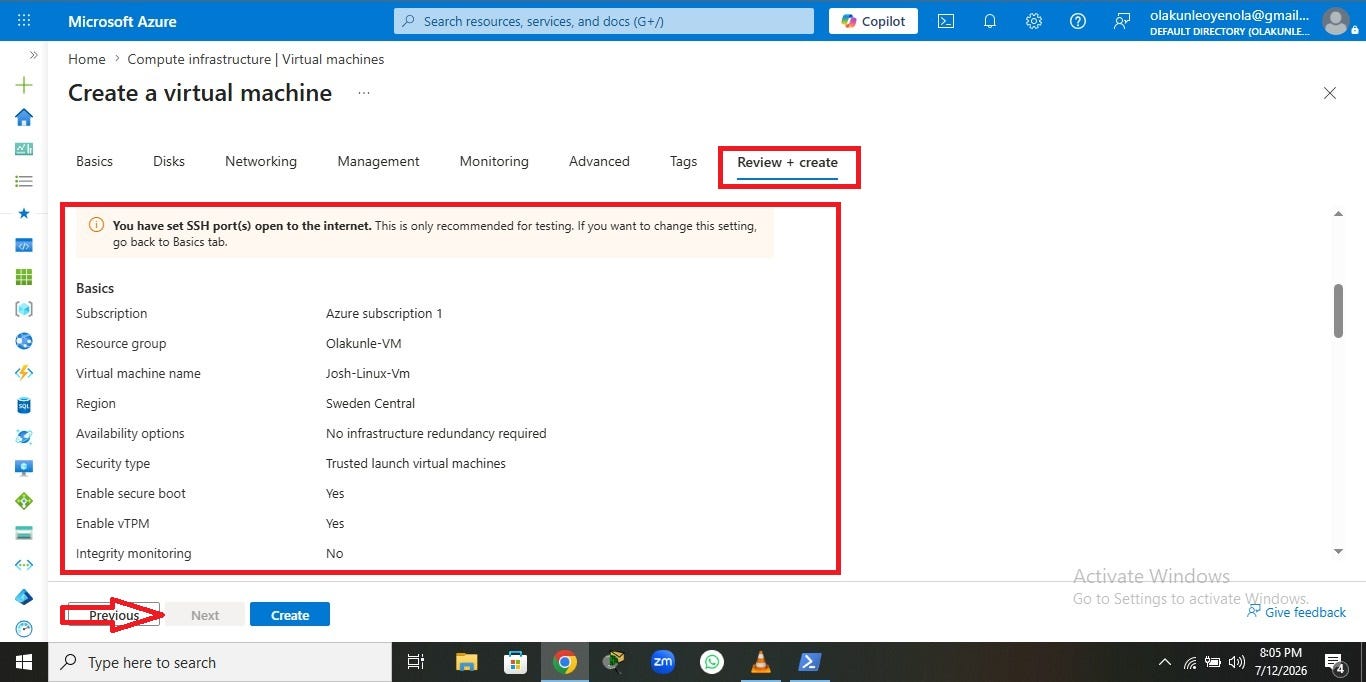
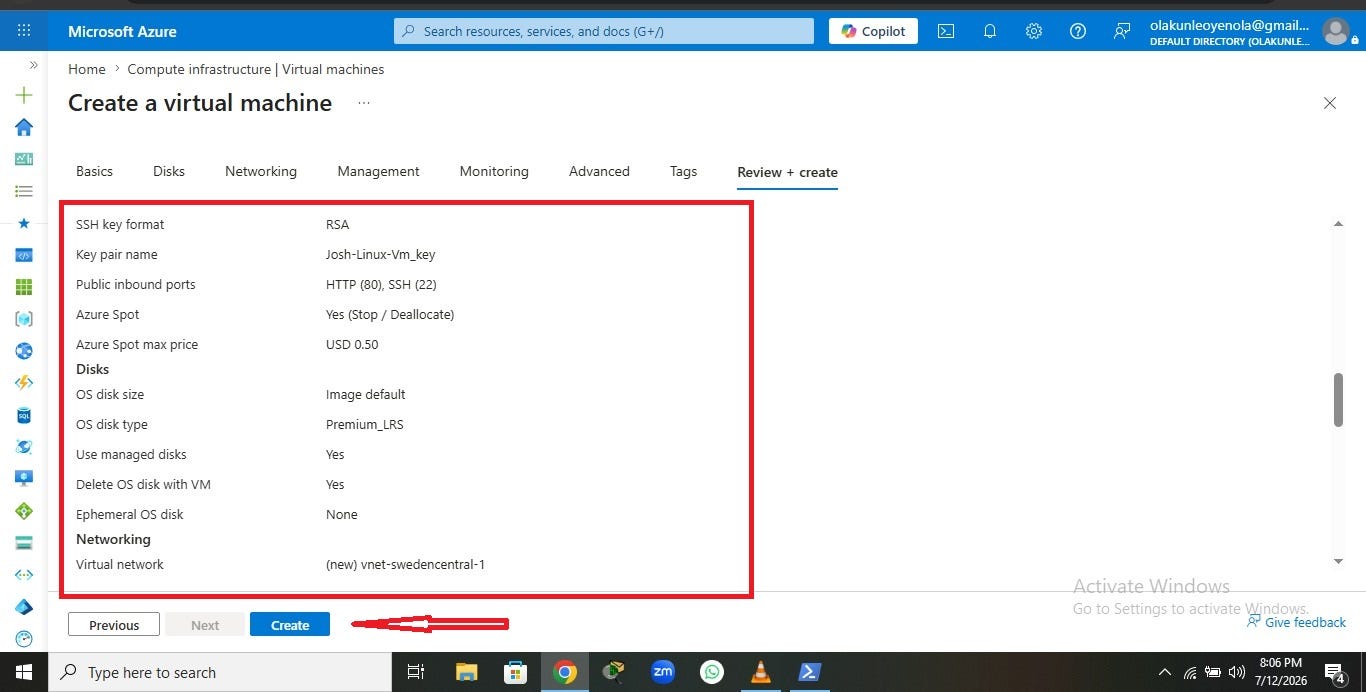
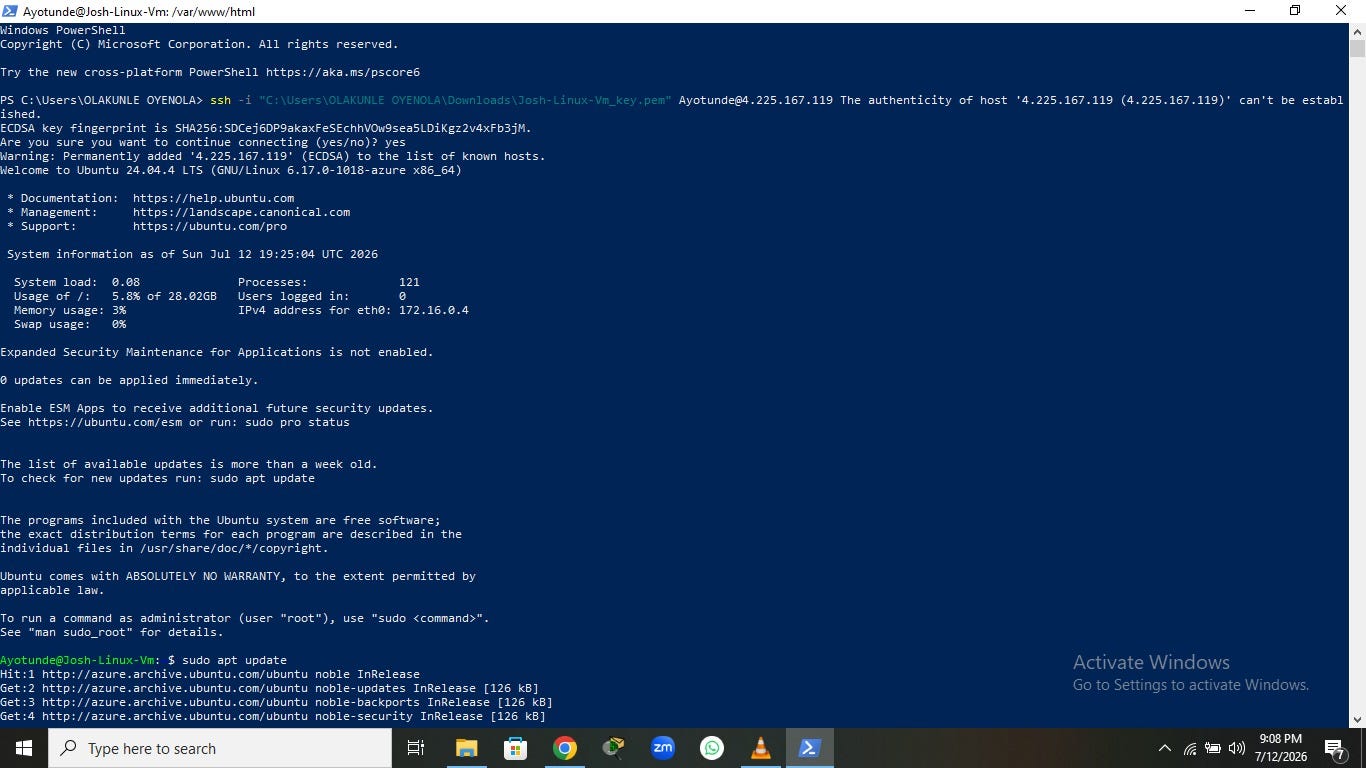
The journey began with creating an Ubuntu Virtual Machine on Microsoft Azure. After provisioning the VM and ensuring that inbound HTTP (port 80) traffic was allowed through the Network Security Group (NSG), I connected to the server using SSH.
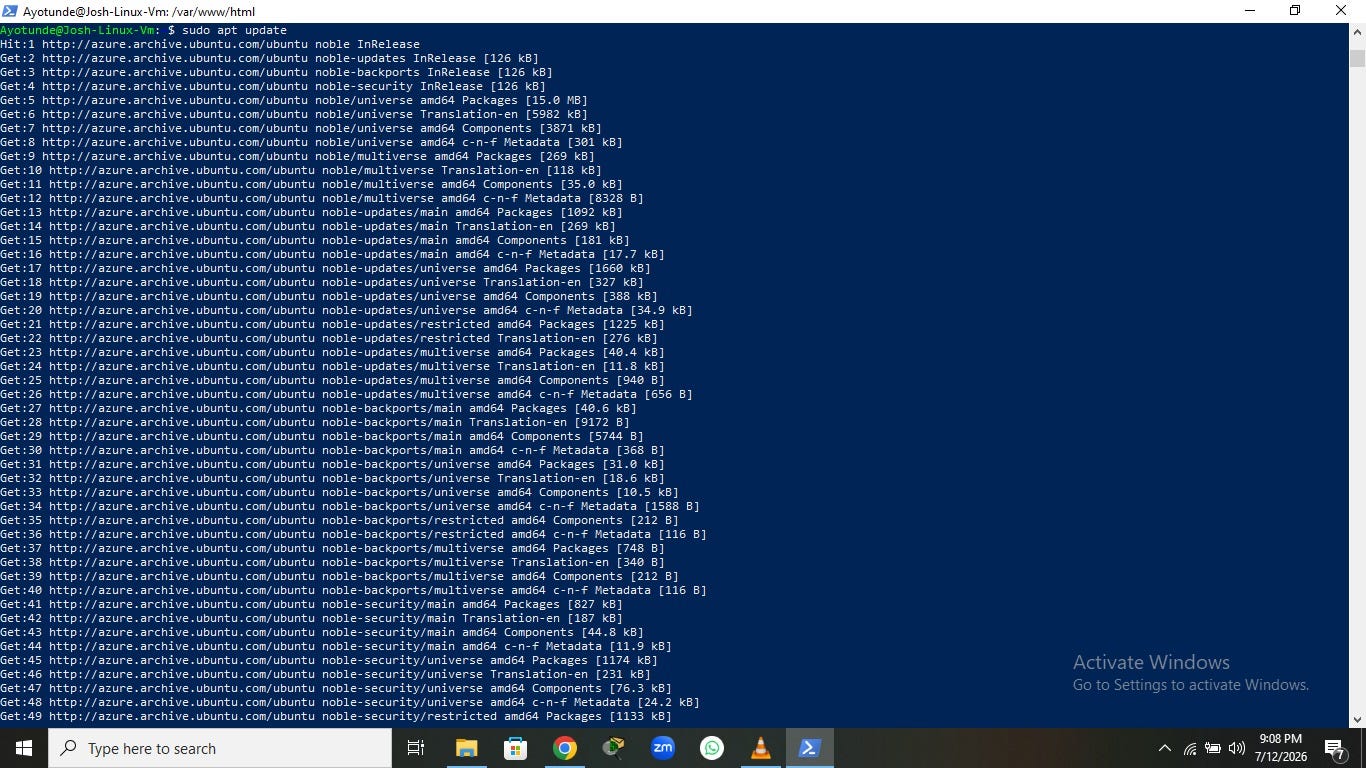
Before deploying any website, I updated the system packages to ensure everything was running the latest versions.
sudo apt update
sudo apt upgrade -y
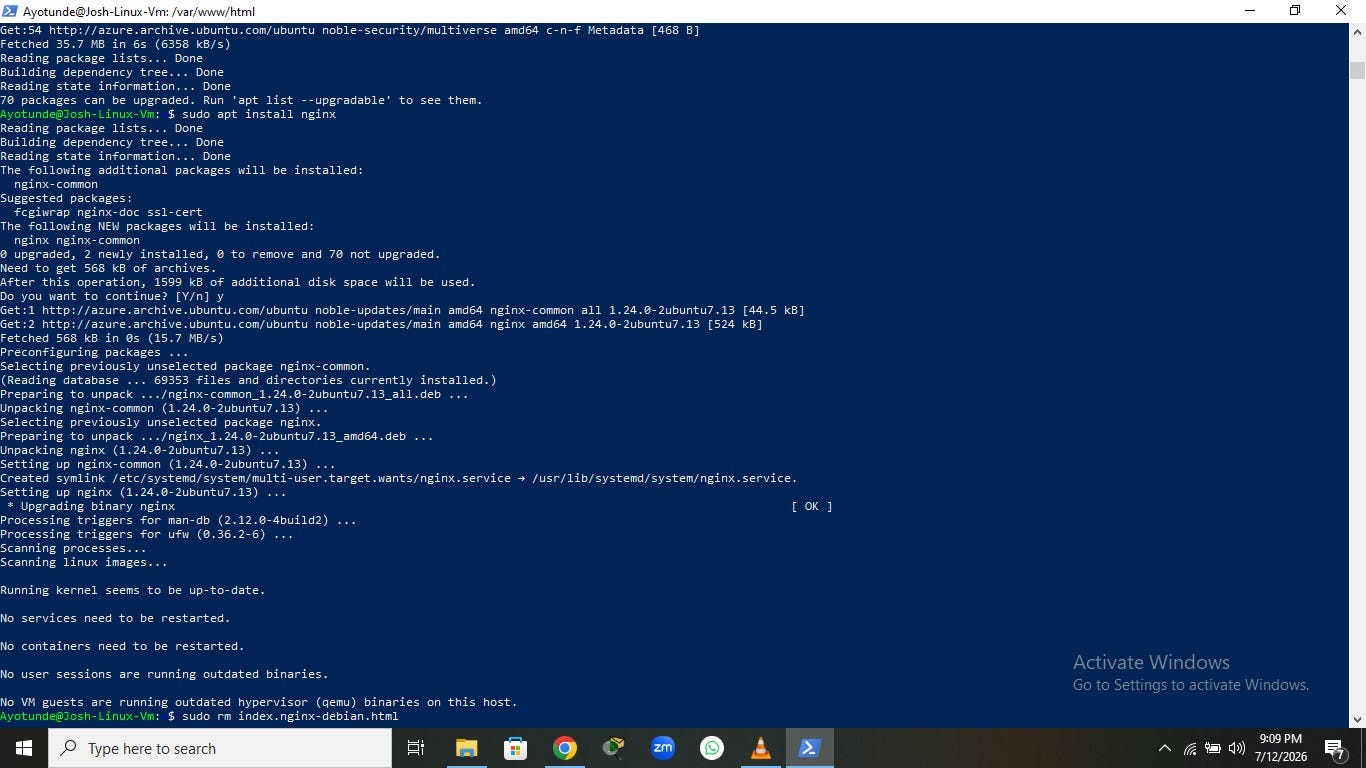
With the server ready, the next step was installing Nginx, the web server responsible for serving the website to visitors.
sudo apt install nginx -yOnce installed, I started and enabled the Nginx service.
sudo systemctl enable nginx
sudo systemctl start nginx
Confirming That Nginx Was Working
One of the easiest ways to verify a successful Nginx installation is by visiting the server’s public IP address in a web browser.
When I navigated to my Azure VM’s public IP, I was greeted by the familiar “Welcome to nginx!” page.
Figure 1: Default Nginx Welcome Page
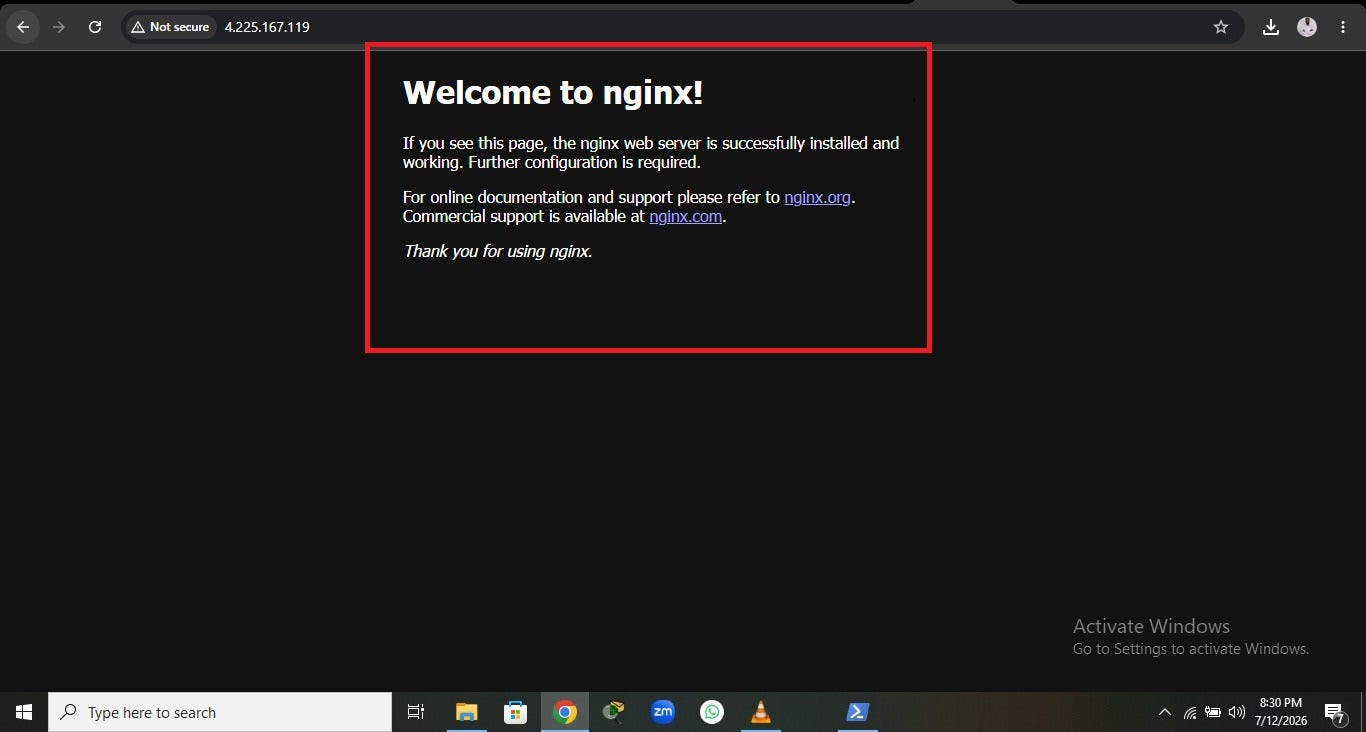
This page confirmed several important things:
- Nginx had been installed successfully.
- The web server was running.
- Azure networking was configured correctly.
- The VM was accessible from the internet.
Seeing this page is always reassuring because it confirms that the server is ready to host your own website.
Preparing the Web Directory
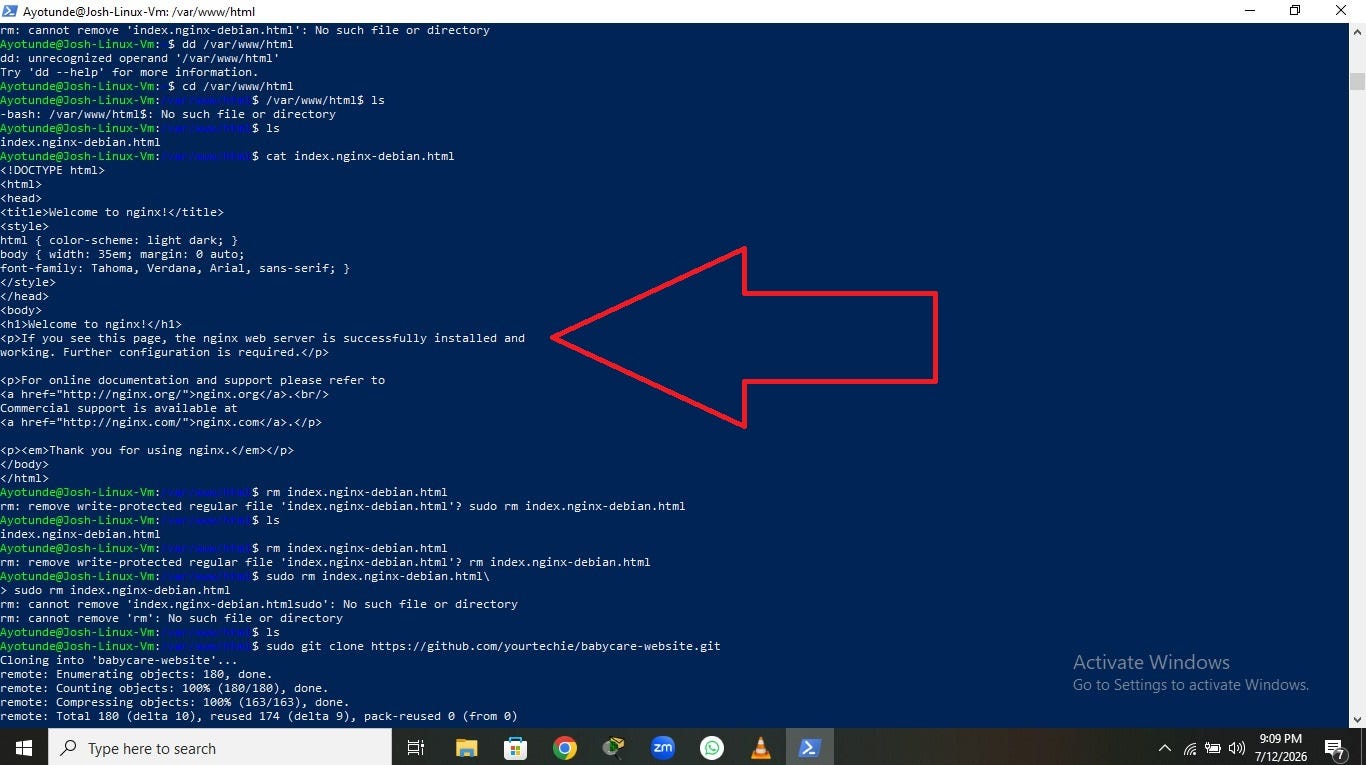
By default, Nginx serves files from the /var/www/html directory. Inside this directory was the default landing page named index.nginx-debian.html.
To replace it with my own website, I first navigated to the directory.
cd /var/www/htmlThen I removed the default page.
sudo rm index.nginx-debian.htmlOnce the default file was removed, the web directory was ready for my project files.
Cloning the Website from GitHub
Instead of manually uploading files, I chose to deploy directly from a GitHub repository using Git. This approach is cleaner, faster, and makes updating the website much easier in the future.
I cloned the repository directly into the Nginx web root.
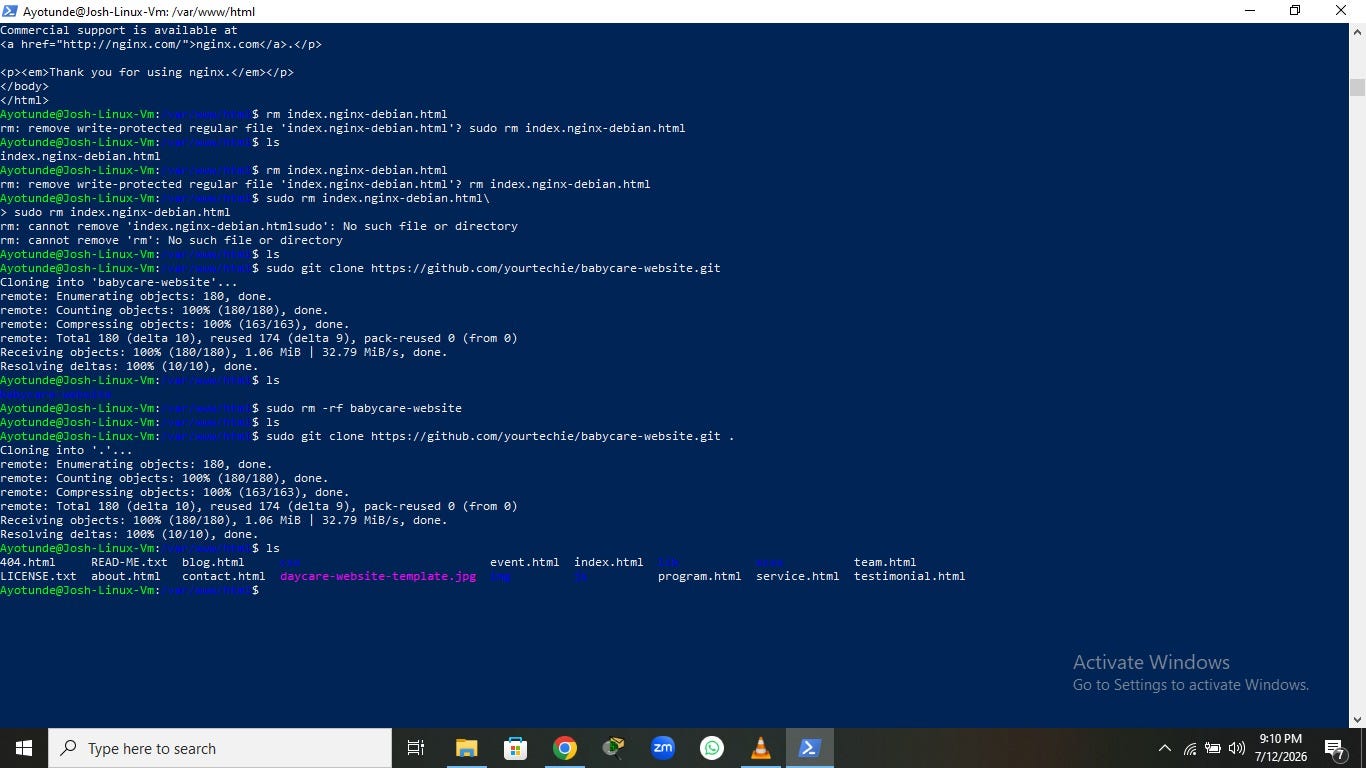
sudo git clone https://github.com/yourtechie/babycare-website.git .Notice the period (.) at the end of the command. It tells Git to copy the repository contents into the current directory instead of creating a new folder.
After cloning, I listed the directory contents to verify that all the website files had been copied successfully.
lsFigure 2: Website Successfully Cloned into the Nginx Web Root
As shown in the figure above, the directory now contains files such as index.html, about.html, contact.html, along with the CSS, JavaScript, image, and library folders required by the website. This confirmed that the GitHub deployment was successful.
Making the Website Live
With the website files now inside /var/www/html, all that remained was restarting Nginx so it could begin serving the new content.
sudo systemctl restart nginxAfter refreshing the browser, the default Nginx page had disappeared.
Instead, my BabyCare website loaded successfully.
Figure 3: BabyCare Website Successfully Deployed on Azure

The transformation from the generic Nginx welcome page to a fully functional website demonstrated that the deployment had been completed successfully. The homepage loaded correctly, along with its navigation menu, images, styling, and supporting assets.
What I Learned During the Deployment
Although deploying a static website may seem straightforward, the process reinforced several important cloud and Linux concepts.
First, understanding the Nginx document root (/var/www/html) made it clear how web servers locate and serve website files. Second, using GitHub as the deployment source highlighted how version control simplifies website management. Finally, Azure Virtual Machines provide complete flexibility, allowing developers to configure the server exactly as required.
One small but important lesson was remembering to delete the default index.nginx-debian.html file before copying the new website. Otherwise, Nginx would continue serving the default page instead of the custom website.
Why Deploy Websites This Way?
Hosting a website on an Azure Virtual Machine offers several advantages:
- Full control over the server environment.
- Flexibility to install additional software or services.
- Easy integration with GitHub repositories.
- Practical experience with Linux administration.
- A solid foundation for learning DevOps and cloud infrastructure.
Unlike managed hosting services, deploying on Infrastructure as a Service (IaaS) helps you understand what happens behind the scenes, making it an excellent learning experience for aspiring cloud engineers and system administrators.
Final Thoughts
Deploying a website on an Azure Ubuntu Virtual Machine using Nginx and GitHub is more than simply making a website available online — it is an opportunity to build practical cloud computing skills. From installing Nginx and replacing its default welcome page to cloning a GitHub repository and serving a live website through Azure, each step contributes to a deeper understanding of Linux server management and web hosting.
By the end of this project, I had successfully transformed a freshly provisioned Azure Virtual Machine into a functioning web server hosting my BabyCare website. Seeing the transition from the default “Welcome to nginx!” page to a fully operational website was a rewarding demonstration of how cloud infrastructure, Linux, GitHub, and Nginx work together to deliver web applications.
Note:
The following supporting images highlight the key stages of creating the Azure Linux Virtual Machine on Microsoft Azure.
메타데이터
- post_id
- bc089bda47fa
- slug
- the-complete-guide-to-deploying-a-website-on-an-azure-linux-virtual-machine-iaas-using-ubuntu-bc089bda47fa
- url
- https://medium.com/@olakunleoyenola/the-complete-guide-to-deploying-a-website-on-an-azure-linux-virtual-machine-iaas-using-ubuntu-bc089bda47fa
- canonical_url
- https://medium.com/@olakunleoyenola/the-complete-guide-to-deploying-a-website-on-an-azure-linux-virtual-machine-iaas-using-ubuntu-bc089bda47fa
- author_url
- https://medium.com/@olakunleoyenola
- status
- ok
- fetched_at
- 2026-07-28 15:18:08