WordPress : How to Download ad Setup as local
Let’s See the step by step whole setup of wordpress on your local maachie.
WordPress : How to Download ad Setup as local
Let’s See the step by step, whole setup of WordPress on your local machine.
Step : 1
Download The WordPress from the Below Link
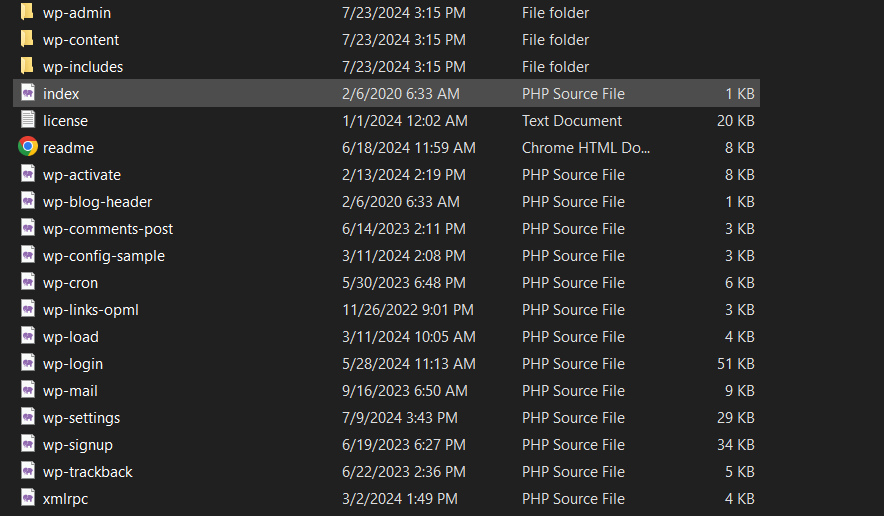
Its download a zip file, extract the file, you see like as below mention folder and file in picture
Step-2 :
Download the Xampp from the below link
Now , install the Xampp in your machine as describe below

Click on Next

By Defualt checked all Checkbox
Click on Next

By Defualt selected path,
Click Next

Click Next

After this you see the Ready to install popup.
click Next

wait for some time to install xampp in your machine.

Click on finish
You can now Xampp Control panel

Just start Apache and MySql from Control Panel.
after strat the MySql , we setup The MySql admin Control
for that click on Admin its show’s like as metntioned below.

Now We create Databse for our local machine,
click on Database
Write Down DataBase Name , I write “Wordpress”. the just click on create

Your Database “Wordpress” is created ,show’s on left side menubar.
Step-3 :
Connect Wordpress Into Xampp
Connext wordpress with xampp for this we go to Extracted folder of wordpress , Simple cut that folder and paste on this path
C:\xampp\htdocs

Step-4 :
Open the browser and write as Bellow:
hit enter , you can see like below picture

Its Successfully connected with xampp.
Step - 4:
setup the wordpress

NOTE : DataBased Name is same which we create on MySql Admin Panel.
Based on your need you can fill below form and click Install Wordpress.

it’s take some time for installation.
after you select Login Page
just login this with You cradentials which you set on Installtion of wordpress.
You have Successfully installed the wordpress in your machine.

Thank You :)
메타데이터
- post_id
- bc6d3aab8013
- slug
- wordpress-how-to-download-ad-setup-as-local-bc6d3aab8013
- url
- https://medium.com/@ysprajapatit/wordpress-how-to-download-ad-setup-as-local-bc6d3aab8013
- canonical_url
- https://medium.com/@ysprajapatit/wordpress-how-to-download-ad-setup-as-local-bc6d3aab8013
- author_url
- https://medium.com/@ysprajapatit
- status
- ok
- fetched_at
- 2026-07-18 15:36:22