How to Configure Fastly CDN in Magento 2
Website speed plays a major role in user experience, search engine rankings, and conversion rates. Even a small delay in page load time can…
How to Configure Fastly CDN in Magento 2
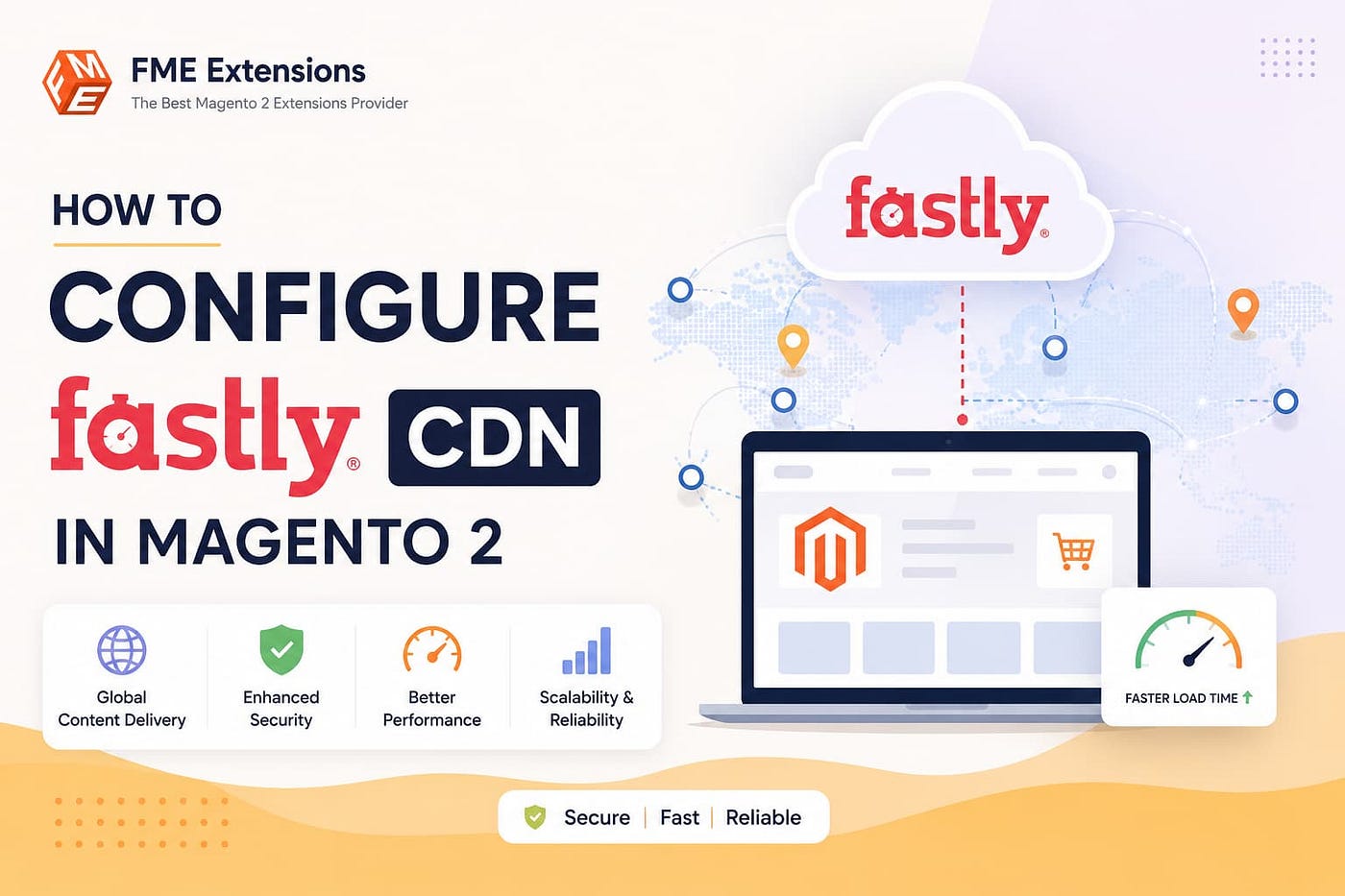
Website speed plays a major role in user experience, search engine rankings, and conversion rates. Even a small delay in page load time can increase bounce rates and reduce sales. One of the most effective ways to improve Magento store performance is through proper **Magento 2 CDN configuration**.
Fastly is one of the most popular CDN providers used by Magento and Adobe Commerce merchants worldwide. It helps deliver website content from servers located closer to visitors, reducing latency and improving page load times. In addition to performance improvements, Fastly offers advanced security features, real-time analytics, cache management, and DDoS protection.
This guide explains how to configure Fastly CDN in Magento 2, install the required module, verify the setup, and avoid common configuration mistakes.
What Is Fastly CDN?
Fastly is a cloud-based Content Delivery Network that accelerates website performance by caching and delivering content from a global network of edge servers.
Unlike traditional CDNs that primarily cache static content, Fastly can also handle dynamic and event-driven content efficiently.
Key Fastly features include:
- Global content delivery
- Real-time caching
- Advanced security protection
- DDoS mitigation
- TLS and SSL support
- Real-time analytics
- Instant cache purging
- Edge computing capabilities
Because of these capabilities, Fastly has become a preferred CDN solution for many large-scale eCommerce websites.
Why Use Fastly With Magento 2?
Magento stores often contain large catalogs, high-resolution images, and dynamic content that can affect performance.
Integrating Fastly with Magento helps:
- Improve page loading speed
- Reduce server load
- Enhance customer experience
- Increase conversion rates
- Improve Core Web Vitals
- Strengthen website security
- Optimize content delivery globally
For stores serving customers across multiple regions, Fastly can significantly improve website responsiveness.
How to Configure Fastly CDN in Magento 2
Follow the steps below to integrate Fastly with your Magento store.
Step 1: Create a Fastly Account
Before configuring Magento, you need an active Fastly account.
After registering:
- Log in to the Fastly dashboard.
- Navigate to Account → API Tokens.
- Generate a new API token.
- Select Global API Access as the token scope.
- Save the generated token securely.
You will need this token later when connecting Magento to Fastly.
Step 2: Create a Fastly Service
Once your account is ready:
- Open the Fastly dashboard.
- Click Create Service.
- Enter a service name.
- Configure your origin server details.
You’ll typically need:
- Origin server IP address or domain
- Website domain name
- Port number (80 or 443)
After saving the configuration, Fastly will generate a unique Service ID.
Keep this Service ID available because Magento requires it during setup.
Step 3: Install the Fastly Magento 2 Module
After creating your Fastly account, install the Magento integration module.
Install Using Composer
Run the following commands:
composer require fastly/magento2php bin/magento module:enable Fastly_Cdnphp bin/magento setup:upgradephp bin/magento cache:flushOnce installation completes successfully, the Fastly configuration options will become available inside Magento Admin.
Step 4: Configure Fastly in Magento
After installing the module:
- Log in to Magento Admin.
- Navigate to:
Stores → Configuration → Advanced → System → Full Page Cache- Set Caching Application to:
Fastly CDN- Enter:
- Fastly API Token
- Fastly Service ID
- Test the connection.
If the credentials are valid, Magento will successfully connect to Fastly.
Step 5: Configure DNS Records
This is one of the most important steps and is frequently overlooked.
To route website traffic through Fastly, create a CNAME record in your DNS provider.
Example:
yourdomain.com → prod.magentocloud.map.fastly.netYou may also use the domain provided directly by Fastly.
Update the DNS settings through your hosting provider or domain registrar.
Common providers include:
- GoDaddy
- Namecheap
- Cloudflare
- Hostinger
Allow sufficient time for DNS propagation.
Step 6: Upload VCL Configuration
After connecting Magento and Fastly:
- Open Fastly settings in Magento Admin.
- Click Upload VCL.
VCL (Varnish Configuration Language) contains Magento-specific caching rules that Fastly uses to optimize content delivery.
Without uploading VCL, some Magento caching configurations may not function correctly.
Step 7: Activate the Configuration
After uploading the VCL:
- Open your Fastly dashboard.
- Review the latest configuration.
- Activate the new version.
Your Magento store is now connected to Fastly CDN.
Additional Fastly Configuration Recommendations
Fastly includes several advanced features that can further improve performance.
Enable Soft Purge
Soft Purge marks cached content as stale rather than deleting it immediately.
Benefits include:
- Faster content updates
- Better user experience
- Reduced origin server requests
Visitors continue receiving cached content while Fastly retrieves fresh content in the background.
Enable Automatic Cache Invalidation
Automatic cache invalidation allows Magento to clear outdated content automatically whenever changes occur.
Benefits include:
- Faster content updates
- Reduced manual cache management
- Better content consistency
This feature is particularly useful for stores that frequently update products, pricing, or inventory.
How to Verify Fastly CDN Is Working
After completing the configuration, it’s important to confirm that Fastly is serving your website traffic.
Check Using Browser Developer Tools
- Open your website homepage.
- Right-click and select Inspect.
- Open the Network tab.
- Refresh the page.
- Click the homepage request.
- Review the response headers.
Look for headers such as:
X-Cache: HITand
Via: FastlyIf these headers appear, Fastly is successfully caching and serving your content.
Common Fastly Configuration Mistakes
Many Magento store owners encounter issues because of simple configuration errors.
Forgetting DNS Configuration
Installing the Fastly module alone is not enough.
You must update DNS records so traffic routes through Fastly’s network.
Without this step, visitors will continue connecting directly to your origin server.
Not Uploading VCL
Failing to upload Magento’s VCL configuration can cause:
- Cache inconsistencies
- Performance issues
- Incorrect content delivery
Always upload and activate the latest VCL configuration.
Using the Wrong Cache Application
Some merchants install Fastly but forget to change Magento’s cache application setting.
Verify that Full Page Cache is configured as:
Fastly CDNOtherwise, Magento may continue using its default caching mechanism.
Invalid API Credentials
Incorrect API tokens or Service IDs can prevent Magento from communicating with Fastly.
Always verify credentials during setup.
Best Practices for Magento Fastly Configuration
For optimal results:
- Enable Fastly Full Page Cache
- Use Soft Purge functionality
- Enable Automatic Cache Invalidation
- Regularly monitor cache performance
- Verify DNS configuration after updates
- Test website speed after deployment
- Review Fastly analytics for optimization opportunities
Following these practices helps maximize performance and stability.
Final Thoughts
Fastly is one of the most powerful CDN solutions available for Magento 2 stores. It improves website speed, reduces server load, enhances security, and delivers content more efficiently to customers worldwide.
Although the setup process involves several steps, including account creation, module installation, DNS configuration, and VCL deployment, the performance benefits are often well worth the effort.
By properly configuring Fastly CDN in Magento 2 and following recommended best practices, store owners can create a faster, more reliable shopping experience that benefits both customers and search engine rankings.
메타데이터
- post_id
- bcb1b188947f
- slug
- how-to-configure-fastly-cdn-in-magento-2-bcb1b188947f
- url
- https://medium.com/@fme_extensions/how-to-configure-fastly-cdn-in-magento-2-bcb1b188947f
- canonical_url
- https://medium.com/@fme_extensions/how-to-configure-fastly-cdn-in-magento-2-bcb1b188947f
- author_url
- https://medium.com/@fme_extensions
- status
- ok
- fetched_at
- 2026-08-01 12:40:08