Check Flash: Download & Installation Walkthrough
Today, we’ll show you how Check Flash, a lightweight utility, can help you test, verify, and manage your USB flash drives.
Check Flash: Download & Installation Walkthrough
Today, we’ll show you how Check Flash, a lightweight utility, can help you test, verify, and manage your USB flash drives.
Did you know that many high-capacity USB drives, especially those labeled as 2TB, can be counterfeit? According to DataRecovery.com, these fraudulent products often lead to data loss and corruption.
Check Flash detects bad sectors, measures read/write speeds, and performs low-level formatting to ensure your USB drive’s reliability and security.
Here’s how you set it up:
How to Download and Install Check Flash
Check System Requirements
Before installing Check Flash, ensure your system meets these requirements:
- Operating System: Windows 7, 8, 10, or later
- Processor: 1 GHz or faster
- Memory: 512 MB RAM (1 GB recommended)
- Storage: At least 10 MB of free disk space
- Additional: Administrator privileges required for full functionality
Download the installer set it up
- Open your web browser and access the Check Flash download page.
- Click the “Download” button to get the latest version of the tool.
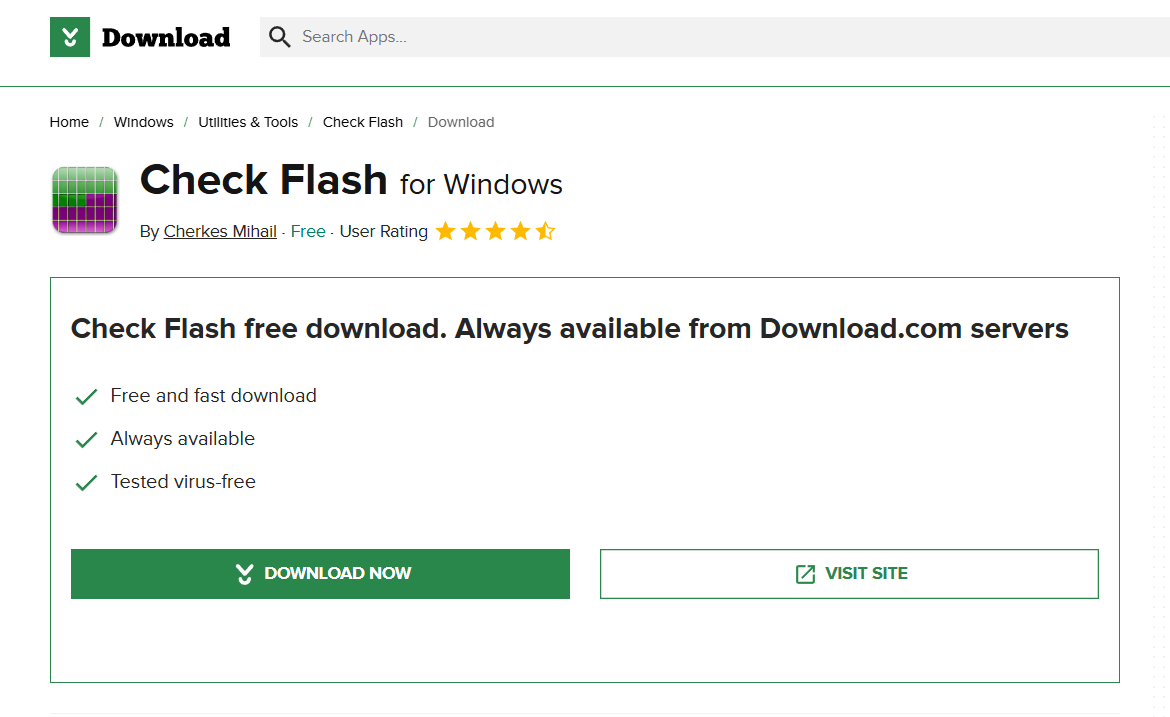
3.Locate the downloaded file in your Downloads folder.
4.If the file is compressed, right-click it and select “Extract All.”

5.Double-click the EXE file to launch Check Flash directly.

6.Select your USB drive and choose the testing or formatting options you want.
Main Features of Check Flash
Check Flash is a versatile USB diagnostic tool that offers the following key features:
- Bad Sector Detection: Run thorough tests to detect corrupt or damaged sectors on your USB flash drive.
- Speed Benchmarking: Measure your USB’s read/write performance and compare it with manufacturer claims.
- Full Drive Erasure: Perform low-level formatting to completely wipe all data from a USB drive.
- Partition Management: Modify, delete, or manage partitions on your flash drive directly within the tool.
- Portable & Lightweight: No installation required; simply run the EXE file from anywhere.
For a deeper understanding of USB drive testing, learn how to check and test a USB flash drive.
Check Flash can also help you verify the authenticity of your USB drives. If you’re concerned about counterfeit products — especially from unreliable sources — explore ways to test and detect fake or counterfeit USB flash drives bought from eBay.
Troubleshooting Tips
- USB Not Detected: Ensure your USB drive is properly inserted. Try different ports or restart your computer.
- Check Flash Won’t Open: Right-click the EXE file and select “Run as Administrator.”
- Scanning Takes Too Long: Large drives take more time. Use a quick scan mode for faster results.
- Error Messages During Formatting: If formatting fails, try using Windows’ built-in Disk Management before reattempting Check Flash.
If your USB drive disconnects unexpectedly, learn how to remount an ejected or safely removed USB device without unplugging and reinsert.
Conclusion
Check Flash is a handy tool for verifying and maintaining your USB flash drives. With its portable nature and powerful diagnostic features, it’s an essential utility for users who frequently work with external storage. Download it today to ensure your flash drives are in top condition.
메타데이터
- post_id
- bcec978565f0
- slug
- check-flash-download-installation-walkthrough-bcec978565f0
- url
- https://medium.com/@vorhangzentrum/check-flash-download-installation-walkthrough-bcec978565f0
- canonical_url
- https://medium.com/@vorhangzentrum/check-flash-download-installation-walkthrough-bcec978565f0
- author_url
- https://medium.com/@vorhangzentrum
- status
- ok
- fetched_at
- 2026-07-20 07:07:55
