How to uninstall Crowdstrike EDR/XDR agents or any application in bulk using/from Kaspersky…
Our objective is, removing Crowdstrike agents from user workstations as the POC is done. There are multiple ways to achieve this objective…
How to uninstall Crowdstrike EDR/XDR agents or any application in bulk using/from Kaspersky Security Center Cloud Console
Image credit: chatgpt
Our objective is, removing Crowdstrike agents from user workstations as the POC is done. There are multiple ways to achieve this objective such as, Active directory, PDQ software etc. But if you are using Kaspersky endpoint security solution, then you have another option available. So in that case, you must have Kaspersky endpoint security application and network agent installed on the systems. We often need to install multiple security solution to test their capabilities or how they work together.
Key Steps:
- Turn off security token which is required at the time of uninstallation. You need to do that from Sensor update policy and assign that to the appropriate group.
- From the Crowdstrike console we need to create a no prevention policy where no restriction will be set and assign that to the appropriate group.
- From Kaspersky console, create a group and move workstations to that group for the uninstallation.
- Create a task that will uninstall Crowdstrike agents from endpoints.
- Run the task.
Step by step process:
Let’s login to the Crowdstrike console. Navigate to Host groups from Host setup and management.
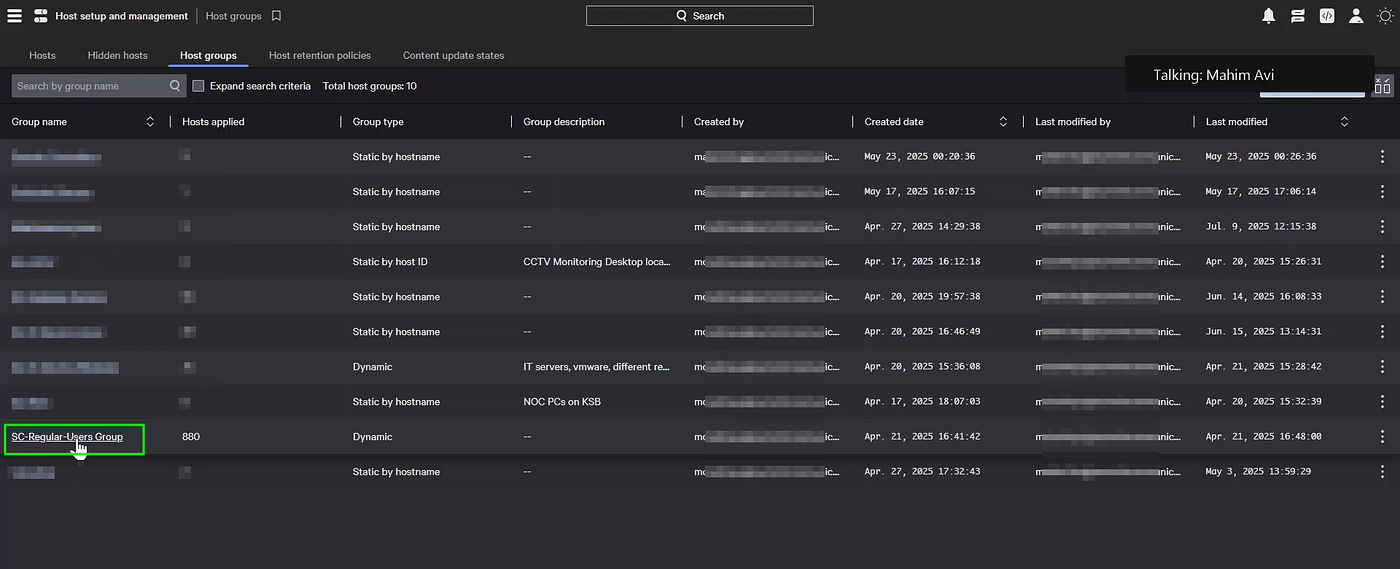
This is our group where end users are present. We will remove restriction from this group.
Now navigate to Host setup and management and click on Sensor update policies.

We can create a new policy or edit this policy as well.

You can set the version control N-1 or latest or completely turned off. We set it as latest in production that means whenever new sensor version will come, CS will install it to its agents. So assume it is 7.25xxxxx. This version number is required in Kaspersky console during Task creation step.
Though it is not required but we turned off the sensor version updates.

Bulk maintenance mode also requires a single token. We don’t want that that is why unchecked that. Most importantly you need to uncheck maintenance protection. Now at the time of uninstallation, it will not ask for token. However this is recommended to set checked while installing agents in production server.

Now we need to assign this policy to the host groups from where we want to uninstall CS agent software.
Now navigate to Endpoint Security > Configure > Prevention policies.

Create a No prevention policy. The reason for creating this policy is letting CS know that no prevention is there. So don’t block us while uninstallation.

I think this policy comes by default when you got the CS console for the first time. So just leave the settings as ease or just uncheck it all blindly. Now click on Assigned host groups.

Add the group. This ends the configuration from Crowdstrike side.
Now let’s login to Kaspersky console.

After logging in, navigate to Assets > Managed devices then click on Change scope.

Then click on Change structure.

Now check the box beside Managed devices. Then Add button will visible. Then create the group. We create the group and name as Uninstall CS.

Now come to the Managed devices menu again. Select the hosts from where you want to remove crowdstrike agent, then move those agents to Uninstall CS group. I have already done that that is why it is showing such. See right most.
Now it is time to create Task that will do the job for us.

From Assets, click on Tasks.

Click on Add

The same type of task is already created, that’s why warning is shown. Click on Next.

Now to which group this task will be applied? Yes it is Uninstall CS.

Here you need to select the CS agent version. For our case we have select this.
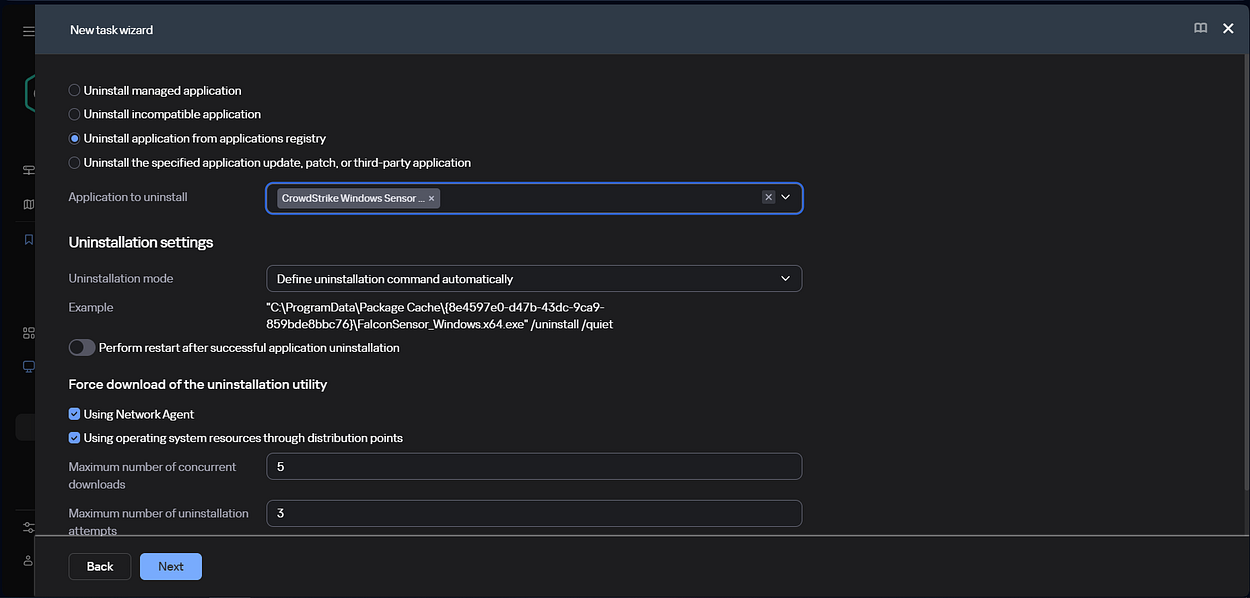
We kept this settings as default. Click Next.

We wanted it to be completely silent.

No other account is required. Kaspersky network agent is enough for this to handle.

Click Finish.

Now you just need to select the task and start it. Now the task will start and uninstall CS agent automatically. All the host where this task will be run needs to be online and their Network agent should be running and status also should be OK.
Thanks for your time.
Please subscribe below if you find this helpful and share with your network.
LinkedIn:
https://www.linkedin.com/in/md-mahimbin-firoj-7b8a5a113/ https://www.linkedin.com/newsletters/bin-ec-7382653539690450945
YouTube:
메타데이터
- post_id
- bd1b7f7bda70
- slug
- how-to-uninstall-crowdstrike-edr-xdr-agents-or-any-application-in-bulk-using-from-kaspersky-bd1b7f7bda70
- url
- https://medium.com/@mahimavi/how-to-uninstall-crowdstrike-edr-xdr-agents-or-any-application-in-bulk-using-from-kaspersky-bd1b7f7bda70
- canonical_url
- https://medium.com/@mahimavi/how-to-uninstall-crowdstrike-edr-xdr-agents-or-any-application-in-bulk-using-from-kaspersky-bd1b7f7bda70
- author_url
- https://medium.com/@mahimavi
- status
- ok
- fetched_at
- 2026-06-22 19:40:15