Deleted Files Not in Recycle Bin on Windows? Causes & Proven Ways to Recover Them Here!
Deleted a file and noticed that it’s not appearing in your desktop Recycle Bin? You’re not alone. Here we’ll explain why this occurs and…
Deleted Files Not in Recycle Bin on Windows? Causes & Proven Ways to Recover Them Here!
Deleted a file and noticed that it’s not appearing in your desktop Recycle Bin? You’re not alone. Here we’ll explain why this occurs and how to get the file back.

Deleted Files Not in Recycle Bin on Windows
Deleted the wrong file and headed to your Recycle Bin, only to find it’s not there? It’s frustrating, but it happens sometimes.
In this guide, we’ll explain why deleted files sometimes bypass the Recycle Bin and walk you through three practical ways to recover them quickly.
➡️ If you’re looking for a more complete recovery guide, check out this comprehensive guide for additional solutions:
**(2026) 9 Proven Methods to Recover Deleted Files in Windows 11**
First, let’s understand why some deleted files bypass the Recycle Bin entirely.
Part 1. Why Are My Deleted Items Not Showing in the Recycle Bin?
The Windows Recycle Bin is essentially a temporary storage area on your local disk. However, not all deletion actions send files there. If your files disappear immediately, it’s usually due to one of the following reasons:
✅ Using Shift + Delete (permanent deletion)
✅File size exceeds Recycle Bin capacity
✅Deleting files from non-NTFS external or network devices
✅The Recycle Bin only applies to local drives.
✅Recycle Bin settings disabled or misconfigured
Other special cases include deleting files via the command prompt, permission-related forced deletions, or file system errors. These are less common but can also cause files to disappear directly.
Part 2. How to Recover Deleted Files Not in the Recycle Bin?
When a file is deleted in Windows, the system doesn’t immediately erase the actual data. Instead, it simply marks the storage space as “available” for new data. This means the deleted file remains recoverable until it is overwritten by new content, even if it no longer appears in the Recycle Bin.
For this reason, timing is critical. As soon as you notice that files are missing, stop using the affected drive immediately. Any further activity may overwrite the deleted data, significantly reducing the chances of successful recovery.
In most cases, there are two primary ways to recover lost files: restoring them from a backup or using specialized data recovery software.
Method 1: Restore via Previous Versions
If you’ve enabled File History or created System Restore Points, you can recover files using the “Previous Versions” feature.
Step 1: Locate the folder or drive where the file was originally stored.
Step 2: Right-click the folder and select “Show more options”.
Step 3: Click “Restore previous versions.”
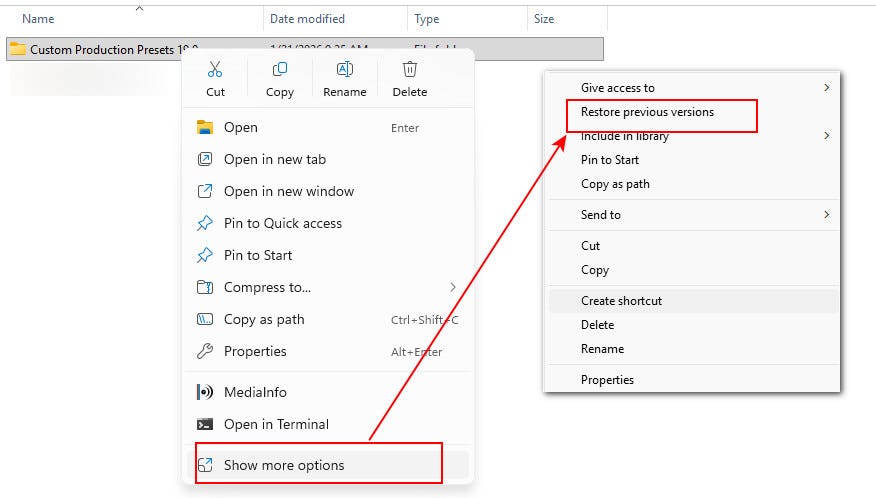
Select “Restore previous versions”
Step 4: Windows will display available backup versions. Choose a version from before the file was lost. You can click “Open” to preview or “Restore” directly.
Note: It’s recommended to back up current folder contents before restoring, as this may overwrite existing files.
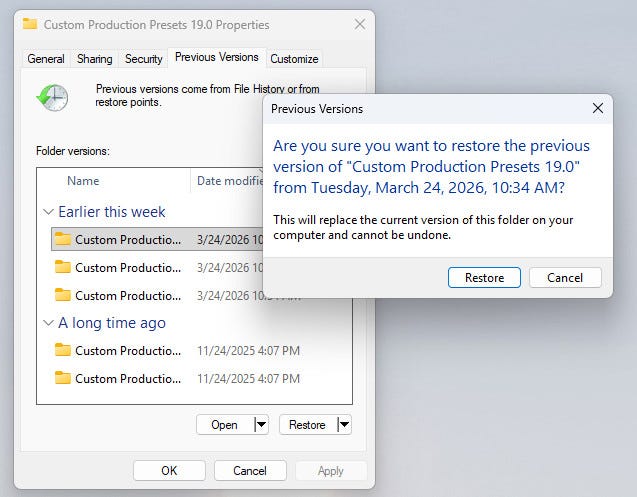
Choose the version you need to restore
Method 2: Use Backup and Restore (Windows 7)
Another built-in option is Backup and Restore (Windows 7). Despite its name, it’s still available in Windows 10 and Windows 11.
Step 1: Search for and open “Control Panel” from the Start menu.
Step 2: Go to System and Security > Backup and Restore (Windows 7).
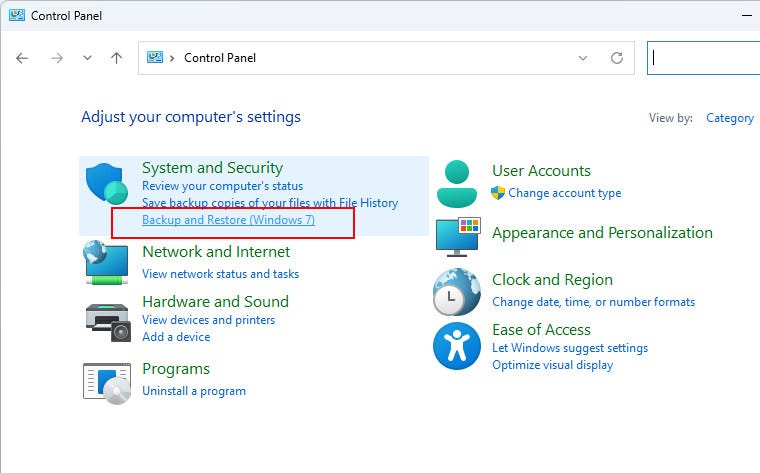
Open Backup and Restore
Step 3: Click “Restore my files”.
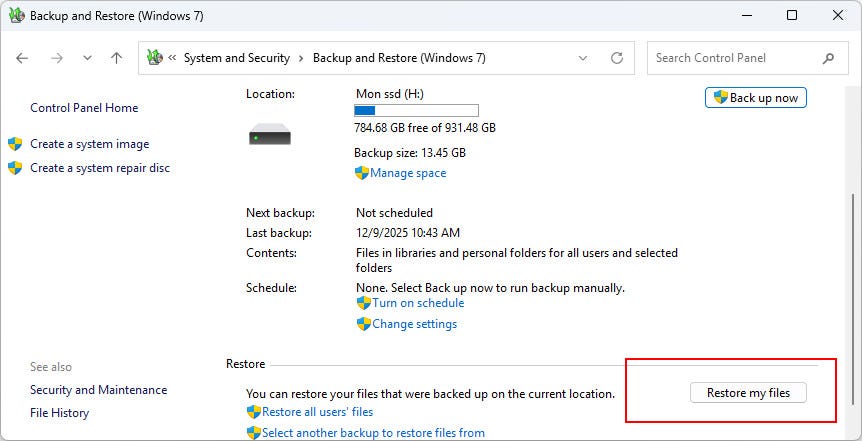
Select Restore my files
Step 4: Use Search to locate files quickly, or browse files/folders manually.
Step 5: Select the files you want to recover and click “Next.”
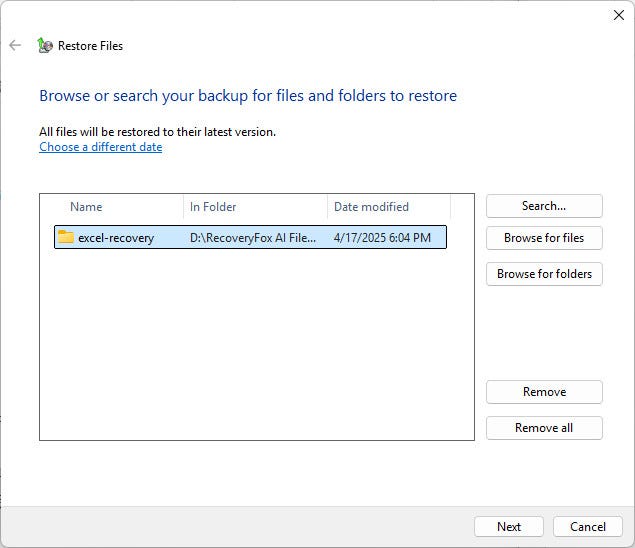
Select files to restore
Step 6: Choose “In the following location” to restore files to a different path. Click “Restore.”
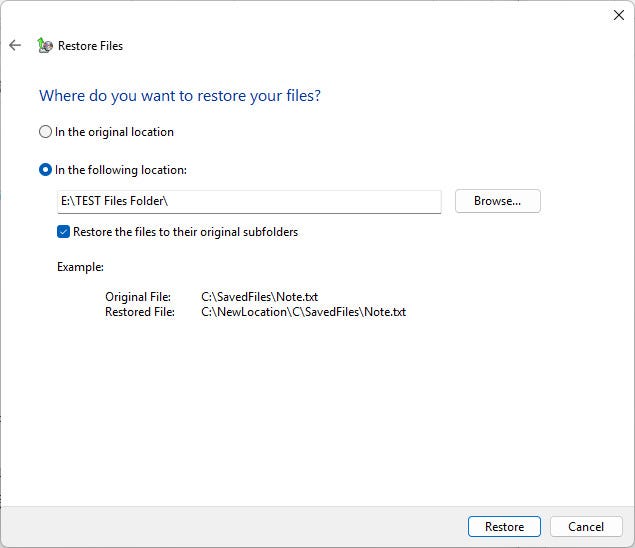
Restore your files to a different path
Method 3: No Backup? Use RecoveryFox AI (Simple & Efficient)
If you don’t have backups and the files are completely missing, you’ll need specialized data recovery software.
RecoveryFox AI is designed for situations without backups or urgent recovery needs. Whether your files were deleted using Shift + Delete, lost due to virus attacks, system crashes, or even disk formatting, it can help you recover them quickly.
It supports Free Scanning & Preview. Give it a try!✨
🦊Official download page:
https://www.wonderfoxrecovery.com/dl/index.html
📢Important: Do not install the software on the same disk where files were lost, as this may overwrite recoverable data.
Step 1. Launch the software. Select the disk where your files were located to start scanning.
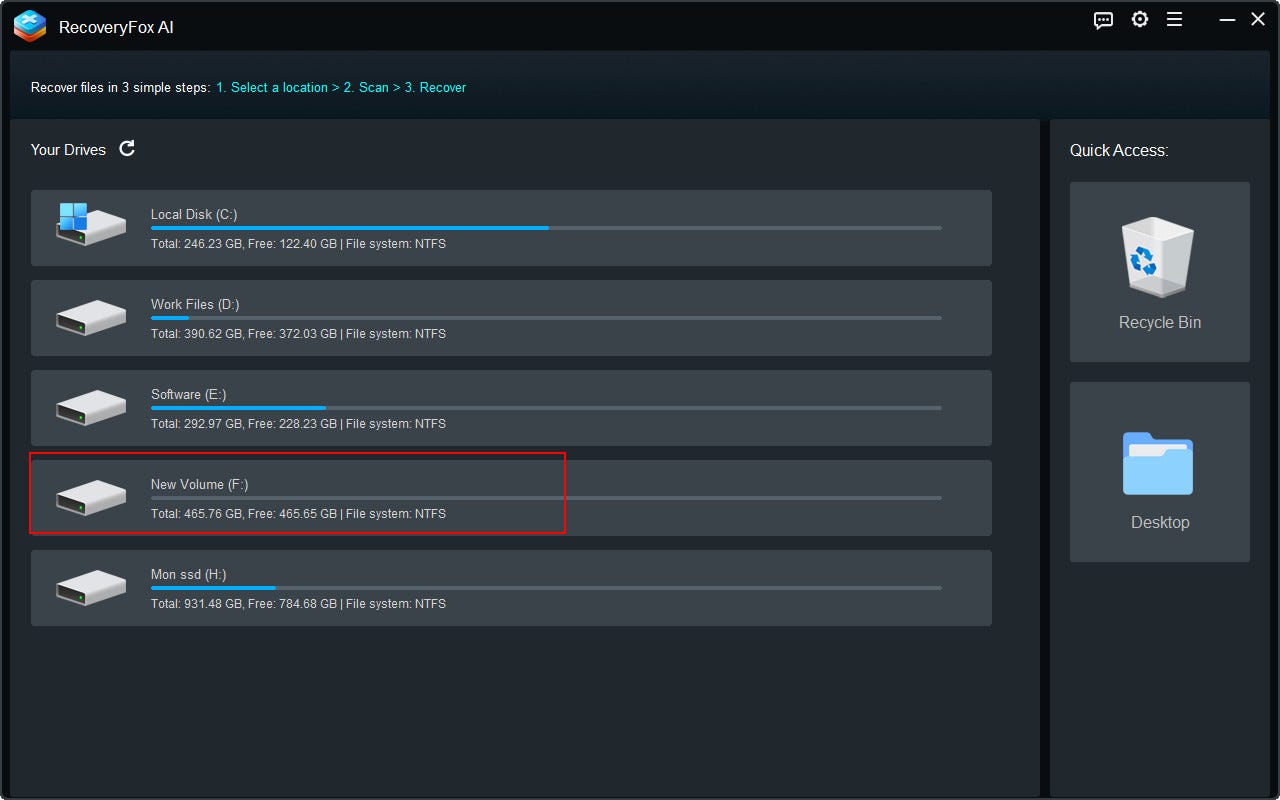
Select the disk where your files were located to start scanning
Step 2. The software will list the scan results by File Path and File Type.
You can pause the AI Scan at any time to preview files.
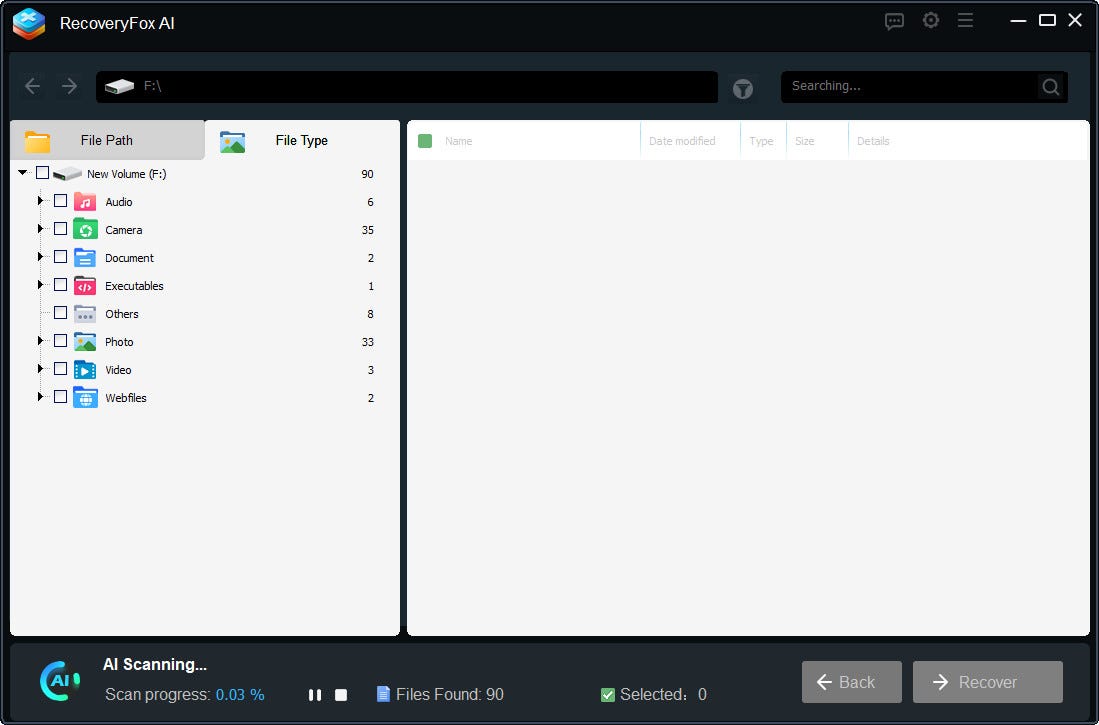
Pause the AI Scan to view results by File Path and File Type
Step 3. Just left-click the photo, document, camera image, or web file and select Preview.
Once you find the target files, select them and click “Recover.”
Be sure to save them to a different disk.
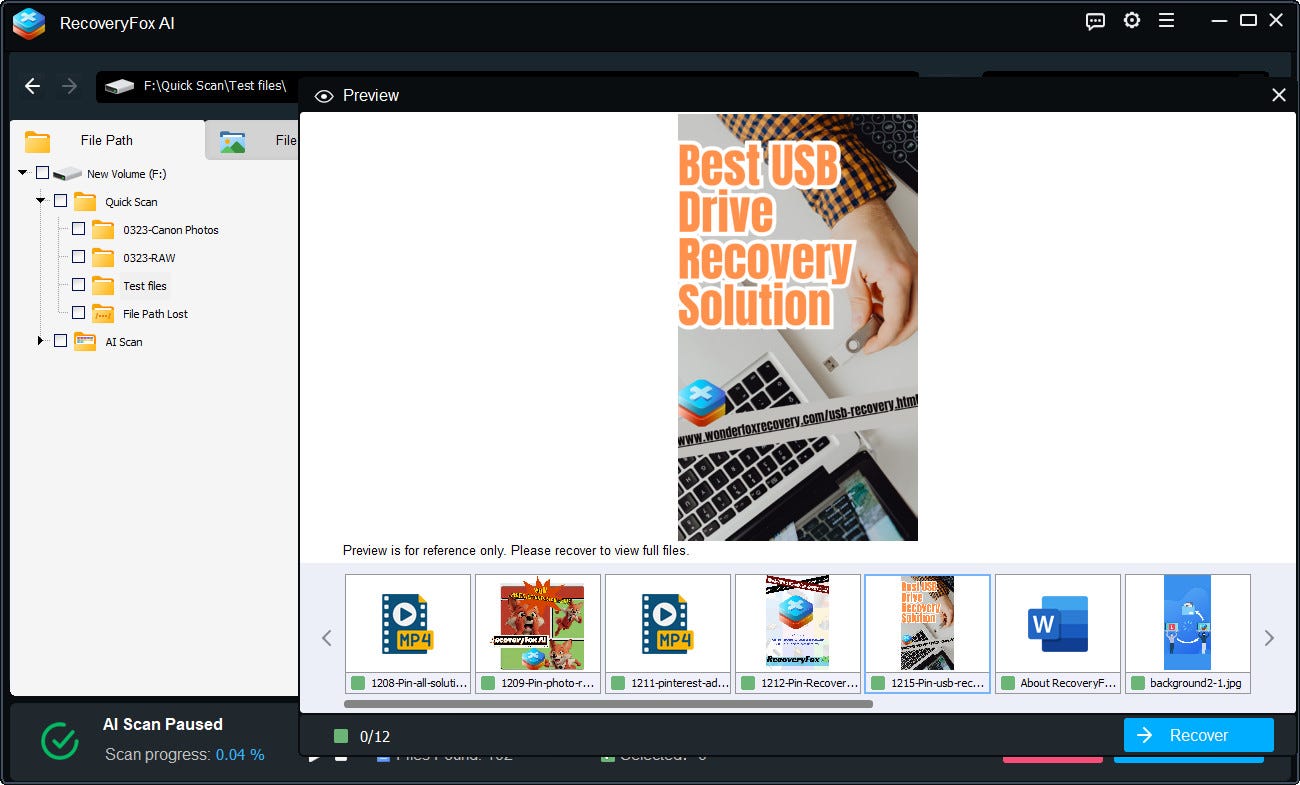
Recover your files to a different disk
Tips: Recovery success depends on whether the data has been overwritten. The sooner you scan, the higher the success rate.
Part 3. Final Thoughts
The methods above can resolve most urgent data loss situations, but one key principle remains:
Data recovery should always be your last resort. Once data is permanently overwritten, even the most advanced tools won’t be able to bring it back.
🗨️ Have you ever had files disappear without a trace or struggled to recover lost data? Share your experience in the comments. I’d be happy to help, and it’s always valuable to exchange practical tips on keeping your data safe.

메타데이터
- post_id
- bd652ced34a7
- slug
- deleted-files-not-in-recycle-bin-on-windows-causes-proven-ways-to-recover-them-here-bd652ced34a7
- url
- https://medium.com/@ulricaida/deleted-files-not-in-recycle-bin-on-windows-causes-proven-ways-to-recover-them-here-bd652ced34a7
- canonical_url
- https://medium.com/@ulricaida/deleted-files-not-in-recycle-bin-on-windows-causes-proven-ways-to-recover-them-here-bd652ced34a7
- author_url
- https://medium.com/@ulricaida
- status
- ok
- fetched_at
- 2026-07-17 17:35:17