CENTRAL BANK OF TURKIYE, CBRT, DATA PULL APP
DATA PULL AND TASK AUTOMATION APP WITH API KEY FROM EVDS OF CBRT
CENTRAL BANK OF TURKIYE, CBRT, DATA PULL APP
DATA PULL AND TASK AUTOMATION APP WITH API KEY FROM EVDS OF CBRT
I set up a regular structure for myself in order to pull the data shared by the CBRT via EVDS at regular intervals. EVDS, “Elektronik Veri Dağıtım Sistemi”, Electronic Data Dissemination System of the Central Bank of Turkiye. I developed an application via Python, Tkinter. The people who could pull data with API may not need to an interface. I want to help people who want to manage data pulling tasks with an Interface without coding practices.
You could automate your data withdrawing tasks with the app. You could save the data pulling tasks of time series. If you occasionally pull data from EVDS, you put your tasks in a “To-Do-List” format. Then, you can call this to-do-list and run all the jobs with execute and retrieve new data when you needed to extract data from EVDS with your API key. You could take the API key from CBRT website. I have to be a member of CBRT and it is free of charge.
I developed this application with Tkinter in order to automate these tasks. It has been an application that has worked for me so far. Although it has certain shortcomings, I am sharing it because I think it can be useful for other people. I don’t have time to do more development at the moment, I have other things to do. I hope it gives you an idea and works for you in this form.
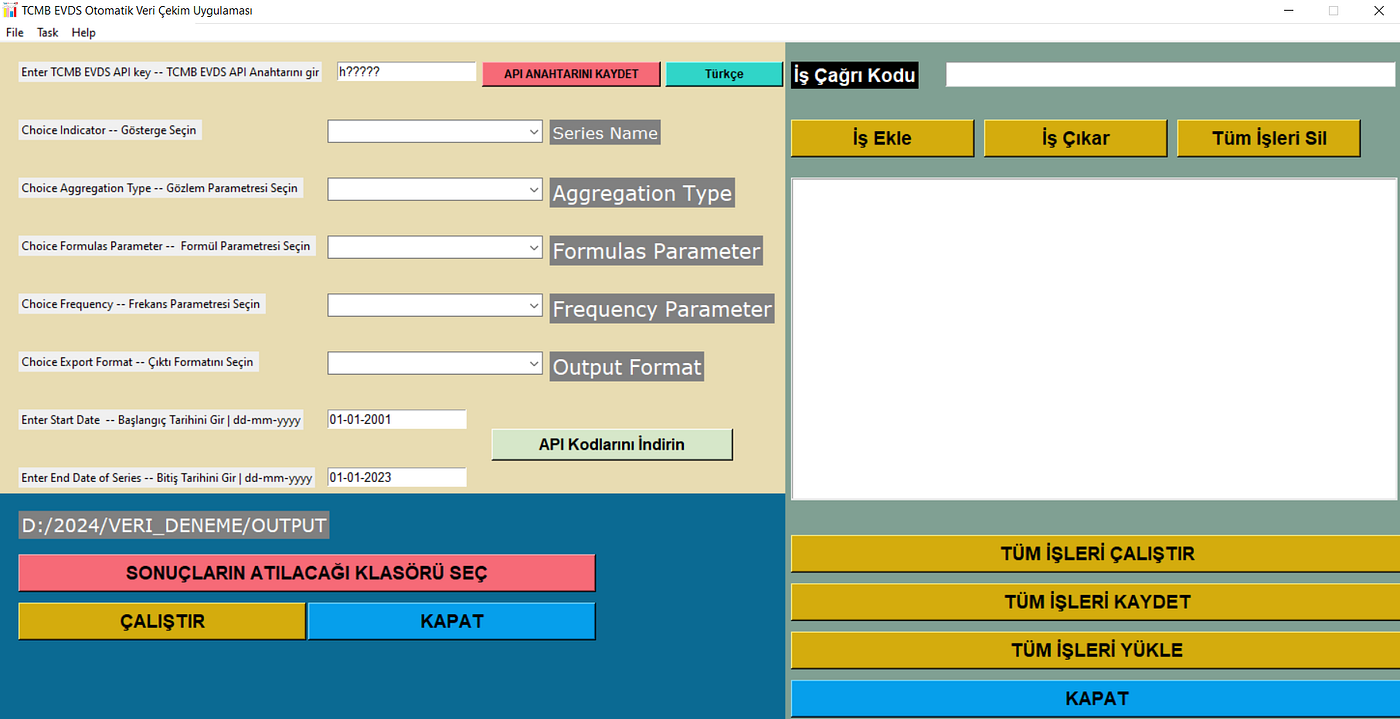
At the top of the application, you enter your Api key code from your CBRT account. When you push the save button, the api key code remains saved on your computer. Enter the data set code which you want to withdraw. Enter the relevant properties of the time-series whose data you want to extract. Select the output format which you want to save and keep. “.csv”, “json”, or “xml”.
Select the folder/directory on your computer where your data will be saved in it. Save it.The data file will be in the desired format and it will be transferred to the directory which you selected.
When you push “Run” button, the data is captured for the first time. At the same time, it is thrown as a to-do list in the upper right part. If you say add it to the list and save it, you can call the process in your next run and pull the data easily. You can also use it in Turkish and English languages. You can change the language by clicking the language button.
Data Pull Application Logo
The link for applicaton download is attached. It is stored in Zip format. When you downloaded the file, convert the Zip files to normal format on your computer. If you press the “tcmb_evds_ui_1_v11.exe” file with the logo above, the interface will come in a short time. It may take some time for the series to arrive when you try to run it first time.
— — — — — — — — — — — — — — — — — — — — — — — — — — — — — — — — — — — — —
Edit Date: 23/04/2024
Edited Application Version v2:
The security method for EVDS data extraction has been changed. In previous procedure API keys can be seen in the links during data extraction, it creates security risk. The application has been designed accordingly to the new revision on EVDS data extraction procedure. The compressed file takes up 126 MB. If you click on the “tcmb_evds_ui_1_v12.exe” file with the logo above, the interface will appear in a short time. The relevant link to the Google Drive account where the zip files are located is below:
https://drive.google.com/file/d/17EomiSrDQLIqgNCOaAZMky6SznwwzG2I/view
I will continue to share without removing the old application.
— — — — — — — — — — — — — — — — — — — — — — — — — — — — — — — — — — — — — —
Old Application Version v1:
It is 331,3 MB in compressed form. When opened, it takes up nearly 1 GB of space. If there are many downloaders, I don’t think so, if the link is broken, send a message and I will try to update the link.
[embed]TCMB_VERI_CEKIM_APP.zip Edit descriptiondrive.google.com
SOME NOTES FOR USE
First of all, you need to enter your EVDS Api Key / Key you received from the CBRT in the first field. Again, you need to select the relevant series name from the list. You also need to select the desired features.

Adding Tasks
After selecting all the variables and properties related with your time-series from fields , add the folder where the result files are to be sent,. Then run it. You click the Run/Run button once and run it. Then we can add the “process codes” seen in the “Job Call Code”, “Task Call Code” section to the list with “Add Job”/ “Add Task”. These selected tasks can be saved. “After saying “Save All Tasks”, we can save it as “Task_List_v1.xlsx” file. You can then upload this list of all jobs again. With the help of the “Load All Tasks”/ “Load Tasks” buttons, you can recall all operations again. After pressing the “Run All Task”/ “Run All Tasks” buttons, the output files are sent to the specified folder.

Saving the List of all Tasks in your Directory. The file will be needed to save subsequent uses. Keep it.
Save the List of all Tasks in your Directory. When you listed your tasks then push the “SAVE ALL TASKS ” button. The file will be needed to save subsequent uses. Keep it. When the task list needed load it with “LOAD TASKS” button.
You can download the API codes of all series to your computer by clicking the “Download API Codes” button. You can download as “API_CODE_AND_NAMES.xlsx” file.

Load Tasks, Load All Tasks, select the relevant xlsx file and load the entire list of jobs.
메타데이터
- post_id
- bdab8e25a481
- slug
- central-bank-of-turkiye-cbrat-data-pull-app-bdab8e25a481
- url
- https://medium.com/@mustafaaskin1981/central-bank-of-turkiye-cbrat-data-pull-app-bdab8e25a481
- canonical_url
- https://medium.com/@mustafaaskin1981/central-bank-of-turkiye-cbrat-data-pull-app-bdab8e25a481
- author_url
- https://medium.com/@mustafaaskin1981
- status
- ok
- fetched_at
- 2026-06-28 10:39:35