Generating AWS Architecture Diagrams with Amazon Q on macOS
Many walkthroughs that show how to generate AWS architecture diagrams with Amazon Q assume Linux or Windows with WSL. On macOS, following…
Generating AWS Architecture Diagrams with Amazon Q on macOS
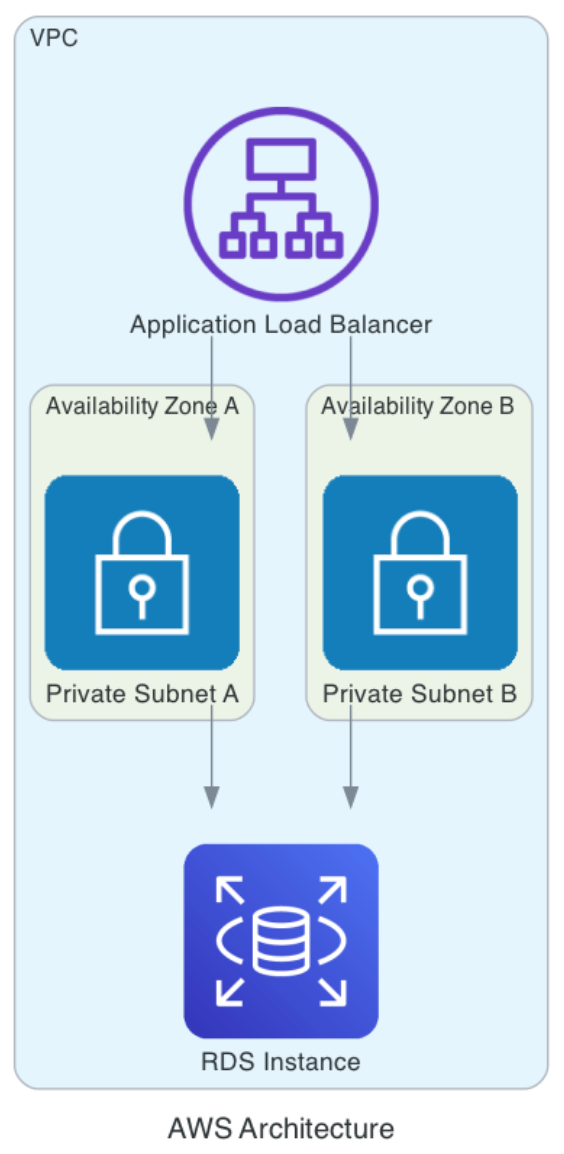
Example architecture diagram
Many walkthroughs that show how to generate AWS architecture diagrams with Amazon Q assume Linux or Windows with WSL. On macOS, following those steps leads to predictable failures: missing package managers, installers that do not exist, or AWS console pages that send you in the wrong direction.
This article documents the macOS-specific path that actually works today. It explains which Amazon Q product to use, how the recent Kiro changes affect the CLI, and how to generate and iteratively refine AWS diagrams using MCP servers. Both Intel and Apple Silicon Macs are covered.
This write-up is inspired by Julius Nyerere Nyambok’s post, *Generate AWS architectural diagrams using this simple method*, and focuses on adapting that approach cleanly to macOS.
Why Amazon Q is different from other diagram generators
General-purpose AI tools can produce diagrams that look correct at a glance. AWS architectures require more than visual resemblance.
Amazon Q, when connected to the AWS Diagram MCP Server, generates diagrams using:
- Official AWS service icons
- Current service boundaries and naming
- A code-based representation that can be regenerated and refined
The diagram is not drawn manually. It is produced from a structured description using the same primitives AWS documentation relies on. That distinction matters when diagrams are reviewed by architects or reused across teams.
The source of confusion: which “Amazon Q” should you use?
AWS currently uses “Amazon Q” as an umbrella name. Several products share the brand but serve different purposes. Most of the confusion comes from the AWS Console pointing users to enterprise subscription flows.
Here is the practical breakdown.
Amazon Q Developer (this is the one you want)
Amazon Q Developer is the developer-facing assistant. It includes:
- IDE integrations
- A local command-line interface
- Support for MCP servers, including diagram generation
If your goal is to generate AWS architecture diagrams locally using MCP servers, this is the correct product.
Amazon Q Business (not required for this workflow)
Amazon Q Business focuses on querying internal company knowledge sources and business systems. It does not add value to the diagram generation workflow and can be ignored for this use case.
Why the AWS Console asks you to “subscribe users”
The console flow that asks you to connect IAM Identity Center and subscribe users applies to Amazon Q Developer Pro and enterprise setups. It is designed for organization-wide deployment. The local CLI workflow does not require this step.
For a single developer machine, the desktop app plus Builder ID is sufficient.
Q CLI and Kiro CLI: what changed
Recent AWS updates introduced Kiro as the successor to the original Q CLI. In practice, this creates two effects:
- Existing
qcommands still work in many environments - New installs may surface Kiro branding and messaging
Functionally, the workflows covered here continue to work. MCP servers remain the mechanism that enables diagram generation. Configuration files may live under different paths depending on whether your setup identifies itself as Q CLI or Kiro CLI.
You do not need to migrate anything manually to follow this guide.
Installing Amazon Q on macOS
macOS does not use Linux installers. Ignore any instructions that mention apt, install.sh, or WSL.
Intel Macs
Download the desktop installer:
curl -L -o "Amazon Q.dmg" \
"https://desktop-release.q.us-east-1.amazonaws.com/latest/Amazon%20Q.dmg"
Mount and open it:
hdiutil attach "Amazon Q.dmg"
open "/Volumes/Amazon Q
Drag Amazon Q.app into the Applications folder. After the copy completes, eject the volume:
hdiutil detach "/Volumes/Amazon Q"Launch the app once:
open -a "Amazon Q"Sign in using a Builder ID and allow shell integration. Close the app after setup completes.
Apple Silicon Macs
The same DMG works on Apple Silicon. The installation steps are identical.
Verifying the CLI
Open a new terminal session and run:
q --versionA version string confirms that the CLI is available. If the command is not found, restarting the terminal usually resolves the issue because the installer modifies shell configuration files.
Installing dependencies for MCP servers
Diagram generation relies on Python tooling and Graphviz.
Install the required components using Homebrew:
brew install python@3.12 uv graphvizVerify installation:
python3.12 --version
uv --version
dot -V
Configuring MCP servers
Two MCP servers are required:
- AWS Diagram MCP Server
- AWS Documentation MCP Server
Configuration path for Q CLI
Create the configuration directory:
mkdir -p ~/.aws/amazonqCreate the configuration file:
nano ~/.aws/amazonq/mcp.jsonPaste the following configuration:
{
  "mcpServers": {
    "awslabs.aws-diagram-mcp-server": {
      "command": "uvx",
      "args": ["awslabs.aws-diagram-mcp-server"],
      "env": {
        "FASTMCP_LOG_LEVEL": "ERROR"
      },
      "autoApprove": [],
      "disabled": false
    },
    "awslabs.aws-documentation-mcp-server": {
      "command": "uvx",
      "args": ["awslabs.aws-documentation-mcp-server@latest"],
      "env": {
        "FASTMCP_LOG_LEVEL": "ERROR"
      },
      "autoApprove": [],
      "disabled": false
    }
  }
}
Some newer setups may also look for MCP configuration under ~/.kiro/settings/mcp.json. If MCP tools do not appear in q chat, mirroring the same configuration there resolves the issue.
Running Amazon Q with MCP enabled
Start the chat interface:
q chatAt this point, Amazon Q can invoke trusted tools exposed by MCP servers, including diagram generation.
Example: improving diagram layout for real-world use
After generating an AWS architecture diagram for an AI-powered video editing system, the initial output was saved locally:
/Users/marcelops/Desktop/generated-diagrams/ai_video_editing_architecture.pngThe diagram was correct but too vertical for a single screen.
A follow-up prompt addressed that directly:
The diagram looks too vertical. Arrange the sections and icons so it fits on a single screen.
Amazon Q regenerated the diagram using a left-to-right layout and tighter grouping. Internally, the diagram tool switched to a horizontal direction and reorganized clusters without changing the architecture itself.
The updated output was saved as:
/Users/marcelops/Desktop/generated-diagrams/ai_video_editing_horizontal.pngNo manual editing was required. The change was structural, not cosmetic.
Common macOS issues and their cause
apt: command not foundThis indicates Linux instructions being applied on macOS. Use Homebrew instead.- ZIP files that fail to extract and contain XML This usually means an access-denied response was downloaded instead of an installer. On macOS, use the DMG installer rather than Linux ZIP archives.
Final notes
Amazon Q becomes useful for architecture work once MCP servers are configured. Without them, the assistant lacks the ability to generate diagrams or reference current AWS documentation.
On macOS, the key is choosing the correct entry point:
- Amazon Q Developer desktop app
- Local CLI with MCP servers
- Builder ID authentication
Once set up, diagrams can be generated, revised, and regenerated as code. That makes them easier to maintain than manually drawn artifacts and better aligned with how infrastructure work actually evolves.
If you found this useful and want to explore real-world AWS use cases, especially around GenAI and production systems, you can find more at https://buildwithaws.substack.com/
메타데이터
- post_id
- bdeb84bf903e
- slug
- generating-aws-architecture-diagrams-with-amazon-q-on-macos-bdeb84bf903e
- url
- https://towardsaws.com/generating-aws-architecture-diagrams-with-amazon-q-on-macos-bdeb84bf903e
- canonical_url
- https://towardsaws.com/generating-aws-architecture-diagrams-with-amazon-q-on-macos-bdeb84bf903e
- author_url
- https://medium.com/@marcelo.acosta
- status
- ok
- fetched_at
- 2026-06-23 17:05:31