Animating Sprites in Unity
To create a sprite animation in Unity, you first need to open the Animation window. If it is not visible in your project, go to Window ->…
Animating Sprites in Unity
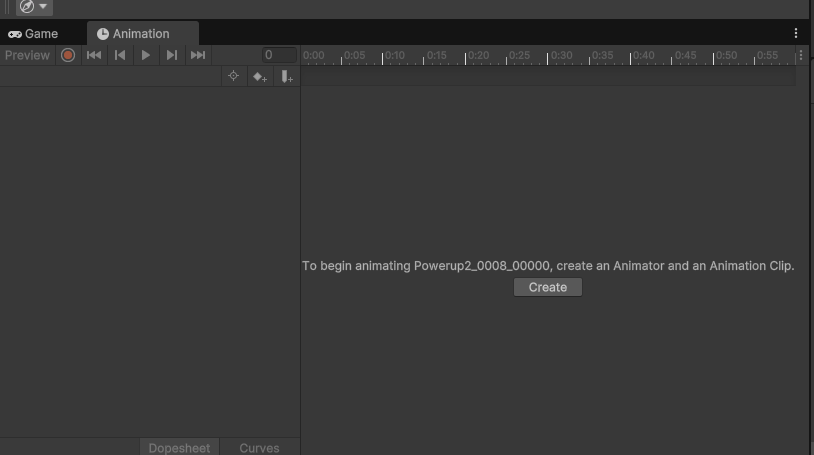
To create a sprite animation in Unity, you first need to open the Animation window. If it is not visible in your project, go to Window -> Animation -> Animation.
Select the object you want to animate and click Create. When creating a new animation, it is best to also create an “Animations” folder in your project to keep all animations organized in one place.

After creating your animation, you will see the timeline. Drag and drop all the sprites into the timeline. You can select multiple sprites at once by holding Shift while selecting the first and last frame.
Now, you can play the animation to see the result. You can adjust the length and modify individual frames by manipulating the dots that represent each sprite.

Additionally, you can select the animation you saved earlier and open the Inspector window. Here, you can decide whether the animation should loop by enabling or disabling the Loop Time option.
- Loop Time: If enabled, the animation will repeat continuously.
- Loop Pose: Helps smooth the transition between the last and first frame of a looping animation, useful for seamless motion.
- Cycle Offset: Adjusts the starting point of the animation cycle, which can be useful for desynchronizing multiple looping animations.
메타데이터
- post_id
- be549e313e20
- slug
- animating-sprites-in-unity-be549e313e20
- url
- https://medium.com/@patrickkienzler2110/animating-sprites-in-unity-be549e313e20
- canonical_url
- https://medium.com/@patrickkienzler2110/animating-sprites-in-unity-be549e313e20
- author_url
- https://medium.com/@patrickkienzler2110
- status
- ok
- fetched_at
- 2026-07-20 14:10:22





