Docker Installation On OEL 7
Docker has been a popular container platform then and even now. We have always used docker either on a our desktop/laptop or on an…
Docker Installation On OEL 7
Docker — Ecosystem for Containers
Docker has been a popular container platform then and even now. We have always used docker either on a our desktop/laptop or on an enterprise server.
The below guide would help anyone to easily install Docker [Version 17.07 and higher] on a Oracle Enterprise Linux Server version 7. Although guide steps are executed and screen captured on a OEL box, the steps would resemble on any Linux boxes based on RHEL.
Assumption
- You have an OEL 7 box, and root/user which has access privileges.
- We are considering installing Docker 17.07 and higher.
- You are logged in to the box and ready to execute commands below.
Steps
Yum Repo File
- cd /etc/yum.repos.d/.
- wget http://yum.oracle.com/public-yum-ol7.repo.
- if wget above fails with proxy connect, you need to set up proxy on your box.
- vi public-yum-ol7.repo
- Make sure below items are enabled on the repo file that you have downloaded.
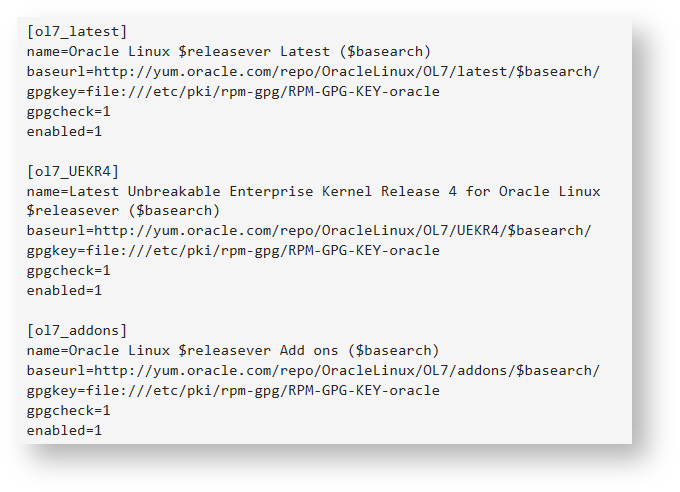
Oracle Public Repo File
Install Docker
- yum install docker-engine.
- You will get similar logs given below, please review that there are no kernel version or package upgrades, review the download list and type ‘y’.

Installing Docker via Yum channel
Start the Docker Service
Once the installation is completed, you start the docker service using systemctl command.

Starting Docker as a Service
Docker Login
- Log into Oracle Container Registry, trusted source of Oracle software as Docker containers, to pull the appropriate Docker containers.
- The below option is a sample. If you have your own docker hub, or on-premise registry, you can login into the same and test your images.

Docker Login to Container Registry
System Proxy — Http
- If you are running behind a corporate proxy, your docker proxy also need to be updated. Failing to do so would make the image pull fail with a connect timeout issue from docker repo.
- mkdir -p /etc/systemd/system/docker.service.d.
- Create a file called
/etc/systemd/system/docker.service.d/http-proxy.confthat adds theHTTP_PROXYenvironment variable. - Once added, save this file.

HTTP_PROXY
System Proxy — HTTPS
- Create a file called
/etc/systemd/system/docker.service.d/https-proxy.confthat adds theHTTP_PROXYenvironment variable. - Once added, save this file.

HTTPS_PROXY
System Proxy — NO PROXY for Local Registries
- If you have internal Docker registries, that you need to contact without proxy you can specify them via the
NO_PROXYenvironment variable. - add below content and save the file respectively under https-proxy.conf or https-proxy.conf files.

NO PROXY settings

NO PROXY settings
Flush and Restart
- Flush — systemctl daemon-reload.
- Restart — systemctl restart docker.
- Verify that the configuration has been loaded.

Verify PROXY
Conclusion
With above steps, you must be able to successfully install docker on an OEL box within minutes. Take note of the proxy settings if your box is behind a corporate or ISP proxy for connecting to internet.
메타데이터
- post_id
- bf8a66e38147
- slug
- docker-installation-on-oel-7-bf8a66e38147
- url
- https://medium.com/@dexter.srini/docker-installation-on-oel-7-bf8a66e38147
- canonical_url
- https://medium.com/@dexter.srini/docker-installation-on-oel-7-bf8a66e38147
- author_url
- https://medium.com/@dexter.srini
- status
- ok
- fetched_at
- 2026-06-20 20:29:01

