I Deleted 14 Productivity Apps… and My Browser Did Everything
It was a Sunday afternoon, and my laptop was crawling.
I Deleted 14 Productivity Apps… and My Browser Did Everything
It was a Sunday afternoon, and my laptop was crawling.
Not “needs a restart” slow. “Why does opening a folder take four seconds” slow.
I did what anyone does at that point — I opened Storage settings to see what was eating my space. And there it was, staring back at me like evidence in a trial I didn’t know I was on.
Fourteen apps.
A PDF merger I used maybe twice a month. An image resizer I downloaded for one Instagram post in 2023. A password manager with a interface so cluttered I’d started writing passwords in my Notes app instead, defeating its entire purpose. A JSON viewer I installed for a coding bootcamp assignment I finished a year ago. A QR code app. A typing test app. A separate calculator app for EMI, because apparently my phone’s default calculator wasn’t “financial enough.”
Fourteen apps. Most of them opened less than once a month. All of them sitting there, taking up space, running background updates I never asked for, occasionally popping up a notification like they were still relevant to my life.
So I did something a little reckless. I deleted all fourteen in one sitting.
No research. No replacement plan. Just gone.
And here’s the part that actually surprised me: I didn’t miss a single one.
Why We Download Apps We Barely Need
Let’s be honest about how most of us end up with a phone or laptop full of single-purpose apps.
You need to merge two PDFs for a job application. You search “PDF merger,” download the first result, use it once, and forget about it. Three months later, you need to compress an image for a website. Same story. Different app.
Nobody sits down and plans this. It happens one small task at a time, until one day you look at your storage and wonder how you ended up with a graveyard of apps you installed for a five-minute job and never opened again.
There’s a reason this keeps happening. Every time we hit a small problem — a file too big, a password too weak, a document needing conversion — the fastest fix that comes to mind is “there’s an app for that.” So we download. We solve the immediate problem. And we move on, forgetting the app is still sitting there, quietly draining battery, storage, and occasionally our patience with permission requests we never wanted to grant.
The irony is that most of these tasks aren’t complicated enough to deserve a dedicated app in the first place. Merging two PDFs isn’t a complex operation. Neither is compressing a photo, generating a QR code, or checking how many words are in an essay. These are five-second, ten-second tasks. They don’t need a permanent resident on your hard drive.
But nobody stops to ask that question in the moment. You just need the thing done. So you download, and worry about the consequences later — if you ever think about it again at all.
The Hidden Cost of “Just One More App”
Here’s what most people don’t calculate when they install yet another single-purpose tool.
Every app you install asks for something. Storage space, obviously. But also permissions — access to your files, your camera, sometimes your contacts, for reasons that have nothing to do with the actual task you needed done.
Every app also asks for your attention eventually. A notification here. An “update available” prompt there. A pop-up asking you to rate the app five stars, right in the middle of trying to use it for the one thing you actually opened it for.
And many of these apps are free in name only. They’re supported by ads, by data collection, or by a “premium” tier that conveniently unlocks the one feature you actually need, right after you’ve already given the free version a shot and gotten invested.
Multiply this by fourteen apps, and you start to see the real cost. It’s not just gigabytes. It’s small frictions, stacked on top of each other, until using your own laptop starts to feel like navigating a maze of reminders, updates, and paywalls you never agreed to.
I didn’t fully understand this until they were all gone. The laptop felt lighter. Not just in storage — in attention. No more update prompts for software I barely used. No more wondering which app I’d installed for which task six months ago.
So What Replaced Fourteen Apps?
Nothing dramatic, honestly. A browser tab.
The tasks I used those apps for — merging a PDF, compressing an image, generating a QR code, checking a typing speed, formatting messy JSON, generating a strong password — all turned out to be things a browser could handle directly, without installing anything at all.
This isn’t some obscure trick. Browser-based tools have existed for years. I just hadn’t taken them seriously, because somewhere along the way, “real” tools meant something you download and install, and browser tools felt like the lightweight, slightly untrustworthy alternative.
That assumption turned out to be wrong. Let’s actually compare the two, honestly.
Browser Tools vs. Desktop Software: A Fair Comparison
Installation
Desktop software needs to be downloaded, installed, sometimes restarted into, and occasionally uninstalled later when it turns out to be the wrong tool or starts causing conflicts with other software.
Browser tools need a working internet connection and a click. That’s it. No installation wizard. No “do you accept these terms” scroll-and-click ritual for software you’ll use twice.
For a task like merging PDFs, this difference alone can save five to ten minutes, especially on a laptop with limited storage or a slow internet connection struggling to download a 200MB installer for what should be a lightweight tool.
Updates
Desktop software needs updates. Sometimes mandatory ones, sometimes at the worst possible moment — right when you’re trying to open the file you need in the next two minutes.
Browser tools are already the latest version, every time, because they run on the web, not on your local machine. There’s no update to install, no version mismatch to troubleshoot, no “this feature was removed in the new update” surprise.
Storage
This one’s obvious, but worth saying plainly. Desktop apps take up space. Some take up more than you’d expect — a simple PDF tool bundling in unnecessary background processes, or an image editor installing extra “helper” services you never asked for.
Browser tools take up nothing. They live on a server somewhere else, and your device stays exactly as clean as it was before you used them.
Cross-Device Consistency
Install a desktop app on your laptop, and it stays on your laptop. Need the same tool on a different computer, your phone, or a shared office machine? Start over. Download again. Maybe deal with a different operating system entirely.
Browser tools work anywhere there’s a browser. Your laptop. Your phone. A shared computer at a library or office. The exact same tool, without reinstalling anything.
Cost
This is where the math gets uncomfortable if you actually sit down and do it.
A lot of desktop software that handles PDFs, images, or file conversions comes with either an upfront cost or a subscription. Even “free” versions often cap features until you pay — limiting file size, adding watermarks, or locking essential functions behind a paywall.
Browser-based tools, especially ones built around simple, high-frequency tasks, often skip this entirely. No license key. No monthly charge for a feature you’ll use four times a year.
Speed: The Difference You Feel Before You Understand It
Here’s something I noticed almost immediately after switching from apps to browser tools: things felt faster, even for tasks that technically took the same amount of time.
Part of this is real. Many browser tools process files directly on your device inside the browser, rather than uploading them somewhere and waiting for a server to respond. That means less waiting, especially for smaller files.
Part of it is also about friction, not just raw speed. Opening a desktop app means waiting for it to launch, sometimes watching a loading screen, sometimes dealing with a “checking for updates” delay before you can even start. A browser tool skips all of that. You open a tab, and it’s ready.
For someone doing this kind of task once a week, that difference feels minor. For a freelancer or student doing it daily, those small delays add up into real, wasted time.
Convenience: Doing the Task Where You Already Are
The most underrated advantage of browser tools is how naturally they fit into what you’re already doing.
Say you’re writing an email and need to quickly check how many words your paragraph is before hitting send. With a desktop app, that means switching windows, waiting for the app to load, doing the check, then switching back.
With a browser tool, it’s a new tab, next to the one you’re already working in. The task gets done without breaking your flow.
This matters more than it sounds like on paper. Every time you switch context — leaving one task to load another — you lose a small amount of focus. Do that enough times in a day, and it adds up to real mental fatigue, even if each individual switch feels harmless.
Privacy: A Question We Should Ask More Often
Here’s a question worth sitting with: what actually happens to your file after you use an app or website to process it?
With a lot of desktop software, the honest answer is you don’t fully know. Some apps process files locally. Others quietly upload data for “diagnostics” or “improvement purposes,” buried somewhere in a terms-of-service document nobody reads.
With browser tools that process files directly inside the browser — meaning the actual computation happens on your device, not a remote server — the file generally never needs to leave your machine to get the job done. No upload, no waiting for a server response, no wondering where your document ended up after you hit convert.
For simple, low-stakes tasks like checking a word count, this might not matter much. But for anything involving a resume, a contract, or a document with personal details, it’s worth caring about.
Real Tasks, Real Comparisons
Let’s get concrete, because abstract comparisons only go so far.
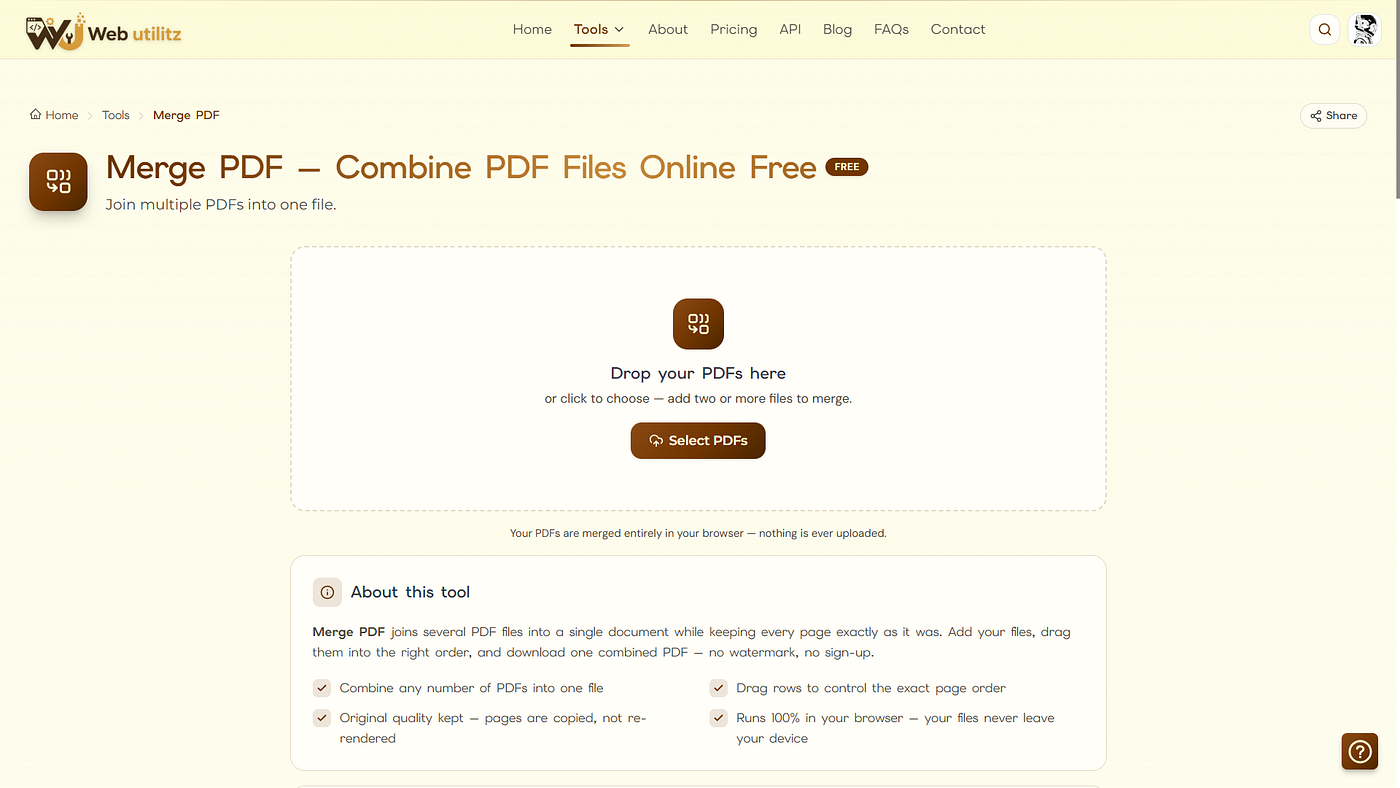
Merging PDFs. The old way: open a dedicated PDF app, wait for it to load, import both files, merge, export, hope the free version didn’t just add a watermark across your combined document. The browser way: open a PDF merge tool in a tab, drop both files in, download the combined result. No installation, no watermark, no waiting for software to update itself first.
Compressing images. Desktop image editors are often built for far more than compression — full editing suites with dozens of features you don’t need for a simple task. Using one just to shrink a file size means learning an interface built for something else entirely. A dedicated browser-based compressor does exactly one thing: takes a large image and makes it smaller, without asking you to learn anything new.
Generating a QR code. This used to mean downloading an app, sometimes riddled with ads, just to generate a small image most people will use once and forget. A browser-based generator does it in seconds, with no app taking up space afterward for a task you might not repeat for months.
Checking typing speed. A surprisingly popular category of app, often bundled with intrusive ads or gamified upsells trying to get you to pay for “advanced stats.” A clean browser-based typing test does the core job — speed and accuracy — without the noise.
Formatting messy JSON. For developers, this is a daily annoyance. Some install dedicated code editors or plugins just for this one function. A browser-based JSON formatter handles it instantly, without needing a full development environment open.
Generating a strong password. People still reuse weak passwords partly because remembering to open a dedicated password app feels like extra work. A browser-based password generator removes that friction, sitting right in a tab you already have open.
Building a sitemap. This one’s more technical, but still common for anyone managing a website. Instead of installing SEO software with a steep learning curve for one small task, a browser-based sitemap generator produces the file directly, without extra setup.
None of these tasks are complicated. That’s exactly the point. They don’t need a dedicated, permanently installed app taking up space and demanding updates. They need a fast, simple tool that shows up when you need it and disappears when you don’t.
What I Actually Gained by Deleting Everything
It wasn’t just storage space, though that mattered too. My laptop genuinely runs faster with fourteen fewer background processes competing for resources.
It was something quieter than that. Fewer notifications interrupting my day. Fewer “update available” prompts breaking my focus mid-task. Fewer moments of confusion trying to remember which app did which specific job.
There’s a strange kind of mental clarity that comes from not maintaining a pile of half-used software. It’s the same feeling as clearing out a drawer full of cables you don’t recognize anymore. You don’t realize the low-grade clutter was bothering you until it’s gone.
The Bigger Shift Happening Quietly
This isn’t really a story about one person deleting some apps on a random Sunday. It reflects something bigger happening across how people use the internet.
For years, the assumption was that serious tools needed to be installed. Real software lived on your hard drive, not in a browser tab. Browser tools were seen as the lightweight, slightly less capable alternative — fine for quick jobs, but not something to rely on.
That assumption is quietly falling apart. Browsers have become powerful enough to handle tasks that used to require dedicated installed software — processing images, formatting code, generating documents — all without leaving a tab.
For students juggling limited laptop storage, freelancers who can’t justify another monthly subscription, and office workers stuck using restricted work computers where installing new software isn’t even allowed, this shift isn’t just convenient. It’s a genuinely better way to work.
Where This Leaves You
You don’t need fourteen apps to merge a PDF, compress a photo, or generate a QR code. You never did. You just didn’t know there was a faster, lighter way to do it — one that didn’t ask for storage space, updates, or a slice of your attention every time you opened your laptop.
The tasks that used to need a dedicated download — merging PDFs, compressing images, formatting JSON, generating passwords, checking a sitemap, testing your typing speed — can now be done directly inside a browser tab, with nothing left behind afterward.
If you’ve got a laptop quietly weighed down by single-purpose apps you installed once and never fully let go of, it might be worth doing what I did. Open your storage settings. Look honestly at what’s actually being used. And consider whether a browser tab could have done the same job all along.
For me, that answer led to Web Utilitz — a free toolkit built around exactly this idea: PDF merging, image compression, QR code generation, typing tests, sitemap creation, JSON formatting, password generation, and hundreds of other small everyday tasks, all handled directly in the browser. No downloads. No signups. No watermarks quietly stamped on your work.
Fourteen apps gone, and nothing lost. Just a lighter laptop, a clearer mind, and a browser tab that turned out to be more than enough all along.
메타데이터
- post_id
- bfcfd8f765be
- slug
- i-deleted-14-productivity-apps-and-my-browser-did-everything-bfcfd8f765be
- url
- https://medium.com/@webutilitz/i-deleted-14-productivity-apps-and-my-browser-did-everything-bfcfd8f765be
- canonical_url
- https://medium.com/@webutilitz/i-deleted-14-productivity-apps-and-my-browser-did-everything-bfcfd8f765be
- author_url
- https://medium.com/@webutilitz
- status
- ok
- fetched_at
- 2026-08-05 09:41:13




