Troubleshooting Google Cloud with Google Cloud Logging and Developer Knowledge MCP Servers
In the world of modern cloud infrastructure, debugging often feels like a weary cycle of:
Troubleshooting Google Cloud with Google Cloud Logging and Developer Knowledge MCP Servers
In the world of modern cloud infrastructure, debugging often feels like a weary cycle of:
Copy Error -> Search Documentation -> Try Command -> Repeat.
What if we could automate that entire loop?
Google Cloud has announced fully-managed MCP Servers for Cloud Logging and Developer Knowledge API in preview. By leveraging these servers, we can connect our AI agents directly to our live infrastructure logs and official developer knowledge bases.
In this post, we’ll build a scenario that detects, analyzes, and recommends fixes for Google Cloud platform (GCP) errors.
Google MCP Servers Series
This tutorial is part of a comprehensive guide to building AI agents on Google Cloud. For the full roadmap, including tutorials on security, logging, and database management, visit the **Google MCP Servers Tutorial Series. If you found this series helpful, please consider taking this [2-minute survey](https://forms.gle/MgWWMEwJQnKJ9huz5)**. Your feedback directly helps me create more tutorials for the developer community.
The Tech Stack: MCP Servers
We will be using two primary Google managed MCP Servers for our AI agent:
Google Cloud Logging MCP Server
This server exposes the list_log_entries tool, allowing the agent to programmatically scan your project for ERROR and CRITICAL entries. It’s the agent's "eyes" into the system health.
Reference: Cloud Logging MCP Documentation
Google Developer Knowledge MCP Server
This server provides search_documents, giving the agent access to the most up-to-date Google Cloud documentation. Unlike general LLM knowledge, this ensures the agent’s recommendations are based on the latest documentation (current official APIs. best practices, CLI syntax and more).
Reference: Developer Knowledge MCP Documentation
Setup: Enabling the MCP Servers and our AI Agent (Gemini CLI)
Before running the scenario, you need to ensure these servers are setup, enabled in your Google Cloud project and active in your environment (Antigravity or Gemini CLI).
Let’s see those steps here.
Step 1: Authentication
Ensure you have an active GCP project and the gcloud CLI installed. Ensure that you have setup the Application Default Credentials (ADC) for the application.
gcloud auth application-default loginStep 2: Developer Knowledge API Key
For the Developer Knowledge MCP, you’ll need an API key. Here are the steps taken from the documentation.
Enable the API
- Open the Developer Knowledge API page in the Google APIs library.
- Check that you have the correct project selected in which you intend to use the API.
- Click Enable. No specific IAM roles are required to enable or use the API.
Create and secure the API key
- In the Google Cloud console for the project in which you enabled the API, go to the Credentials page.
- Click Create credentials, and then select API key from the menu. The API key created dialog displays the string for your newly created key.
- Click Edit API key.
- In the Name field, provide a name for the key.
- Under API restrictions, select Restrict key.
- From the Select APIs list, enable Developer Knowledge API and click OK.
- Click Save.
After the key is created, click Show key to view it. Make a note of it since we will need it in the next section.
Step 3 : Enable MCP Servers in your project
We need to first enable the two MCP Servers (Cloud Logging MCP Server and Developer Knowledge MCP Server) in our project. This is done via the gcloud CLI’s mcp command that is available in beta, so ensure that you have the beta components of gcloud CLI installed. Replace the PROJECT_ID value in the commands below with your Google Cloud Project ID.
gcloud beta services mcp enable logging.googleapis.com \
    --project=PROJECT_ID

gcloud beta services mcp enable developerknowledge.googleapis.com \
    --project=PROJECT_ID
Step 4 : Setting up the MCP Servers in Gemini CLI
Assuming that you have Gemini CLI installed, add the following two blocks for the MCP Servers in the mcpServers section in the HOME/.gemini/settings.json file.
The first block is for the Cloud Logging MCP Server:
"logging-mcp": {
      "httpUrl": "https://logging.googleapis.com/mcp",
      "authProviderType": "google_credentials",
      "oauth": {
        "scopes": [
          "https://www.googleapis.com/auth/logging.read"
        ]
      },
      "timeout": 30000,
      "headers": {
        "x-goog-user-project": "YOUR_GCP_PROJECT_ID"
      }
    }
The next block is for the Developer Knowledge MCP Server:
"developer-knowledge-mcp": {
      "httpUrl": "https://developerknowledge.googleapis.com/mcp",
      "headers": {
        "X-Goog-Api-Key": "YOUR_DEVELOPER_KNOWLEDGE_API_KEY"
      }
    }
Once you have saved the files and restarted Gemini CLI, you can check if the MCP Servers have got initialized and ready with the tools via the mcp list command. A sample output is shown below:
🟢 developer-knowledge-mcp - Ready (3 tools)
  Tools:
  - batch_get_documents
  - get_document
  - search_documents

🟢 logging-mcp - Ready (6 tools)
  Tools:
  - get_bucket
  - get_view
  - list_buckets
  - list_log_entries
  - list_log_names
  - list_views
Great ! We have out Google Cloud Project setup, configured, the MCP Servers are configured in the Google Cloud project and our AI Agent (Gemini CLI). Let’s try out our troubleshooting scenario.
The Scenario: Scaling Troubleshooting from One to Many
Our scenario is going to be that of a “noisy” production project with multiple failures that we will simulate via dummy log messages. Once we have the error logs generated, our goal will be to fire our prompt in Gemini CLI to get not just the errors from Cloud Logging MCP Server but also cross fetch the possible reason/solution for the error from the Developer Knowledge MCP Server. We will summarize and show the result to the user in Gemini CLI.
Step1: Simulate Application Errors in Cloud Logging
We’ve developed a script that simulates a “bad day” in a GCP project. It doesn’t just write one error; it injects a variety of realistic infrastructure hurdles:
- Cloud SQL Auth Failures: Incorrect passwords for service users.
- Secret Manager Access: Missing the
secretmanager.versions.accessrole. - VPC Networking: Firewall rules blocking critical egress traffic.
- GCS Permissions: Standard
403 Forbiddenerrors. - Artifact Registry Quotas: Storage limits preventing new deployments.
This is the simple python script ( simulate_errors.py) shown below:
import argparse
import time
from google.cloud import logging

def simulate_errors(project_id):
    client = logging.Client(project=project_id)
    logger_name = "mcp-scenario-logger"
    logger = client.logger(logger_name)

    print(f"Simulating log entries for project: {project_id}...")

    # 1. Info Log
    logger.log_text("Starting application batch process...", severity="INFO")

    # 2. Warning Log
    logger.log_text("Temporary network slowdown detected, retrying GCS upload...", severity="WARNING")

    # 3. GCS Error (Permission)
    logger.log_text(
        "ERROR: GCS Upload failed for 'gs://my-bucket/data.json'. "
        "Status: 403 Forbidden. Missing 'storage.objects.create' for service account 'app-runner@my-project.iam.gserviceaccount.com'",
        severity="ERROR"
    )

    # 4. Cloud Run Error (Configuration)
    logger.log_text(
        "ERROR: Cloud Run service 'api-gateway' failed to start. "
        "Container failed to listen on port 8080 within the allotted time. "
        "Check documentation for 'Cloud Run container startup requirements'.",
        severity="ERROR"
    )

    # 5. Pub/Sub Error (Topic not found)
    logger.log_text(
        "ERROR: Could not publish to topic 'projects/my-project/topics/order-stream'. "
        "StatusCode: NOT_FOUND. The topic does not exist.",
        severity="ERROR"
    )

    # 6. Cloud SQL Error (Connection)
    logger.log_text(
        "CRITICAL: Application failed to connect to Cloud SQL instance 'my-project:us-central1:db-primary'. "
        "Cause: Password authentication failed for user 'webapp_user'.",
        severity="CRITICAL"
    )

    # 7. Secret Manager Error (Access)
    logger.log_text(
        "ERROR: Access denied to secret 'STRIPE_API_KEY' version 'latest'. "
        "The identity 'app-runner@my-project.iam.gserviceaccount.com' lacks 'secretmanager.versions.access'.",
        severity="ERROR"
    )

    # 8. Networking Error (Egress)
    logger.log_text(
        "WARNING: Egress traffic to 'api.external-service.com' (IP: 1.2.3.4) denied by firewall rule 'deny-all-egress'.",
        severity="ERROR"
    )

    # 9. BigQuery Error (Schema Mismatch)
    logger.log_text(
        "ERROR: BigQuery load job 'job_12345' failed. "
        "Error: Provided schema does not match existing table 'analytics.daily_metrics'. Field 'timestamp' is missing.",
        severity="ERROR"
    )

    # 10. Artifact Registry (Push error)
    logger.log_text(
        "ERROR: Docker push failed for 'us-central1-docker.pkg.dev/my-project/my-repo/my-app:v1.2'. "
        "Reason: Quota exceeded for 'Artifact Registry Storage'.",
        severity="ERROR"
    )

    print(f"Log entries written to {logger_name}.")

if __name__ == "__main__":
    parser = argparse.ArgumentParser()
    parser.add_argument("--project", required=True, help="Google Cloud Project ID")
    args = parser.parse_args()
    simulate_errors(args.project)
The requirements.txt file for this Python script is minimal:
google-cloud-logging==3.11.2We create a Python virtual environment, install the dependencies and run the script as shown below (replace YOUR_PROJECT_ID with your Google Cloud Project Id):
python3 -m venv venv && source venv/bin/activate
pip install -r requirements.txt
python3 simulate_errors.py --project [YOUR_PROJECT_ID]
If all goes well, you should be able to see a message Log entries written to mcp-scenario-logger.
Optionally, you can visit Cloud Logging Explorer in Google Cloud console and check out the log messages.
Step 2: The Troubleshooting Workflow
Instead of running a prompt for every error, we use prompt that does the following:
- Retrieve the last 10 logs.
- Iterate through every unique service failure.
- Research each one independently using the Developer Knowledge MCP.
- Consolidate everything into a unified report.
The prompt is shown below:
I need to troubleshoot recent issues in my Google Cloud project "projects/[YOUR_PROJECT_ID]".

Please perform the following autonomous loop:
1. Retrieval: Use the Logging MCP (list_log_entries) to fetch the 10 most recent entries with severity='ERROR' or 'CRITICAL'.
2. Iteration: For EVERY unique infrastructure-related error found (e.g. GCS, Pub/Sub, Cloud Run, Cloud SQL, Secret Manager):
   a. Extract the key entities (bucket, topic, service account, etc.).
   b. Use the Developer Knowledge MCP (search_documents) to find the official resolution.
3. Resolution: Consolidate ALL findings into a single markdown table: | Service | Error Summary | Root Cause | Recommended Fix (gcloud/config) |. Ensure every error from the logs is addressed.
Result: The Actionable Troubleshooting Report
We provide the above prompt in a Gemini CLI session. Do give the respective permissions to invoke the MCP tools (Logging and Developer Knowledge tools) as appropriate.
The output is a structured Resolution Table that you can copy-paste directly into your terminal or configuration management scripts.
A sample output is shown below:
✦ I have retrieved the 10 most recent high-severity logs for your project (gcp-experiments-349209), analyzed the 8 unique infrastructure-related errors, and consulted Google Cloud documentation for the official resolutions.

  Here is the consolidated troubleshooting report addressing every unique error found in your logs:

  ┌──────────┬─────────────────────────────────────────────────────────────────────┬──────────────────────────────────────────────────────────────────────────────────────────────────────────┬────────────────────────────────────────────────────────────────────────────────────────────────────────────────────────┐
  │ Service  │ Error Summary                                                       │ Root Cause                                                                                               │ Recommended Fix (gcloud/config)                                                                                        │
  ├──────────┼─────────────────────────────────────────────────────────────────────┼──────────────────────────────────────────────────────────────────────────────────────────────────────────┼────────────────────────────────────────────────────────────────────────────────────────────────────────────────────────┤
  │ **Artif… │ Docker push failed for my-app:v1.2 due to exceeded storage quota i… │ The project has exhausted its allocated Artifact Registry Storage quota for the us-central1 region.      │ Request a quota increase for "Artifact Registry Storage" in us-central1 via the Google Cloud Console, or delete unuse… │
  │ BigQuery │ Load job job_12345 failed because the schema does not match the ex… │ The incoming data contains a timestamp field that does not exist in the destination BigQuery table sche… │ Add the missing column to the table schema (bq update analytics.daily_metrics schema.json), or append data using the … │
  │ **Cloud… │ Egress traffic to api.external-service.com (IP: 1.2.3.4) was denie… │ A restrictive egress firewall rule is blocking outbound connections to the external service's IP addres… │ Create a higher-priority egress rule to allow the traffic:<br>`gcloud compute firewall-rules create allow-external-ap… │
  │ **Secre… │ Access denied to secret STRIPE_API_KEY. The identity lacks `secretma… │ The service account app-runner@my-project.iam.gserviceaccount.com does not have the IAM permissions req… │ Grant the Secret Accessor role to the service account:<br>`gcloud secrets add-iam-policy-binding STRIPE_API_KEY
  --membe… │
  │ **Cloud… │ Connection to instance my-project:us-central1:db-primary failed du… │ The application is providing an incorrect password, or the password for webapp_user was never properly … │ Reset the password for the database user and update your application config:<br>`gcloud sql users set-password webapp… │
  │ Pub/Sub  │ Could not publish to topic order-stream because it returned `NOT_F… │ The target Pub/Sub topic projects/my-project/topics/order-stream does not exist.                         │ Create the missing Pub/Sub topic:<br>gcloud pubsub topics create order-stream                                          │
  │ **Cloud… │ Service api-gateway failed to start; container failed to listen on… │ The application inside the container is either not listening on the correct $PORT environment variable … │ Update the application code to bind to 0.0.0.0:$PORT (e.g., `app.listen(process.env.PORT \                             │
  │ **Cloud… │ GCS Upload to gs://my-bucket/data.json failed with 403 Forbidden.   │ The service account app-runner@my-project.iam.gserviceaccount.com is missing the storage.objects.create… │ Grant the Storage Object Creator role on the bucket:<br>`gcloud storage buckets add-iam-policy-binding gs://my-bucket… │
  └──────────┴─────────────────────────────────────────────────────────────────────┴──────────────────────────────────────────────────────────────────────────────────────────────────────────┴────────────────────────────────────────────────────────────────────────────────────────────────────────────────────────┘
Infographic
Here is a neat infographic summarized by NotebookLM for the article.
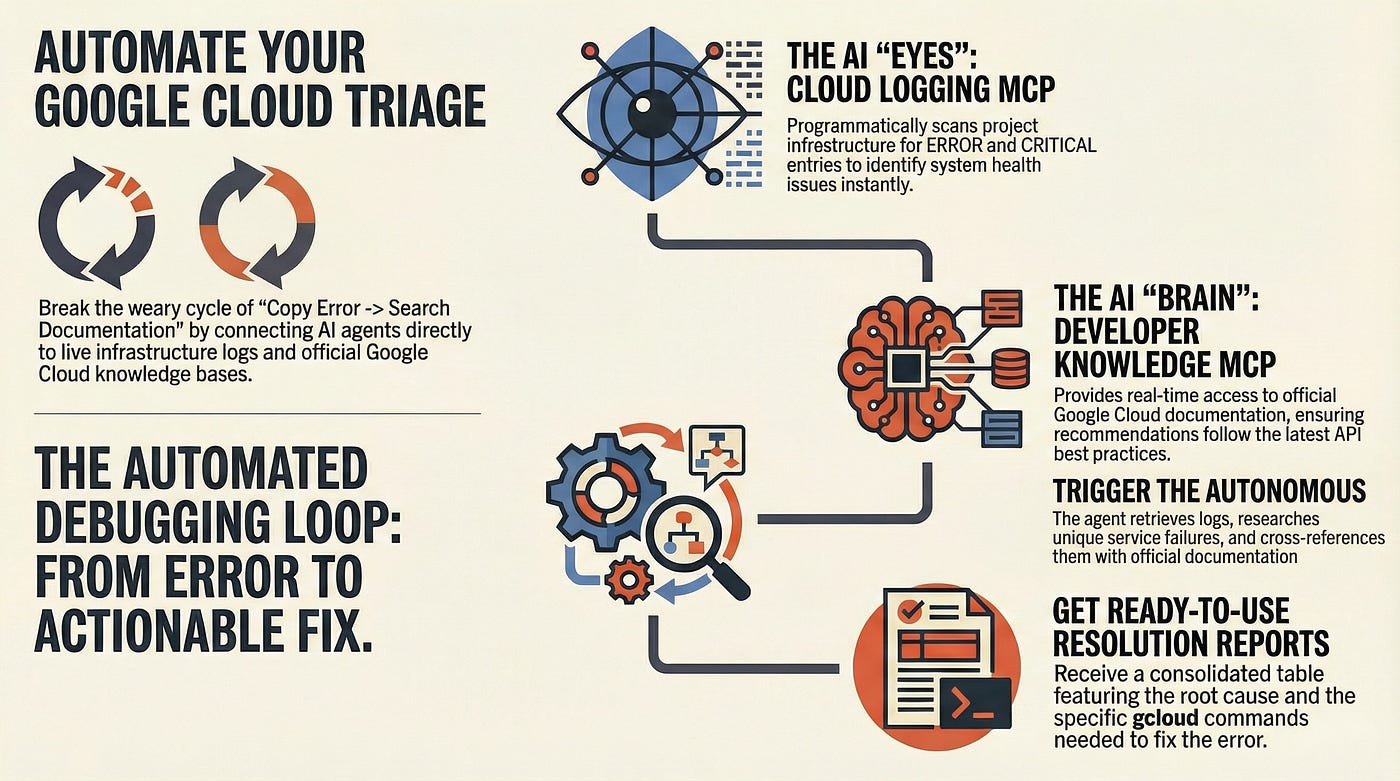
Infographic generated by NotebookLM
Conclusion
By bridging the gap between live infrastructure logs and the official source of truth in documentation, the workflow prsented here provides a glimpse into how we could manage cloud complexity. We move away from the frustration of manual triage and towards a model where AI handles the repetitive ‘discovery’ and ‘research’ phases, thereby saving you a lot of toil. The combination of Logging and Knowledge MCP servers provides a robust, authoritative, and a fast path to resolution.
Google MCP Servers Series
This article is part of my **Google MCP Servers Tutorial Series. Head over to the Google MCP Servers Tutorial Series to see the latest updates, upcoming codelabs, and the full list of available Google managed servers. If you found this series helpful, please consider taking this [2-minute survey](https://forms.gle/MgWWMEwJQnKJ9huz5)**. Your feedback directly helps me create more tutorials for the developer community.
메타데이터
- post_id
- c0be34da985a
- slug
- troubleshooting-google-cloud-with-google-cloud-logging-and-developer-knowledge-mcp-servers-c0be34da985a
- url
- https://medium.com/google-cloud/troubleshooting-google-cloud-with-google-cloud-logging-and-developer-knowledge-mcp-servers-c0be34da985a
- canonical_url
- https://medium.com/google-cloud/troubleshooting-google-cloud-with-google-cloud-logging-and-developer-knowledge-mcp-servers-c0be34da985a
- author_url
- https://medium.com/@iromin
- status
- ok
- fetched_at
- 2026-07-22 16:53:25