How to create ec2 Instance |AWS Developers Series 1
This blog is only for Developers , who also want to understand basic Deployment process .

AWS
How to create ec2 Instance |AWS Developers Series 1
I am a developer and I could not found any resources for learning AWS that contain those topics that a developer needs to know , so I am creating this one time solution , a whole series of AWS servies as a Developers points of view. Here in this episode , I am discussing About EC2,Let me how can I imporve 🎇.
What You’ll Need
- An AWS Free Tier account.
- Basic Developers Debug skills.
Step-by-Step Guide
- Sign Into AWS Console Visit console.aws.amazon.com and log in with your Free Tier account. The Free Tier includes 750 hours/month of t2.micro instances for 12 months.
- Launch an Ubuntu EC2 Instance
- In the AWS Console, search for “EC2” and select it .

after selecting EC2 , click on the instances link on the page,

- Click “Launch Instance” > “Launch Instance.”

This page is the most important page now , we configure what things we need for the instance , so be carefull what you are choosing .
Now name your server whatever you want to give , I am giving it testing-web-server.

I am choosing Ubuntu AMI , you can choose machine of your choice, but for begineer ubuntu is one of the best choice.

Choose AMI , make sure if you are using free tier account then choose only free tier eligible machine only .

You can create a key-value pair for this machine or use any existing one , or leave it as well, it’s your choice, if you want to understand more about it , please comment , I’ll create a proper blog on this topic as well.

Once you click create new key pair , you can name you key value pair and once you click the Create Key Pair , it will download in your own local machine , keep it safe as you can access your instance in your local using this* .pem file .*

when you scroll down you will find the Network settings section , you can click the HTTPS and HTTP boxes as well , as we want our instance to get access from HTTP (Port 80) and HTTPS(Port 443) as we will launch our Projects here.
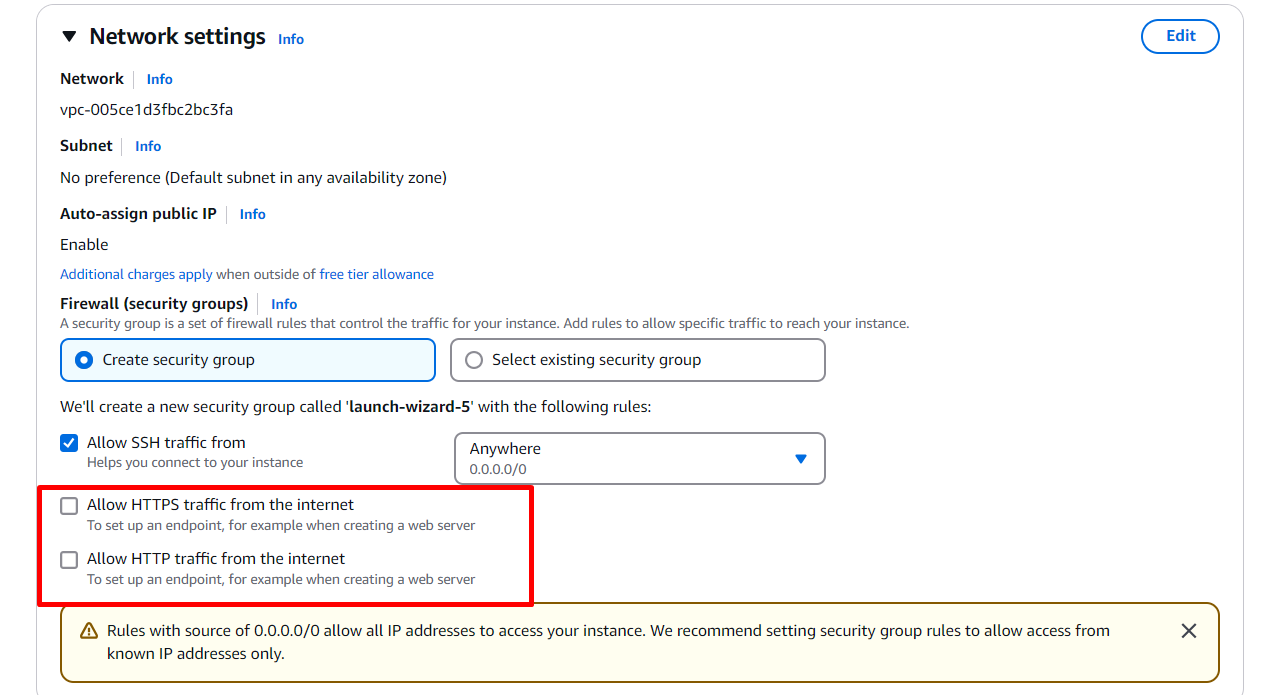
You can increase the root volume as well from the Configure Storage section , but make sure it’s not more than the free tier limit of aws , or for now just keep it 8 .

Do explore this Advance Details section as well , we can do so many things here as well , but we will talk about it in our Advance AWS EC2 blogs, this one is only for the beginner , but do search about this .


Now on you screen , right side you can review all my setting and your settings, it can vary but you can just click on the Launch Instance button .

You can see th Lunch Logs and click on the Instances button for seeing all your instances , or you can again search of EC2 , select it and then select Instances , for seeing all the instances.

Hurrah 🥳 , you just made your first EC2 Instance, now you can put AWS EC2 in your resume 😁, click on the instance Id or may select the box left side then click on the Launch Instance button .

In this page , you can see all the configuration for your EC2, Must explore this page, it have all the settings and everything we need to know about our instance.
for connecting with the EC2 , click on the connect button on the top left .

Click on the connect on the right bottom button .

🎉🎉 finally you got the Ubuntu terminal , type whoami command and you did it , congrts.

Tips to Stay in Free Tier
- Stop Instances: Stop your instance when not in use to conserve Free Tier hours (stop via EC2 Dashboard).
- Delete Unused AMIs: Deregister AMIs and delete associated snapshots to avoid storage costs (go to “AMIs,” select AMI, click “Actions” > “Deregister AMI,” then delete the snapshot in “Snapshots”).
- Monitor Costs: Check the AWS Billing Dashboard to ensure no unexpected charges.
What’s Next?
I want to create a whole series on AWS and my learning as a Developer, I won’t be getting into too much of it as we have so many servies there, but as a Developer , I’ll be touching all the important servies of AWS.
Please do comment if you have any doubt , or connect me on Linkedin , I will be super happy to help you .
메타데이터
- post_id
- c0c3fe5894c2
- slug
- how-to-create-ec2-instance-aws-developers-series-1-c0c3fe5894c2
- url
- https://medium.com/@shubhamchat224122/how-to-create-ec2-instance-aws-developers-series-1-c0c3fe5894c2
- canonical_url
- https://medium.com/@shubhamchat224122/how-to-create-ec2-instance-aws-developers-series-1-c0c3fe5894c2
- author_url
- https://medium.com/@shubhamchat224122
- status
- ok
- fetched_at
- 2026-07-28 18:41:33


