How to Merge PDF Files Online Free — The Complete 2025 Guide
Five files. One deadline. No paid software. Here’s the fastest way to get it done.
How to Merge PDF Files Online Free — The Complete 2025 Guide
Five files. One deadline. No paid software. Here’s the fastest way to get it done.
Picture this: you’ve got a contract, an invoice, a cover letter, an ID scan, and a permission form — all sitting as separate PDFs in your downloads folder. Your client needs them as one clean document in 30 minutes.
Most people panic. Open Google. Try three different tools. Waste 20 minutes figuring out which one actually works for free.
This guide skips all of that. I’ll show you exactly which tools to use, how to merge PDFs in five steps, and what to watch out for — whether you’re on a Windows PC, a Mac, an Android phone, or an iPhone.
What Does “Merging PDFs” Actually Mean?
Merging PDFs combines two or more separate documents into a single file — preserving all original pages, images, text, and formatting from every source.
People do it for all kinds of reasons: bundling invoices for accounting, sending multiple ID scans as one attachment, assembling a portfolio, combining chapters of a report. The good news? You don’t need Adobe Acrobat Pro or any paid software. Free online tools handle it in seconds.
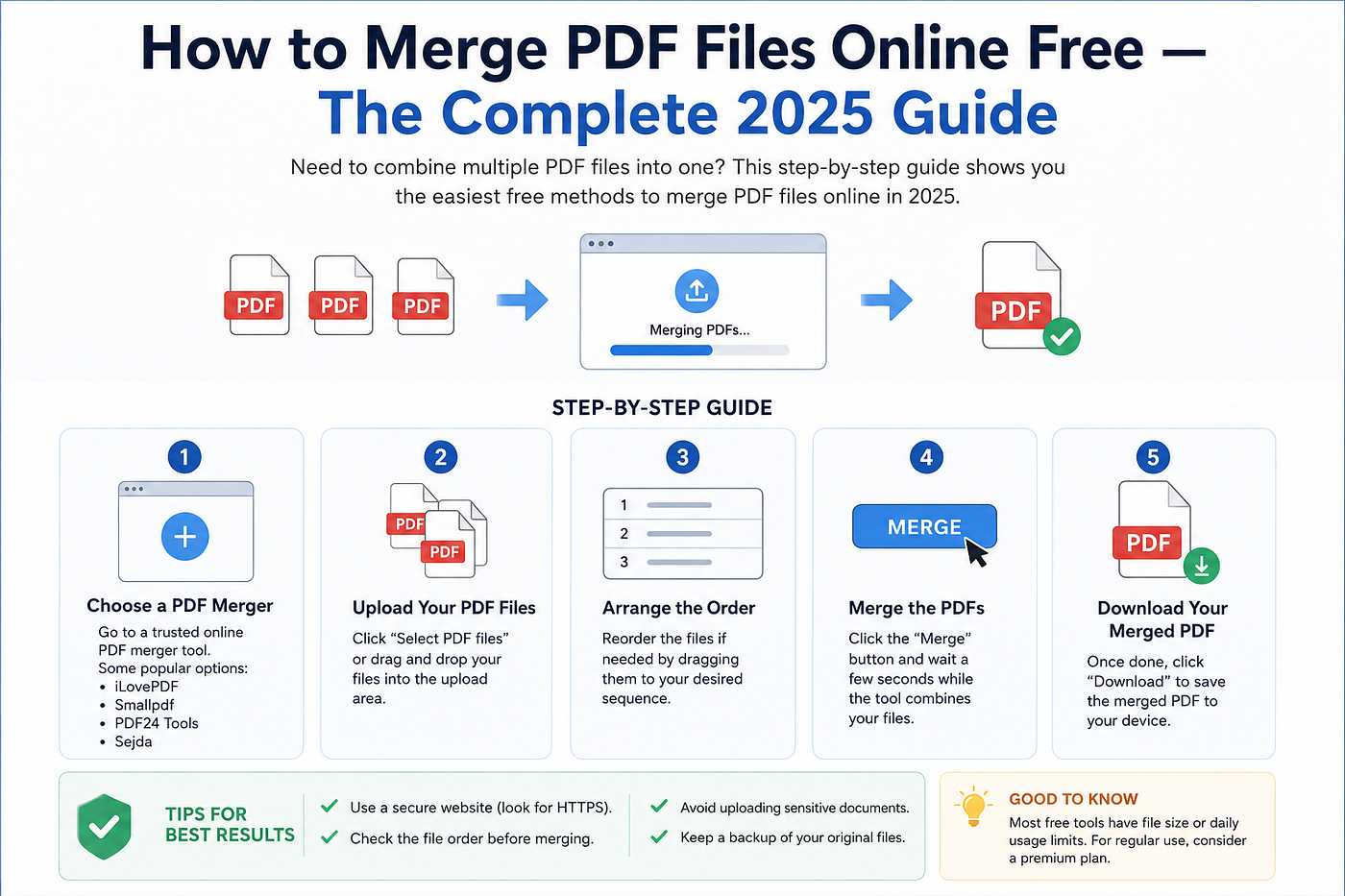
The 5 Best Free Tools to Merge PDFs Online
1. iLovePDF
The cleanest drag-and-drop experience for beginners. Upload multiple files, reorder them by dragging, download instantly. No account needed for basic merging. Works on Android and iPhone browsers too.
2. PDF24 Tools
The privacy-first option. PDF24 processes files locally in your browser rather than on remote servers — making it the safest choice for sensitive documents. Unlimited free use, no registration, and fast even for large multi-file merges.
3. Smallpdf
Hugely popular, clean interface, HTTPS encryption, auto-deletes your files after processing. The free plan has a daily limit, but it covers casual needs comfortably.
4. Sejda PDF
Clean, no-ads experience. Free tier lets you merge up to 200 pages or files under 50 MB. Auto-deletes uploaded files after two hours. You can also edit and merge in the same session.
5. Adobe Acrobat Online
Adobe created the PDF format — so output quality is excellent. The free version gives you limited merges per month, but a free Adobe account unlocks a bit more. Best if you already use Adobe products.
How to Merge PDFs Online Free — Step by Step
These steps work with any tool above. I’ll use iLovePDF as the example — it’s the most beginner-friendly.
Step 1: Open the tool Go to ilovepdf.com and click Merge PDF from the main menu. No account needed.
Step 2: Upload your files Click Select PDF Files or drag your files directly into the upload box. You can pull from your device, Google Drive, or Dropbox.
Step 3: Reorder the files Drag the thumbnail previews into the order you want. The file at the top becomes the first section of your merged PDF. Double-check this — the order you set now is the order your recipient sees.
Step 4: Click Merge PDF Hit the button. Most merges complete in 5–15 seconds.
Step 5: Download Click Download, save the file, and rename it immediately so you don’t confuse it with the originals.
That’s it. Under two minutes. Zero cost.
Doing This on Mobile? Here’s How
Most Indian creators work primarily from smartphones — and every tool above works in mobile browsers without any app download.
On Android: Open Chrome → go to ilovepdf.com → tap Merge PDF → select files from your phone storage or Google Drive → reorder → merge → download.
On iPhone: Open Safari → visit sejda.com or pdf24.org → tap Merge PDF → upload from Files app or iCloud → set the order → merge → download.
Both platforms also let you share the download link directly via WhatsApp or Gmail — handy when you need to send the file immediately.
6 Pro Tips That Save You from Common Mistakes
Rename your files before uploading. “scan001.pdf” is useless in a thumbnail preview. Rename to “invoice-june.pdf” before you start.
Compress large files first. If individual PDFs are above 10 MB, run them through a PDF compressor on the same platform before merging. Keeps the final file manageable.
Use a private browsing window for sensitive docs. Browser history won’t log the upload. Pair this with PDF24’s local processing for maximum privacy.
Verify page count after merging. Open the downloaded file immediately and scroll through to confirm all pages are present and in the right order.
Don’t upload password-protected PDFs. Most free tools can’t merge locked files. Remove the password with a PDF unlock tool first, then merge.
Don’t close the browser tab mid-process. Even on fast connections, this corrupts the output. Wait for the download button to appear.
Is It Safe to Upload Your PDFs Online?
Smart question. When you upload to any online tool, your file travels to a third-party server. Here’s what reputable tools do:
- Use HTTPS encryption during transfer
- Auto-delete files within 1–24 hours
- Don’t store or sell your document content
- Comply with GDPR and similar regulations
What to avoid: uploading Aadhaar cards, PAN cards, or government IDs to unknown tools. For highly sensitive documents — legal agreements, medical records, financial statements — use PDF24’s local processing mode, or invest in a paid desktop tool.
For everyday documents (reports, portfolios, invoices), free online tools are perfectly safe.
Quick Comparison Table
Tool Free Limit Privacy Mobile iLovePDF Unlimited basic Server-side, auto-delete ✓ PDF24 Unlimited Local processing ✓ Smallpdf 2/day Server-side, auto-delete ✓ Sejda 3/hour Auto-delete 2h ✓ Adobe Online Limited/month Adobe servers ✓
When to Upgrade to a Paid Tool
Free tools cover 90% of everyday needs. Consider upgrading if:
- You merge PDFs more than 10 times a day for business
- You regularly work with files above 100 MB
- You need to merge password-protected PDFs programmatically
- You handle confidential client data that can’t leave your local machine
In those cases, Adobe Acrobat Pro, Nitro PDF, or UPDF give you more control and better privacy guarantees.
Bottom Line
For most people, iLovePDF wins for ease of use and PDF24 wins for privacy and local processing. Both are free, work on every device, and require no account.
Bookmark your preferred tool, follow the five steps above, and you’ll never waste time hunting for a PDF merger again.
Want a full step-by-step guide with tool comparisons, mobile instructions, and an FAQ? Read the complete version on Digital Creator Hub → **How to Merge PDF Files Online Free — The Complete 2025 Guide**
메타데이터
- post_id
- c1009f96d7bf
- slug
- how-to-merge-pdf-files-online-free-the-complete-2025-guide-c1009f96d7bf
- url
- https://medium.com/@vickypalova/how-to-merge-pdf-files-online-free-the-complete-2025-guide-c1009f96d7bf
- canonical_url
- https://medium.com/@vickypalova/how-to-merge-pdf-files-online-free-the-complete-2025-guide-c1009f96d7bf
- author_url
- https://medium.com/@vickypalova
- status
- ok
- fetched_at
- 2026-06-26 03:39:16