You Don’t Need to Be a Python Expert to Build AI Models on GCP
BigQuery ML, AutoML, and Vertex AI let you go from raw data to deployed model — with SQL, clicks, and just enough code to matter.
You Don’t Need to Be a Python Expert to Build AI Models on GCP
BigQuery ML, AutoML, and Vertex AI let you go from raw data to deployed model — with SQL, clicks, and just enough code to matter.
Let me be honest with you about something the ML community doesn’t say out loud enough:
Most real-world AI projects don’t fail because of bad algorithms. They fail because the data wasn’t ready, the infrastructure wasn’t set up, or the team didn’t have enough Python expertise to glue everything together. The model itself is often the easiest part.
I’ve worked with data analysts, SQL developers, and business intelligence engineers who had genuinely valuable domain knowledge — they understood the data, knew what patterns mattered, and could articulate exactly what a model should predict. But the moment the conversation turned to TensorFlow or PyTorch or writing training loops, the shutters came down. ‘That’s for the ML team.’
Here’s what I wish someone had told them earlier: GCP has spent years building tools that let you build, train, and deploy real AI models with SQL, point-and-click interfaces, and minimal Python. Not toy models. Not demos. Production-grade models that run at scale.
This post is for anyone who knows their data well but doesn’t feel confident in Python — and wants to stop waiting for the ML team to have bandwidth.
First: know which GCP tool fits your skill level
GCP has three main paths to building AI models, roughly ordered by how much code they require:
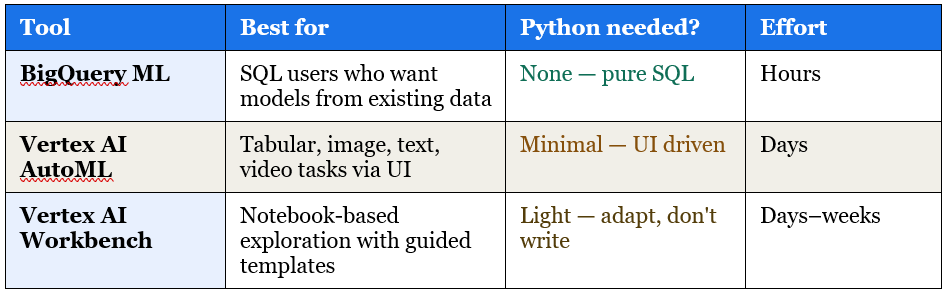
Each of these paths produces a real, deployable model. The path you take depends on where your data lives and how comfortable you are with code. Let’s walk through each one.
Path 1: BigQuery ML — build models with the SQL you already know
If your data is already in BigQuery — and if you work in data, there’s a good chance it is — BigQuery ML lets you train and deploy models without ever leaving SQL. No Python environment, no library installations, no Jupyter notebooks.
Here is a complete, working example of training a churn prediction model in BigQuery ML:
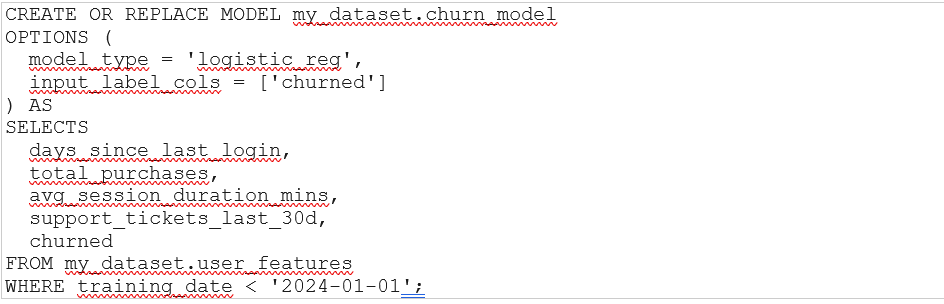
That is the entire training job. BigQuery handles the infrastructure, the hyperparameter tuning, the cross-validation — all of it. When it’s done, you evaluate it:

And you score new users for churn risk:

That’s it. Three SQL statements: train, evaluate, predict. If you can write a SELECT, you can build a model.
What types of models can BigQuery ML build?
More than most people realise:
• Linear and logistic regression — predict a number or a yes/no outcome
• K-means clustering — segment customers or products without labelled data
• Time series forecasting (ARIMA+) — predict future values from historical trends
• XGBoost and random forests — powerful tree-based models for tabular data
• Deep neural networks — for more complex patterns, still in SQL
• Importing TensorFlow and PyTorch models — so even custom models can be served via BigQuery ML
If your data is in BigQuery and your use case is tabular prediction, forecasting, or segmentation — BigQuery ML is almost always where I’d start. It’s not a toy. Companies run production churn models, demand forecasting, and recommendation systems on it.
Path 2: Vertex AI AutoML — point, click, train, deploy
AutoML is GCP’s fully managed model training service. You upload your data, tell it what you want to predict, click Train — and Google’s infrastructure figures out the best model architecture, feature preprocessing, and hyperparameters automatically.
It supports four data types out of the box:
• Tabular — classification, regression, and forecasting on structured data (CSV or BigQuery)
• Image — classify images, detect objects, segment regions
• Text — classify documents, extract entities, answer questions
• Video — classify video clips, detect actions, track objects
A real example: building a document classifier in an afternoon
Say you have thousands of support tickets that need to be routed to the right team — billing, technical, general enquiries. Doing this manually is slow and inconsistent.
With AutoML Text Classification:
• Export a sample of tickets with their correct category labels to a CSV — even 200–300 examples per category is enough to start.
• Upload to Vertex AI Datasets, map the text column and label column.
• Click Train. Choose AutoML. Set a compute budget (start with 1–8 node hours).
• Wait. Go have lunch. The model trains itself.
• Evaluate the results in the console — confusion matrix, precision, recall, all visualised.
• Deploy to an endpoint with one click. Call it via a REST API from any system.
The whole process — from raw CSV to a deployed API endpoint — can happen in a single afternoon. The model isn’t always perfect on the first try, but you can see exactly where it struggles and add more training examples for those cases.
One thing I tell teams new to AutoML: don’t overthink the data volume. 50 examples per class is enough to get a meaningful first model and understand where it fails. Label more strategically from there, rather than trying to label everything upfront.
AutoML for tabular data: when BigQuery ML isn’t enough
AutoML Tabular goes further than BigQuery ML when you need neural architecture search, ensemble models, or built-in feature importance explanations with Shapley values. The interface is still entirely point-and-click — upload your BigQuery table or CSV, choose your target column, set a budget, train.
The explanations feature is genuinely useful even if you never plan to go deeper into ML. For every prediction, Vertex AI can tell you which features drove it — which helps you trust the model, debug it, and explain it to stakeholders who will inevitably ask why the model said what it said.
Path 3: Vertex AI Workbench — notebooks without the setup pain
If you want to go slightly deeper — maybe adapt an existing model, run some exploratory analysis, or understand what’s happening inside the black box — Vertex AI Workbench gives you a managed Jupyter notebook environment on GCP.
The key word is managed. There’s no environment setup, no package conflicts, no ‘it works on my machine’. You open a notebook in the browser, and it’s already connected to BigQuery, GCS, and Vertex AI. The most painful parts of data science setup are just… not there.
Using pre-built notebooks as starting points
Google publishes a library of sample notebooks covering common use cases — churn prediction, demand forecasting, image classification, text classification, recommendation systems. You don’t have to write these from scratch.
The approach that works well for people who aren’t confident Python writers:
• Find a sample notebook that matches your use case in the Vertex AI sample gallery.
• Read through it once. You don’t need to understand every line — focus on the parts that load data and define what’s being predicted.
• Replace the sample data with your own BigQuery table or GCS path.
• Run it cell by cell. Most of the time, the cells before and after the data-loading section work without any changes.
• Tweak the target column name and feature list. That’s usually all it takes.
This ‘adapt, don’t write’ approach gets you further than you might expect. The Python skills you need to adapt an existing notebook are significantly lower than the skills needed to write one from scratch — and you learn by reading real working code rather than staring at a blank cell.
A secret about Jupyter notebooks that nobody says loudly enough: most data scientists working in them are also mostly adapting existing code. The ability to write a training loop from scratch is useful but rarely what separates a productive ML practitioner from an unproductive one. Understanding what the code is doing — and being able to change the inputs — is what matters most day to day.
How to get your data ready — without a data engineering degree
The hardest part of building AI models is rarely the model itself. It’s getting the data into the right shape. Here’s the minimum viable data preparation path on GCP for someone without deep engineering skills.
Step 1: get your data into BigQuery
If it’s in a spreadsheet, upload it directly to BigQuery via the console — drag and drop a CSV and BigQuery auto-detects the schema. If it’s in a database, use Datastream (no code, configuration-driven) to replicate it into BigQuery continuously. If it’s files in GCS, BigQuery can query them directly as external tables without even importing them.
Step 2: create features with SQL
Write a BigQuery view or table that selects the columns your model needs and computes simple derived features. Rolling averages, ratios, date differences, category flags — all of this is straightforward SQL. You do not need Dataflow or Spark for this in most cases.
Step 3: create a training dataset
In BigQuery ML, this is just a SELECT statement. In AutoML, you export the query result to a CSV or point AutoML directly at the BigQuery table. No feature engineering pipelines, no Pandas DataFrames, no normalisation code — AutoML handles all of that automatically.
The 80% rule: For most tabular prediction tasks, SQL feature engineering + BigQuery ML or AutoML Tabular will get you 80% of the way to what a hand-tuned custom model would achieve. And it’ll take you 10% of the time. Start here. Go custom only when you can clearly articulate why the simpler path won’t work.
Deploying your model: it’s one click (or one SQL statement)
This is where GCP genuinely shines for non-specialists. Deployment — the part that usually requires DevOps knowledge, container images, and Kubernetes — is almost invisible here.
With BigQuery ML, your model is already deployed the moment training finishes. You call it with a SQL statement from anywhere that can query BigQuery. No endpoint to configure, no container to build.
With AutoML, you click Deploy to Endpoint, choose a machine type, and get a REST API endpoint URL within minutes. You can call it from a Python script, a Google App Script, a Cloud Function, or any tool that can make an HTTP request — including tools like Zapier or Postman.
The REST call looks like this for an AutoML endpoint:

You get back a JSON response with the prediction. From here you can feed it into a dashboard, trigger a workflow, send an alert — whatever makes sense for your use case.
The point: domain knowledge is the hard part
Here’s what I genuinely believe after working across data and ML teams for years:
The scarce resource in most AI projects isn’t Python expertise. It’s the deep, practical knowledge of what the data actually means — what to predict, what features make sense, what the model getting it wrong would cost in the real world. That knowledge lives with the people closest to the data and the business. Very often, those are not the ML engineers.
GCP’s no-code and low-code tools exist to bridge exactly that gap. They’re not dumbed-down versions of real ML. They’re production-grade infrastructure with the accidental complexity stripped away — so the people who understand the problem can actually solve it, without waiting for a specialist to have bandwidth.
Start with BigQuery ML if your data is already in BigQuery. Start with AutoML if you have labelled examples and a clear prediction task. Use Workbench when you want to adapt an existing notebook for your data. In all three cases: the Python you need is far less than you think, and the results are more capable than most people expect.
If you’ve built something with these tools — or if you’re hitting a wall with one of them — share it in the comments. The community learns fastest from real stories.
메타데이터
- post_id
- c127e6e887c3
- slug
- you-dont-need-to-be-a-python-expert-to-build-ai-models-on-gcp-c127e6e887c3
- url
- https://medium.com/@subasriads/you-dont-need-to-be-a-python-expert-to-build-ai-models-on-gcp-c127e6e887c3
- canonical_url
- https://medium.com/@subasriads/you-dont-need-to-be-a-python-expert-to-build-ai-models-on-gcp-c127e6e887c3
- author_url
- https://medium.com/@subasriads
- status
- ok
- fetched_at
- 2026-07-11 03:00:40